Definições de backlogs
In OpenProject, you can configure your Backlogs settings specific to each project. Navigate to Project settings -> Backlogs.
Types and statuses
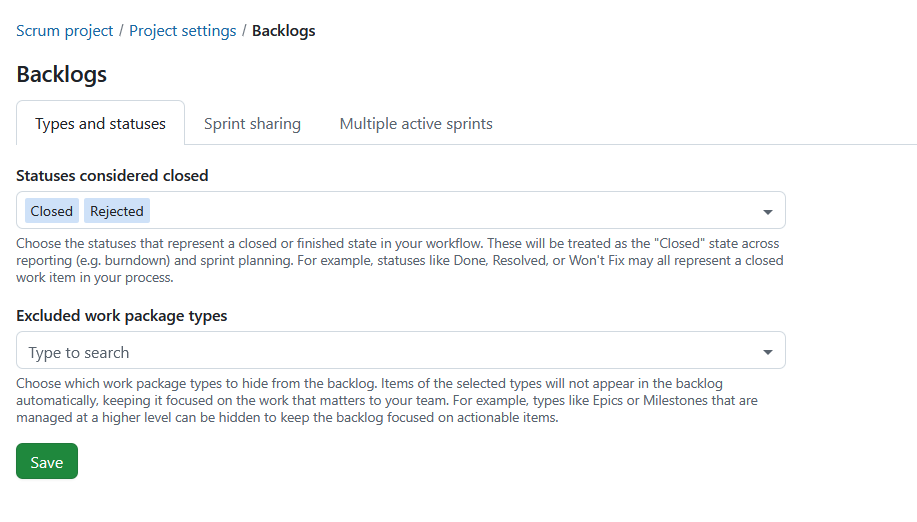
Under the tab Types and statuses you can configure which work package statuses are considered closed and which work package types are excluded from backlog views.
Statuses considered closed
You can choose the statuses that represent a closed or finished state in your workflow.
These statuses are treated as closed throughout sprint planning and reporting. They are used when calculating burndown charts and determine which work packages remain in a sprint when it is completed.
Examples include:
- Done
- Resolved
- Rejected
- Won’t Fix
Statuses using the global Closed meta status are always treated as closed and cannot be removed.
Excluded work package types
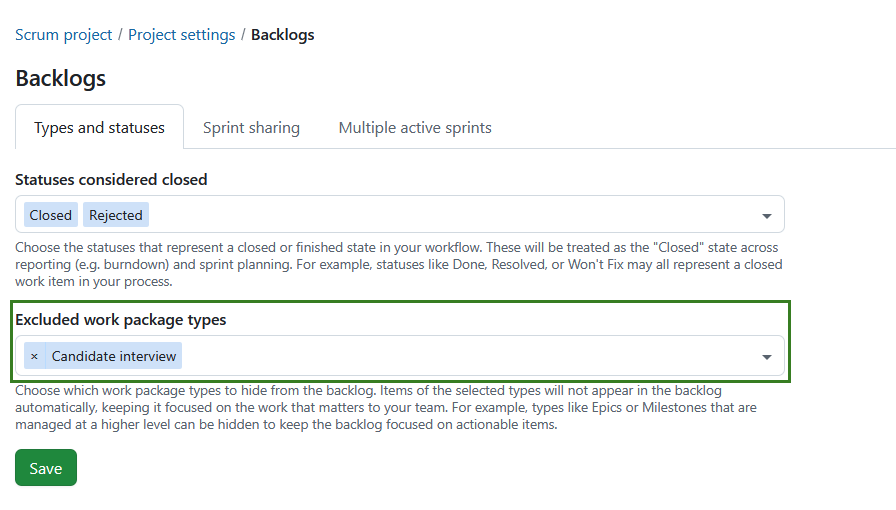
You can choose which work package types should be hidden from the Inbox backlog and backlog buckets.
Excluded work package types:
- do not appear in the Inbox backlog.
- do not appear in backlog buckets.
- continue to appear in sprints.
- continue to appear on sprint boards.
This can be useful for work package types that are managed at a higher level, such as Epics or Milestones.
Select one or more work package types from the list of active work package types available in the project.
Nota
The selection is project-specific and is copied when a project is copied.
Prima o botão Guardar para aplicar as suas alterações.
Sharing sprints

Sprint sharing is a project-level setting that allows you to choose whether sprints should be shared across projects.
Nota
This is not a sprint-level setting as is currently the case with versions.
A partilha de sprints permite que equipas que trabalham em vários projetos planeiem e acompanhem o trabalho de forma coordenada. Em vez de gerir sprints separados e desconectados em cada projeto, pode definir um sprint uma vez e reutilizá-lo em todos os projetos. Isto é especialmente útil para configurações Scrum entre equipas, ambientes Agile escalados, ou quando várias equipas contribuem para o mesmo incremento.
Dependendo da opção selecionada, um projeto pode fornecer sprints a outros, utilizar sprints partilhados ou continuar independente:
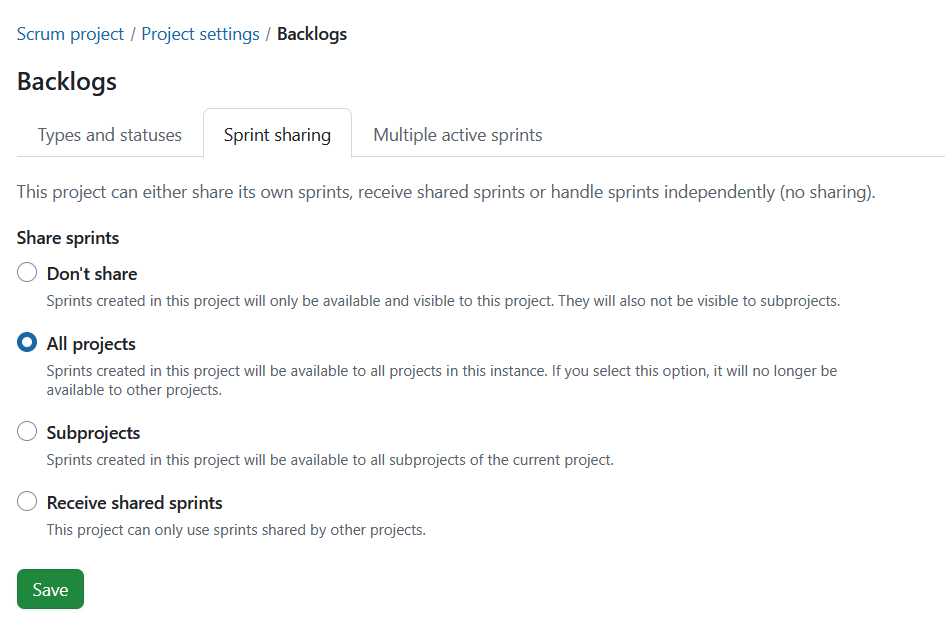
Don’t share: This is the default setting for projects. Sprints can be created in this project and are available and visible only within this project. None of the created sprints are shared with any other project or sub-projects.
Share sprints: Sprints can be created in this project and shared with either all projects or subprojects:
-
All projects: Selecting this option means the sprints created are available to all projects within the instance. Significa também que nenhum outro projeto pode partilhar sprints com todos os projetos.
-
Subprojects: Sprints created in this project will be available to all subprojects of the current project.
Receive shared sprints: No sprints can be created within this project. Em vez disso, apenas os sprints partilhados por outro projeto podem ser utilizados.
Depending on your permissions, some shared sprint fields may be read-only. Project-specific fields, such as the sprint goal, can still be edited independently.
O que é partilhado
Quando os sprints são partilhados, o próprio sprint é partilhado entre projetos. Isto inclui:
- Nome do sprint
- Datas de início e fim
- Estado do sprint (por exemplo, planeamento, ativo, concluído)
Isto garante que todos os projetos participantes trabalham com a mesma definição de sprint e a mesma linha temporal.
O que não é partilhado
The following remain project-specific:
- Os pacotes de trabalho permanecem nos seus respetivos projetos
- Os backlogs e a sua estrutura continuam a ser específicos do projeto
- Sprint goals remain project-specific
- As permissões e a visibilidade continuam a ser geridas por projeto
Mesmo quando utiliza sprints partilhados, cada projeto mantém os seus próprios elementos de trabalho e configuração.
Leia mais em como trabalhar com Backlogs no OpenProject.
Multiple active sprints
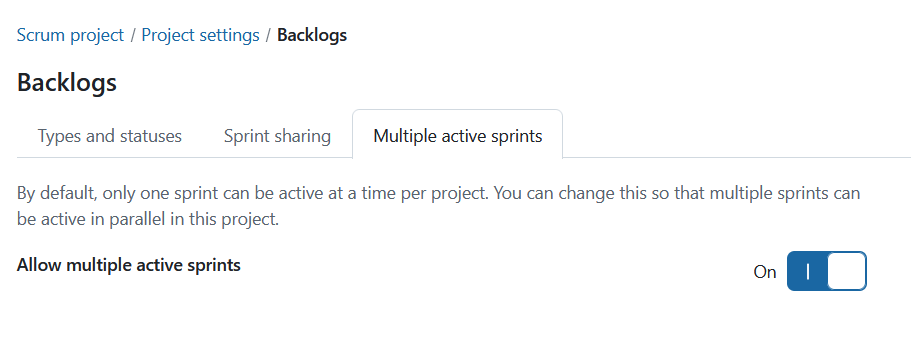
Multiple active sprints is a project-level setting that allows you to enable more than one active sprint within a project. To enable this setting, toggle the Allow multiple active sprints switch to On.
Nota
Having multiple active sprints is only possible when the project is neither sharing nor receiving sprints. To activate this setting, Don’t share option in the sprint sharing tab must be selected.