Criar e editar uma página wiki
In OpenProject, you can create and edit wiki pages together with your team to document important project information. This page explains how to create, edit, organize, and manage wiki pages.
| Funcionalidade | Documentação |
|---|---|
| Criar uma nova página wiki | Como criar uma página wiki. |
| Editar uma página wiki | Como fazer alterações a uma página wiki. |
| Rename a wiki page | How to rename a wiki page. |
| Create a wiki page structure | How to organize wiki pages in a hierarchy. |
| Observar uma página wiki | Como observar uma página wiki. |
| Bloquear uma página wiki | How to lock and unlock a wiki page. |
| Eliminar uma página wiki | Como eliminar uma página wiki. |
| Mostrar histórico da página wiki | How to view changes to a wiki page. |
| Exportar uma página wiki | Como exportar uma página wiki. |
Cria uma página wiki
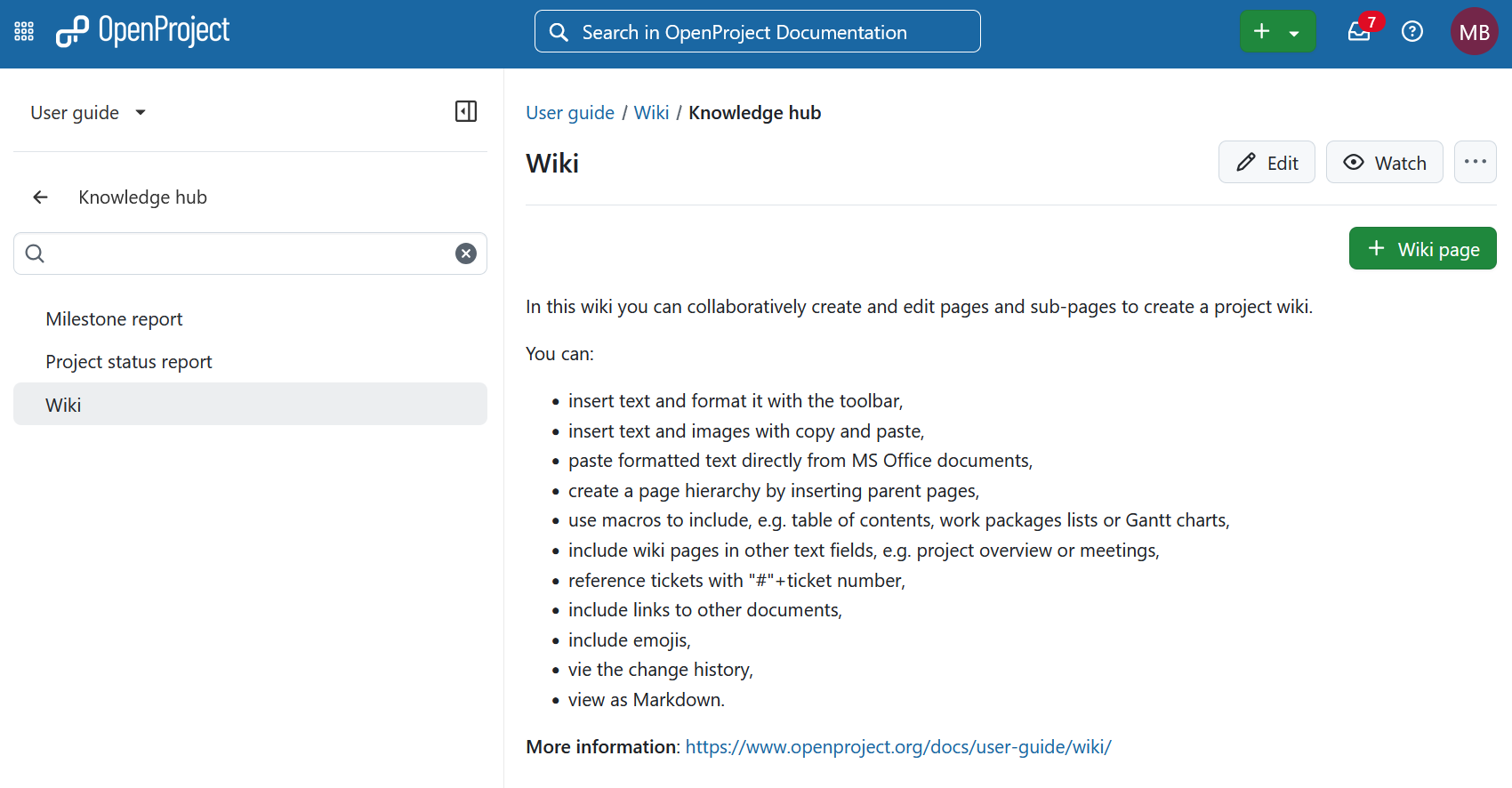
To create a new wiki page, open the Wiki module in your project and click + Wiki page in the toolbar.
Dica
If you do not see the Wiki module in your project menu, first enable the project wiki.
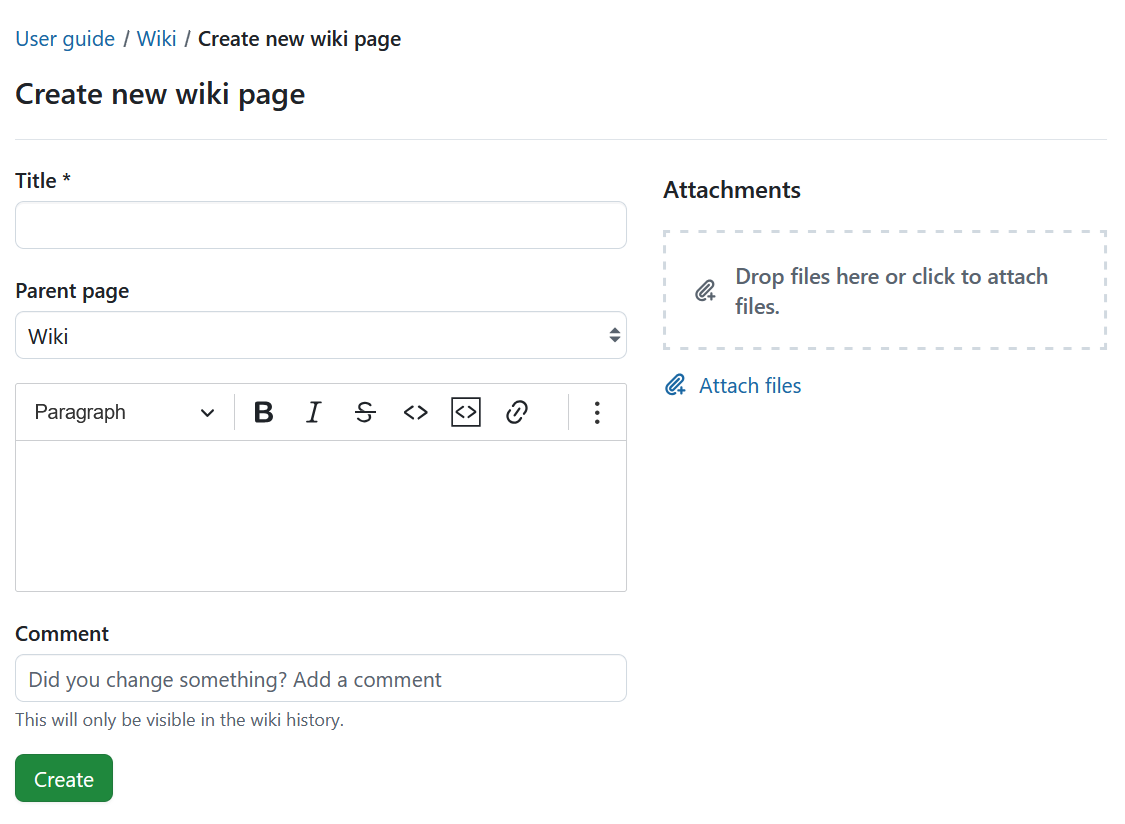
The editor opens, allowing you to enter the page title and content.
- Enter a page title.
- Optionally, select a Parent page.
- Add the page content. You can format the content using the editor toolbar. For more information, see the WYSIWYG editor.
- Add images by dragging and dropping them into the editor, pasting them from your clipboard, or using the image button in the toolbar.
- Optionally, enter a comment describing your changes.
- Click Create.
Editar uma página wiki
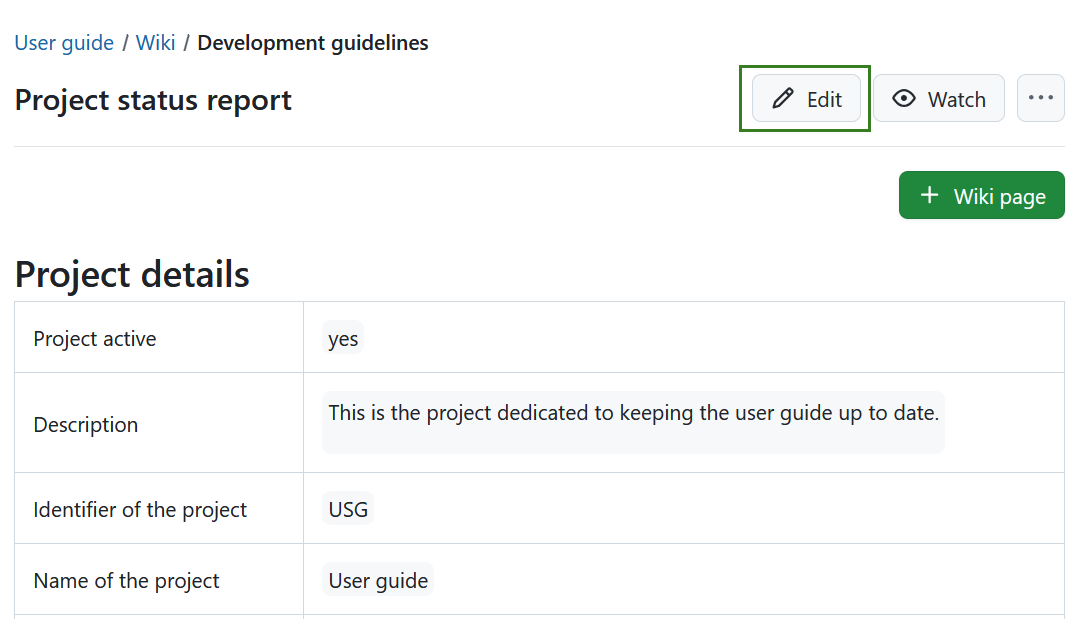
To edit a wiki page, open the page and click Edit.
Make your changes in the editor and click Save.
Dica
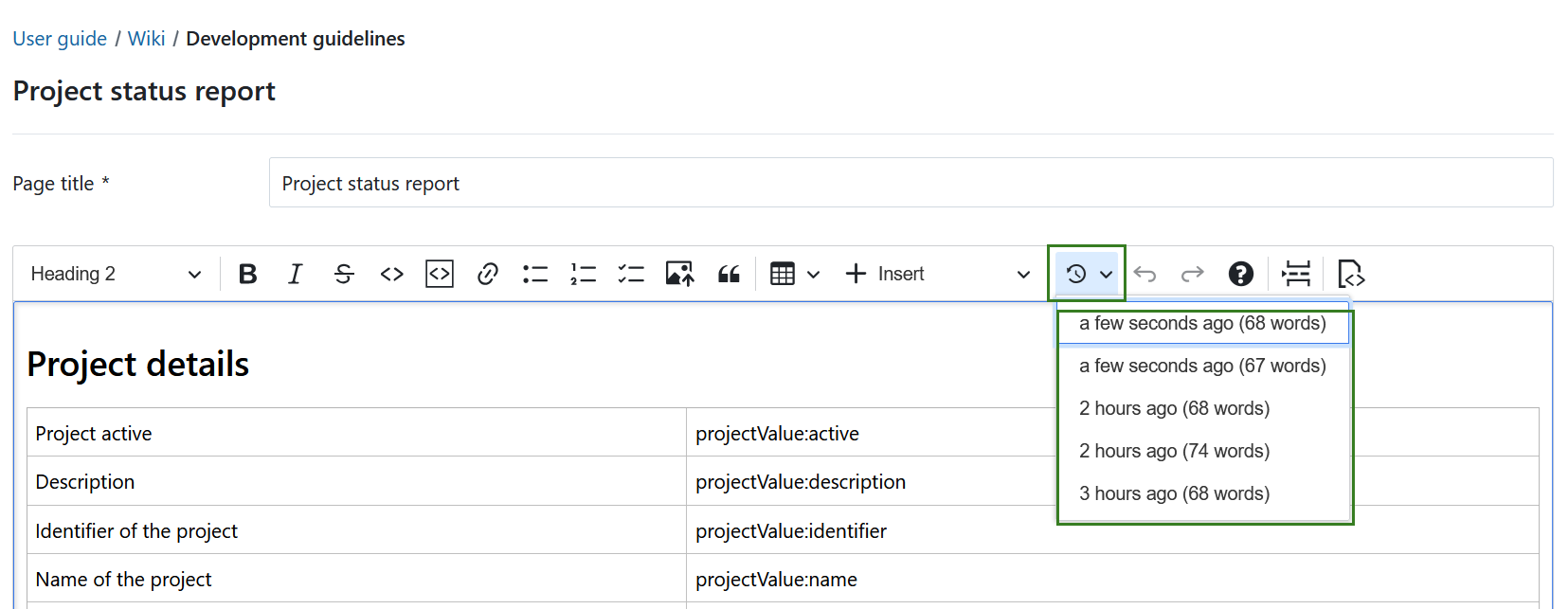
Changes are automatically saved locally while you edit. If you accidentally leave the page or cannot save due to a technical issue, you can restore the latest local version from the editor toolbar.
Change the page hierarchy
You can organize your wiki by creating a hierarchy of pages and sub-pages.
When creating a new wiki page, optionally select a Parent page. If you create a new page from an existing wiki page using + Wiki page, the current page is preselected as the parent.
To change the hierarchy later, edit the wiki page and select a different Parent page. To move a page to the top level, select – No parent page –.
Child pages are displayed beneath their parent page in the wiki hierarchy. Pages on the same level are ordered alphabetically.
Observar uma página wiki
To receive notifications when a wiki page is updated, open the page and click Watch. Click Unwatch at any time to stop receiving notifications.
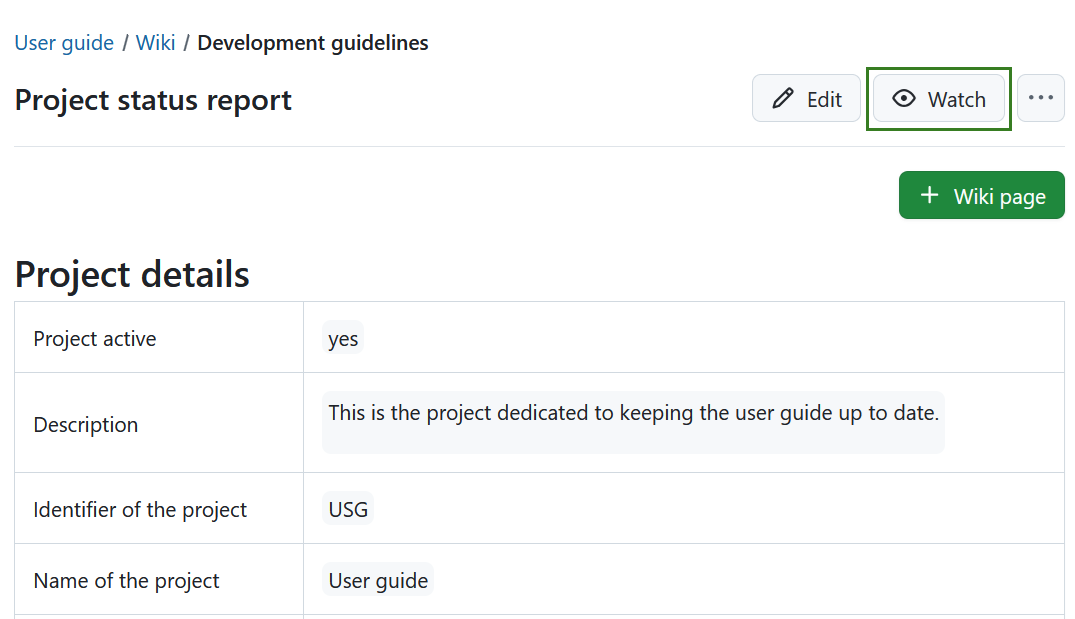
You will receive email notifications according to your notification settings whenever the page is updated.
Bloquear uma página wiki
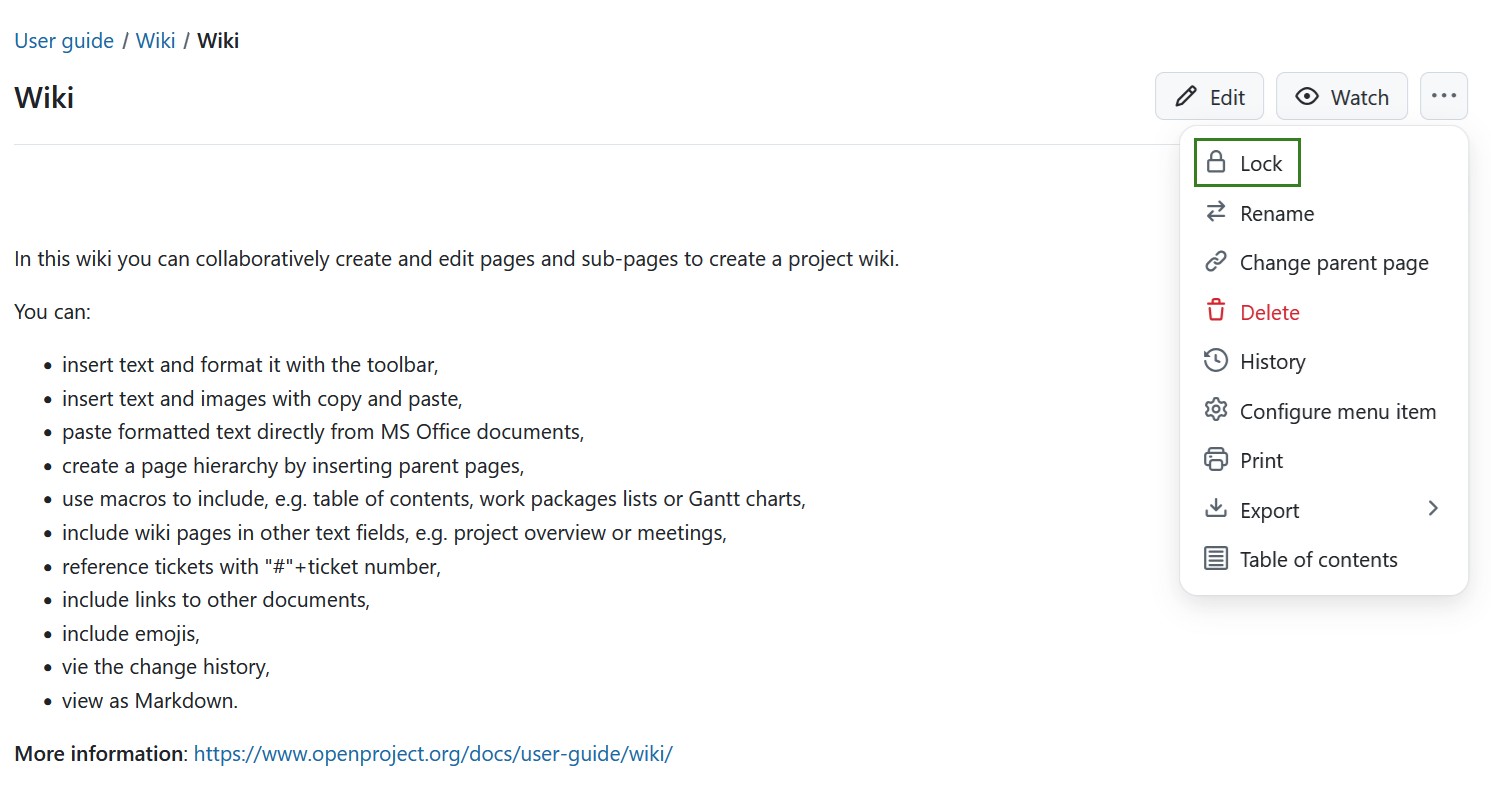
To prevent other users from editing a wiki page, open the More menu and select Lock.
To allow editing again, open the More menu and select Unlock.
Rename a wiki page title
To rename a wiki page, open the More menu and select Rename.
Enter the new page title. Optionally, select Redirect existing links so that links to the old page title continue to work.
Click Rename.
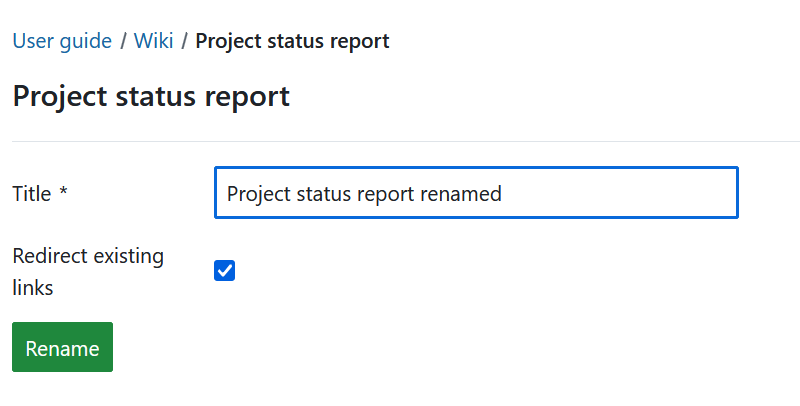
You can also rename a page by editing its title directly in Edit mode.
Eliminar uma página wiki
To delete a wiki page, open the page, click More, and select Delete.
Confirm the deletion in the dialog.
Aviso
Deleted wiki pages cannot be easily restored.
Mostrar histórico da página wiki
To view previous versions of a wiki page, open the More menu and select History.
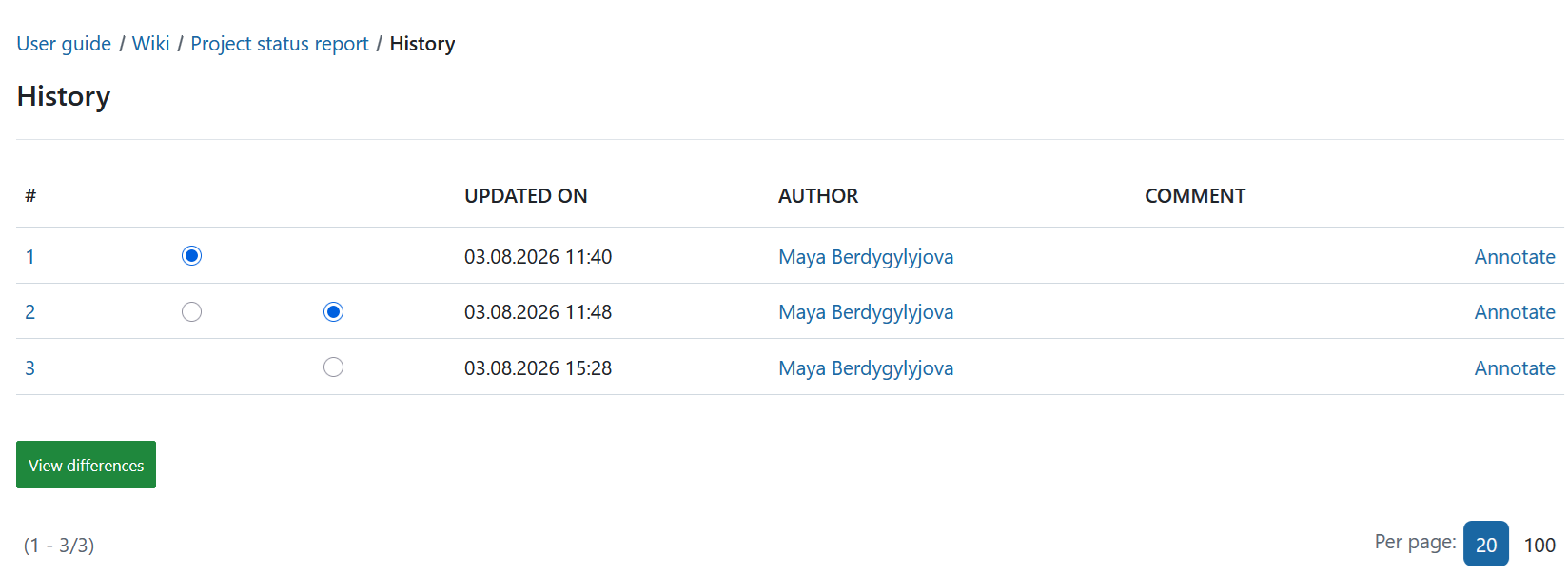
The history shows who changed the page, when it was changed, and any comments that were added. Select two versions and click View differences to compare them.
Nota
Comparing consecutive versions provides the clearest overview of changes. Multiple edits made by the same user within five minutes are automatically merged into a single history entry to reduce clutter.
Print a wiki page
To print a wiki page, open the More menu and select Print.
A printer-friendly version of the page is displayed.
Exportar uma página wiki
To export a wiki page, open the More menu, select Export, and then choose Markdown.
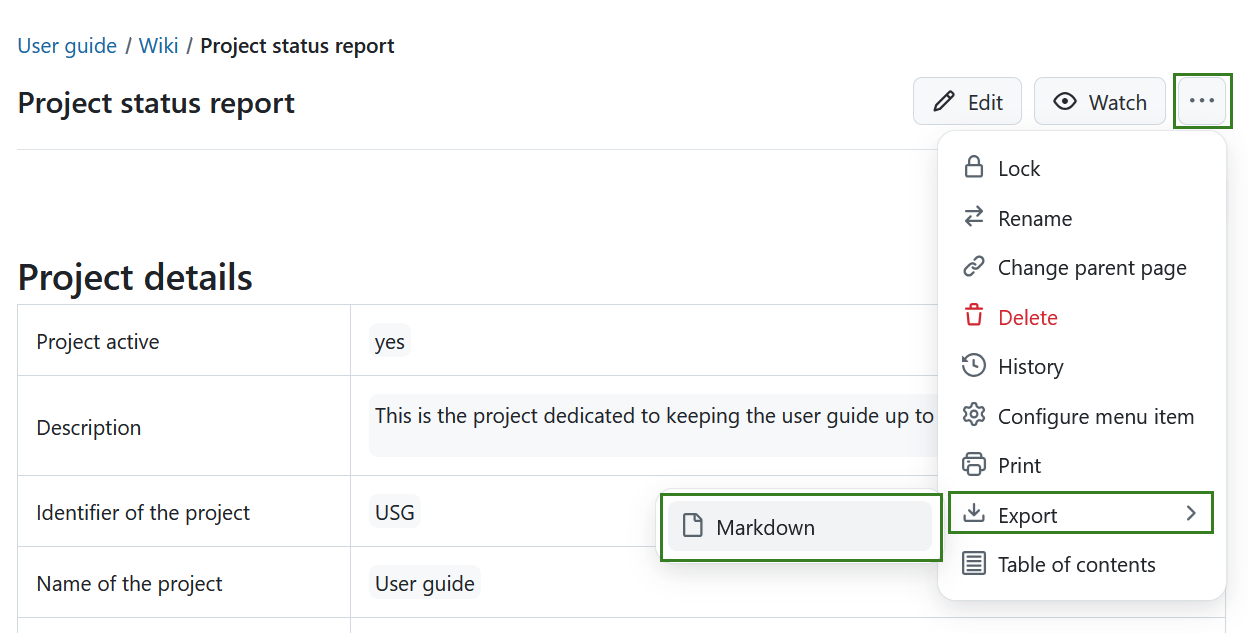
Alternatively, you can use your browser’s print function to save the page as a PDF.