Tokens de acesso
Para ver e gerir os seus tokens de acesso do OpenProject, navegue até Definições de conta e escolha Tokens de acesso no menu. Os tokens de acesso permitem-lhe conceder a aplicações externas acesso a recursos no OpenProject.
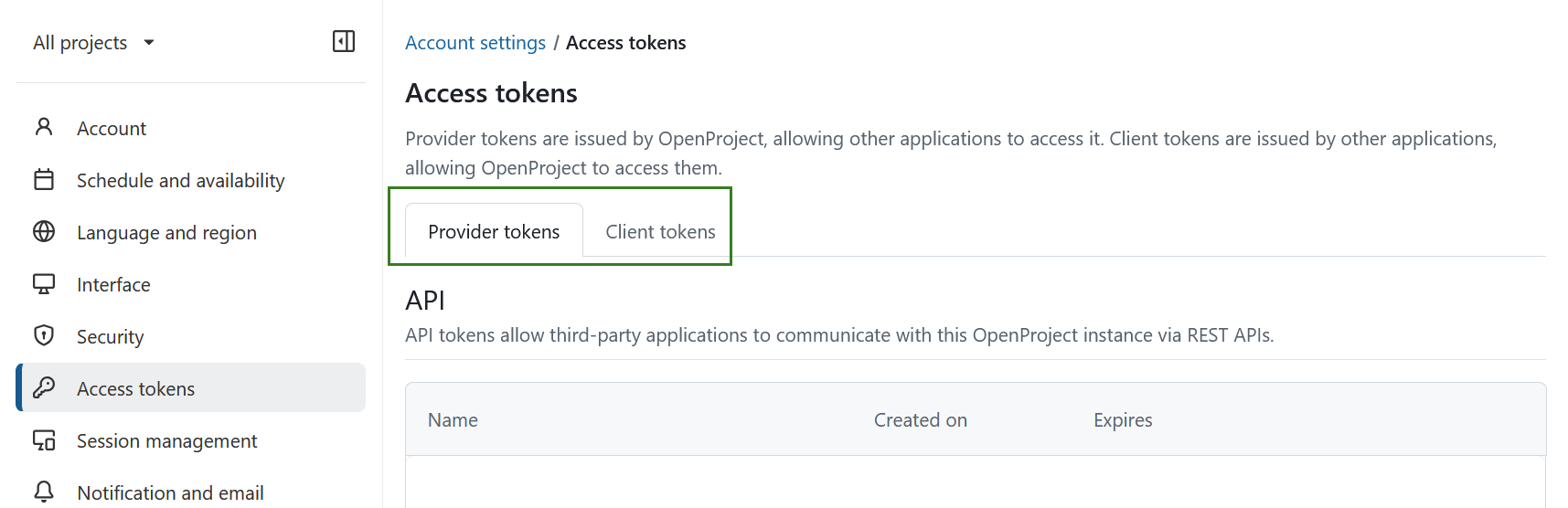
Os tokens de acesso estão organizados em dois separadores: Tokens de fornecedor e tokens de cliente. Os tokens de fornecedor são gerados pelo OpenProject e permitem que outras aplicações se liguem a ele. Os tokens de cliente são gerados por aplicações externas e permitem que o OpenProject se ligue a elas.
Tokens de fornecedor
Os tokens de fornecedor são criados no OpenProject e permitem que as aplicações externas acedam ao OpenProject. Incluem API, iCalendar, iCalendar para reuniões, OAuth e tokens RSS.
API
Os tokens de API permitem que aplicações de terceiros comuniquem com esta instância do OpenProject através de API REST. Se ainda não tiverem sido criados tokens API, esta lista estará vazia. Pode ativar o serviço Web REST da API e o CORS em Administração -> API e webhooks.
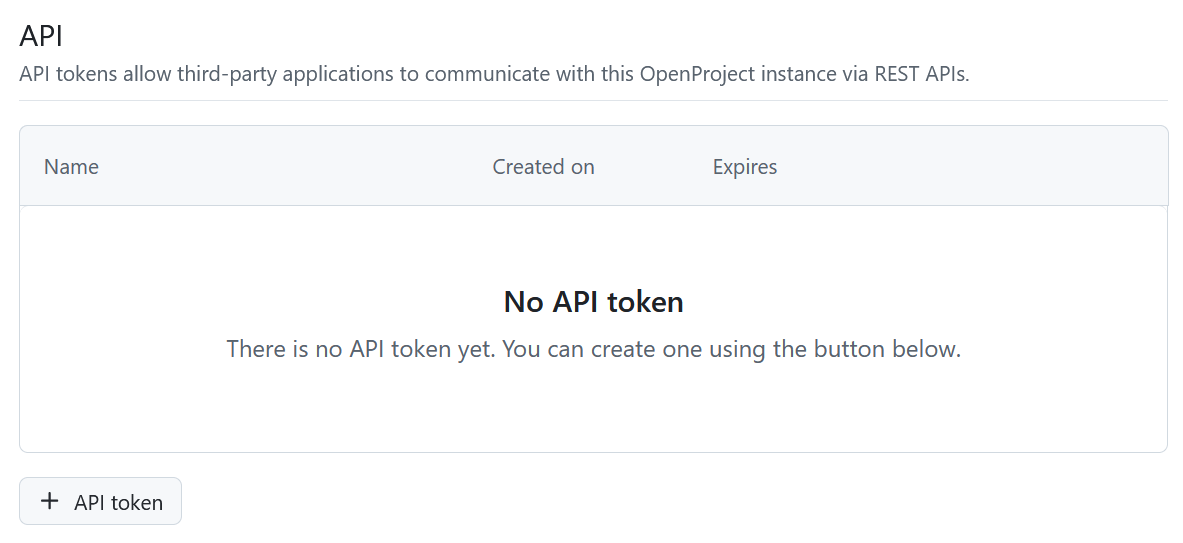
Para criar um novo token de API, clique em + Token de API, dê um nome ao token no formulário que se abre e clique no botão Criar.
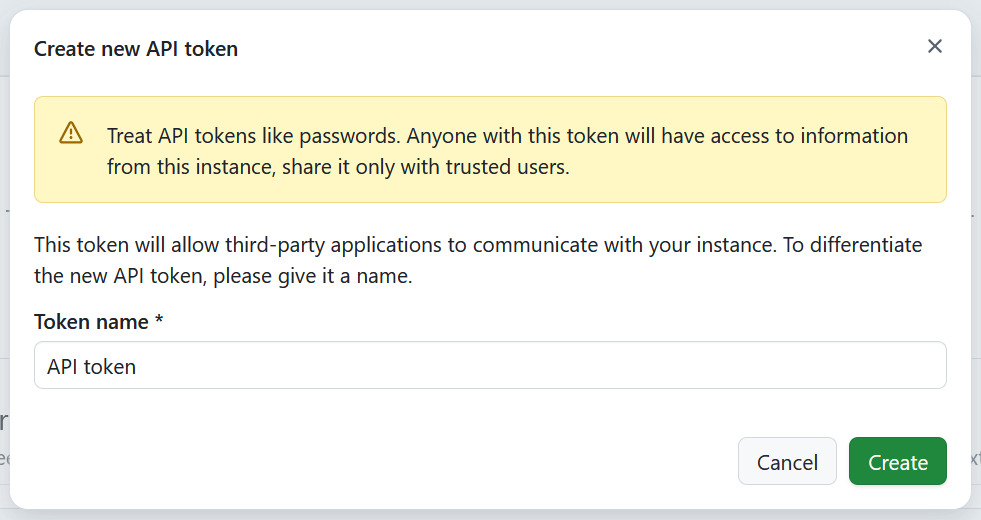
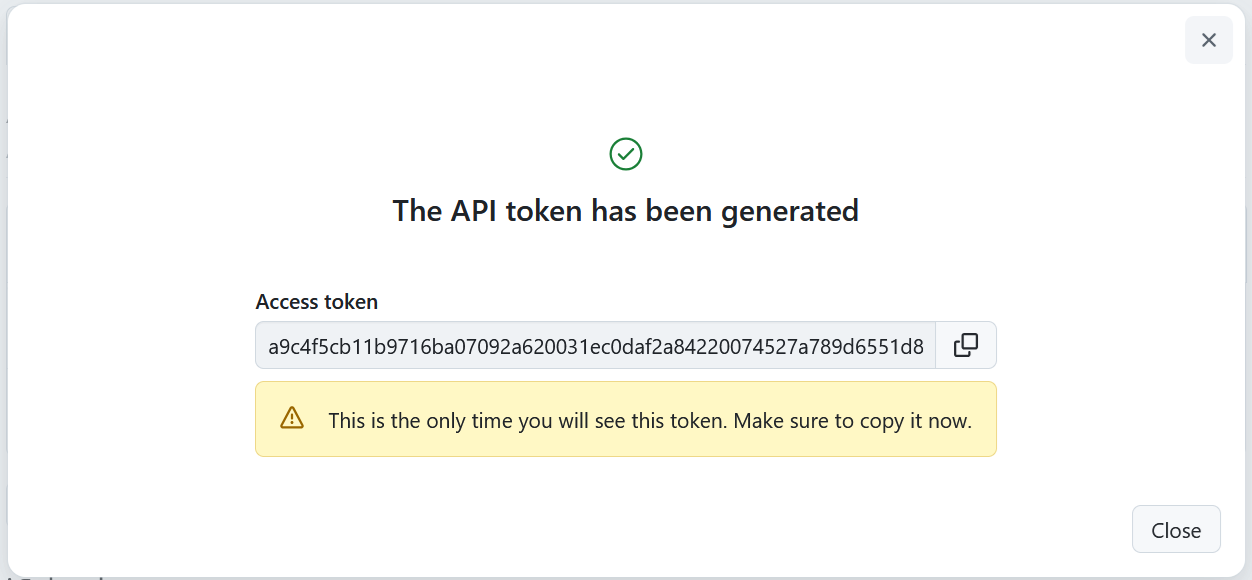
Será gerado e apresentado um novo token de API. Tenha em atenção que cada token só será apresentado uma vez quando for criado, pelo que é importante copiá-lo e guardá-lo em segurança. Se perder esta informação, PODE apagar os tokens antigos e gerar novos.
Dica
Recomendamos que utilize cada token apenas para uma finalidade (por exemplo, uma única aplicação), para saber exatamente o que tem de ser substituído, caso precise de o eliminar.
iCalendar
Os tokens do iCalendar permitem aos utilizadores subscrever os calendários do OpenProject e visualizar informações atualizadas sobre pacotes de trabalho de clientes externos. Esta lista estará vazia se ainda não tiver subscrições de calendário.
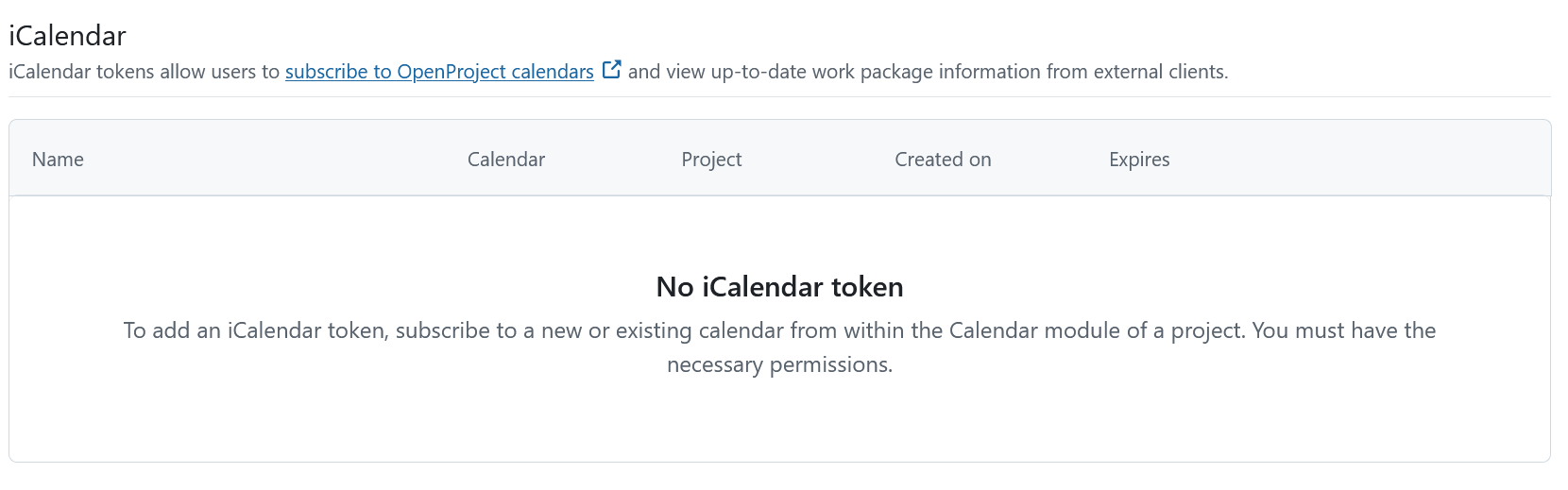
Quando subscrever um calendário, aparecerá aqui uma lista de todos os calendários que subscreveu. O nome do calendário é clicável e leva-o diretamente para o respetivo calendário no OpenProject.

Pode eliminar uma entrada na lista do iCalendar clicando no ícone Eliminar. Isto desencadeará uma mensagem de aviso pedindo-lhe que confirme a decisão de eliminar. Ao eliminar este token, deixará de ter acesso às informações do OpenProject em todos os clientes associados que utilizem este token.

Verá então uma mensagem informando-o de que o token e o URL do iCal são agora inválidos.

iCalendar para reuniões
Os tokens do iCalendar permitem aos utilizadores subscrever os calendários do OpenProject, e ver informações atualizadas sobre pacotes de trabalho de clientes externos.
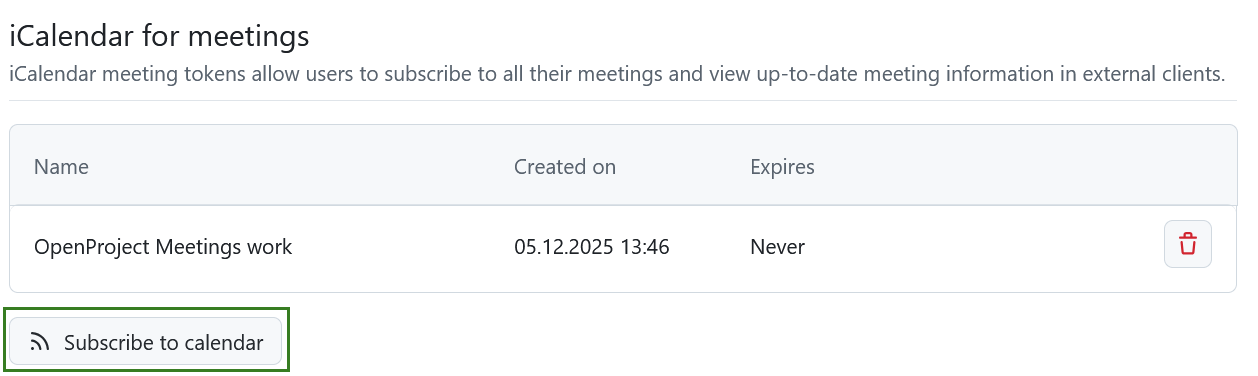
Esta lista estará vazia se ainda não tiver subscrições de calendário. Quando subscrever um calendário de reuniões, aparecerá aqui uma lista de todos os tokens de reunião do iCalendar.
Para se inscrever, clique no botão Subscrever o calendário diretamente nas definições da sua conta ou no módulo de reuniões.
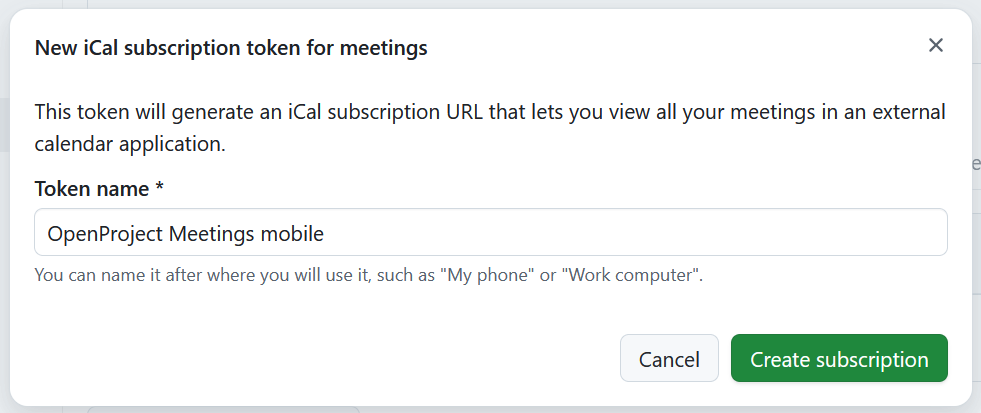
Pode então dar um nome ao token de reunião da subscrição e clicar em Criar subscrição.
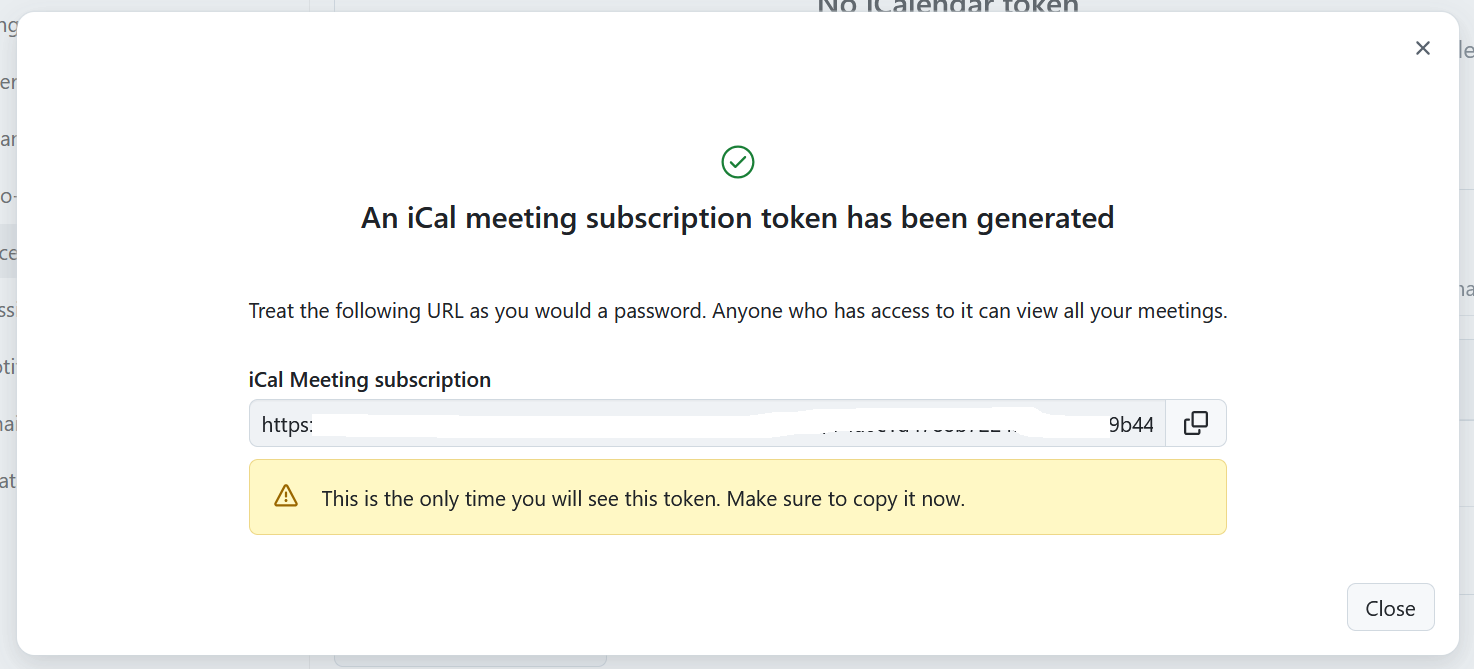
Verá então o token recentemente gerado.
Importante
Esta é a única vez que será apresentado. Garanta que o copia e o guarda em segurança.
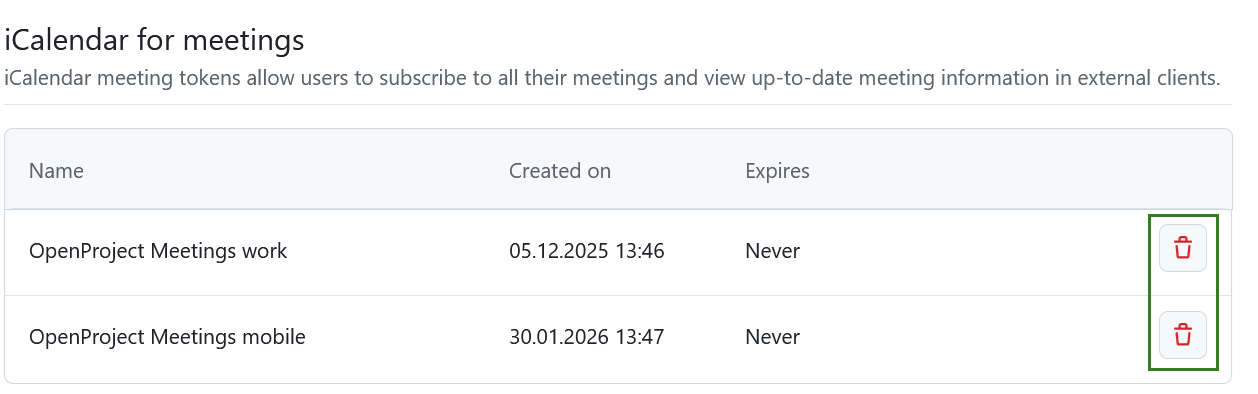
Para eliminar um token de reunião iCal nas Definições de conta, clique no ícone Eliminar junto ao nome do token respetivo.
OAuth
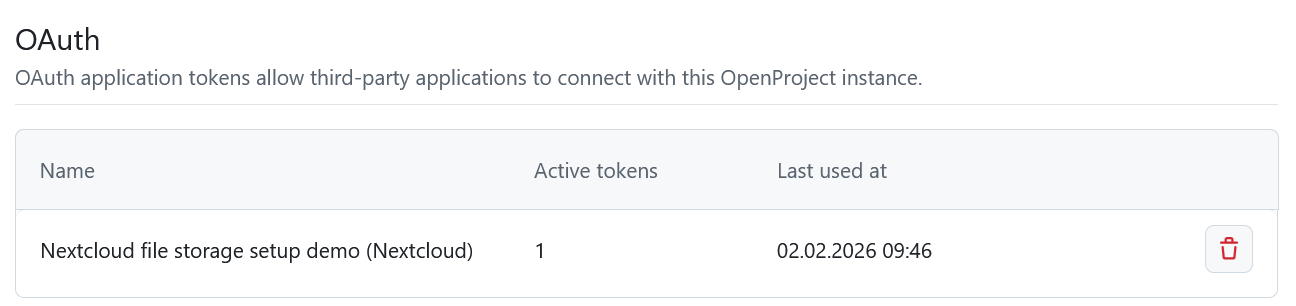
Os tokens OAuth permitem que aplicações de terceiros se liguem a esta instância do OpenProject, por exemplo, o Nextcloud (consulte aqui como configurar a integração Nextcloud). As aplicações OAuth podem ser criadas em Administração-> Autenticação.
Os tokens OAuth não são criados diretamente no OpenProject. Em vez disso, o processo de autorização é iniciado a partir da aplicação externa. Durante a configuração, será redirecionado para o OpenProject para confirmar o acesso, e depois regressará à aplicação externa para concluir a ligação.
Se ainda não tiver sido ativada nenhuma integração de aplicações de terceiros, esta lista estará vazia. Contacte o seu administrador para lhe ajudar a configurar uma integração.
Quando as integrações existirem, os seus tokens aparecerão aqui. Pode revogar o acesso em qualquer altura, selecionando o ícone Eliminar. A remoção de um token revoga imediatamente a permissão da aplicação externa para agir em seu nome, o que significa que esta já não pode fazer chamadas à API em seu nome. Se quiser voltar a utilizar a integração, terá de a autorizar novamente.
RSS
Os tokens RSS permitem aos utilizadores manterem-se a par das últimas alterações nesta instância do OpenProject através de um leitor RSS externo. Só pode ter um token RSS ativo.
Crie um novo token clicando no botão RSS token.
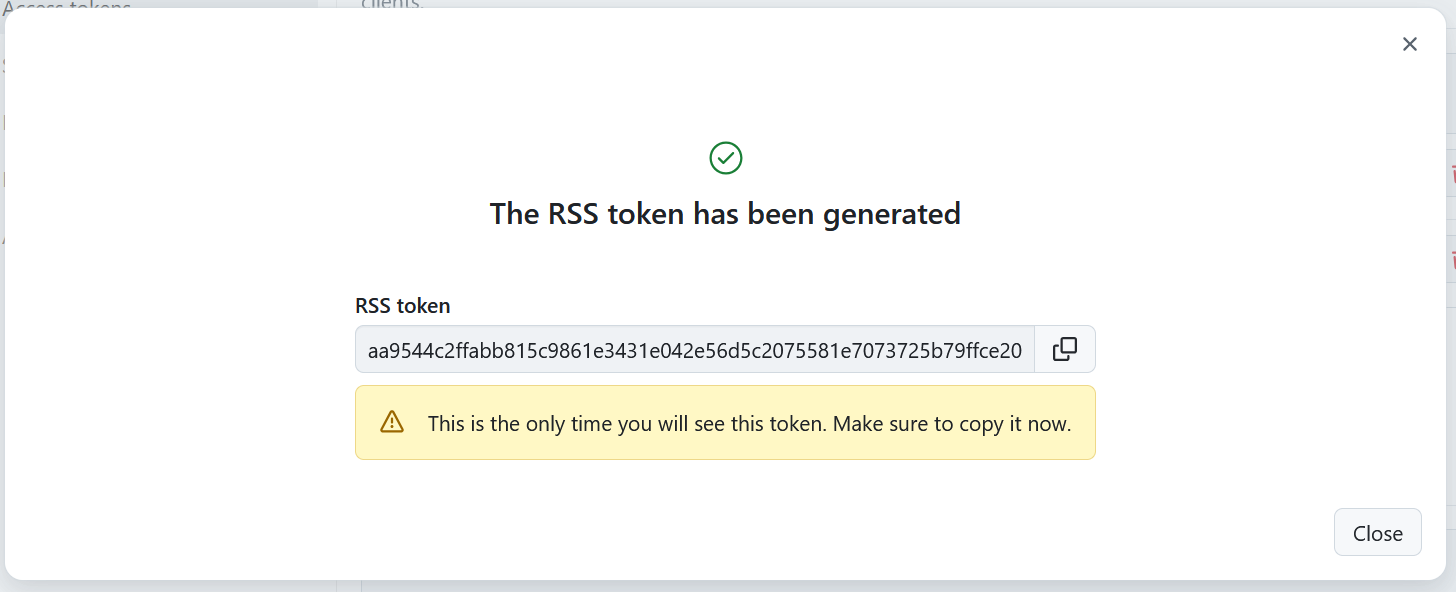
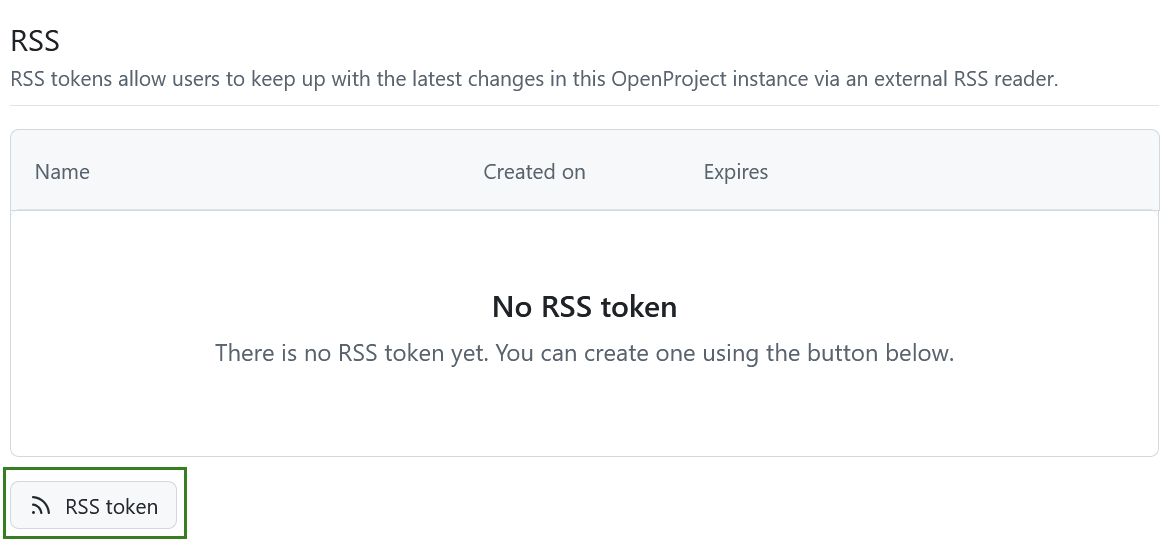 Isto irá criar o seu token e apresentar uma mensagem com o token de acesso.
Importante
Só poderá ver o token de acesso RSS uma vez, diretamente após o criar. Não se esqueça de o copiar.
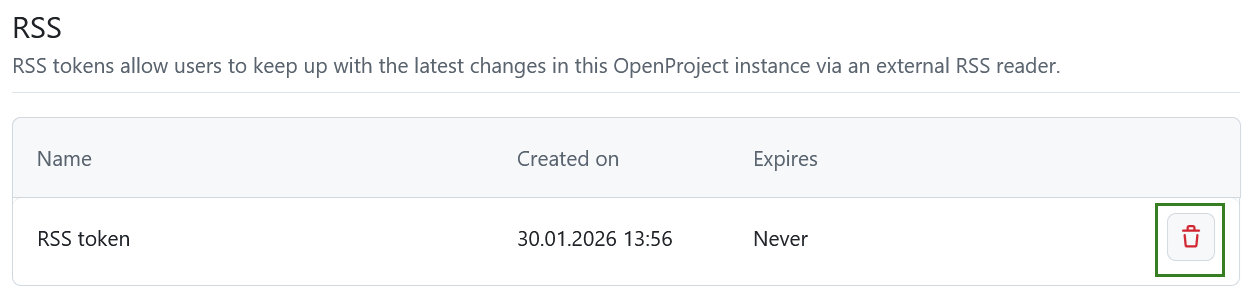
Uma vez criado um token RSS, verá os detalhes aqui e poderá apagá-lo clicando no ícone Eliminar.
Tokens de cliente
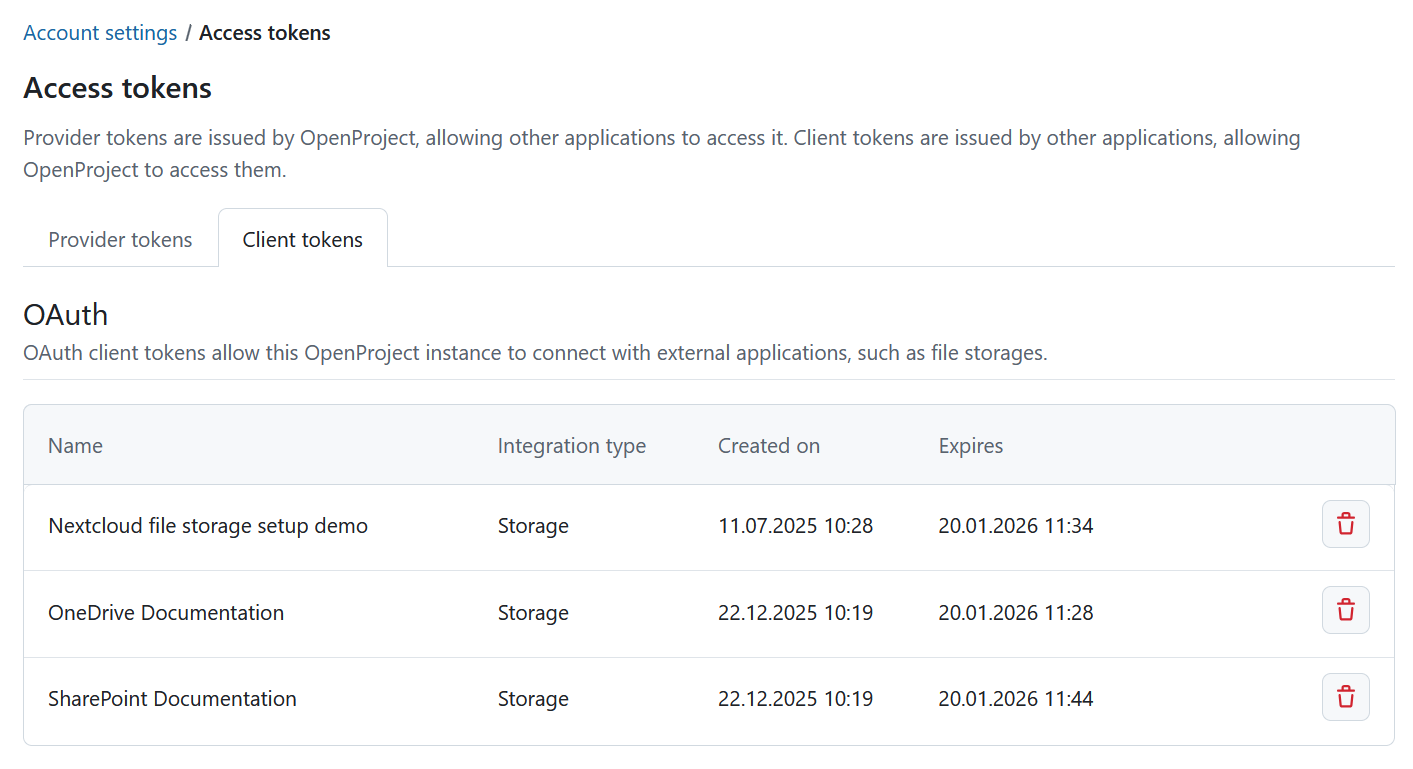
Os tokens de cliente são gerados por aplicações externas e permitem que o OpenProject se ligue a elas.
OAuth
Os tokens de cliente OAuth permitem que esta instância do OpenProject se ligue a aplicações externas.
Se ainda não associou a sua conta a nenhuma das integrações ativadas para a sua instância, esta lista estará vazia. Pode eliminar tokens clicando no ícone Eliminar.