Interface
Na secção Interface das definições do projeto, pode ajustar o modo de cor, ativar alertas e ajustar as definições de backlog. As definições aqui estão agrupadas em duas secções: Aspeto e comportamento e Alertas.
Aspeto e comportamento
Na secção Aparência e sensação em Interface nas definições do seu perfil (acessível através do menu do lado esquerdo), pode selecionar o seu modo de cor preferido e ajustar a ordem pela qual os comentários aparecem na Lista de atividades dos pacotes de trabalho.
Também pode desativar os atalhos de teclado . Isto é útil se depender de um leitor de ecrã ou se quiser evitar desencadear ações por acidente.
Clique em Atualizar aspeto e comportamento para guardar as suas alterações.
Selecionar o modo de cor de alto contraste
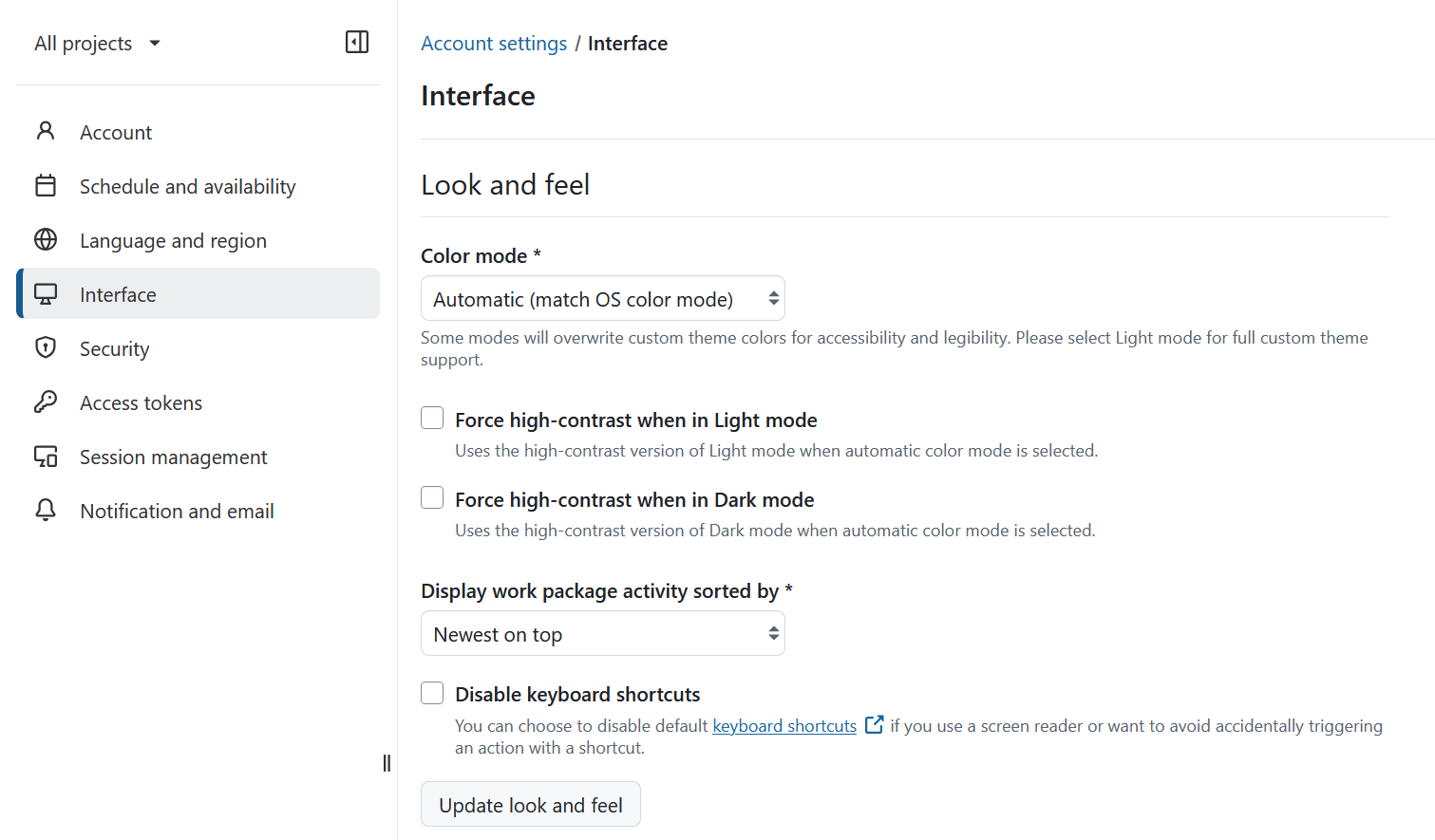
No menu pendente Modo de cor pode escolher o modo de cor. A predefinição é o Modo claro. Pode aumentar o contraste ativando a definição Aumentar contraste, que aumentará significativamente o contraste e substituirá o tema de cores da instância do OpenProject por si.
Este modo é recomendado para utilizadores com deficiência visual.
Selecionar o modo escuro
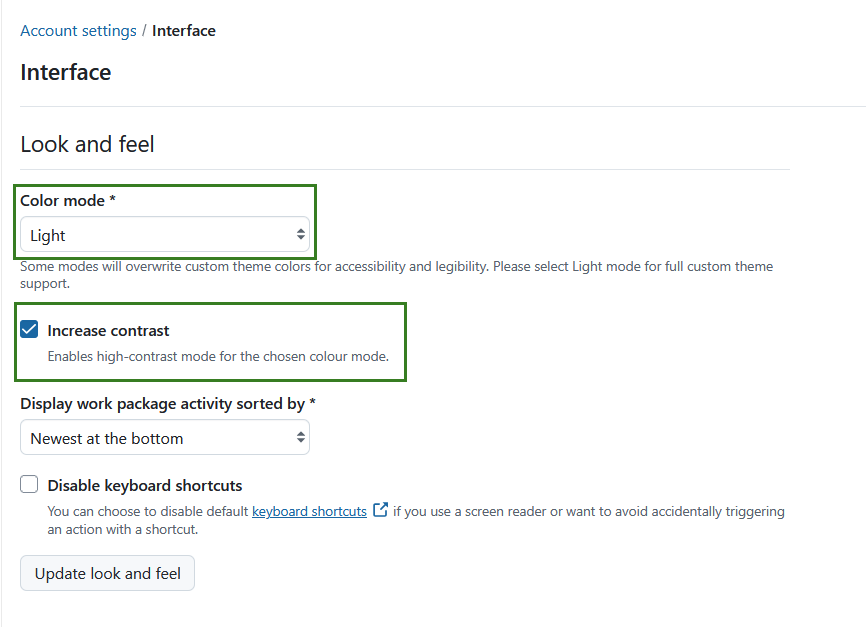
No menu pendente Modo de cor pode escolher o modo de cor. A definição predefinida é Modo claro. Também pode, em alternativa, selecionar o modo Escuro e ativar a definição Aumentar contraste para o modo Escuro de alto contraste.
Nota
As cores e temas personalizados só são suportados no modo claro e a alteração dos modos de cor pode anular a maioria ou toda a configuração personalizada. Apenas algumas cores (cor de destaque e cor primária do botão) são mantidas, mas adaptadas para um contraste adequado em determinados modos, como o modo escuro.
Selecione o modo de cor automático
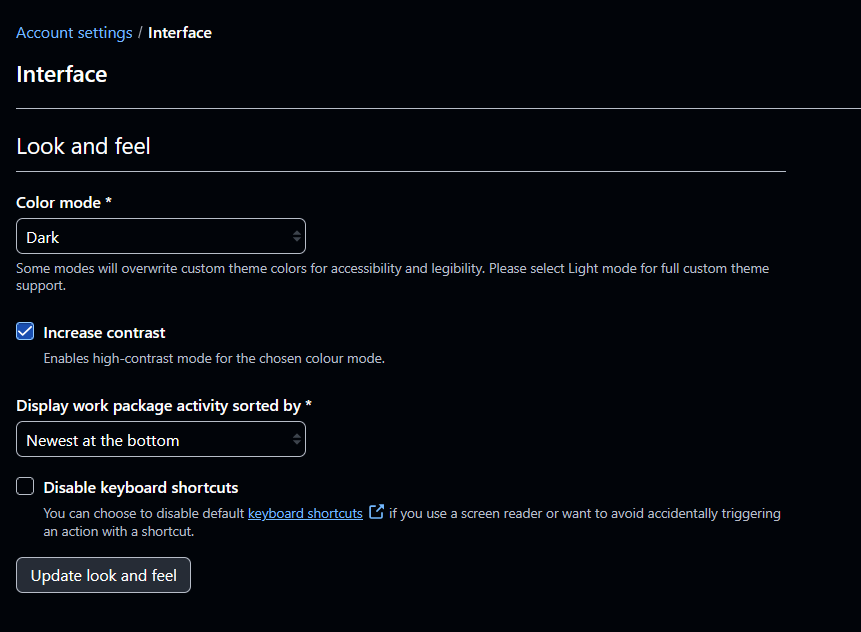
No menu pendente Modo de cor, pode agora também selecionar a opção Automático, que corresponderá ao modo de cor do seu sistema operativo.
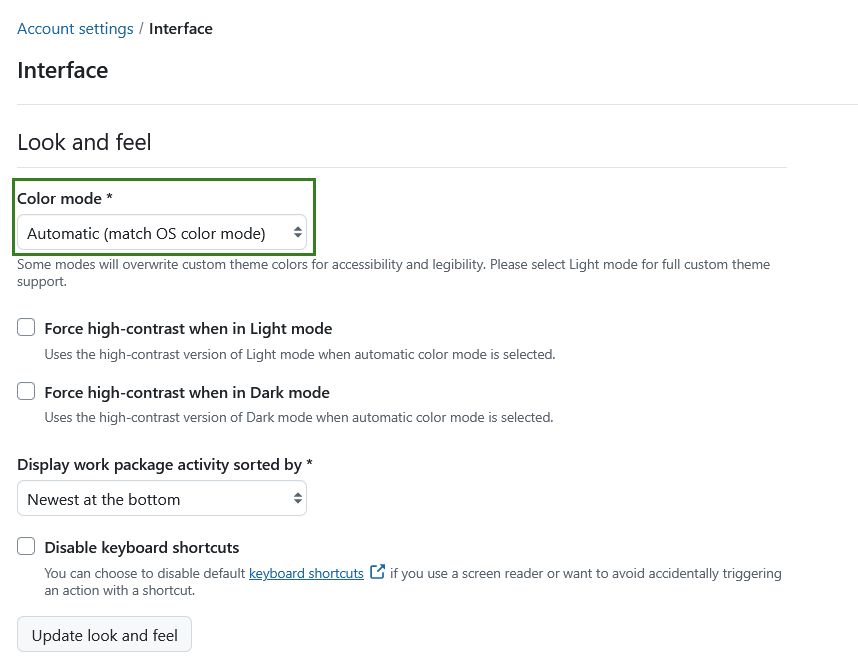
Se esta opção estiver selecionada, o OpenProject ajustará automaticamente o tema claro ou escuro conforme o tema do seu sistema operativo, incluindo as definições de contraste do sistema. Também verá definições adicionais para forçar o alto contraste quando o modo Claro ou Escuro estiver selecionado — isto garante que o OpenProject aumenta sempre o contraste no modo automático, independentemente das definições de contraste do sistema.
Se o seu sistema operativo estiver definido para o modo de alto contraste, o OpenProject também mudará automaticamente para o modo de alto contraste correspondente (claro ou escuro).
Nota
Esta é uma preferência específica do utilizador e só afeta a sua própria conta.
Alterar a ordem de apresentação dos comentários
Pode selecionar a ordem dos comentários (por exemplo, os comentários de um pacote de trabalho que aparecem no separador Atividade). Pode selecionar mais recentes em baixo ou o mais recentes no topo para apresentar os comentários.
Se escolher os mais recentes em baixo, o comentário mais recente aparecerá no topo da lista de Atividade.
Desativar atalhos de teclado
Se utilizar um leitor de ecrã ou quiser evitar desencadear acidentalmente uma ação com um atalho, pode optar por desativar os atalhos de teclado predefinidos selecionando a respetiva opção.
Alertas
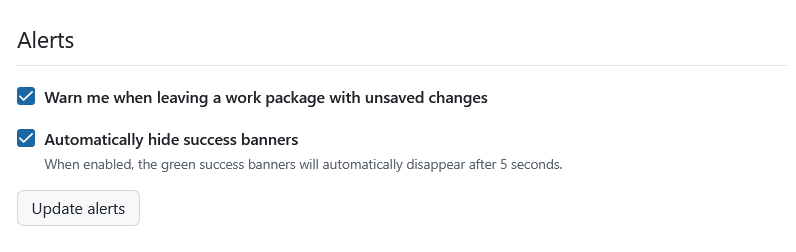
Na secção Alertas pode ativar um aviso se sair de um pacote de trabalho com alterações não guardadas.
Além disso, pode ativar a opção ocultar automaticamente as notificações de sucesso do sistema. Isto significa (apenas) que as notificações pop-up verdes de sucesso serão removidas automaticamente após cinco segundos.
Dica
Even if auto-hide is enabled, banners remain visible while you hover over them or move your mouse pointer over them. This gives you more time to read the message before it disappears.