LLM settings
Under Administration > Artificial Intelligence (AI) > LLM settings, you connect OpenProject to an LLM server and review the models it offers. The page has three tabs: Connection, Models, and Feature configuration.
Connection
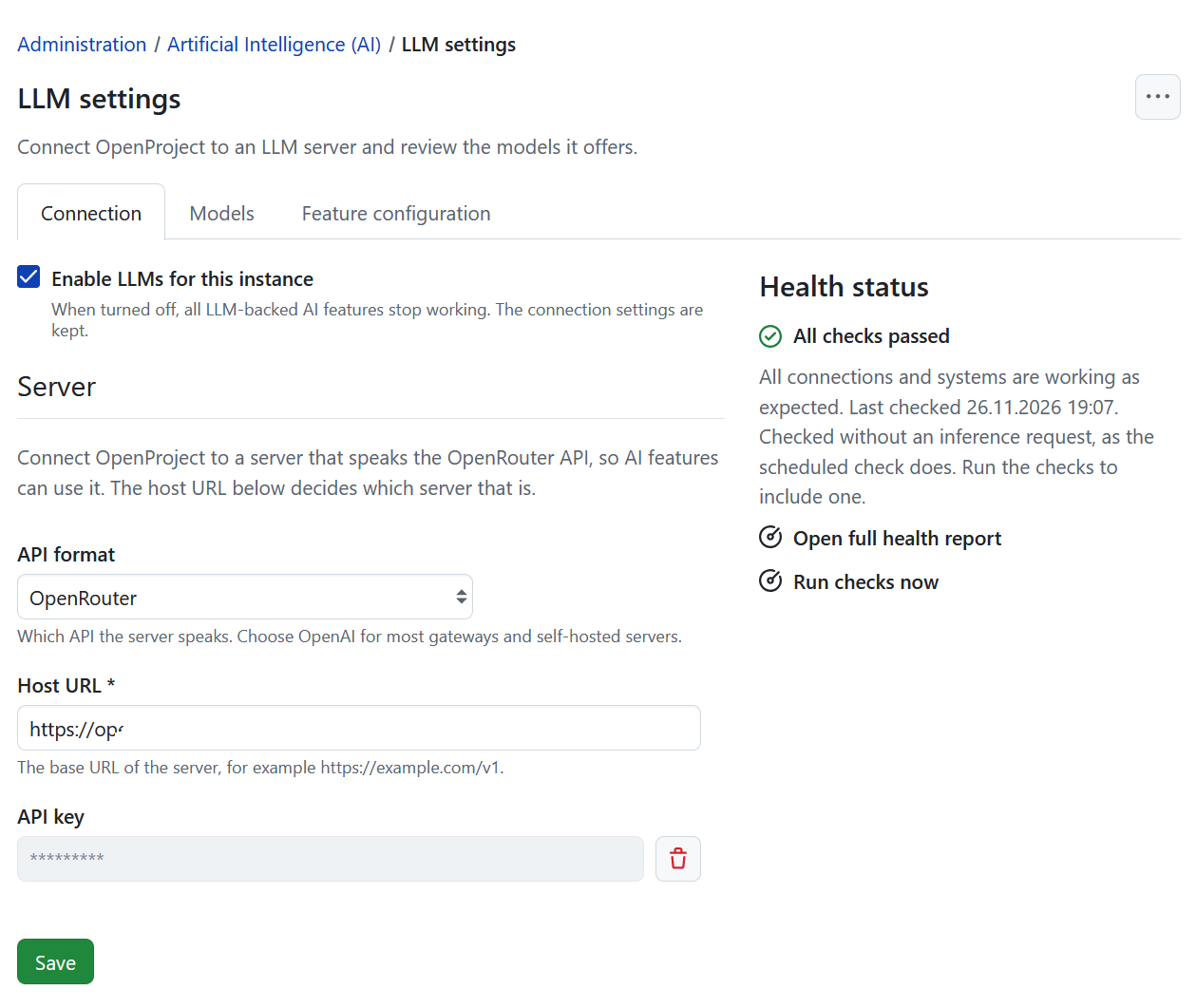
On the Connection tab, you configure the server that OpenProject uses for its AI features:
- Enable LLMs for this instance: Turns all LLM-backed AI features on or off. When turned off, these features stop working, but the connection settings are kept. You can only turn this on after a connection has been configured.
- API format: The API the server speaks. Choose OpenAI for most gateways and self-hosted servers.
- Host URL: The base URL of the server, including the API version, for example
https://example.com/v1. Enter it exactly as your provider documents it. - API key: The key OpenProject uses to authenticate with the server. The key is optional, since self-hosted servers may not require one. Once a key is stored, it is no longer shown. Leave the field blank to keep the stored key, or enter a new one to replace it.
Click Save to save the settings. OpenProject then contacts the server to check the connection and load the list of available models. If the server cannot be reached or rejects the API key, the settings are not saved, and the error is shown below the respective field.
Health status
OpenProject regularly checks whether the connection to the LLM server works. The Health status panel next to the settings shows the result of the latest check and when it was run. Scheduled checks run without sending a request to a model. To include such a request, click Run checks now.
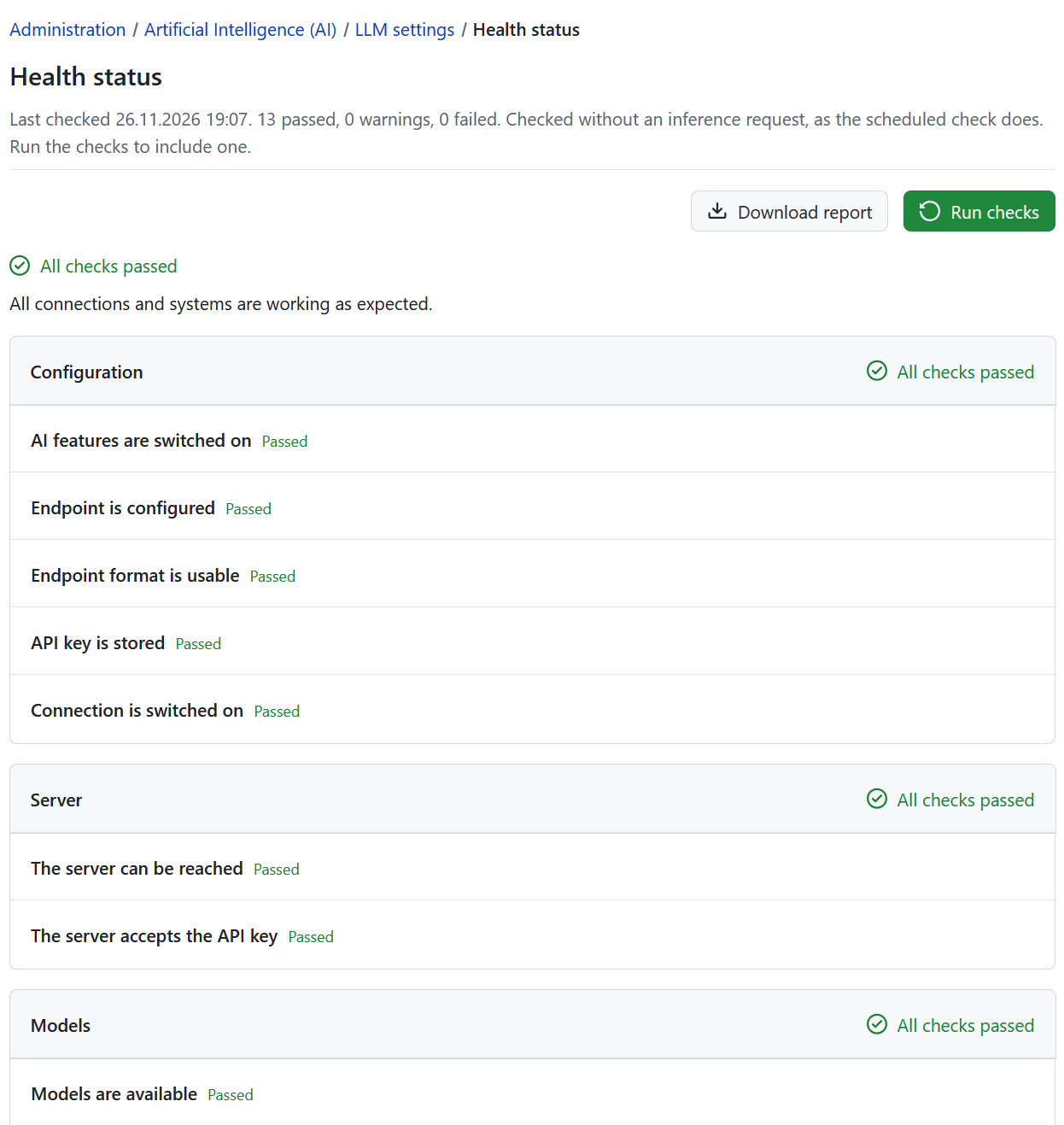
Click Open full health report to see all checks in detail. The report shows how many checks passed, returned a warning, or failed, and lists each check with its result, grouped into categories such as:
- Configuration, for example whether AI features are switched on, the endpoint is configured, and an API key is stored
- Server, for example whether the server can be reached and accepts the API key
In the top right corner, you can Run checks again or Download report.
Tipp
If you are experiencing issues with the LLM connection, download the health status report and include it in your support request. This will help us diagnose the problem more efficiently.
Remove the API key or disconnect
Use the More (…) menu in the top right corner of the page to:
- Remove API key: OpenProject stops sending a key with its requests to the server.
- Disconnect: OpenProject stops using the LLM server. The server settings, the model list, and the model chosen for each feature are kept. Only the stored API key is removed.
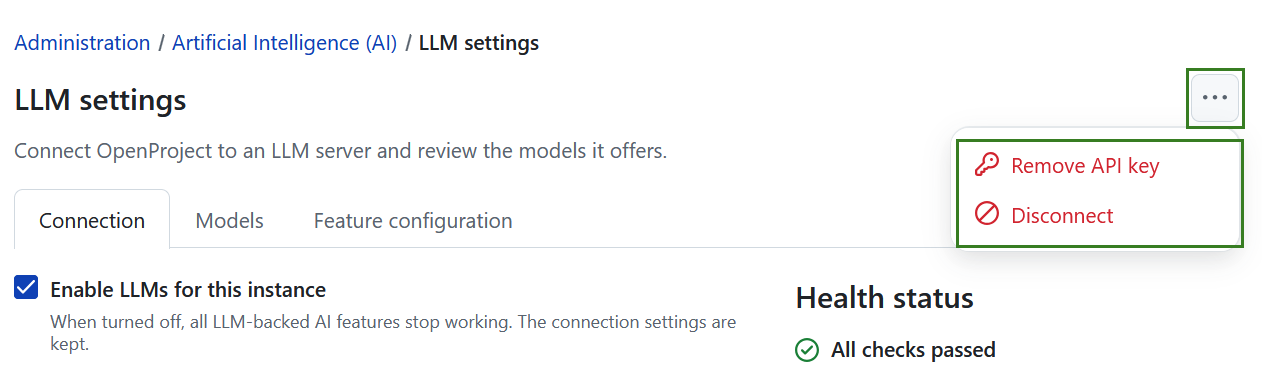
Both options ask for confirmation.
Models
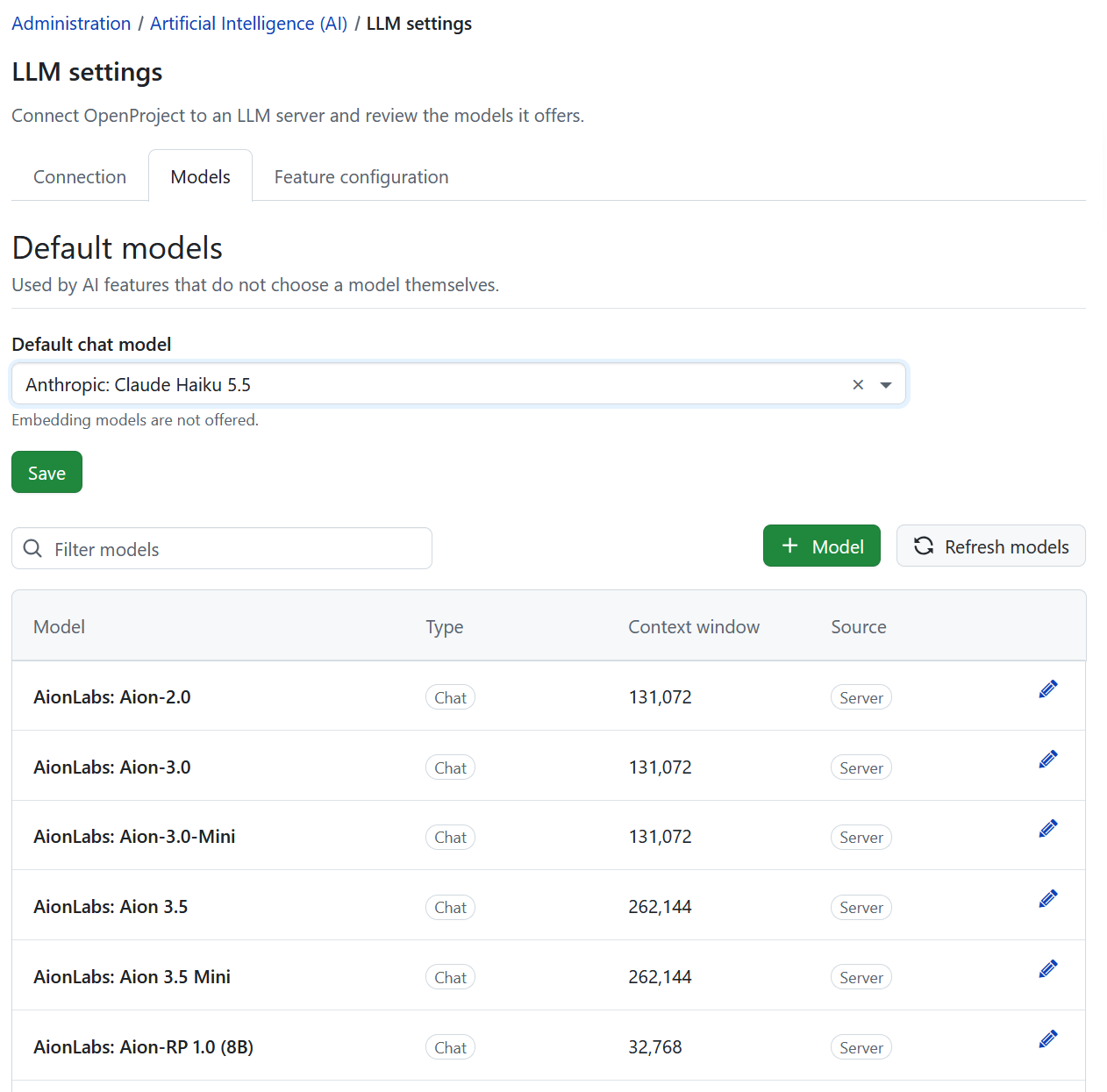
The Models tab shows the models offered by the connected server.
Under Default models, choose the Default chat model. It is used by all AI features that do not choose a model themselves. Embedding models cannot be selected as the default chat model. Click Save to apply your choice.
Below, the list shows all available models with their Type, Context window, and Source. Depending on your server, the list can be long:
- Use Filter models to find a model by its name.
- Click Refresh models to load the current list from the server. Models you added manually are kept.
- Click + Model to add a model manually, for example if your server does not publish a model list. Enter the model name exactly as the server expects it.
Edit a model
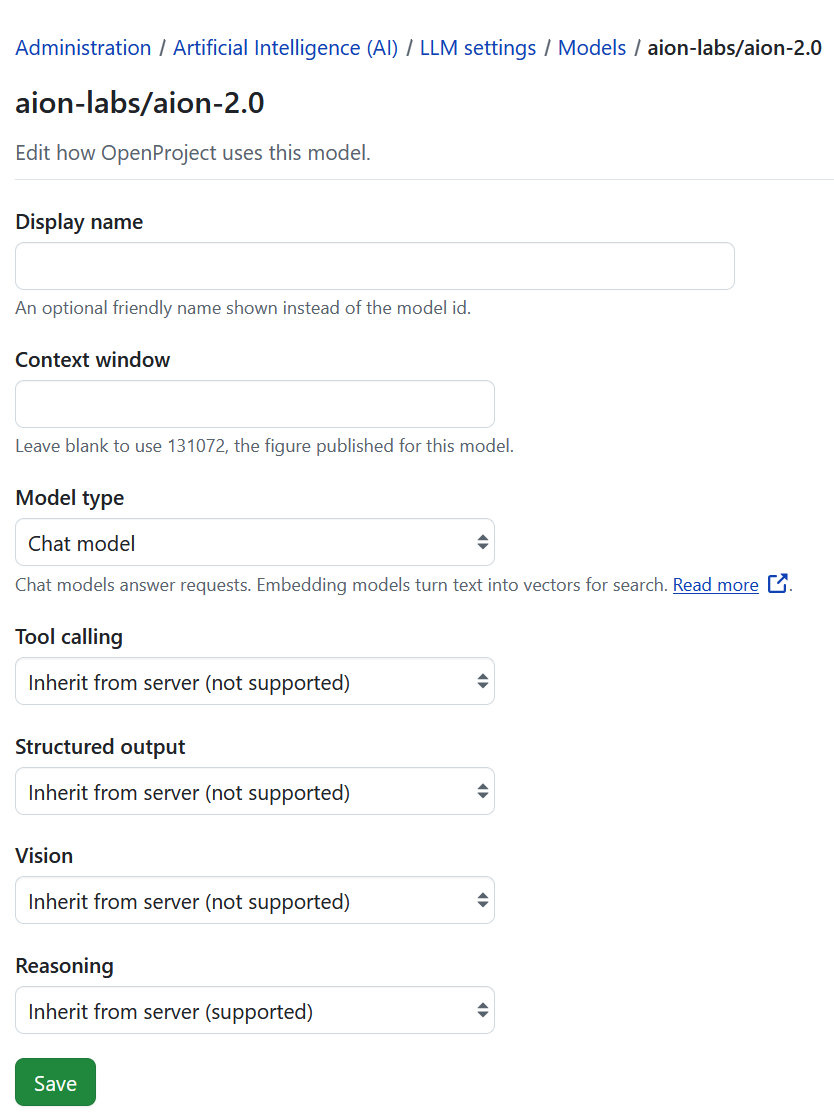
To change how OpenProject uses a model, click the Edit (pencil) icon next to it. You can set the following options:
- Display name: An optional friendly name that is shown instead of the model ID.
- Context window: Leave this blank to use the value published for the model, which is shown below the field. Enter a value only if you want to override it.
- Model type: Chat model or Embedding model. Chat models answer requests. Embedding models turn text into vectors for search.
- Tool calling, Structured output, Vision, and Reasoning: By default, each capability is inherited from the server, and the value reported by the server is shown in brackets. You can override it if the server reports a capability incorrectly.
Click Save to apply your changes.
Feature configuration
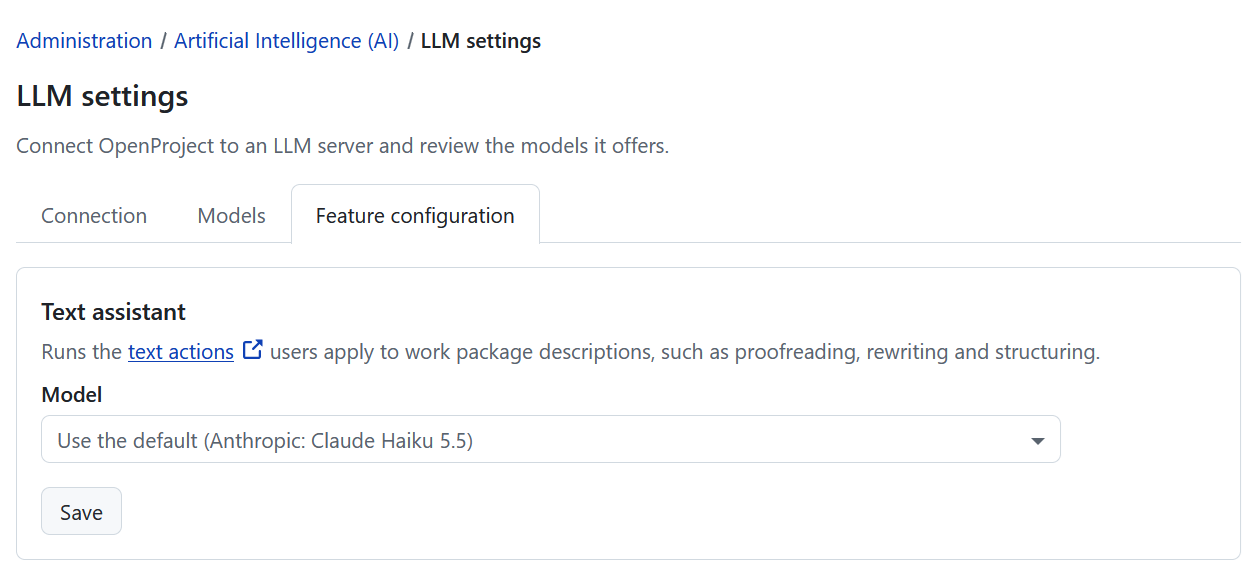
On the Feature configuration tab, you choose which model each AI feature uses. Currently, this applies to the text assistant.
For each feature, select either Use the default, which uses the default chat model from the Models tab, or a specific model. Click Save to apply your choice.