Meeting templates (Enterprise add-on)

Meeting templates allow you to reuse a predefined meeting structure when creating one-time meetings. They make it easy to start meetings with a proven structure instead of creating the agenda from scratch each time.
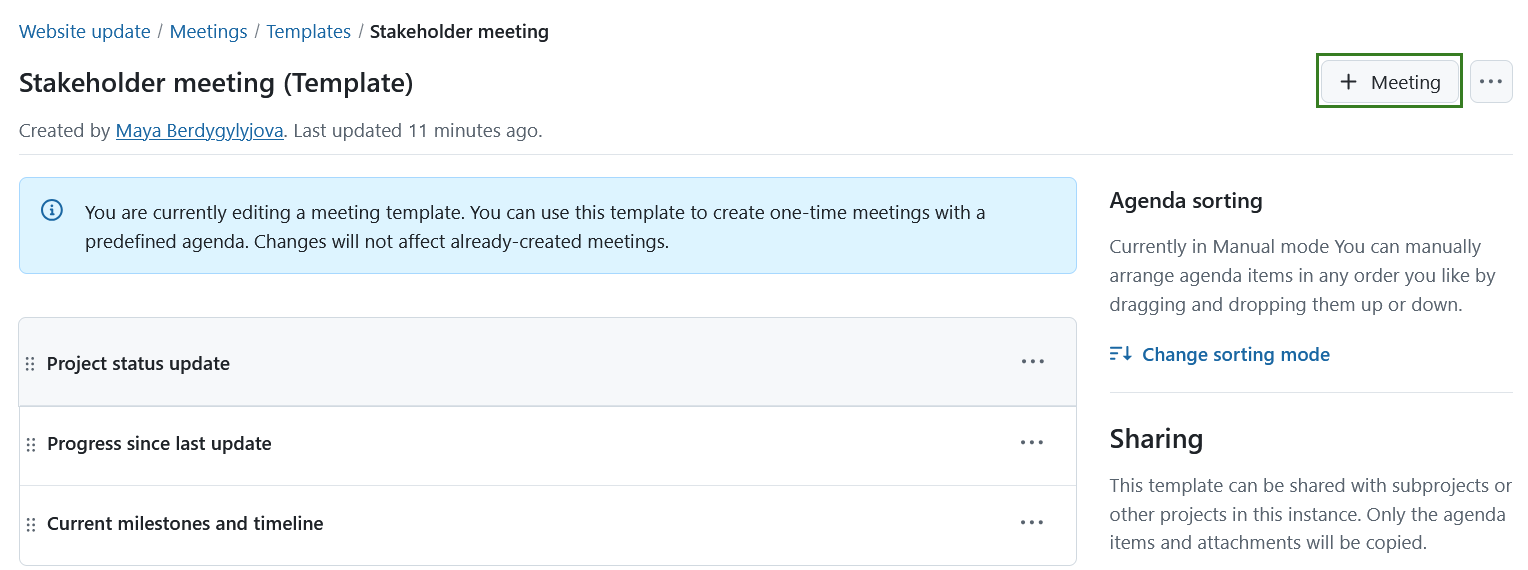
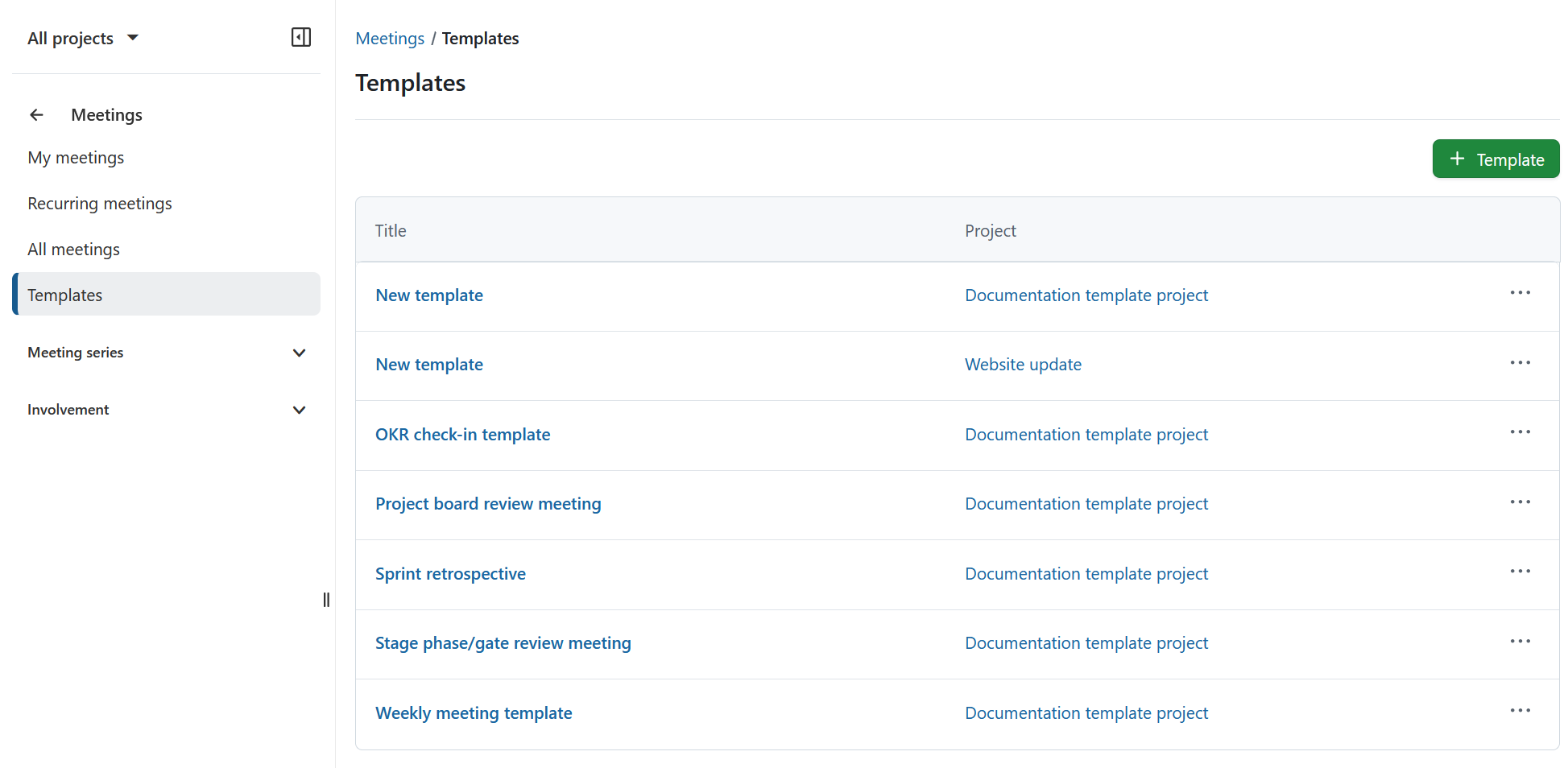
Meeting templates are always associated with a specific project, but they can be created either from within a project or from the global Meetings page. To access them, open the Meetings module and select Templates from the left-hand menu. In the Templates view you can see all templates you have access to. When viewing templates globally, an additional Project column indicates which project each template belongs to.
Hinweis
The Templates menu item is only shown to users who have the permission to create meetings.
Tipp
Recurring meetings use their own template, which is the basis for all occurrences of a series. See Edit recurring meetings template.
| Topic | Content |
|---|---|
| Create a template | How to create a new meeting template. |
| Edit or delete a template | How to change, delete or view the history of a template. |
| Create a meeting from a template | How to use a template for a new meeting. |
Create a template
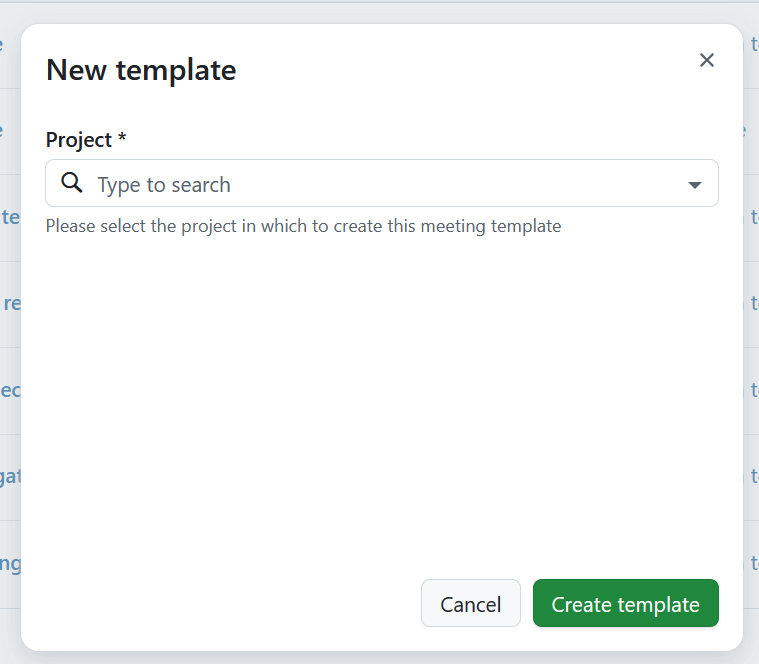
Click the green + Template button to create a new template. When creating a template from the global view, you first need to select the project the template should belong to. Click the Create template button to proceed.
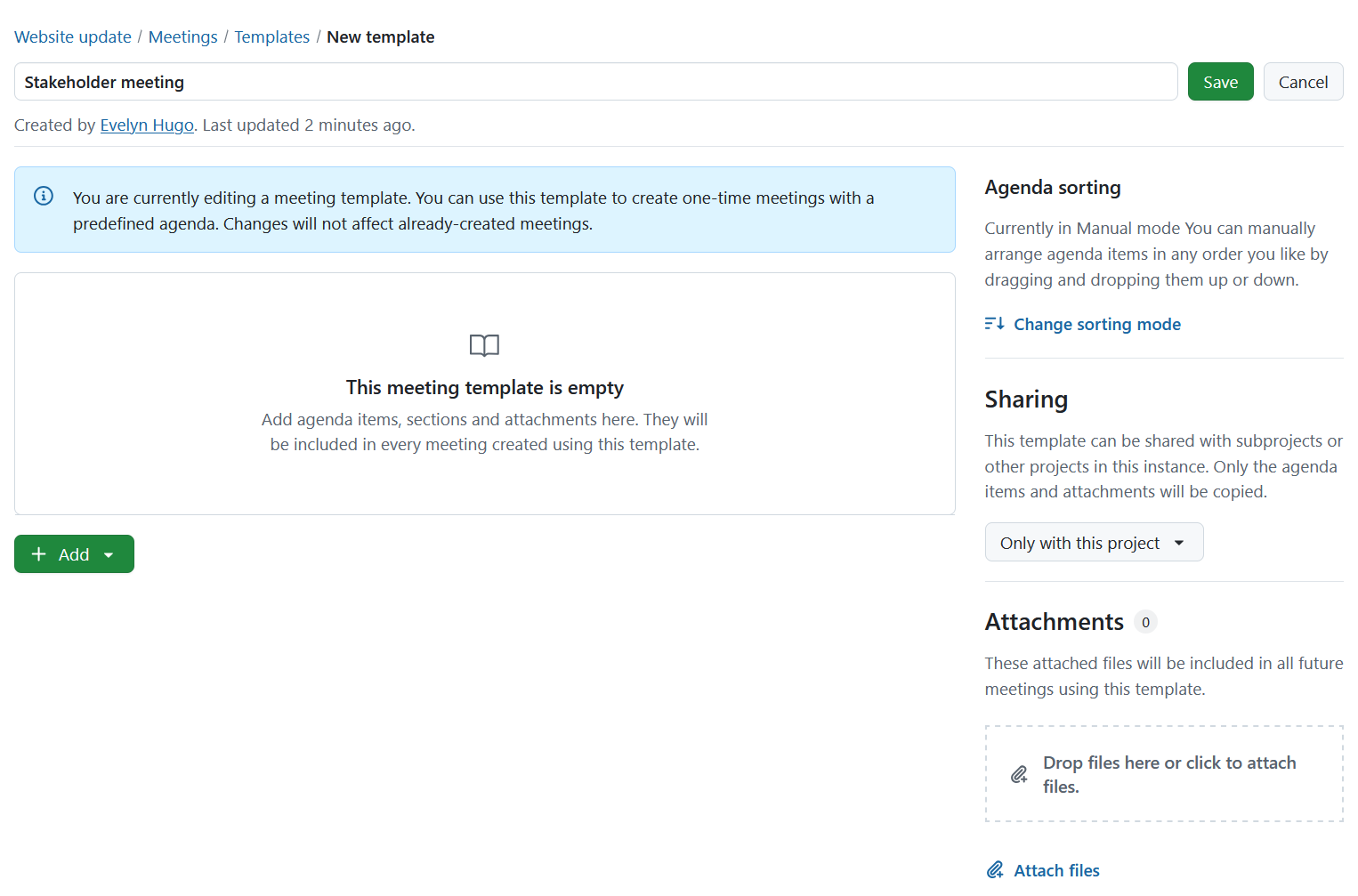
In the template that opens, enter and save a title. Define the agenda structure and add attachments to the template the same way as you would when creating a one-time meeting. You can also define whether this template should be kept within the project, shared with subprojects, or all other projects in this instance. If the template is to be shared, the agenda items and attachments will be copied to sub- or other projects when the template is used.
Edit or delete a template
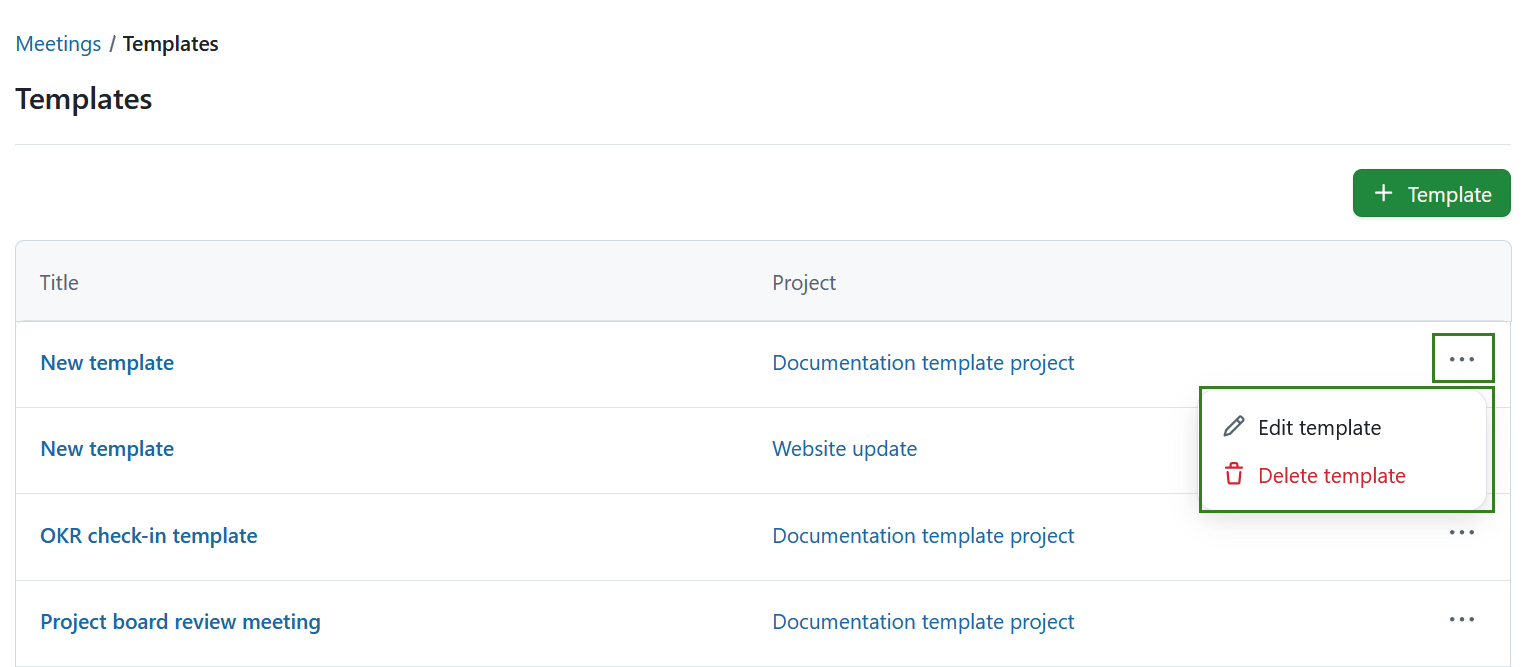
Use the More menu (⋯) next to a template to edit or delete the template.
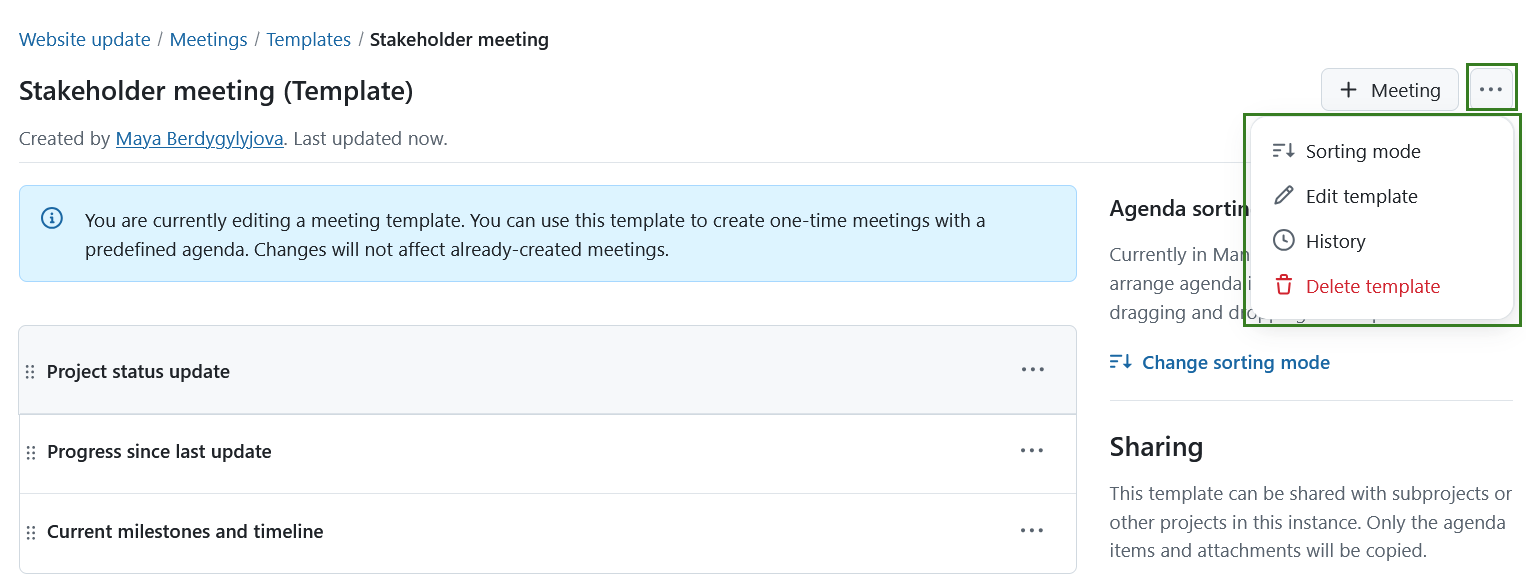
You can change the sorting mode, edit, delete, or view the history through the More (three dots) menu in the top right corner and selecting the respective option.
Create a meeting from a template
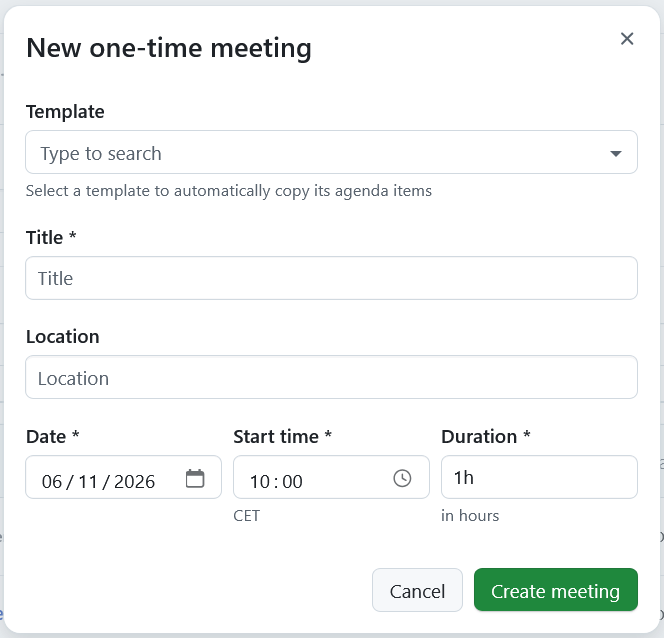
When creating a new one-time meeting, you can optionally select a Meeting template. The template field is empty by default. After selecting a template, the agenda and attachments are copied to the new meeting.
Hinweis
Changes made to the template later will not affect meetings that were already created from it.
You can also open a template and click the + Meeting button to create a new meeting in the same project.