Konto
Richten Sie einen Avatar ein
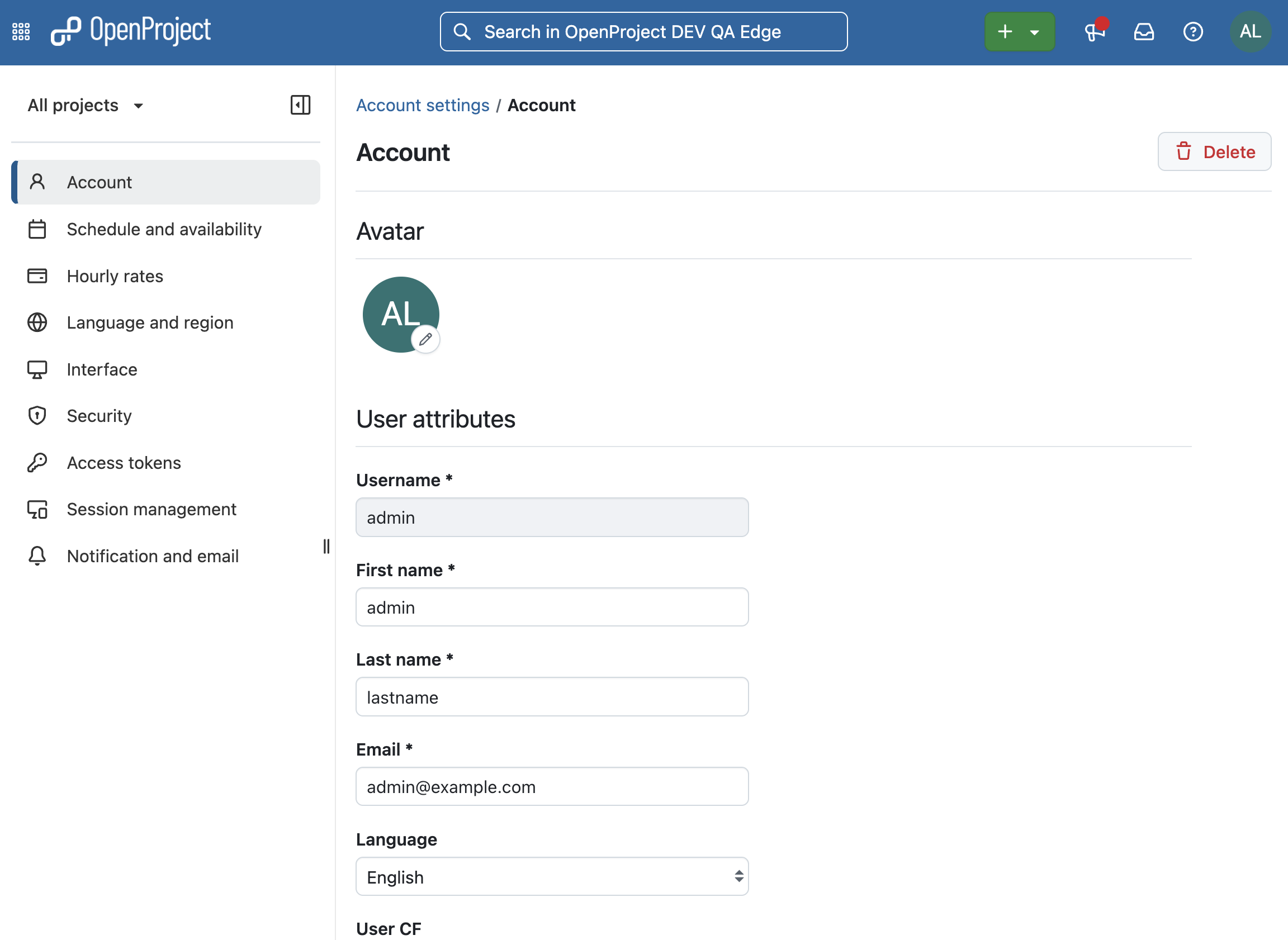
Your avatar is shown next to your name across OpenProject. To change it, navigate to Account settings and select Account from the left-hand menu. Your current avatar is shown at the top of the page, with a pencil icon. Click the avatar to open the Edit avatar dialog.
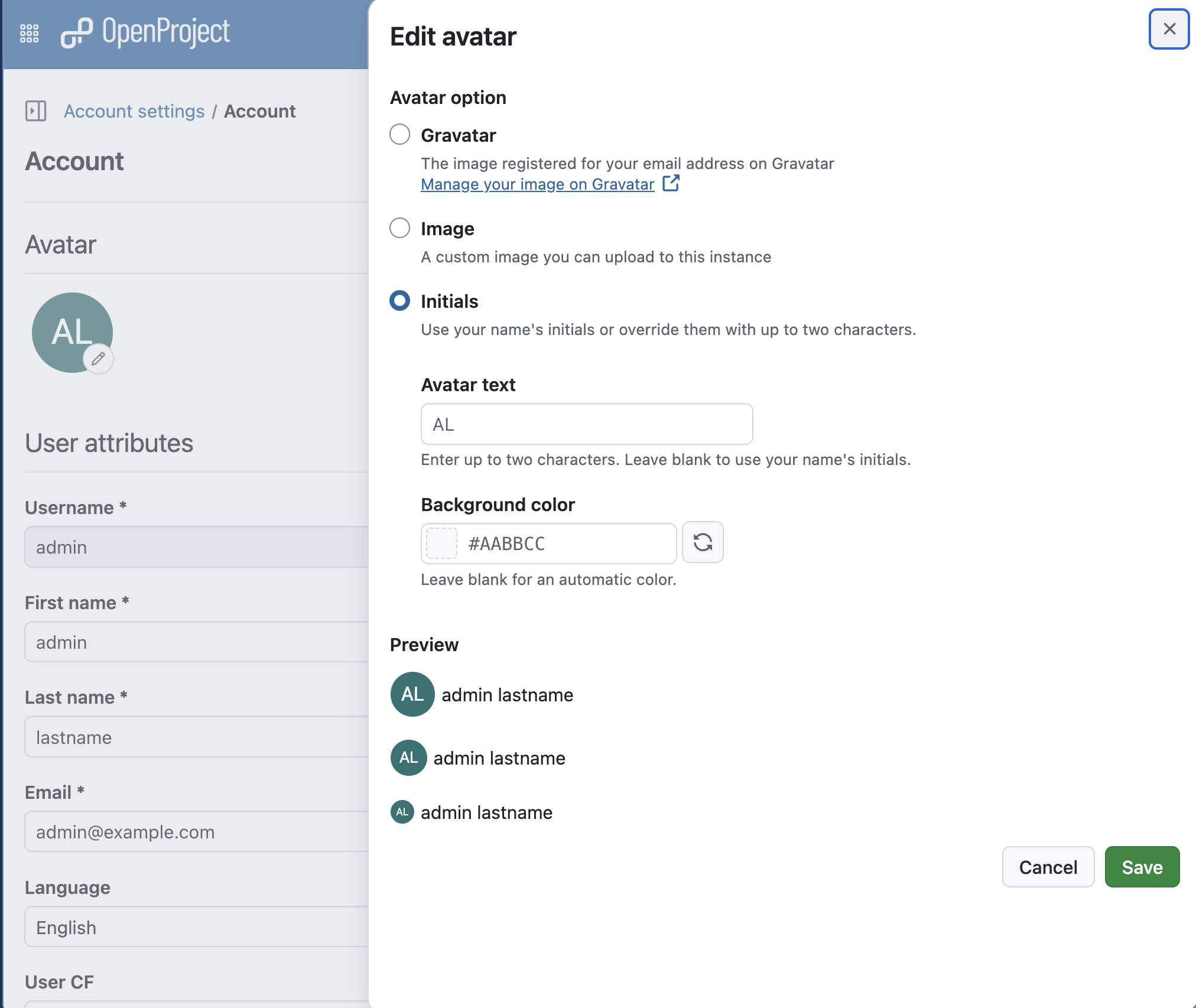
Under Avatar option, select the type of avatar you want to use. The options shown depend on what your OpenProject administrator has enabled in the avatar settings:
- Gravatar: If enabled by an administrator, OpenProject shows the image you registered for your email address at gravatar.com. Use the Manage your image on Gravatar link to change that image. If no Gravatar image is available, Gravatar shows its configured default avatar.
- Image: If enabled by an administrator, you can upload a custom image to OpenProject here.
- Initials: OpenProject generates an avatar from your initials. This option is always available.
The Preview at the bottom of the dialog shows your avatar in the sizes used across OpenProject. It updates while you make changes. Click Save to apply your changes, or Cancel to close the dialog without saving.
Hinweis
If you have never selected an option, OpenProject uses your uploaded image first, then your custom initials, then your Gravatar. If your administrator later disables the option you selected, OpenProject shows your initials instead.
Upload a custom image
- Select Image.
- Click Choose Avatar from file and select a JPG, PNG, or GIF file.
- Check the preview, then click Save. OpenProject saves the image only when you click Save.
To remove an uploaded image, select Image and click Delete image.
If you change to Initials or Gravatar later, OpenProject keeps your uploaded image. You can select Image again at any time to use it.
Tipp
For the best results, use a square image of 128 × 128 pixels. OpenProject scales larger images down to this size automatically.
Customize your initials
When you select Initials, you can change the text and the background color of your avatar:
- Avatar text: Enter up to two characters to replace your initials, for example a nickname, letters with accents, characters from other scripts such as kanji, or an emoji. Combined emoji, such as flags or a family emoji, count as one character. Only visible characters are allowed. Leave the field blank to use the initials of your name.
- Background color: Enter a hex color code, such as #1A7F37, or pick a color with the color picker. Click the Randomize color button (the icon with two arrows) next to the field to get a random color. Leave the field blank to use an automatic color. OpenProject selects dark or white text automatically, so that the text is easy to read on the background.
Nutzerattribute
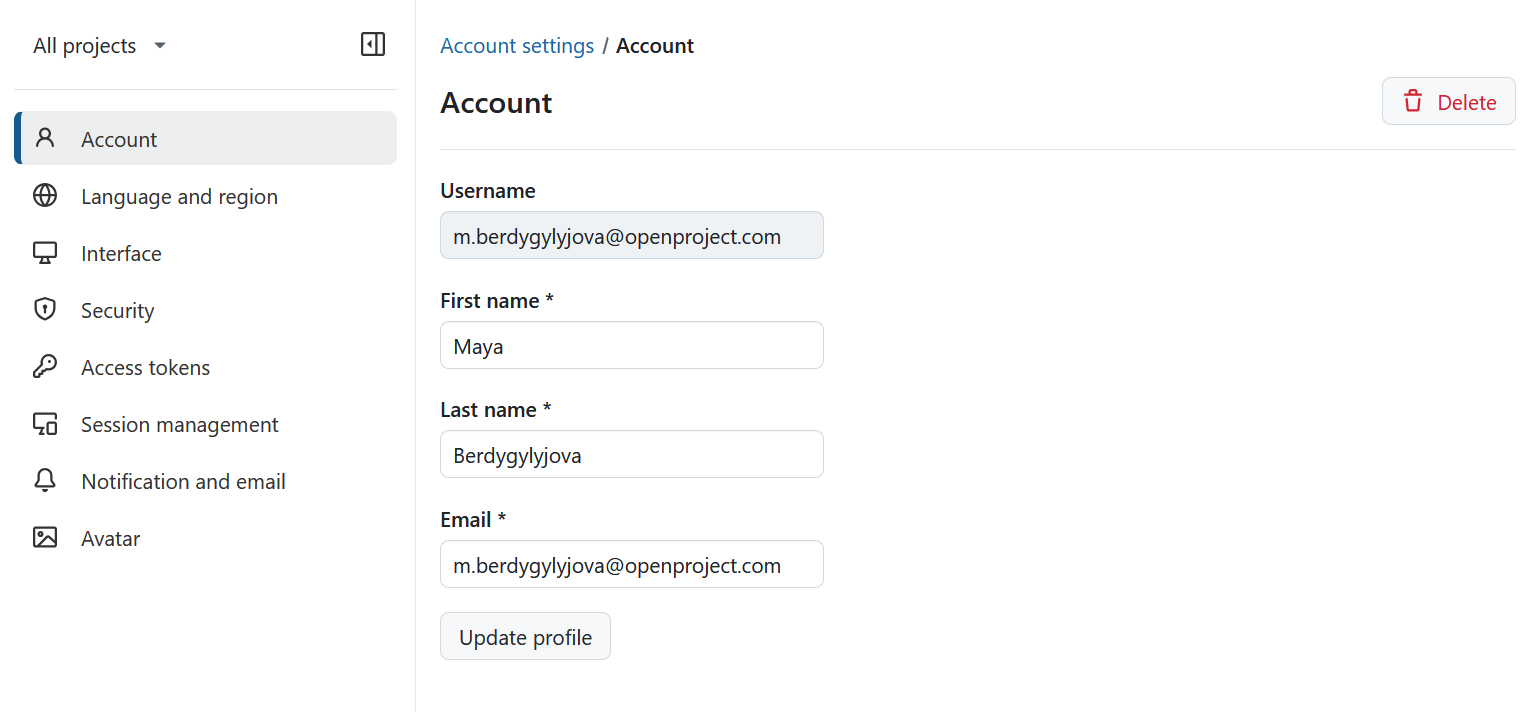
Um Ihre E-Mail-Adresse oder Ihren Namen zu ändern, navigieren Sie im linken Menü der Seite Kontoeinstellungen zum Punkt Konto und scrollen Sie zum Abschnitt Benutzerattribute.
Hier können Sie Ihr Profil aktualisieren oder löschen. Wenn Sie die E-Mail-Adresse Ihres Kontos ändern, werden Sie aufgefordert, Ihr Passwort zu bestätigen, bevor Sie fortfahren können.
Hinweis
Dies gilt nur für interne Konten, bei denen OpenProject das Passwort überprüfen kann.
Tipp
Bitte beachten Sie, dass das Kontrollkästchen ‘Meine E-Mail verbergen’ mit OpenProject 15.0 aus den Kontoeinstellungen entfernt wurde. Die Funktion wurde durch die neue globale Standardrolle ersetzt, die diese Berechtigung auf Instanzebene regelt.
Konto löschen
Sie können Ihr eigenes Konto unter Kontoeinstellungen löschen.
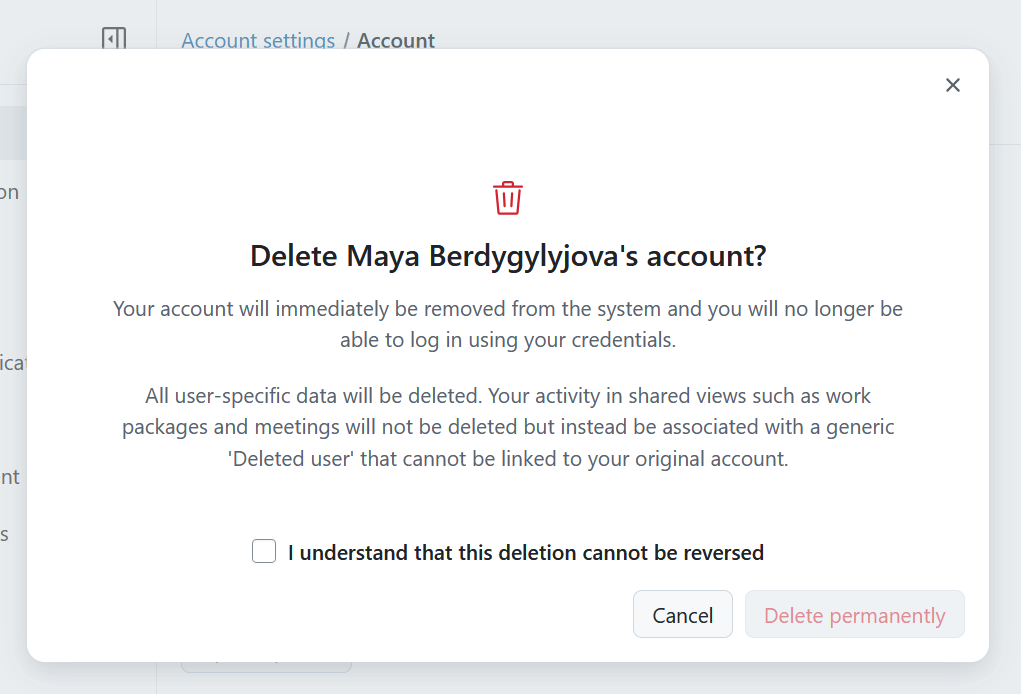
Um Ihr Konto zu löschen, navigieren Sie zu Kontoeinstellungen → Konto und klicken Sie auf die Schaltfläche Löschen in der oberen rechten Ecke. Sie werden aufgefordert, dies zu bestätigen, sodass Sie wissen, dass diese Löschung dauerhaft ist.
Warnung
Die Löschung eines Benutzerkontos ist dauerhaft und kann nicht rückgängig gemacht werden.
If you cannot see the entry Delete button under your Account settings, make sure the option “Users allowed to delete their account” is activated in the administration.