Account
Définir un avatar
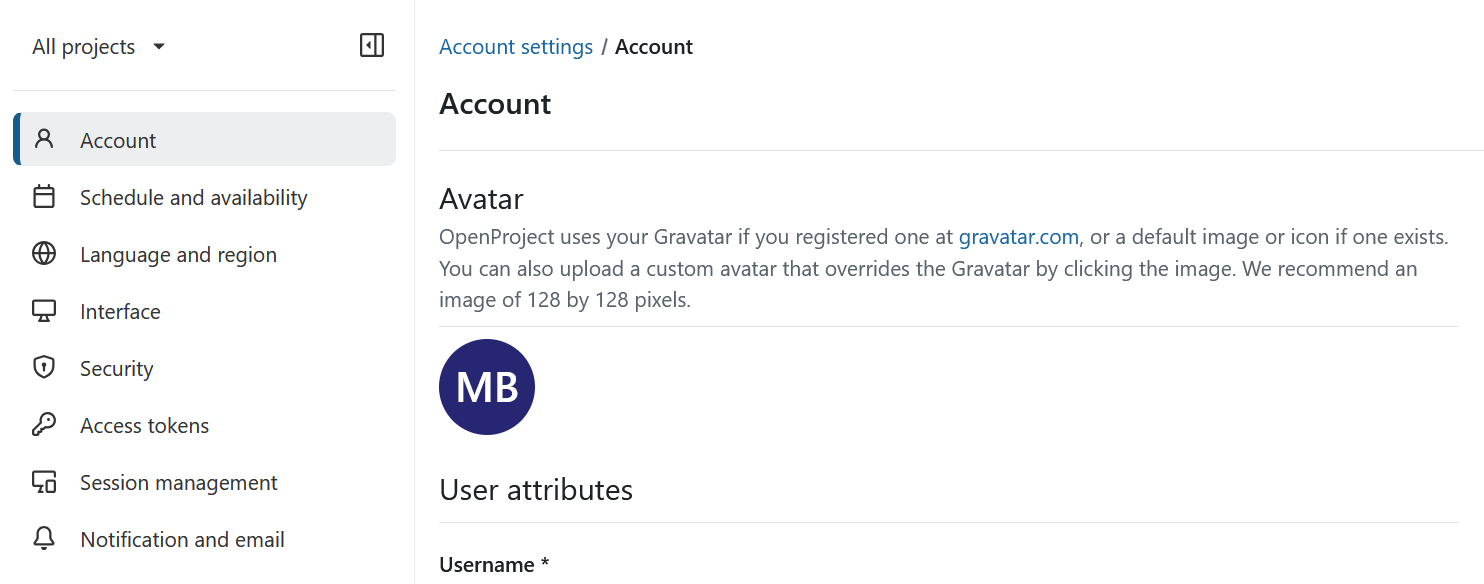
To change your profile picture in OpenProject, navigate to Account settings and select Account from the left-hand menu.
If your OpenProject administrator has enabled Gravatar, OpenProject can display your Gravatar if you have registered one with the same email address at gravatar.com. If no Gravatar image is available, Gravatar displays its configured default avatar.
To use a different profile picture, click your current avatar to upload a custom image. A custom avatar overrides your Gravatar.
Conseil
For the best results, use an image that is 128 × 128 pixels. Larger images will be cropped automatically.
User attributes
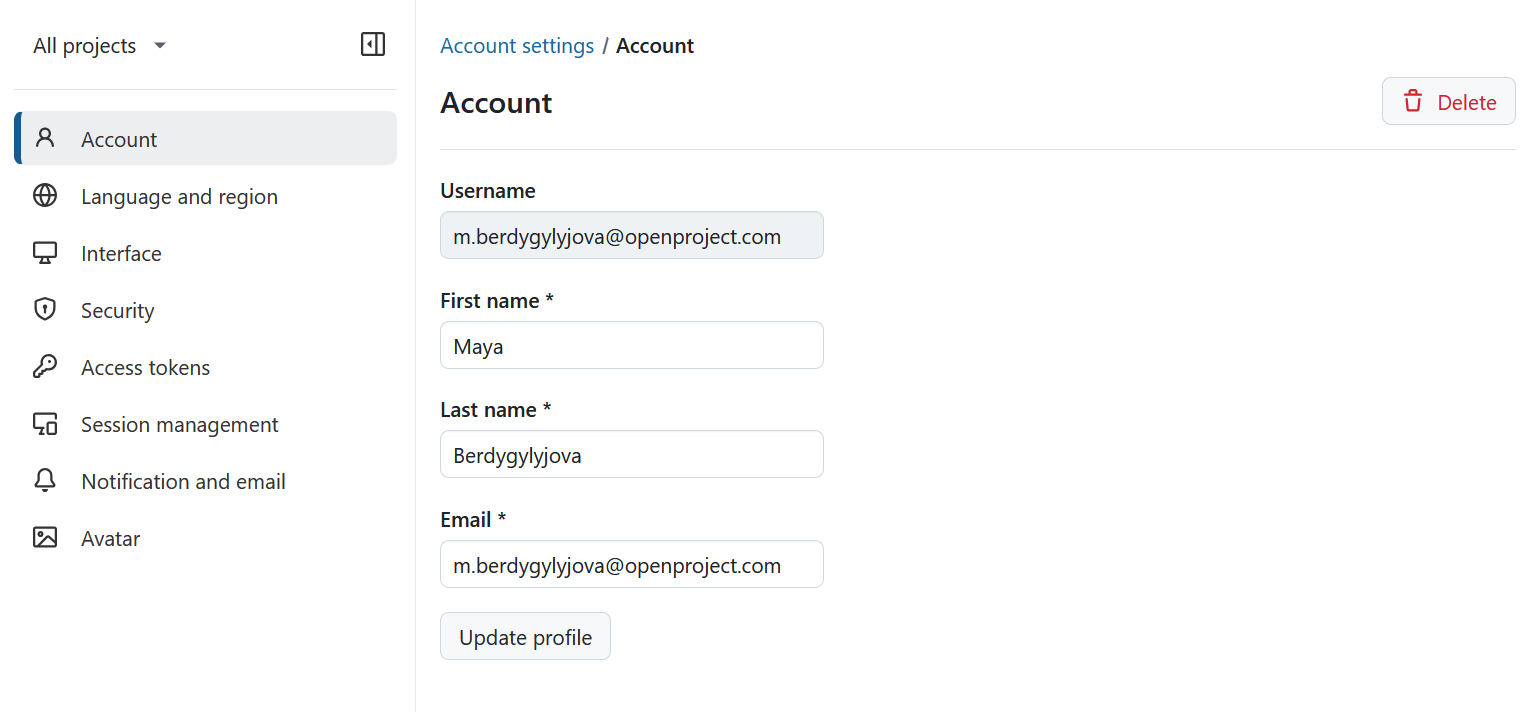
To change your email address or your name, navigate to Account on the left side menu of Account settings page and scroll to User attributes section.
Ici, vous pouvez mettre à jour ou supprimer votre profil. Si vous changez l’adresse électronique de votre compte, il vous sera demandé de confirmer le mot de passe de votre compte avant de pouvoir continuer.
Remarque
Ceci ne s’applique qu’aux comptes internes pour lesquels OpenProject peut vérifier le mot de passe.
Conseil
Veuillez noter que la case à cocher « Masquer mon adresse e-mail » a été supprimée des paramètres du compte avec OpenProject 15.0. The function was replaced by the new Standard global role, which regulates this permission on an instance level.
Supprimer le compte
Vous pouvez supprimer votre propre compte dans Paramètres du compte.
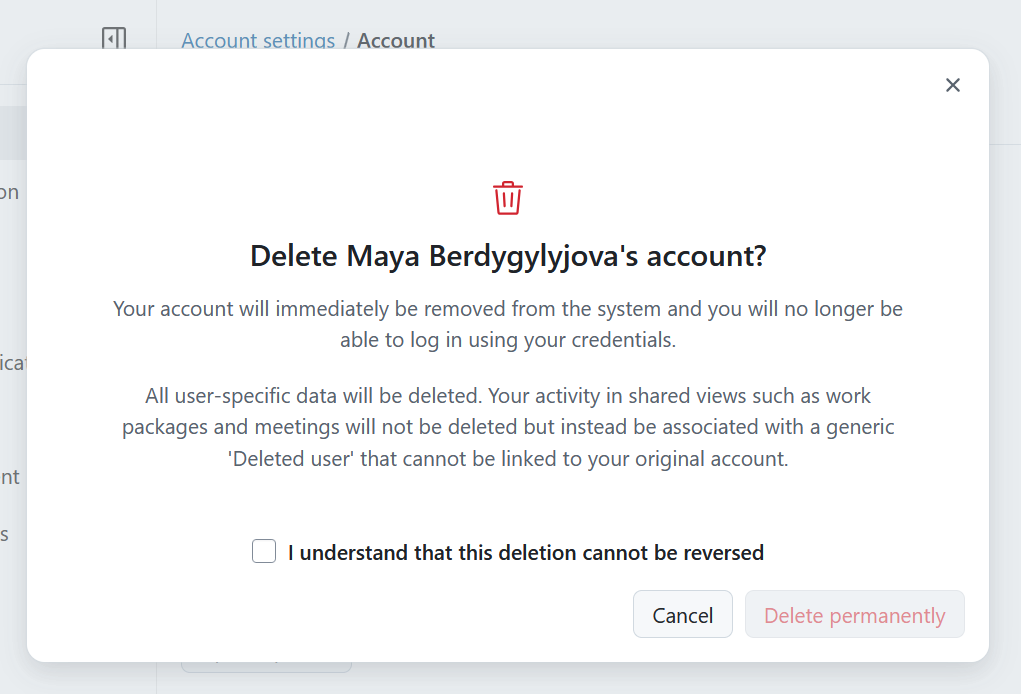
Pour supprimer votre compte, accédez à Paramètres du compte -> Compte et cliquez sur le bouton Supprimer dans le coin supérieur droit. Il vous sera demandé de confirmer que vous comprenez que cette suppression est permanente.
Alerte
La suppression d’un compte utilisateur est permanente et ne peut pas être annulée.
If you cannot see the entry Delete button under your Account settings, make sure the option “Users allowed to delete their account” is activated in the administration.