Account
Establecer un avatar
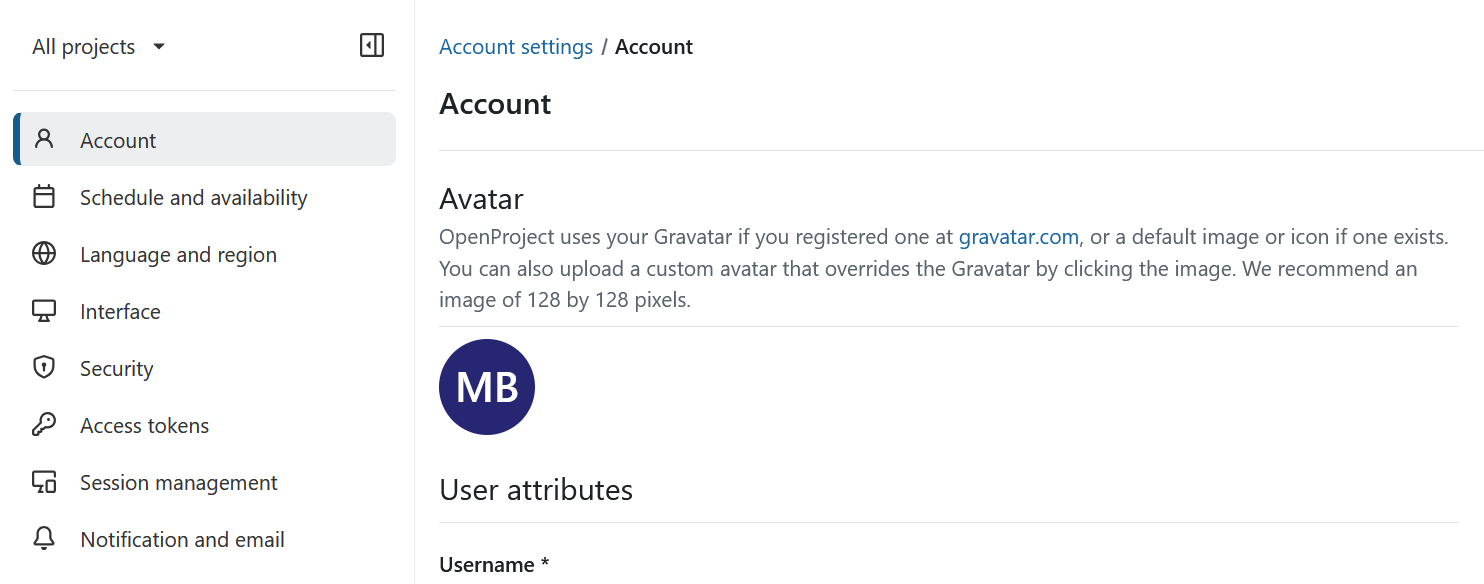
To change your profile picture in OpenProject, navigate to Account settings and select Account from the left-hand menu.
If your OpenProject administrator has enabled Gravatar, OpenProject can display your Gravatar if you have registered one with the same email address at gravatar.com. If no Gravatar image is available, Gravatar displays its configured default avatar.
To use a different profile picture, click your current avatar to upload a custom image. A custom avatar overrides your Gravatar.
Consejo
For the best results, use an image that is 128 × 128 pixels. Larger images will be cropped automatically.
User attributes
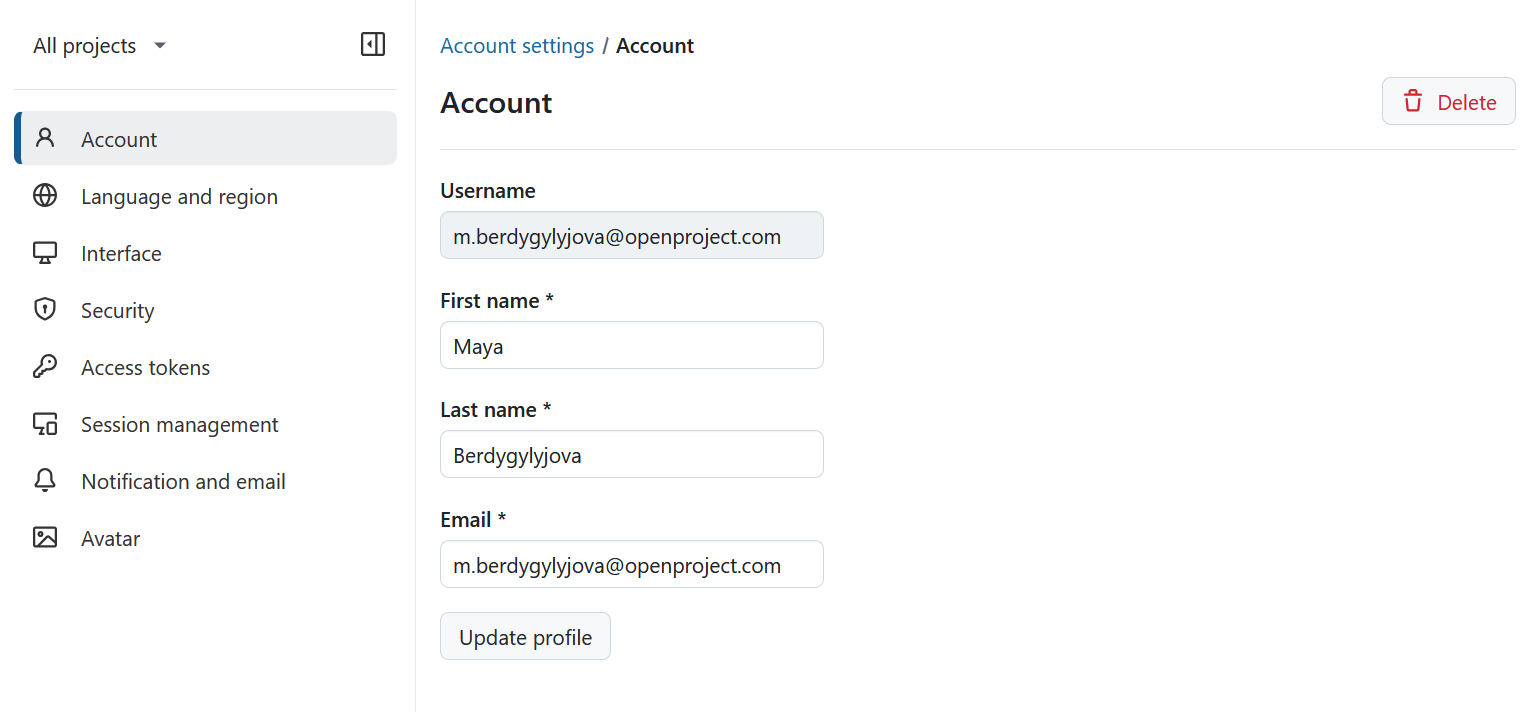
To change your email address or your name, navigate to Account on the left side menu of Account settings page and scroll to User attributes section.
Aquí puede actualizar o borrar su perfil. Si estás cambiando la dirección de correo electrónico de tu cuenta, se te pedirá que confirmes la contraseña de tu cuenta antes de poder continuar.
Nota
Esto sólo se aplica a cuentas internas donde OpenProject puede verificar la contraseña.
Consejo
Tenga en cuenta que la casilla de verificación «Ocultar mi correo electrónico» se eliminó de la configuración de la cuenta con OpenProject 15.0. The function was replaced by the new Standard global role, which regulates this permission on an instance level.
Eliminar cuenta
Puede eliminar su propia cuenta en Ajustes de cuenta.
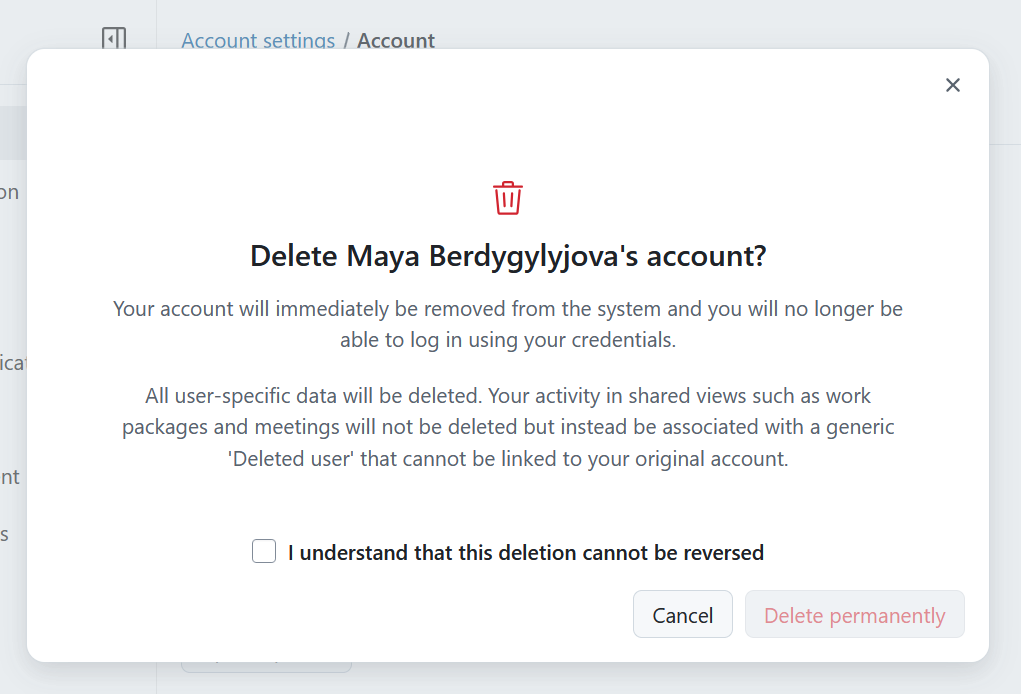
Para eliminar su cuenta, vaya a Configuración de la cuenta -> Cuenta y pulse el botón Eliminar en la esquina superior derecha. Se le pedirá que confirme que entiende que esta eliminación es permanente.
Alerta
La eliminación de una cuenta de usuario es permanente y no se puede revertir.
If you cannot see the entry Delete button under your Account settings, make sure the option “Users allowed to delete their account” is activated in the administration.