Manage your OpenProject Enterprise cloud subscription
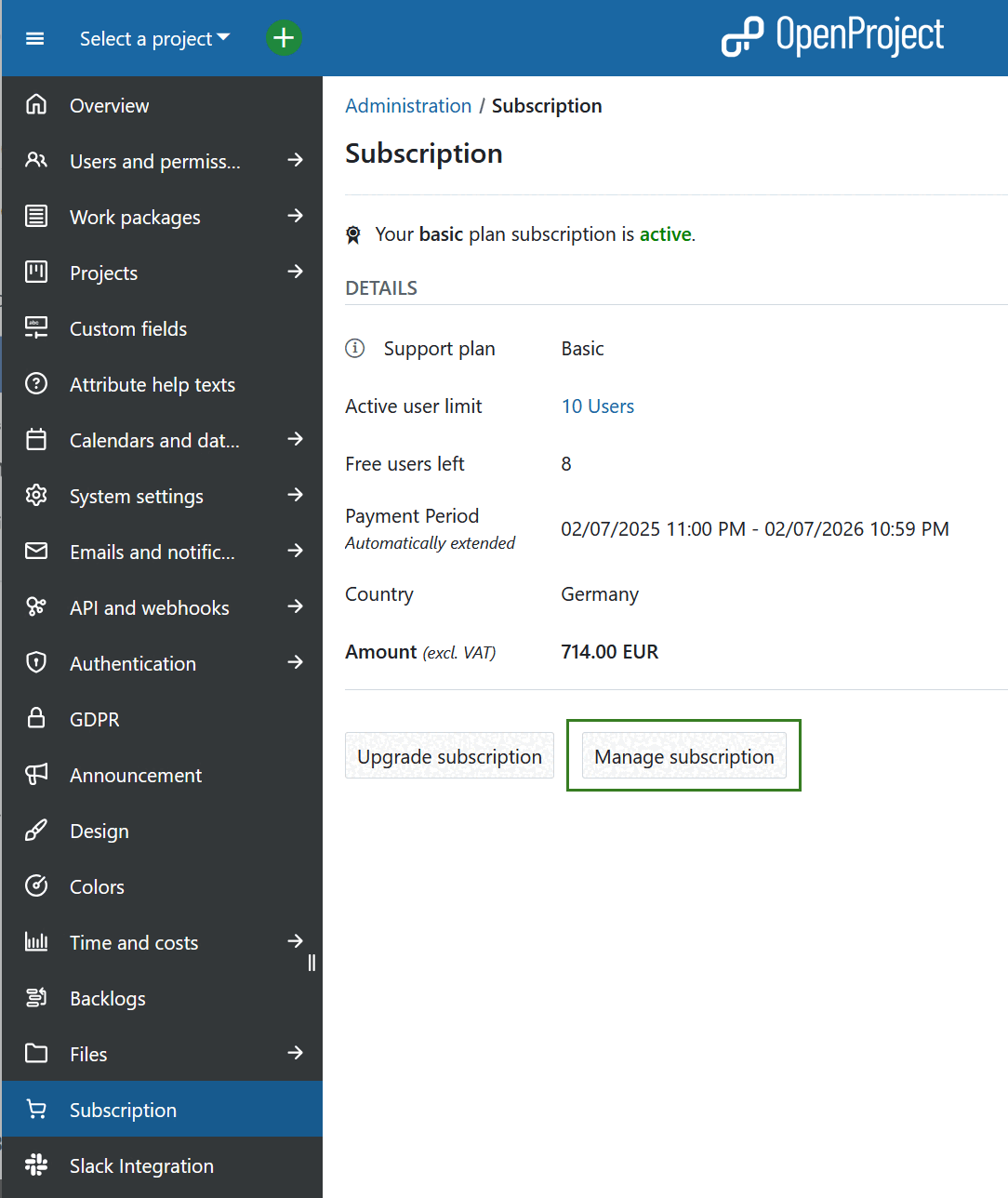
To change the number of users, switch to a different Enterprise cloud plan, cancel your subscription, or update your account and payment details, navigate to Administration -> Subscription within your system’s Administration. Then click the Manage subscription button.
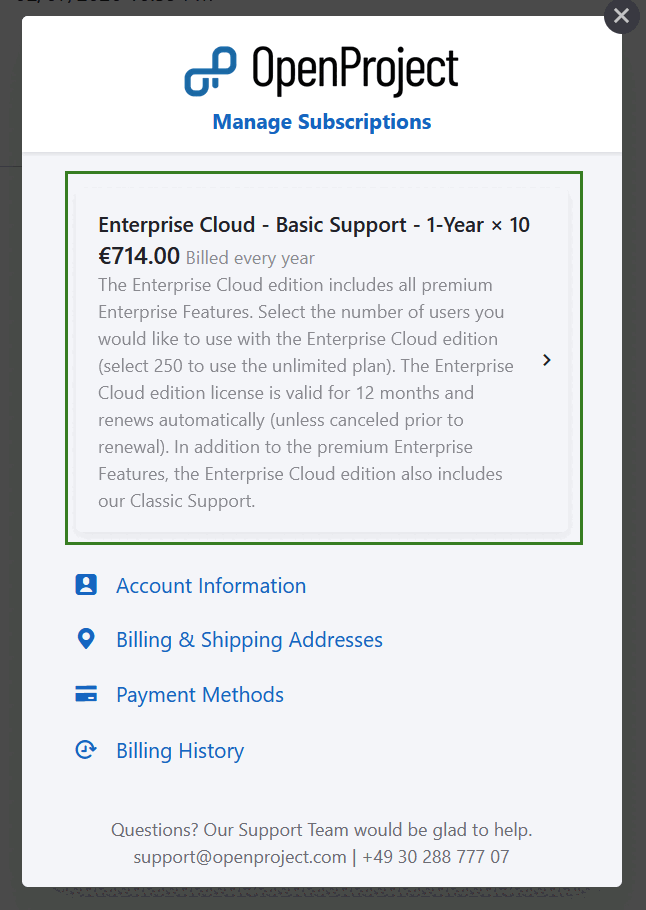
In the overlay window, you can choose between several options:
- Change the number of users or subscription plan, or cancel
- Edit account information
- Edit billing and shipping addresses
- Edit or add payment methods
- View billing history and download invoices
Update existing subscriptions
To update an existing subscription, click the subscription listed at the top of the Manage subscriptions overlay window.
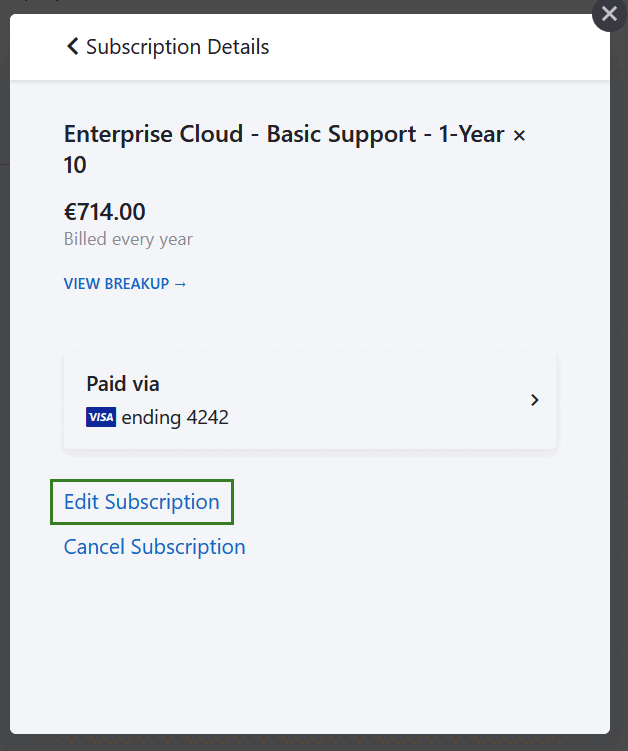
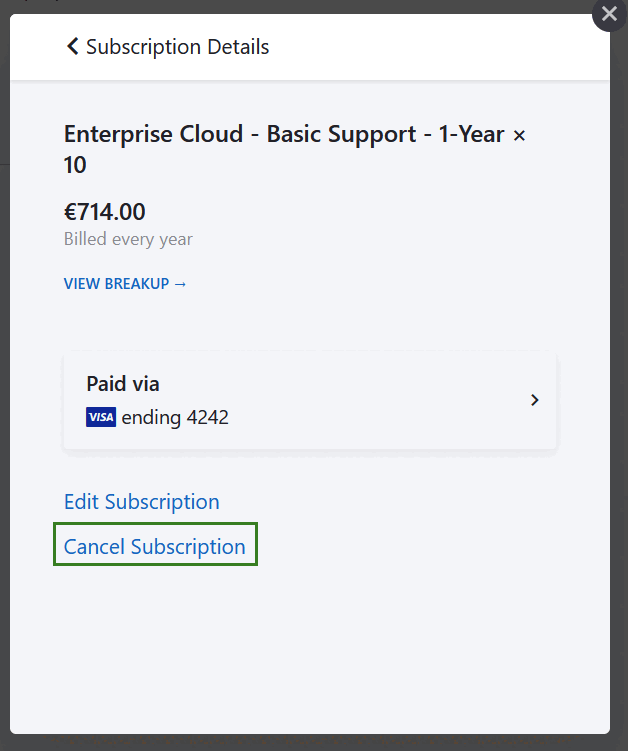
Here you can either Edit or Cancel the existing subscription.
Increase or decrease the number of users
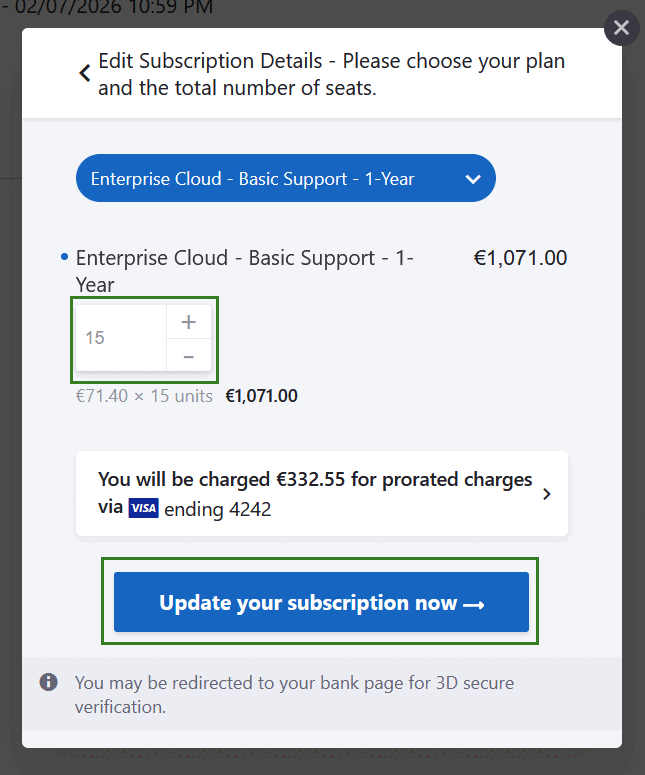
You can change the number of users in your Enterprise cloud subscription without changing your subscription plan. To do so, follow the steps described above and click the Edit Subscription link.
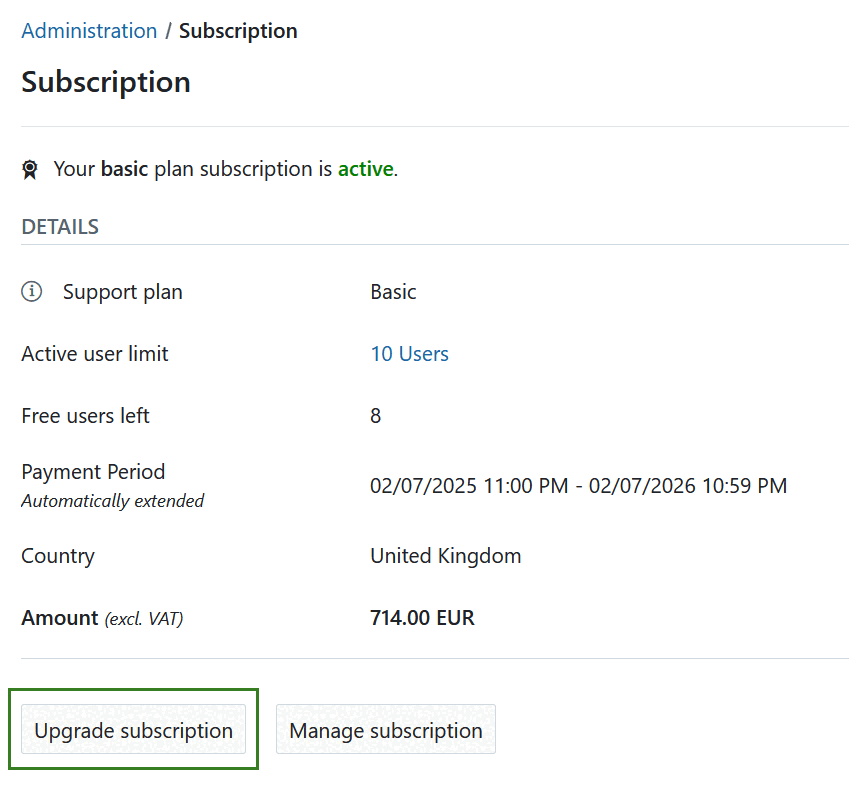
Alternatively, you can navigate to Administration -> Subscription and click the Upgrade subscription button directly.
Choose the new number of users. Your next payment will be displayed below.
You can increase the number of users in increments of 5 at any time. Additional users are billed on a prorated basis, meaning you only pay for them for the remainder of the current subscription period.
You can decrease the number of users at the end of the current subscription period. The reduction takes effect at the beginning of the next subscription period.
Click the Update your subscription now button to save the changes.
Change your subscription plan
You can also upgrade your Enterprise cloud subscription to a higher plan to access additional Enterprise features. This is separate from increasing or decreasing the number of users.
To change your plan, open the subscription management interface via Administration -> Subscription -> Manage subscription. Select your existing subscription to manage it. Review the available subscription options and pricing before confirming a plan change.
For a comparison of the available plans and their features, see the OpenProject pricing page.
Cancel subscription
To cancel your subscription, open the Manage subscription form and click to update the subscription you want to cancel.
Click the Cancel Subscription link if you want to terminate your OpenProject Enterprise cloud edition subscription.
Importante
After cancellation you will receive an email confirmation. Your subscription will be terminated at the end of the current subscription period. After cancellation your data will be kept for a certain period of time in case of reactivation of a subscription.