
Planificación y programación de proyectos eficiente con su equipo
Planifique y programe sus proyectos con cronogramas en línea.
Entregue sus proyectos a tiempo
Colabore en su plan de proyecto con cronogramas compartidos
En un plan de proyecto, se visualizan todas las entregas importantes del proyecto con sus actividades, dependencias e hitos en un cronograma. Con los cronogramas en línea compartidos en OpenProject, puede crear y mantener fácilmente de forma colaborativa el plan de proyecto con su equipo.
Con la gestión de proyectos mediante cronogramas, puede programar sus tareas y visualizar los pasos necesarios para completar el proyecto. Como gestor de proyectos, recibirá información directamente sobre los retrasos en el proyecto, y podrá actuar en consecuencia.
Diagramas de Gantt
Gánese a su equipo visualizando el proyecto
Cree un plan de proyectos basado en web y actualizado continuamente. Compártalo con su equipo y otras partes interesadas para que todos estén informados. En el diagrama de Gantt dinámico de código abierto de OpenProject, se muestran las fases, tareas e hitos del proyecto, así como las relaciones entre estos.
Planificación
Programación ascendente o descendente de proyectos
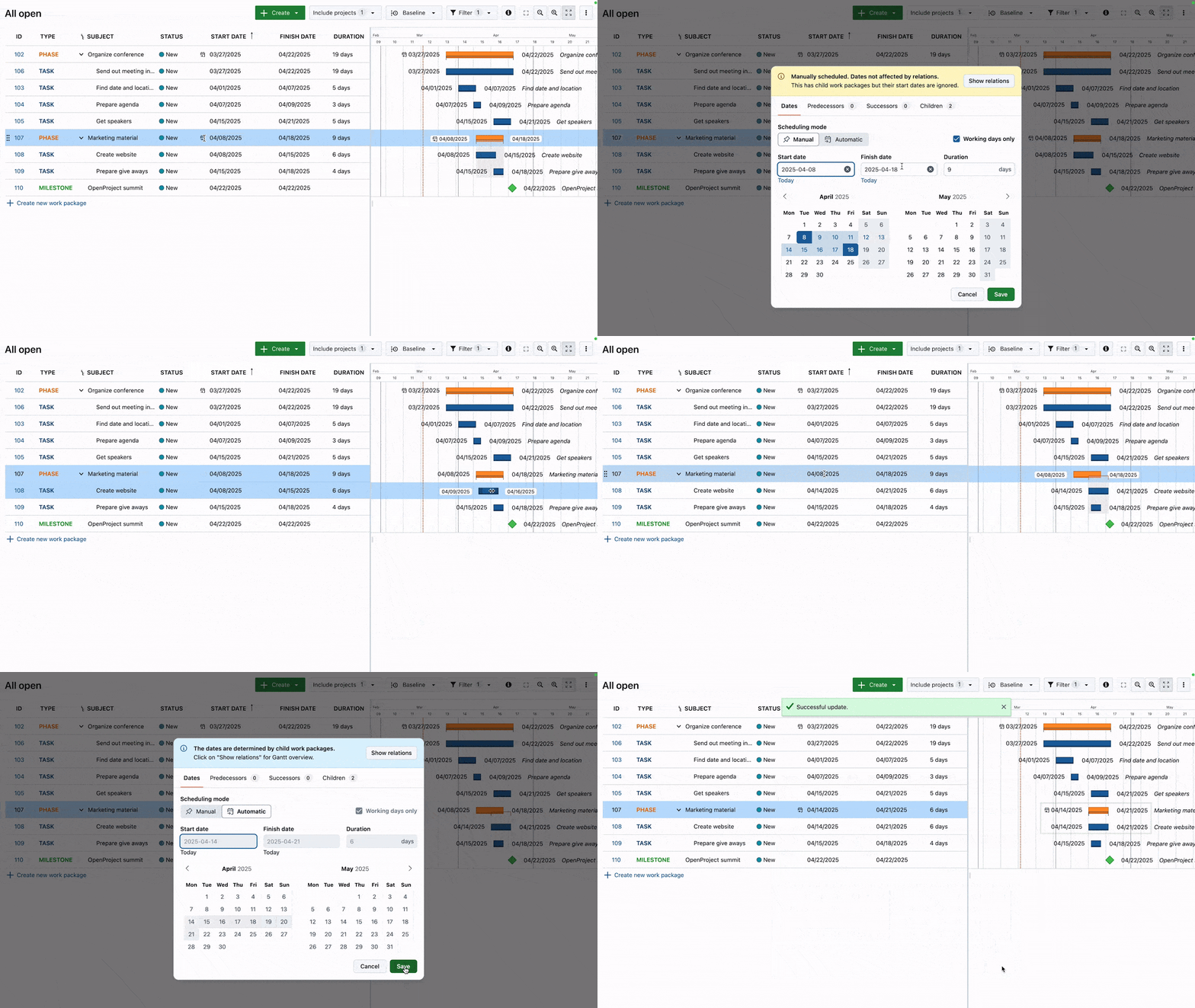
Planifique y programe sus proyectos utilizando un enfoque descendente o ascendente. Al cambiar al modo de programación manual, es posible establecer fases e hitos independientemente de sus elementos secundarios.
Planificador de equipo
Planifique de forma visual la carga de trabajo de su equipo
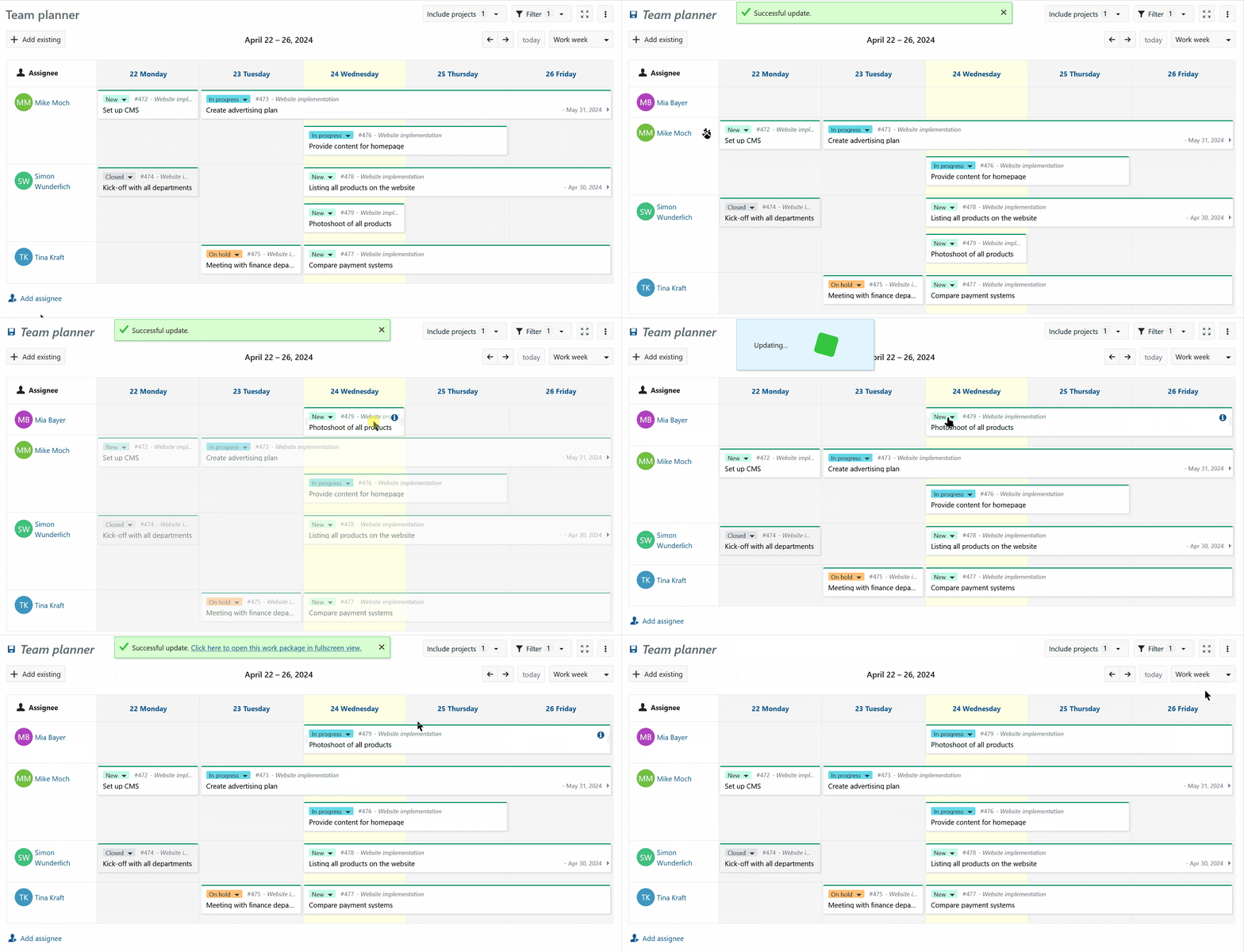
El planificador de equipos le permite asignar visualmente tareas a los miembros del equipo en una vista semanal, bisemanal, de 4 semanas o 8 semanas. Proporciona un resumen del trabajo que realiza cada uno de los miembros del equipo, y cuándo empiezan y terminan sus paquetes de trabajo.
Cronogramas de varios proyectos
Planificación global de proyectos con vistas multiproyecto
Cree un cronograma multiproyecto para mostrar todas las actividades, fases e hitos en su proyecto y subproyectos. Además, puede crear cronogramas generales de proyectos filtrando e incluyendo proyectos respectivos en un único plan conjunto.

Gestión de recursos
Asigne las tareas a las personas adecuadas en el momento oportuno.
Planificador de recursos
Equilibre las cargas de trabajo mediante la planificación y la asignación de recursos en función de la capacidad y la disponibilidad de los equipos en los distintos proyectos.

Horario y disponibilidad
Configure los horarios de trabajo, los días festivos y la disponibilidad para garantizar que los horarios sean realistas y que la planificación de recursos sea más precisa.

Organización
Agrupe a los usuarios en organizaciones para reflejar la estructura de su empresa, simplificar la gestión y agilizar la colaboración.

Atributos de usuario
Amplíe los perfiles de los usuarios con cargos, competencias, idiomas y atributos personalizados para mejorar la gestión de equipos y la planificación de recursos.

Semana de trabajo
Obtenga una programación más precisa al definir su semana laboral
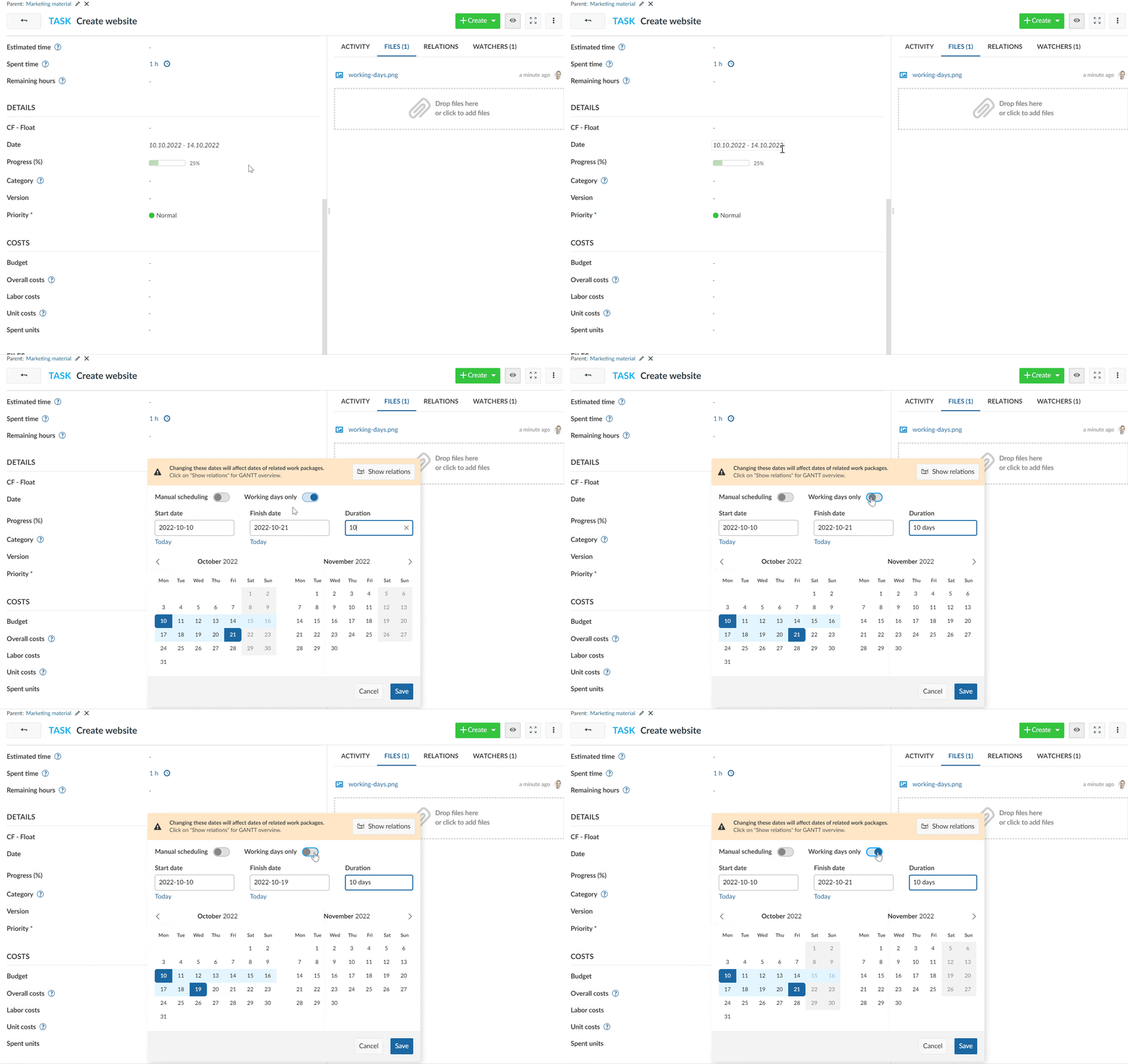
Los administradores pueden definir qué días de la semana se consideran laborables y no laborables, y cuántas horas debe comprender cada día laborable. Este ajuste define lo que OpenProject debe considerar como una semana laboral normal al programar paquetes de trabajo y al calcular la duración de los paquetes de trabajo.
También puede definir fechas específicas (como festivos nacionales o locales) como días no laborables para tener en cuenta otros días en los que su equipo no trabajará.
Alertas de fecha
Nunca se pierda una fecha límite
Las alertas de fecha le permiten recibir una notificación cuando se aproxime la fecha de inicio o finalización de un paquete de trabajo. Puede elegir alertas antes del evento, en el mismo día o cuando haya vencido, y configurar las alertas con distintos intervalos.

nivel de Zoom
Puede visualizar un cronograma desde un día hasta un año
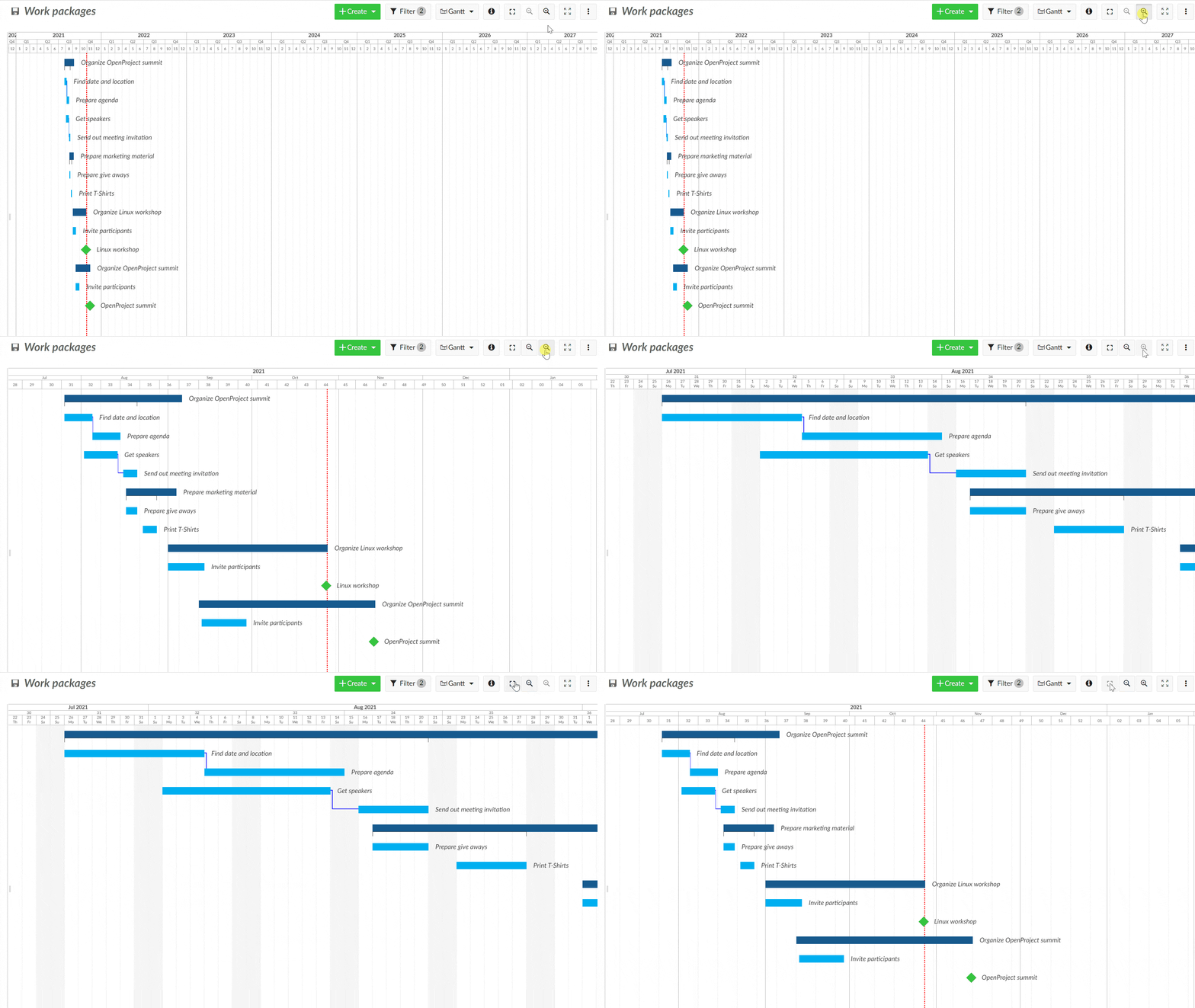
Puede configurar el nivel de zoom de su cronograma desde una vista diaria hasta una anual, o incluso de varios años. La función de zoom automático le ayuda a encontrar la vista ideal.
Vista personalizada
Cree cronogramas con columnas, etiquetas y filtros personalizados
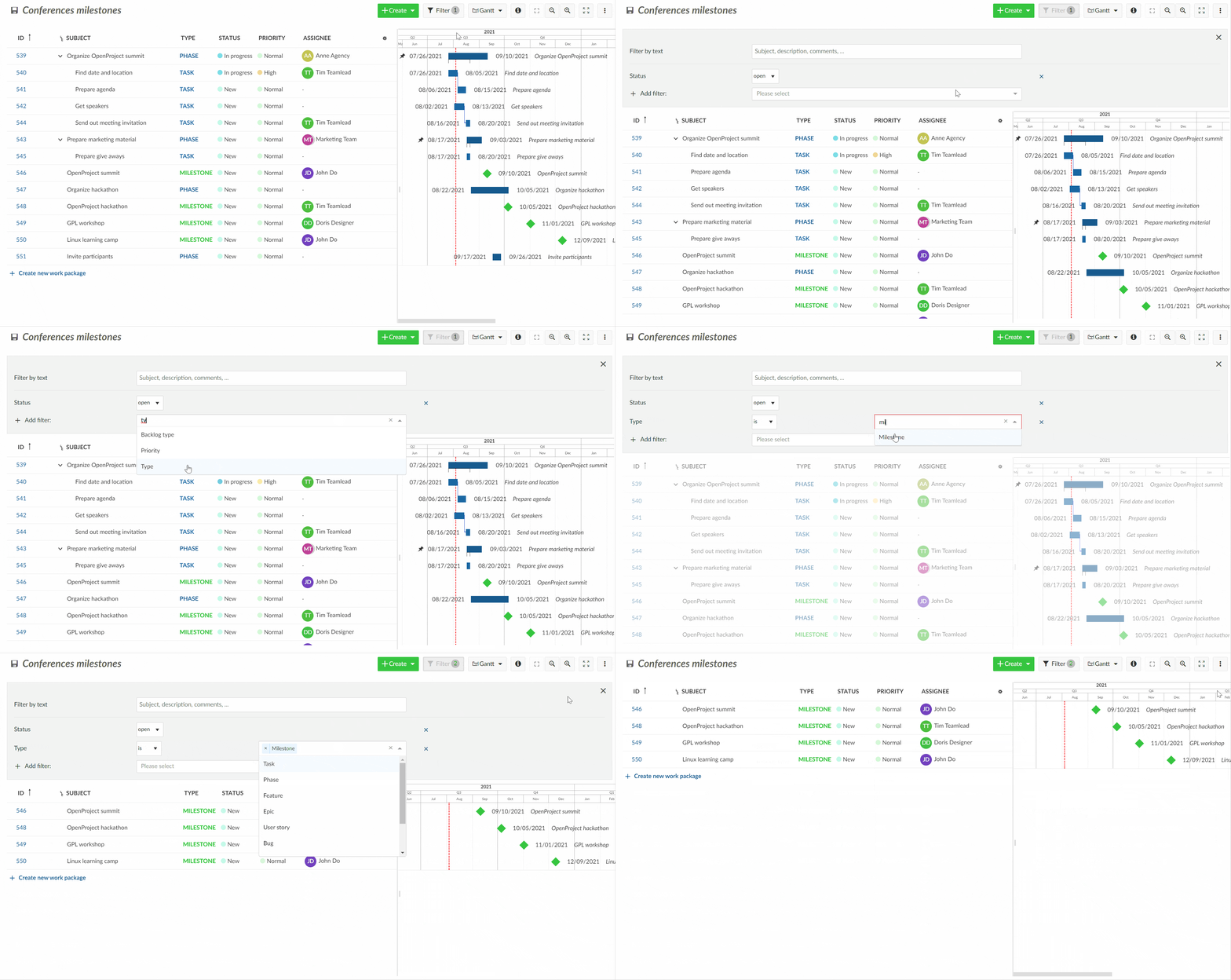
Configure los cronogramas con columnas, filtros y etiquetas adicionales personalizables, y compártalos con su equipo para ver exactamente lo que necesita (por ejemplo, solo los hitos de un proyecto).
Modo Zen
Trabaje o visualice la información sin distracciones en la vista de pantalla completa
Active el modo zen para trabajar o visualizar la información sin distracciones y centrarse en sus tareas. Es una vista de pantalla completa en el navegador que oculta el menú de encabezado y la navegación de páginas.

Edición directa
Añada fácilmente nuevos elementos al cronograma y cambie las posiciones con funciones de arrastrar y colocar
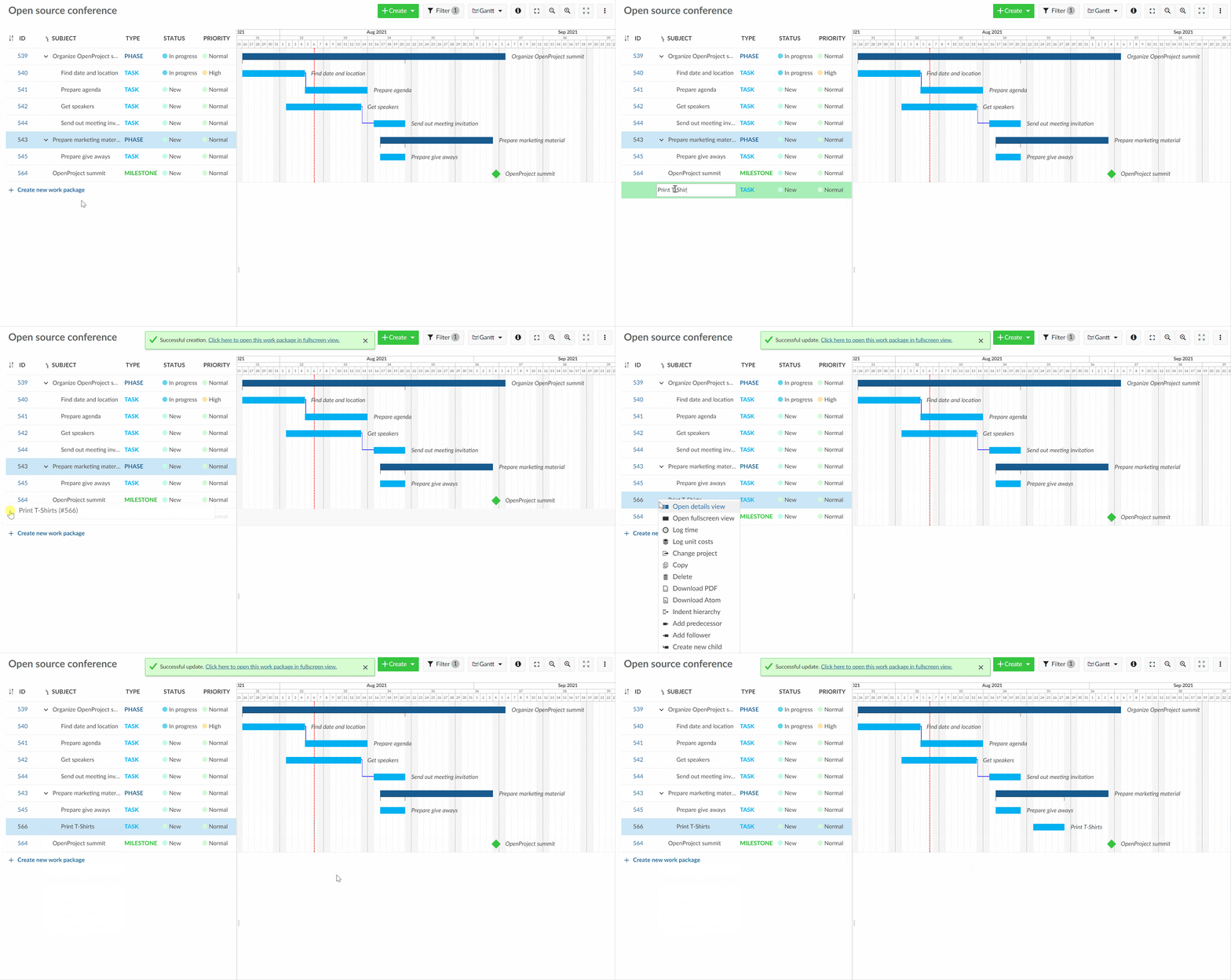
Si quiere añadir más elementos a su plan de proyecto, puede crearlos con facilidad directamente en el plan y cambiar el orden con funciones de arrastrar y colocar. Además, puede añadir sangrías a elementos para configurarlos como secundarios.
Relaciones y jerarquías
Cree y visualice dependencias en el plan del proyecto
Puede crear diferentes relaciones en el diagrama de Gantt, como relaciones puntuales de predecesor y seguidor, o jerarquías como relaciones primaria y secundaria.

Exportar
Exporte su plan de proyecto a distintos formatos
Puede exportar sus datos desde el diagrama de Gantt a varios formatos (como PDF, XLS o CSV), imprimirlos o incluso sincronizarlos con Microsoft Excel.

Paquetes de trabajo
El corazón de su proyecto
Cree y defina todos los entregables de su proyecto con paquetes de trabajo. Como componentes básicos de OpenProject, conectan la planificación, la colaboración y la ejecución a través de diagramas de Gantt, backlogs, reuniones, planificadores de equipo y mucho más. Personalice ID, tipos, formularios y flujos de trabajo para trabajar a su manera.
Calendario
Esté al día y cumpla sus plazos
Lleve un seguimiento de todos los plazos de su paquete de trabajo en un calendario de proyectos integrado para conocer sus tareas, fechas límite y entregar a tiempo. Subscríbase al calendario con la URL (iCalendar).