Meetings
The Meetings module lets you plan, run, and review meetings in OpenProject from the mobile app. It supports both individual meetings and recurring meeting series, and provides everything you need to manage agendas, outcomes, participants, and related work.
What you can do
With the Meetings module, you can:
- View all meetings, including:
- individual meetings, and
- meeting series (recurring meetings).
- Browse meetings within a series, including upcoming and past meetings.
- Search and filter meetings (for example, by project or by switching queries).
- Open meeting details and work with:
- Agenda
- Backlog
- Details
- Participants
- Attachments
- Update the meeting status (for example, when the meeting starts or ends).
- Manage agendas:
- add, edit, move, and delete agenda sections,
- add, edit, move, and delete agenda items,
- link work packages to agenda items.
- Add and edit outcomes while a meeting is in progress.
- Create meetings:
- create a new individual meeting, or
- create a new meeting series.
- Delete or cancel meetings with the correct permissions.
- View linked meetings inside work packages as a dedicated tab in the work package view.
Common workflows
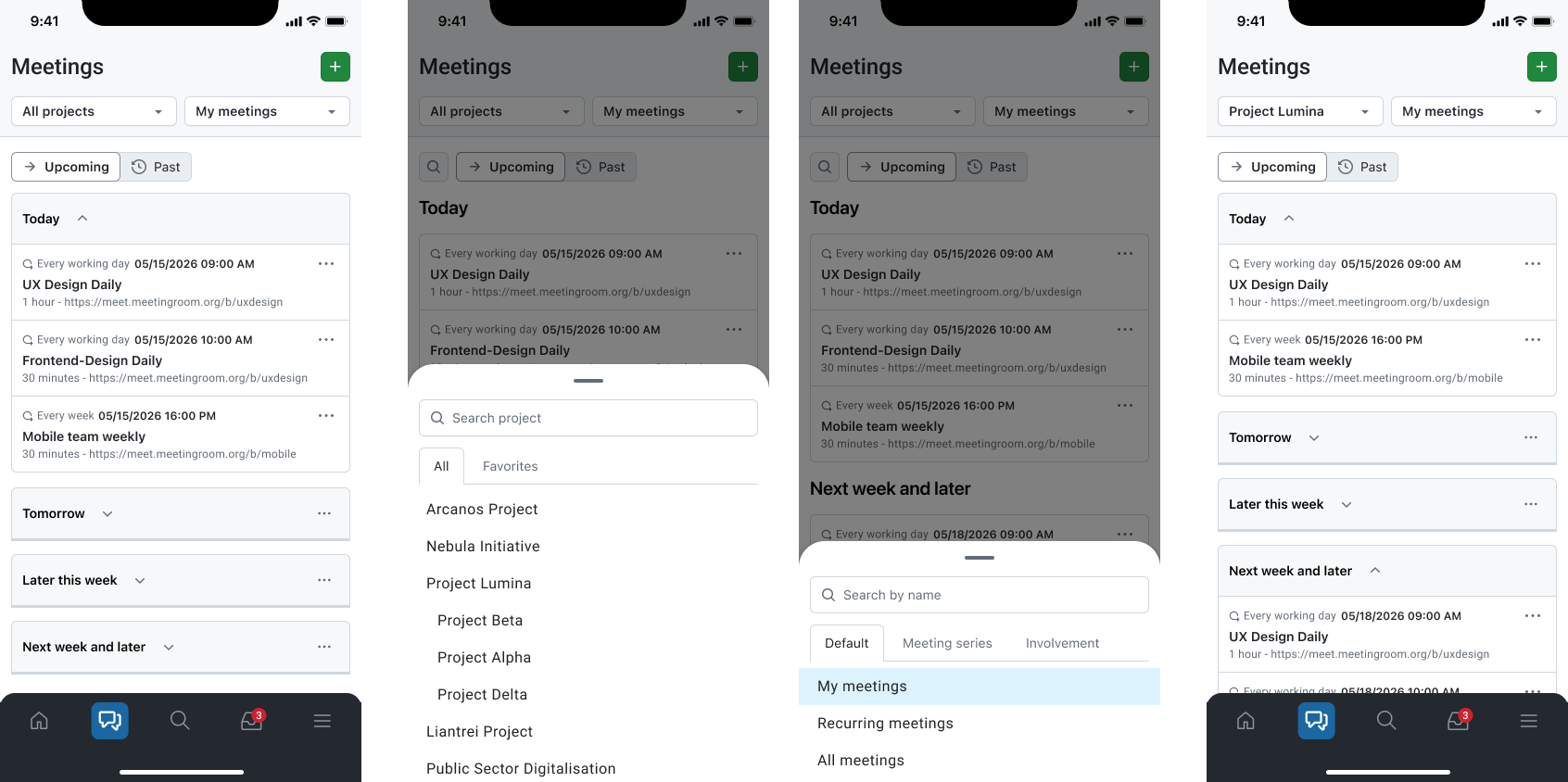
Find a meeting
- Open Meetings.
- Use the project filter (e.g., All projects) to narrow down the scope.
- Use the query selector (e.g., My meetings) to switch what you are viewing.
- Use search to find a meeting by title.
Review upcoming or past meetings in a series
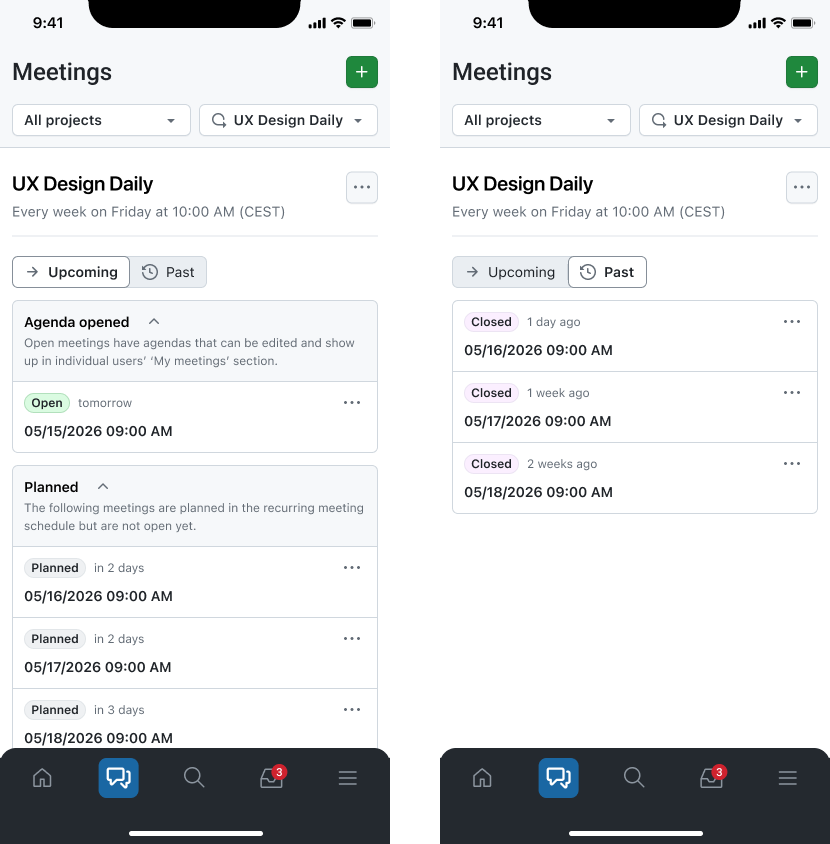
- Open Meetings.
- Open a meeting series.
- Switch between upcoming and past meetings to locate the instance you need.
- Tap a meeting to open its details.
Prepare the agenda
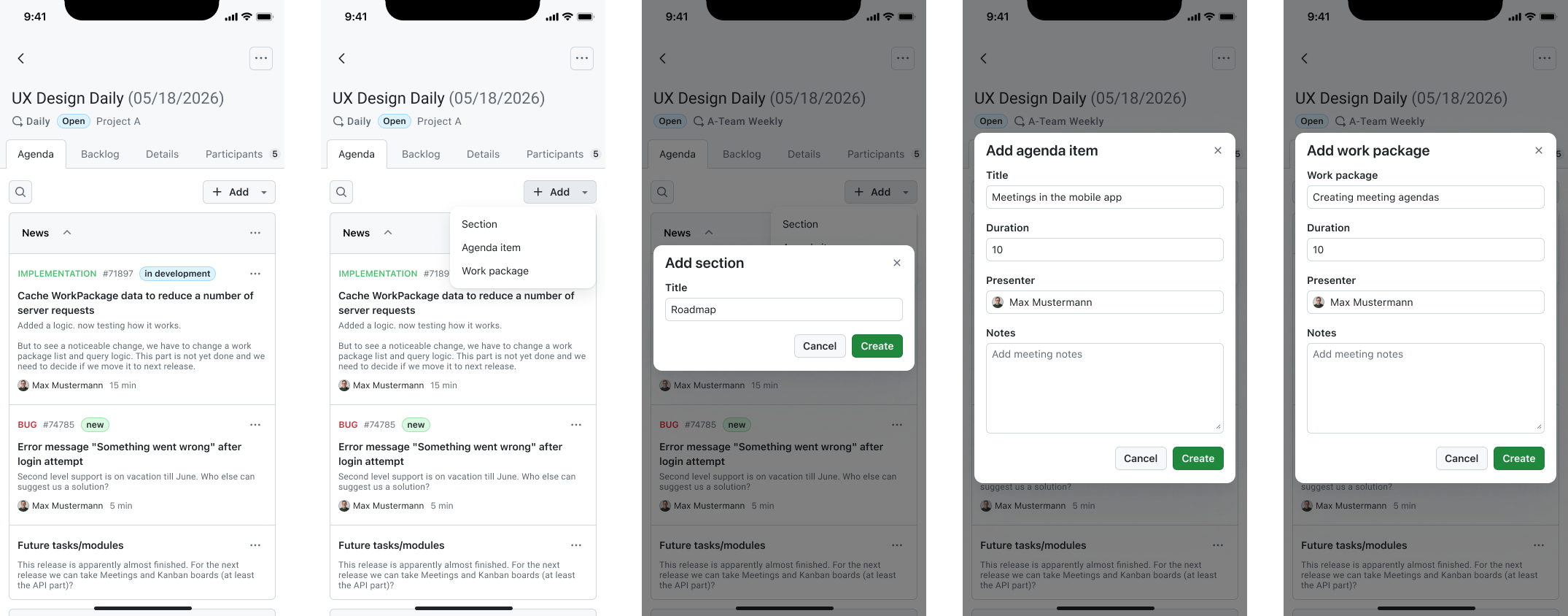
- Open a meeting and go to Agenda.
- Add agenda sections to structure the meeting.
- Add agenda items under the right section.
- If the discussion relates to work items:
- link existing work packages to agenda items, or
- create a new work package (if supported and permitted).
Run the meeting
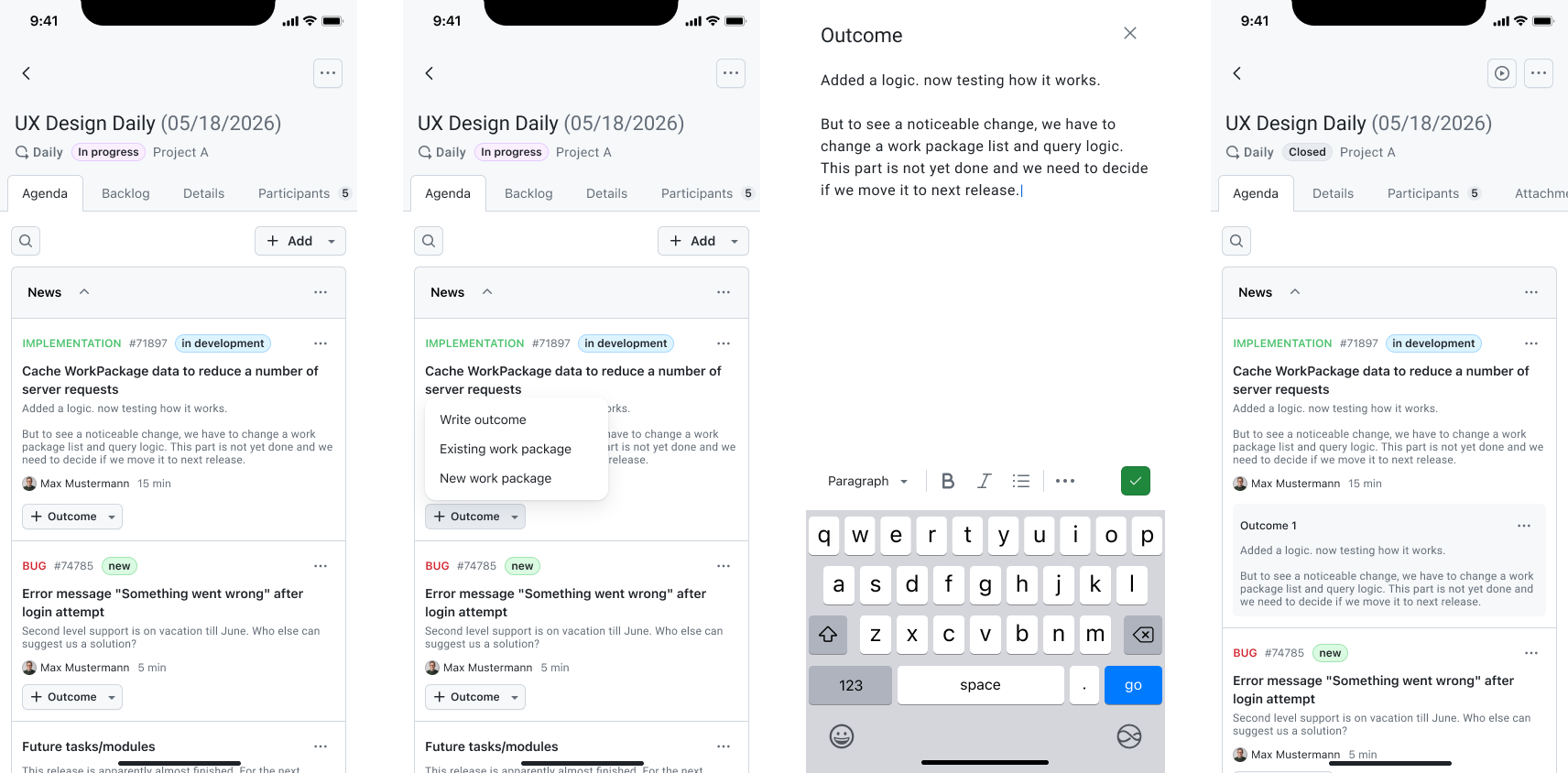
- Open the meeting.
- Update the meeting status to indicate it is in progress (if used in your workflow).
- While discussing agenda items, add or update outcomes to document decisions and next steps.
Change meeting details or participants, or attach files
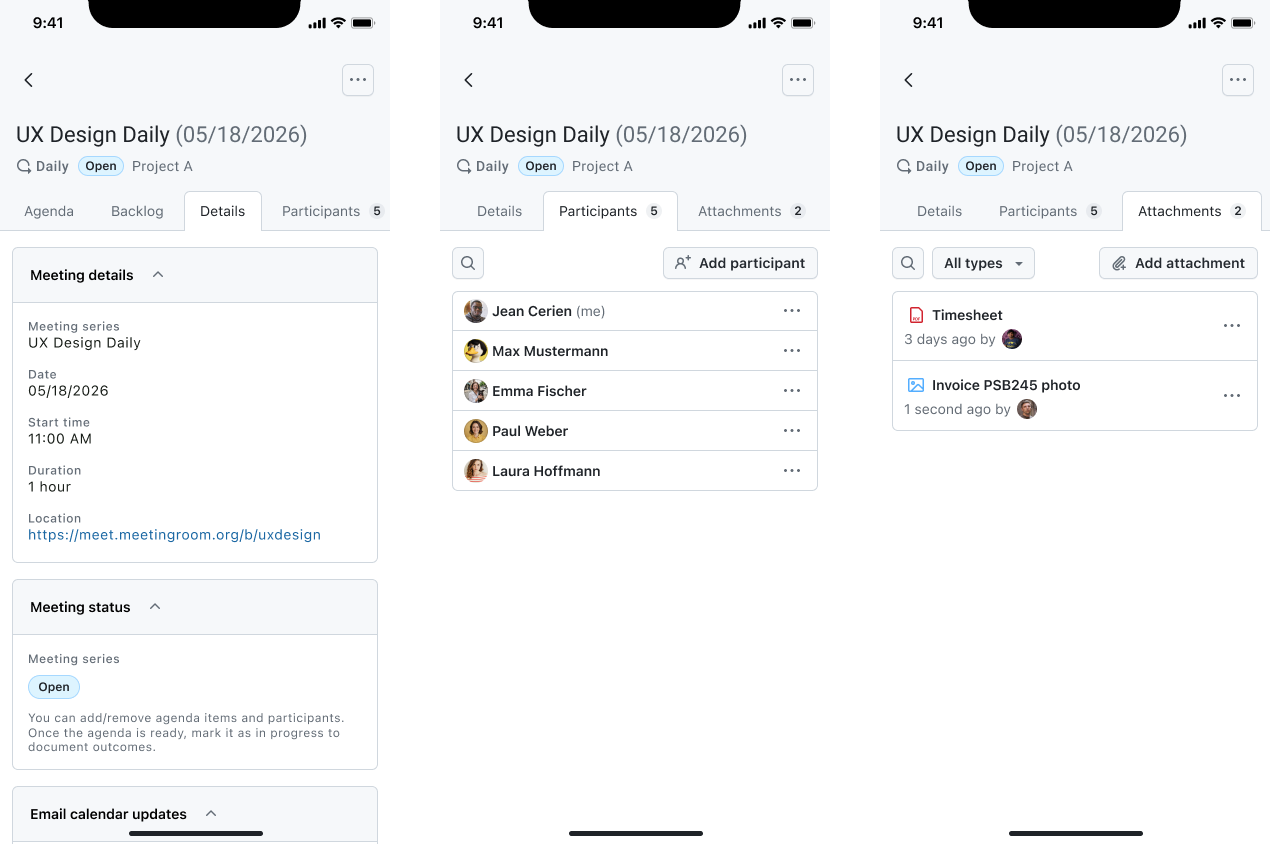
- Open the meeting and use the available tabs:
- Details: View and change the meeting’s general details, its status and change the email calendar updates for all participants.
- Participants: View and add participants to the meeting.
- Attachments: Attach relevant files or photos to the meeting.
- Add or modify the desired data.
Create a new meeting or meeting series
You can create new meetings directly from the Meetings module.
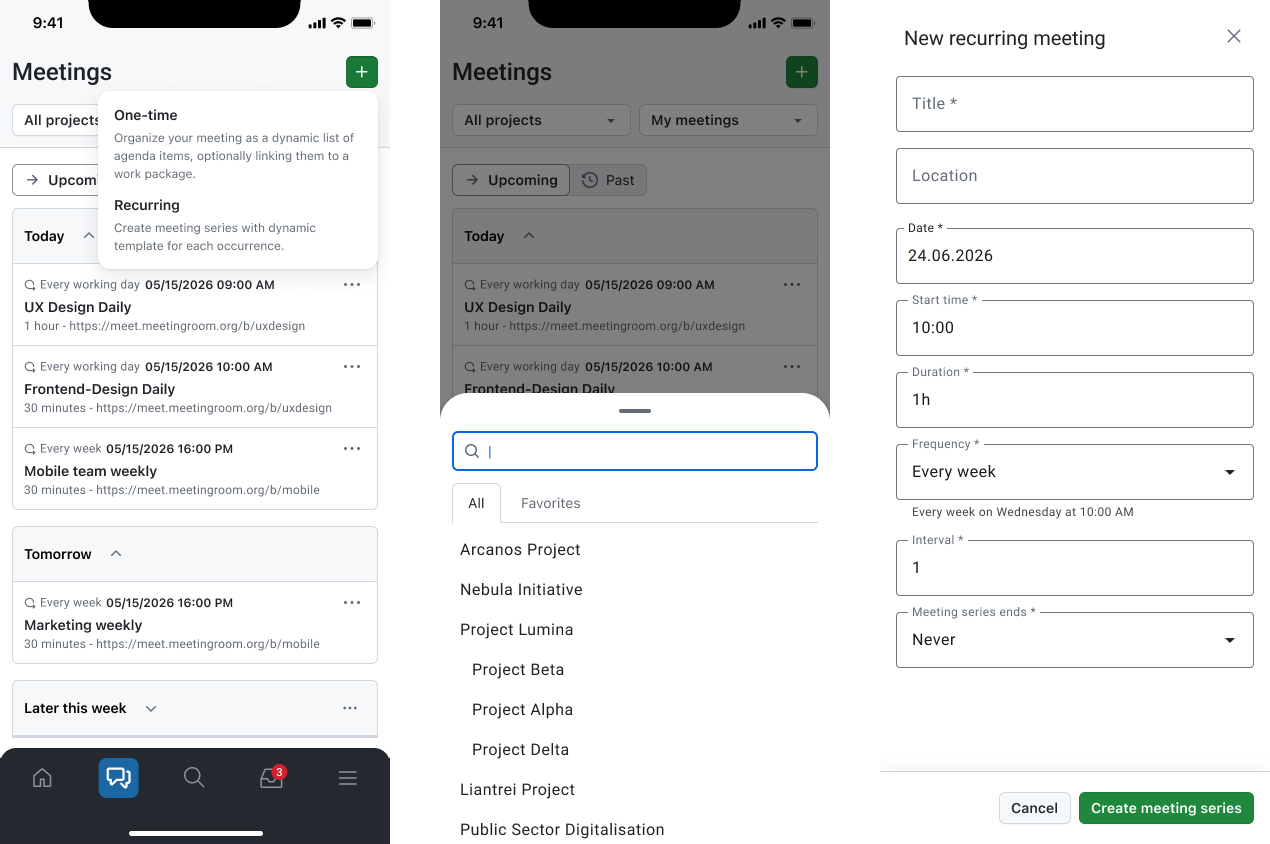
- Open Meetings.
- Tap the + button (top right).
- Choose what you want to create:
- One-time meeting (individual meeting), or
- Recurring meeting (meeting series).
- Fill in the required details, such as:
- meeting title,
- project,
- date and time (or start date and recurrence pattern for a series),
- participants.
- Tap Create.
After creation, the meeting opens in its detail view, where you can start preparing the agenda, add attachments, and, once the meeting starts, capture outcomes.
Linked meetings in work packages
Additionally, the meetings related to a work package can also be accessed from the work package detail view via a dedicated Meetings tab. Use this when you start from a work item and want to:
- check meeting context around that work package,
- review outcomes or discussion history tied to the item.