Forums
In the forums in OpenProject you can discuss topics in a project with the team: ask questions, reply to them and document the answers.
Forum is defined as a module used to display forums and their topics. The module has to be activated in the project settings to be displayed in the side navigation.
| Sujet | Contenu |
|---|---|
| Créer un nouveau forum | Comment créer un nouveau forum. |
| Gérer les forums | Comment trier, modifier ou supprimer un forum. |
| Ouvrir un forum | How to open an existing forum and sort its topics. |
| Create a new topic | How to start a new topic in a forum. |
| Read a topic | How to read a topic and load its older replies. |
| Reply to a topic | How to reply to a topic, quote a post or mention a member. |
| Mark a topic as solved | How to accept a reply as the solution of a topic. |
| Create a work package | How to turn a topic or a reply into a work package. |
| Suivre un forum | How to keep informed about changes in a forum, e.g. new topics or replies. |
| Edit a topic or a reply | How to edit a post in a forum. |
| Delete a topic or a reply | How to delete a topic or a single reply. |
Créer un nouveau forum
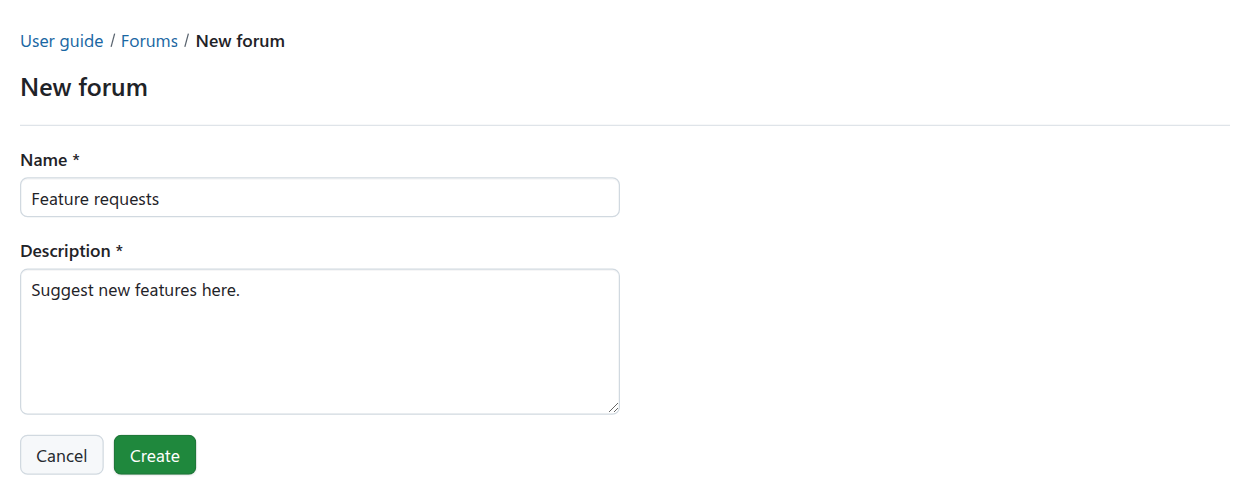
To create a new forum in your project, navigate to the Forums module in the project navigation and click the + Forum button.
Saisissez un nom et une description pour le nouveau forum. Click the Create button to save the new forum.
Gérer les forums
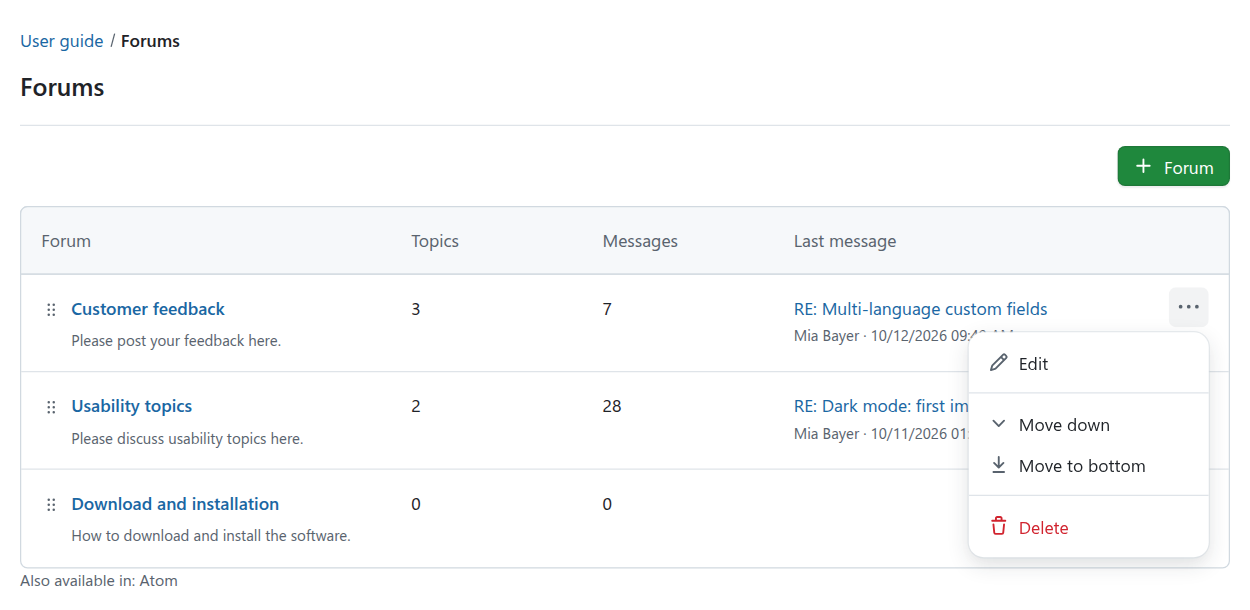
To change the order of the forums in your project, edit a forum, or delete a forum, go to the list of forums in your project.
- Drag and drop a forum by its handle on the left to change its position in the list.
- Click the More (three dots) icon of a forum to edit its name or description, to move it up or down, or to delete it.
Ouvrir un forum
To work in the forums in OpenProject, select the menu item Forums in the project navigation.
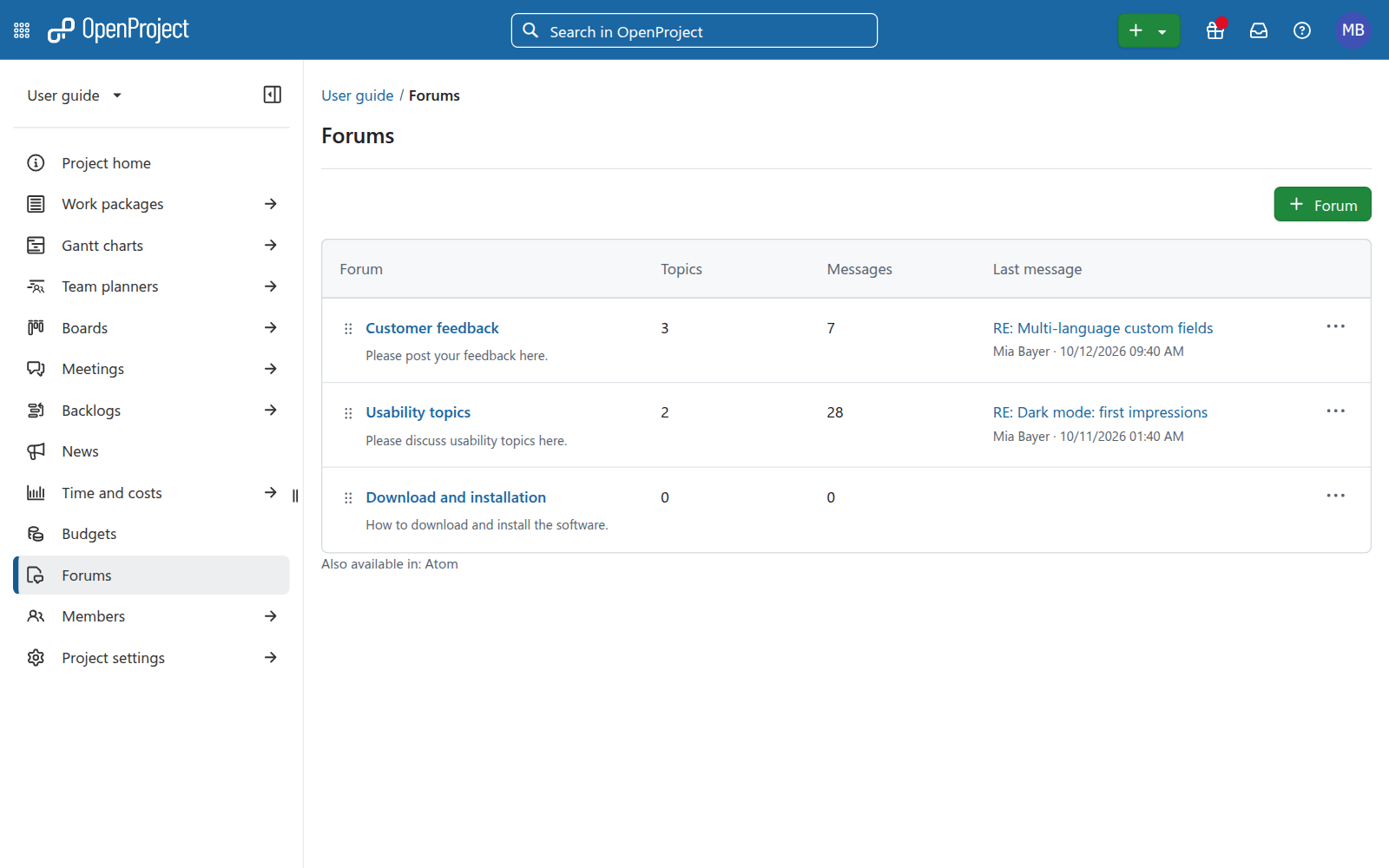
You will get a list of all forums within the project with their description, the number of topics and messages, as well as the last message posted in each forum.
Click on the name of a forum to open it.
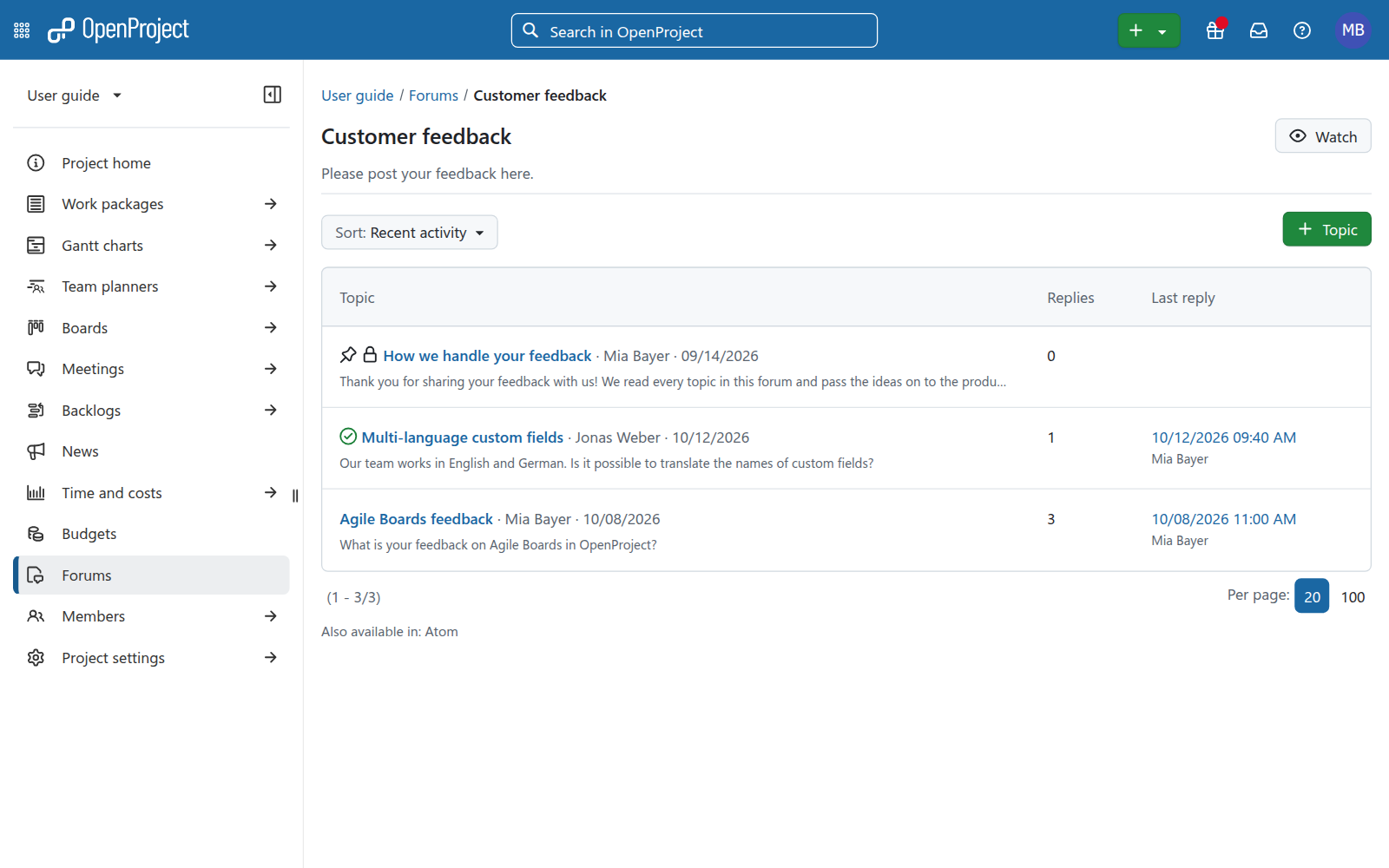
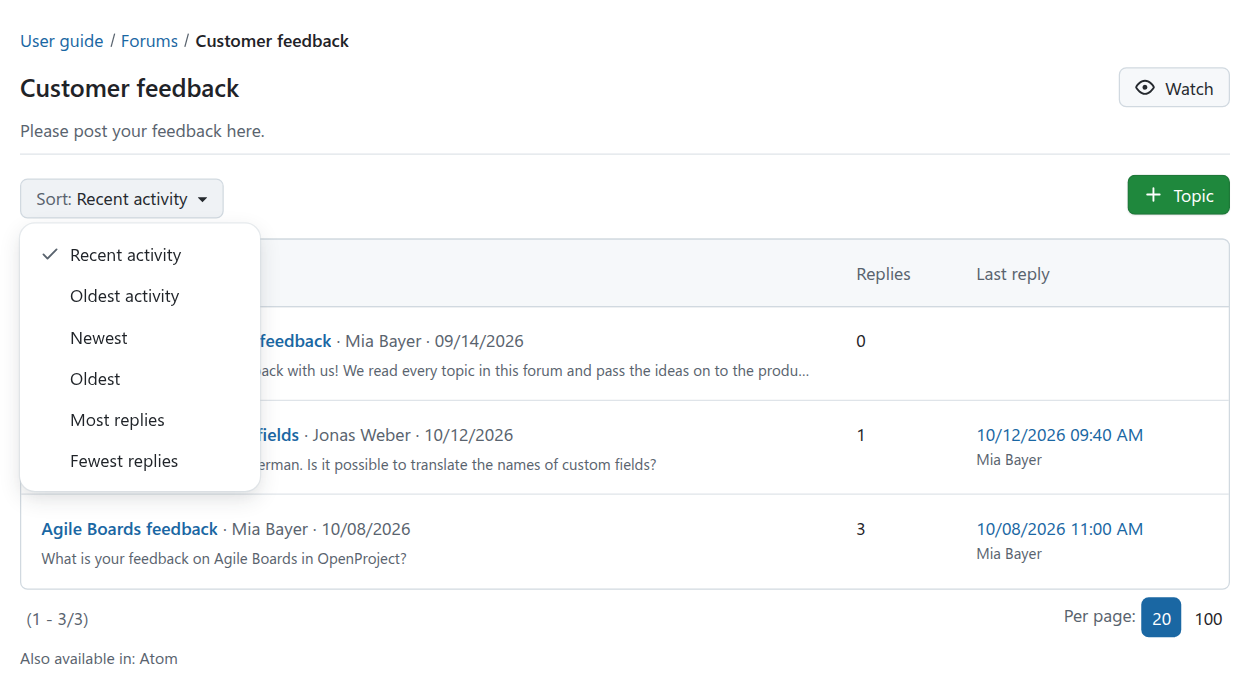
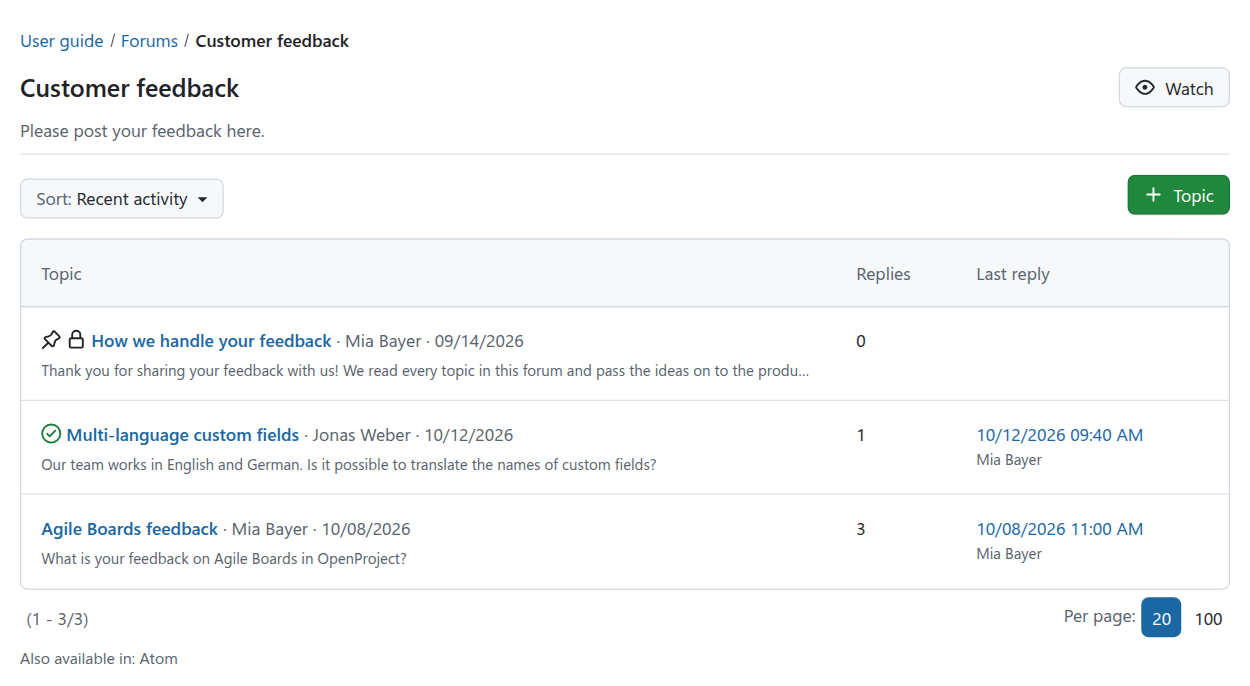
Each topic shows its subject, its author, the date it was started and a preview of its opening post, as well as the number of replies and the last reply. A pin marks a sticky topic, which always stays on top of the list. A lock marks a locked topic, which no longer accepts replies. A green check mark marks a topic with an accepted solution.
To change the order of the topics, open the Sort menu and choose between Recent activity, Oldest activity, Newest, Oldest, Most replies and Fewest replies.
Create a new topic in a forum
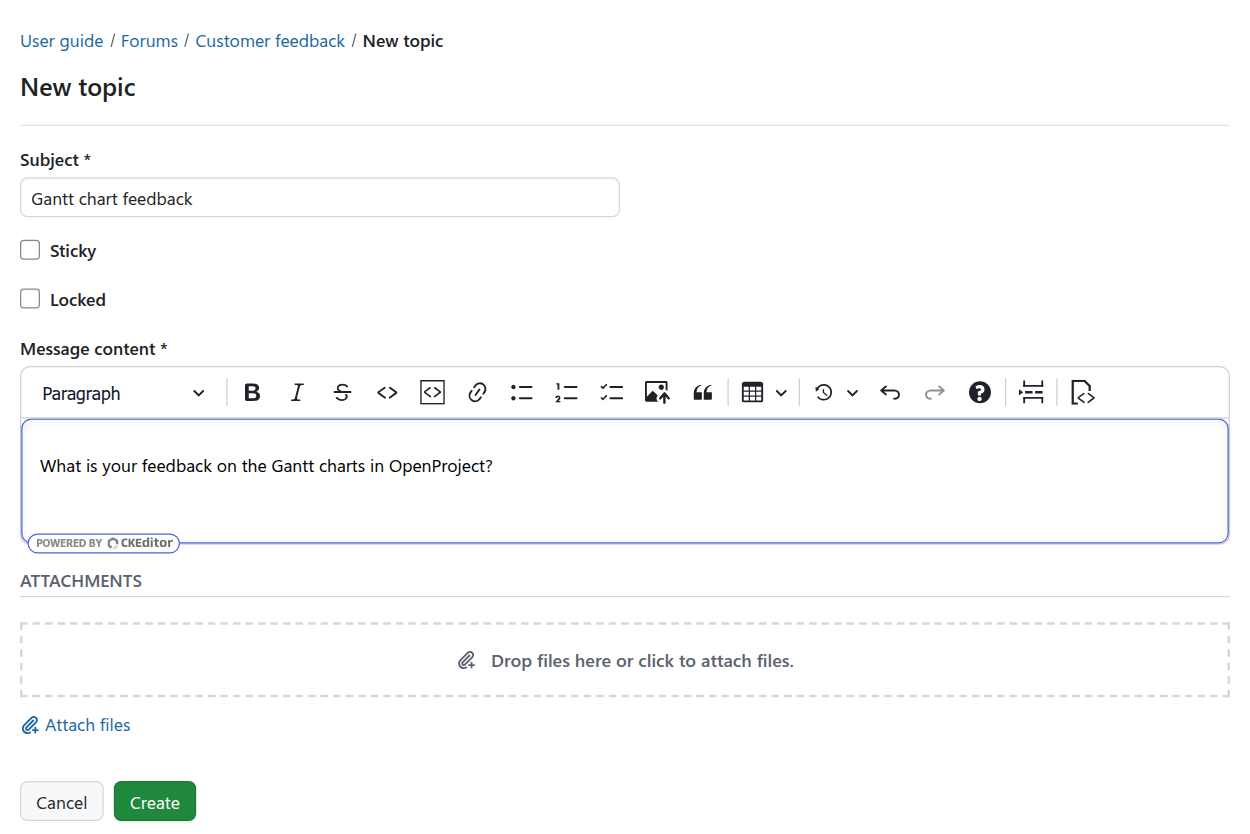
To start a new topic in a forum, click the green + Topic button on the top right of the forum.
Enter the subject of the topic.
You can choose whether the topic should be Sticky. A sticky topic always appears on top of the forum.
Select whether the topic should be Locked. Then nobody can reply to it anymore.
Enter the message content. Its beginning is shown as a preview under the subject in the forum. You can attach files if needed.
Click the Create button to create the new topic in this forum.
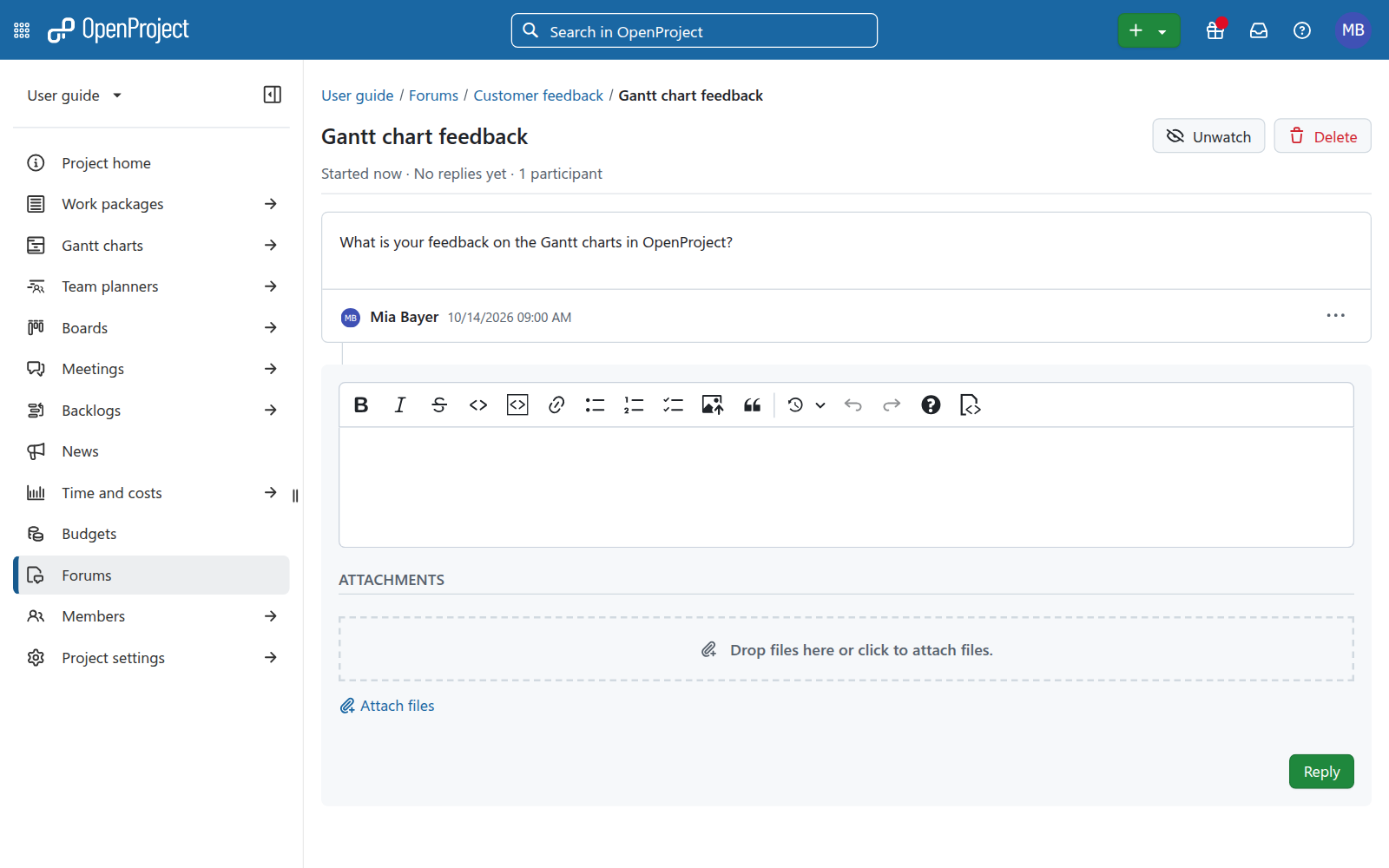
The new topic has been created.
Conseil
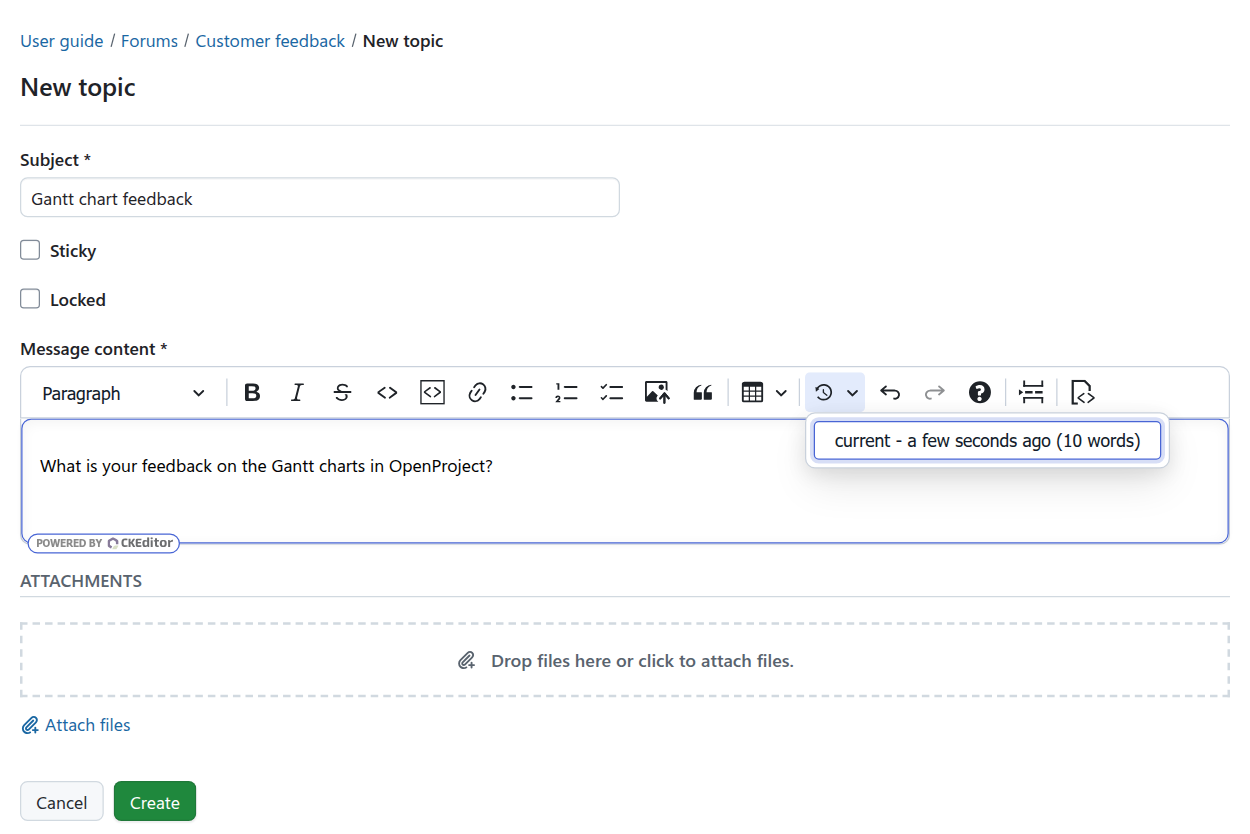
Changes you make in the editor are saved locally. If you navigated away from the page or could not save your changes due to a technical difficulty, you can restore them with the Show local modifications button in the editor toolbar.
Read a topic
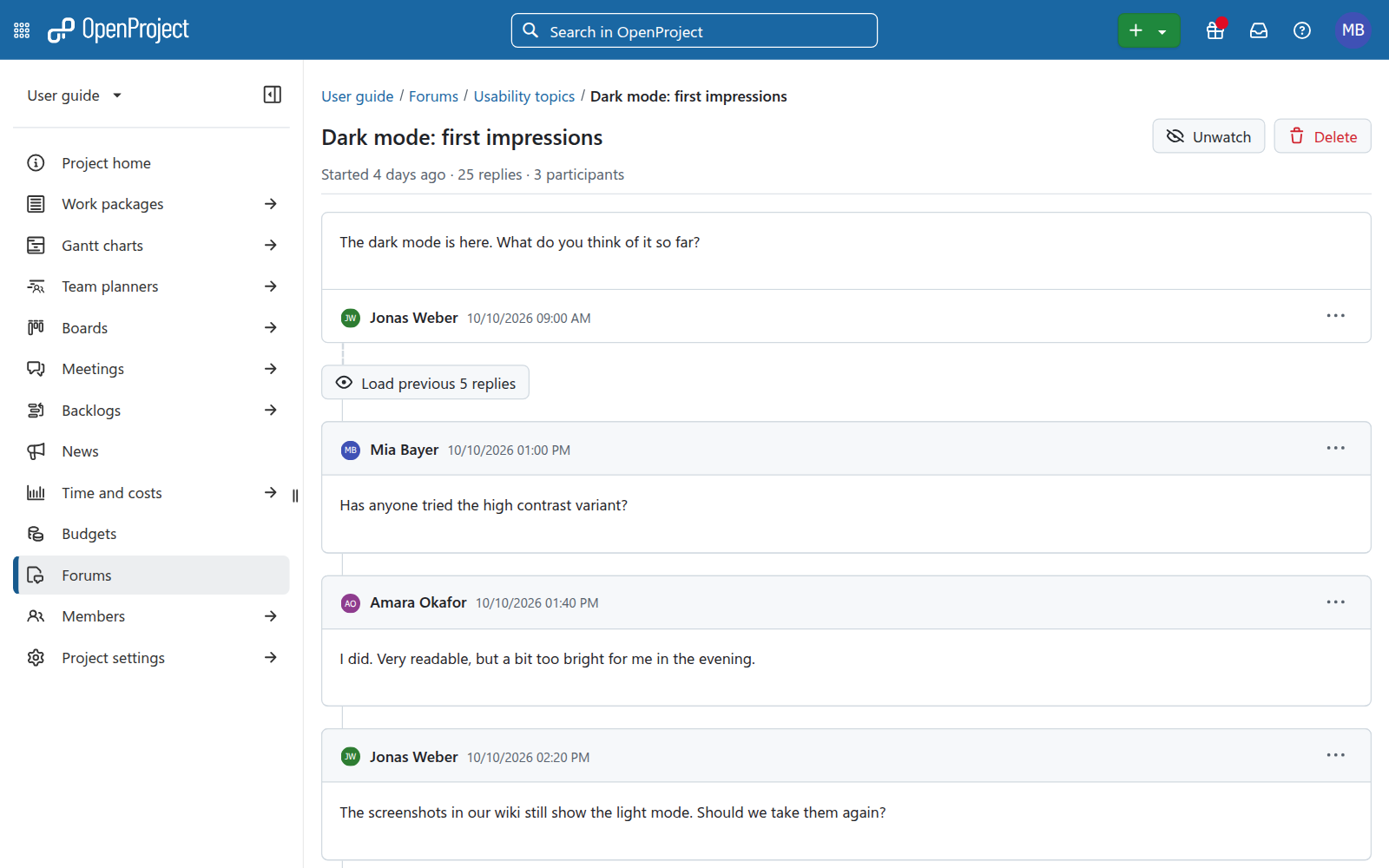
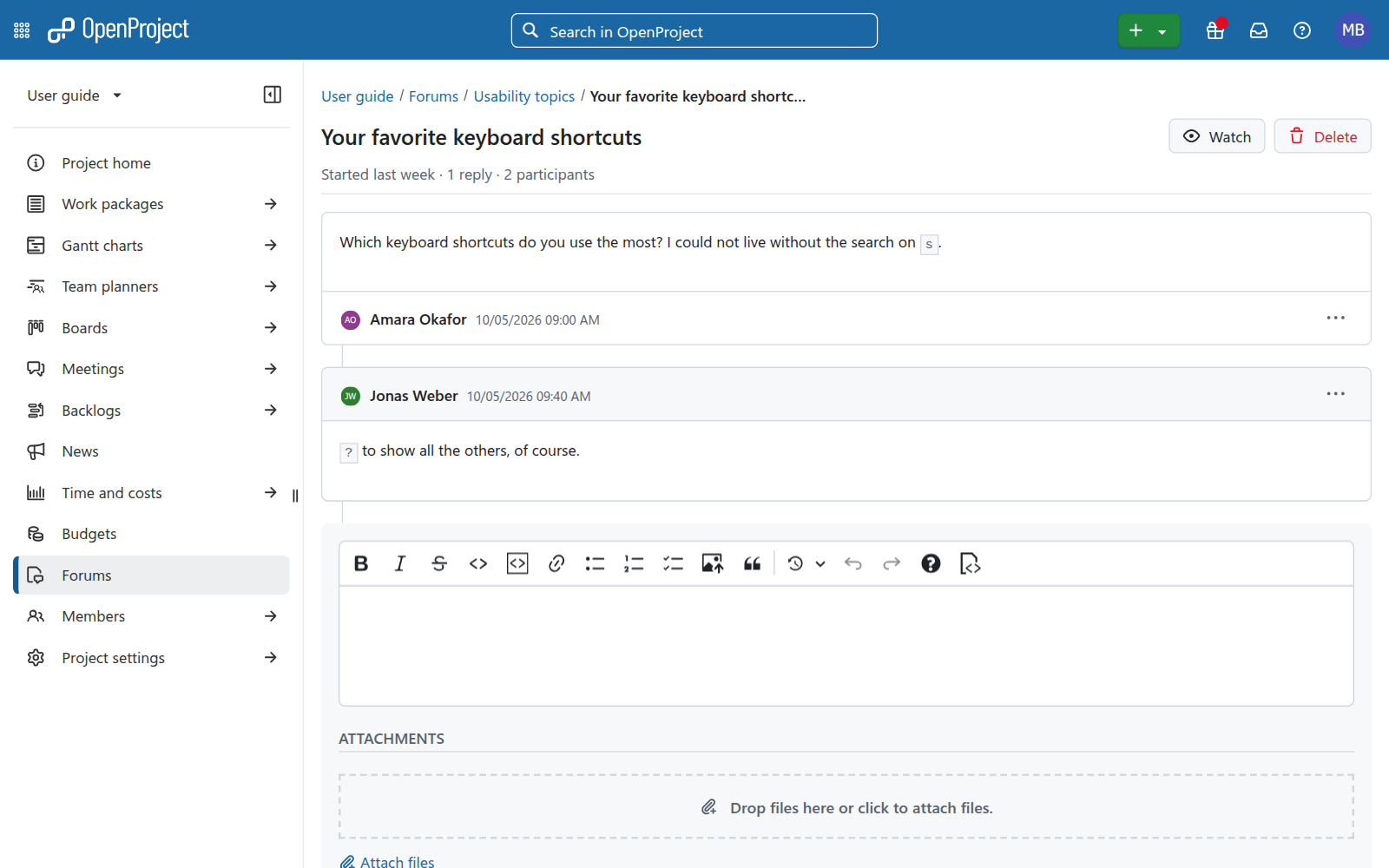
Click on the subject of a topic to open it. Underneath the subject you see when the topic was started, how many replies it has and how many people take part in it.
The opening post is followed by its replies, from the oldest to the newest. In a long topic, only the latest 20 replies are shown. To show the older ones, click the button above them, e.g. Load previous 5 replies.
Reply to a topic
To reply to a topic, open it. Underneath the last reply, enter your message in the editor. You can also attach files if needed.
Click the Reply button to save your reply.
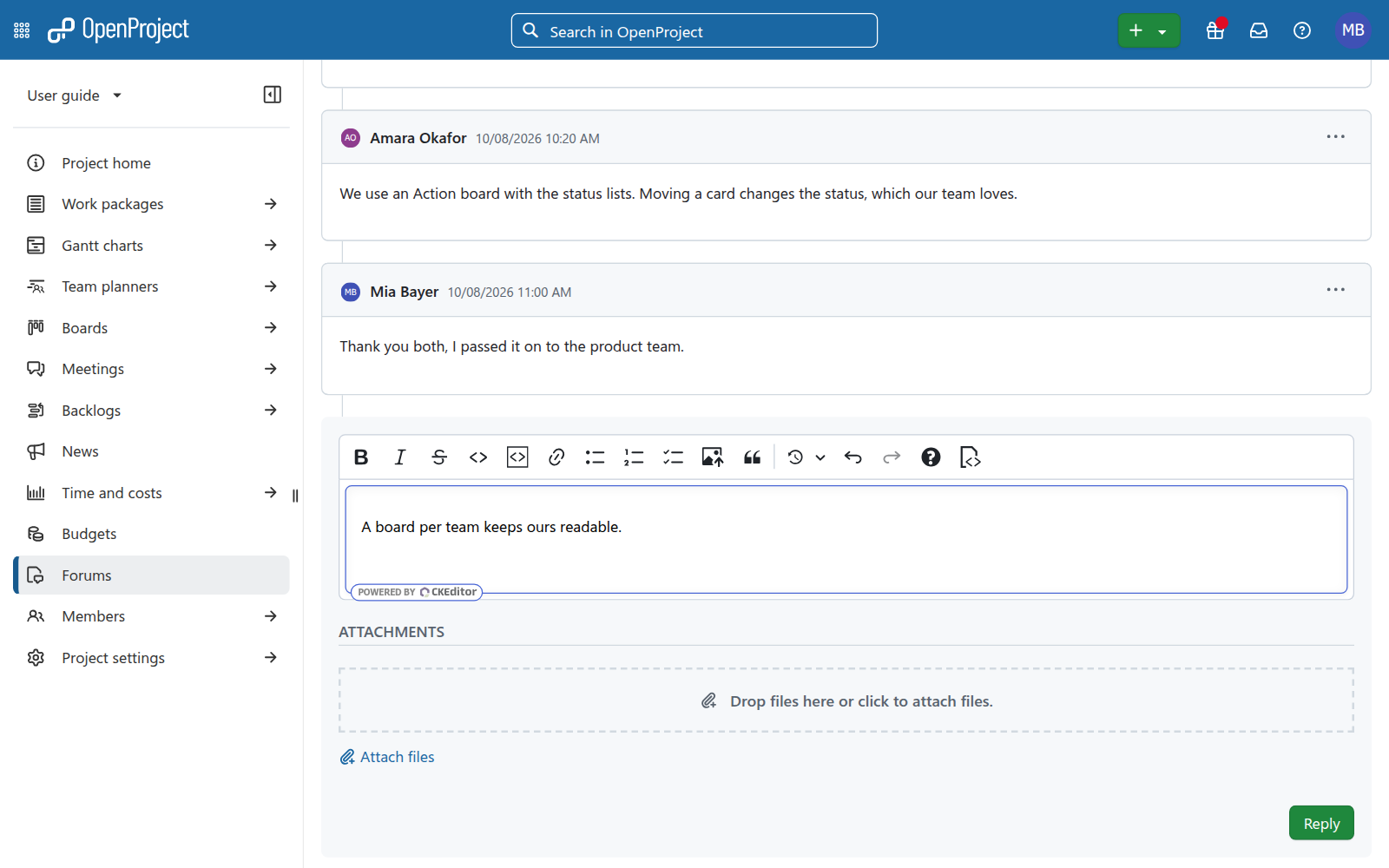
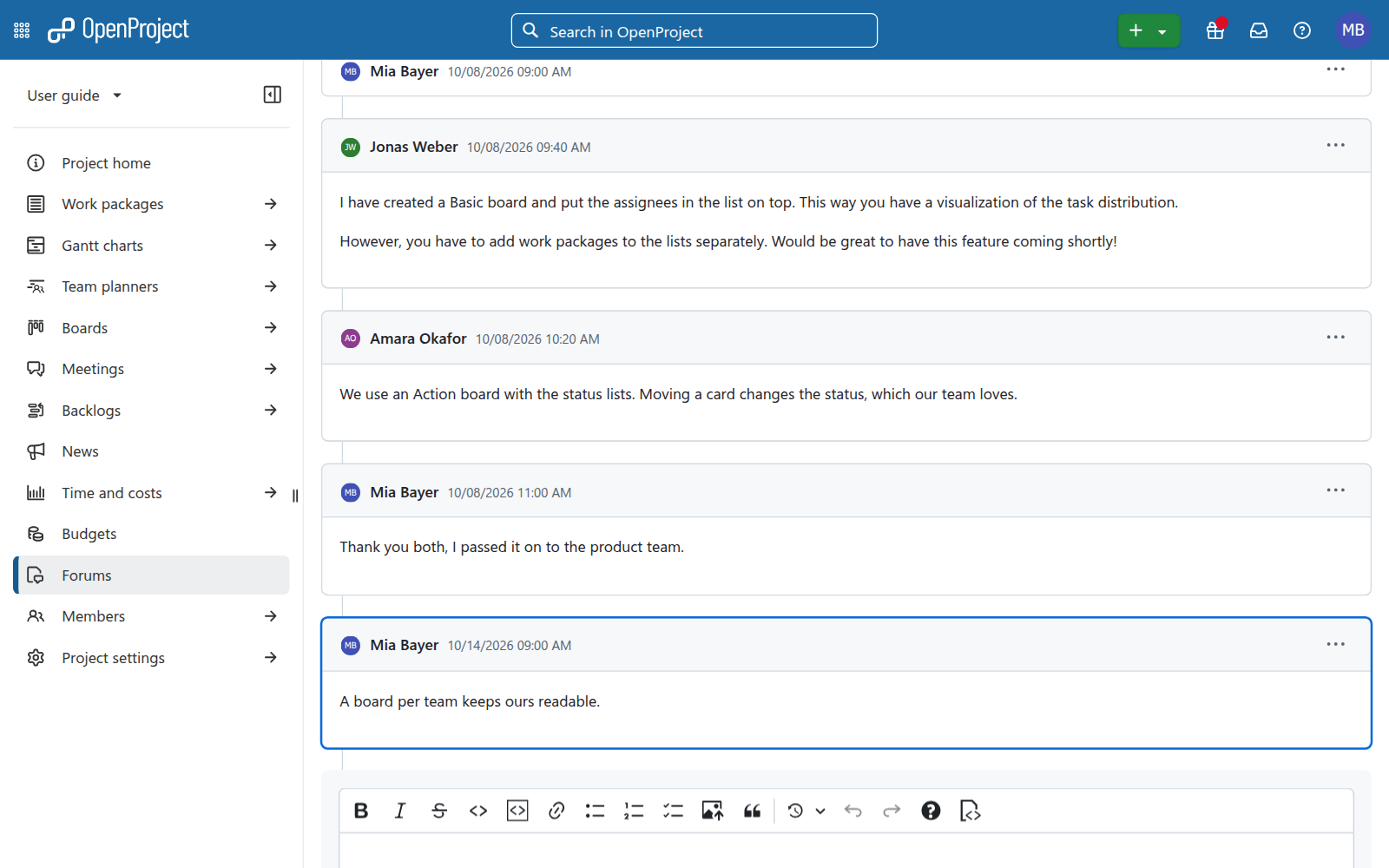
Your reply has been added at the end of the topic.
Quote a post
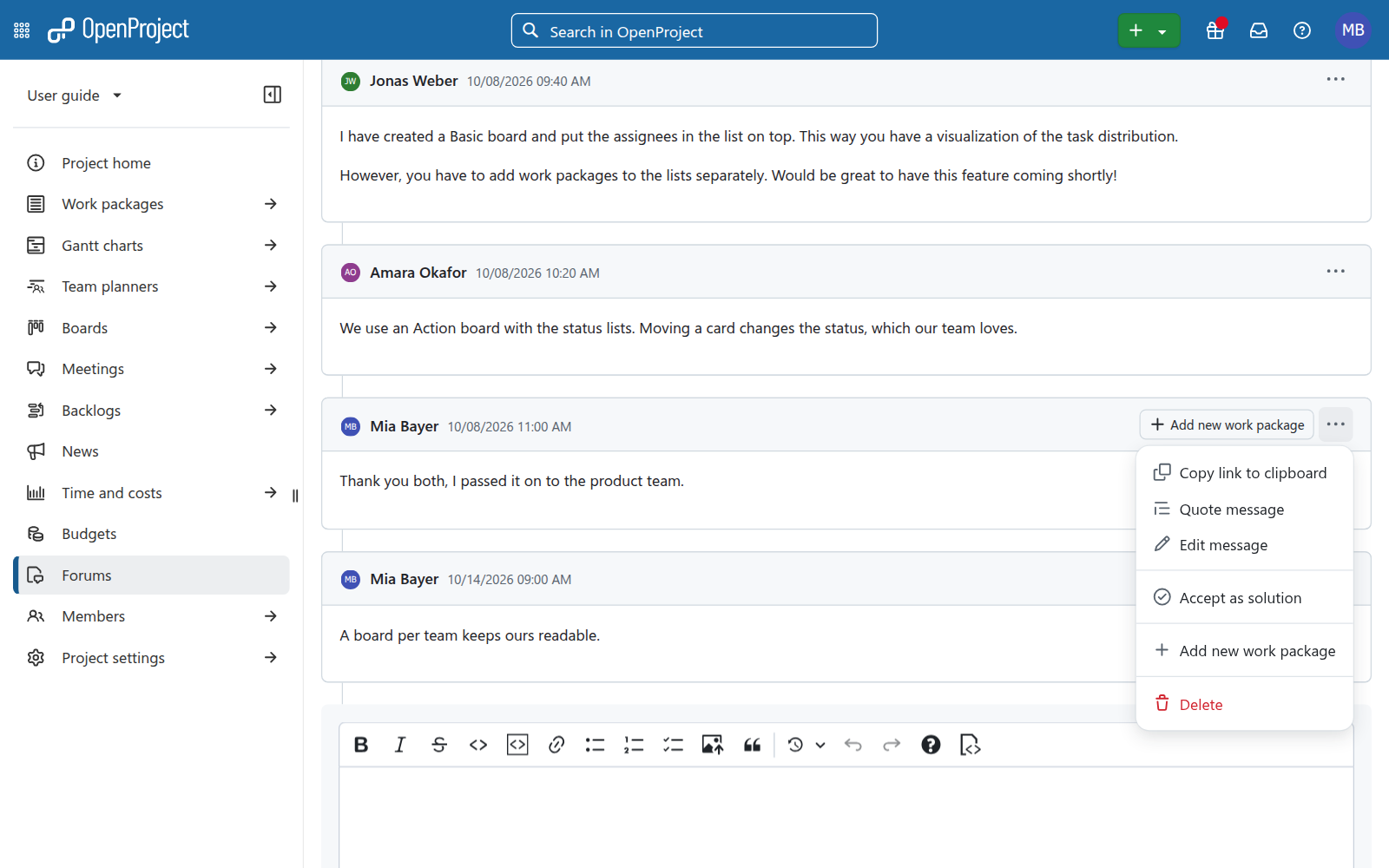
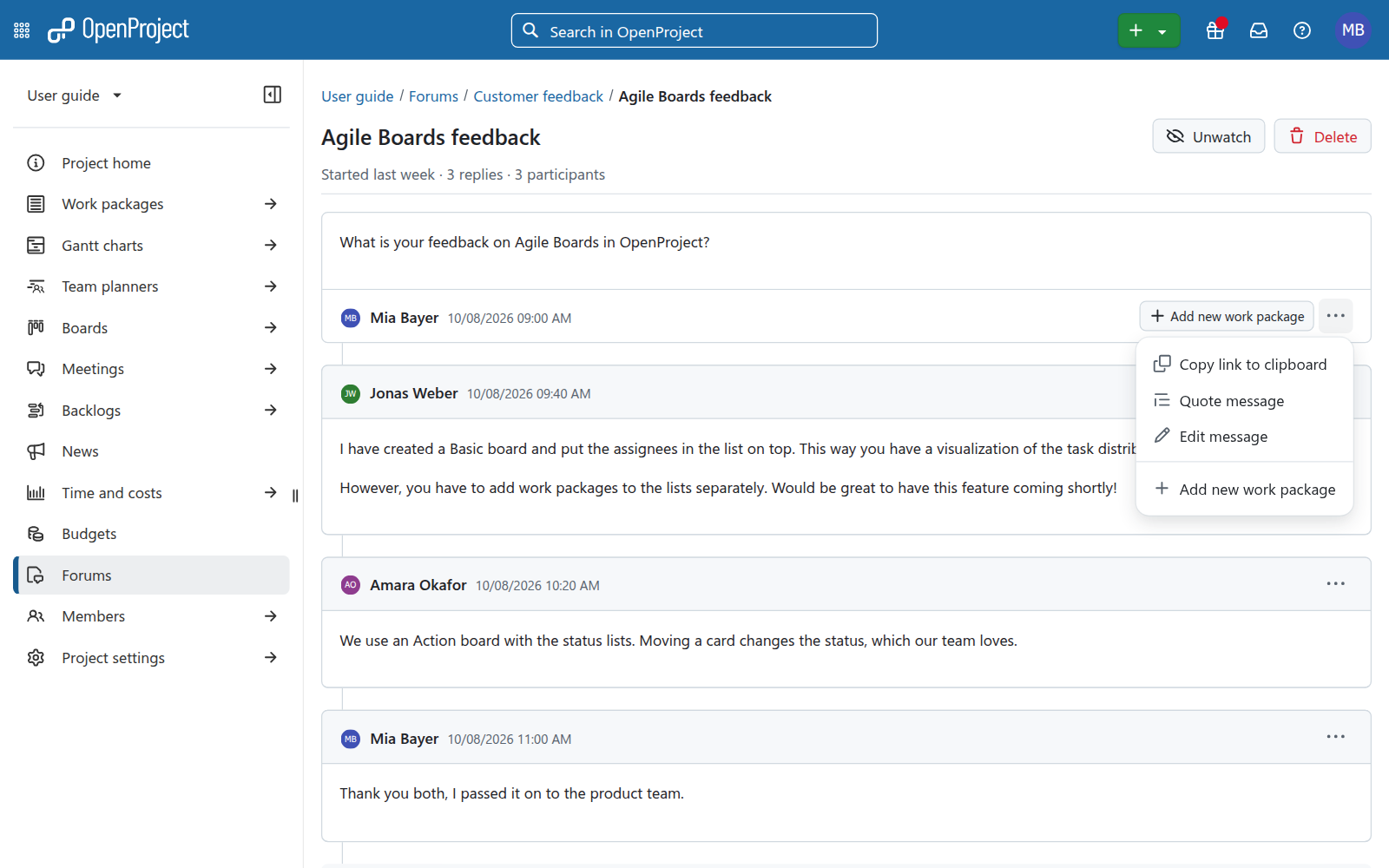
To quote a post in your reply, click the More (three dots) icon of that post and select Quote message. The quoted text is added to the editor, where you can complete your reply.
From the same menu, Copy link to clipboard copies a link that opens the topic at that post.
Mention a member
To draw someone’s attention to a topic, mention them: in the editor of a new topic or a reply, type @ followed by the beginning of their name and select them from the suggestions. The suggestions list the members of the project and, in a public project, also the people taking part in the topic.
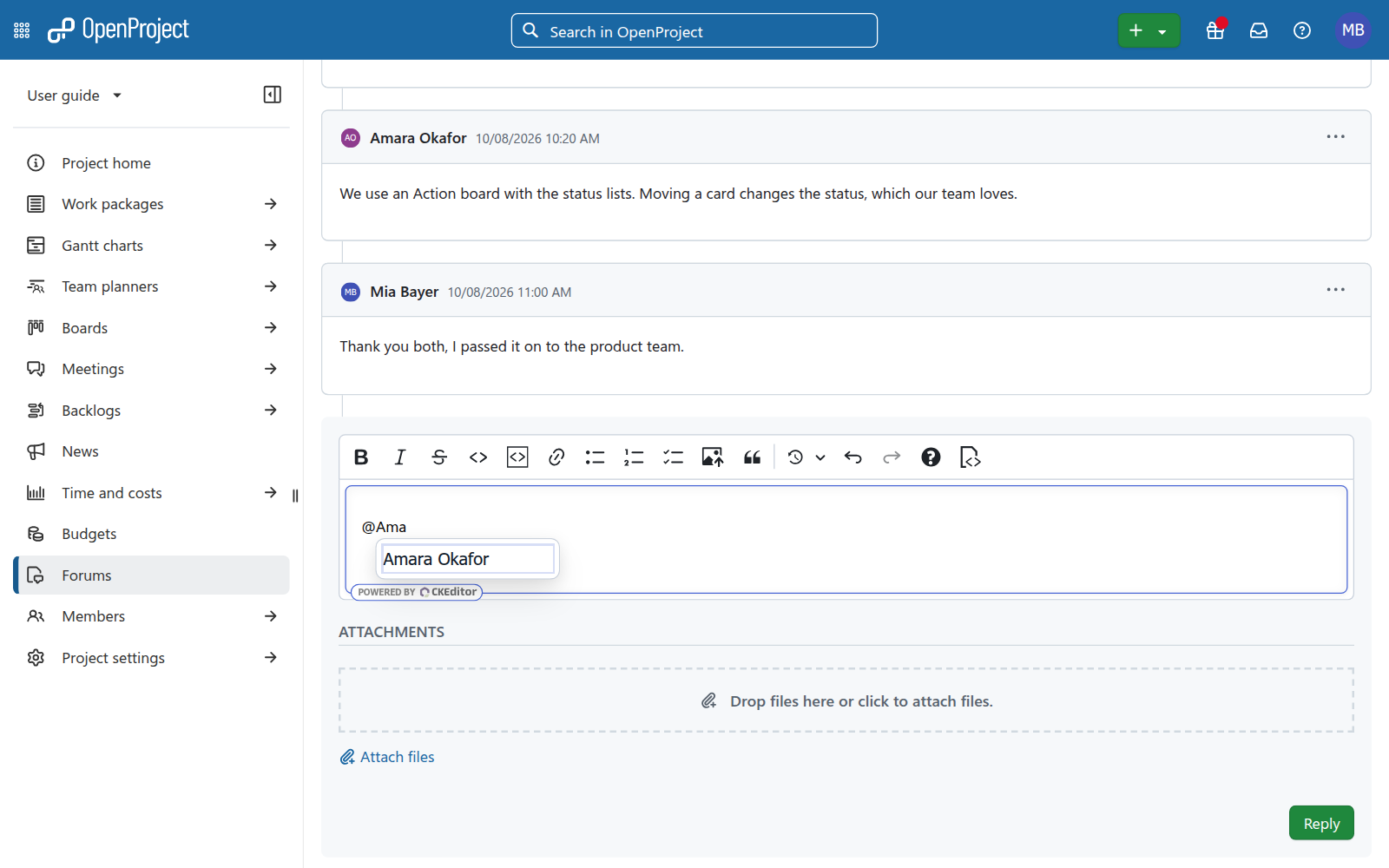
Once you save the topic or the reply, the mentioned members receive an e-mail with a link to it. When you edit a post, only the members you newly mention are notified, and mentions within a quote notify nobody.
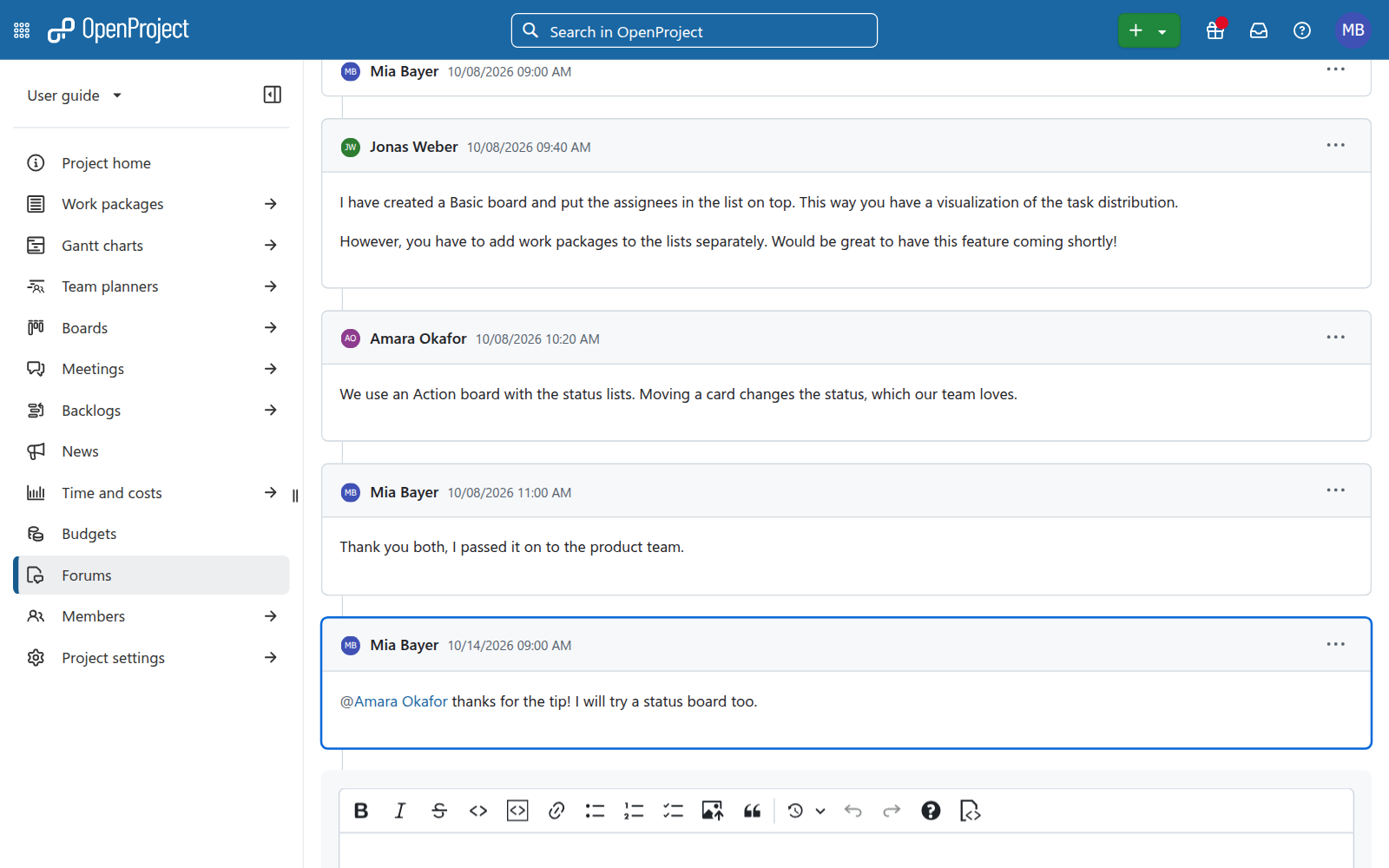
Mark a topic as solved
When a reply answers the question of a topic, the author of the topic can accept it as a solution. Members allowed to edit messages in the project can do so too. A topic can have several accepted solutions, but the opening post cannot be one.
Click the More (three dots) icon of the reply and select Accept as solution.
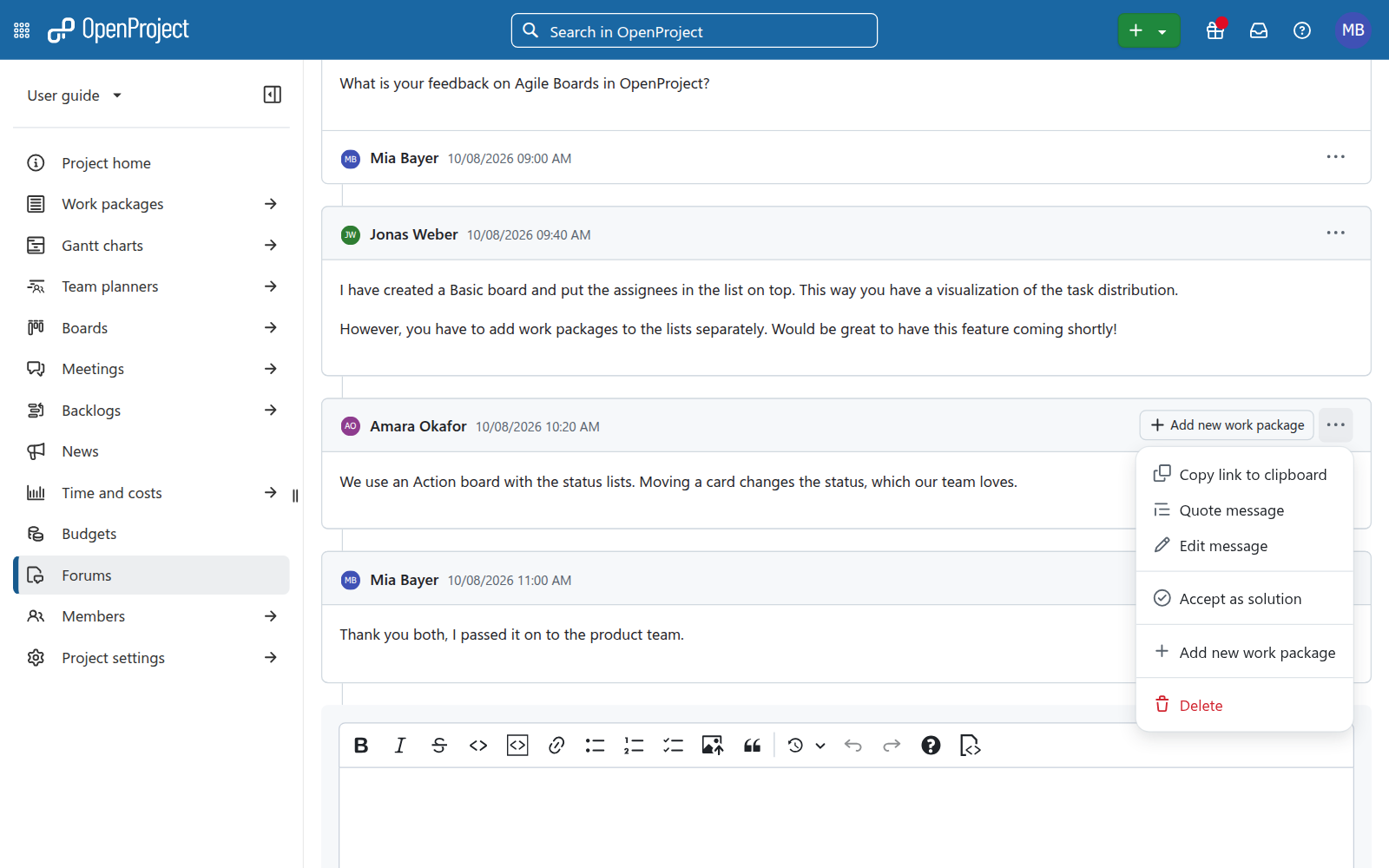
The reply is marked with a green check mark, and a green banner under the opening post links to all the accepted solutions of the topic. In the forum, the check mark appears in front of the topic’s subject, after the pin and lock icons, so that solved topics stand out.
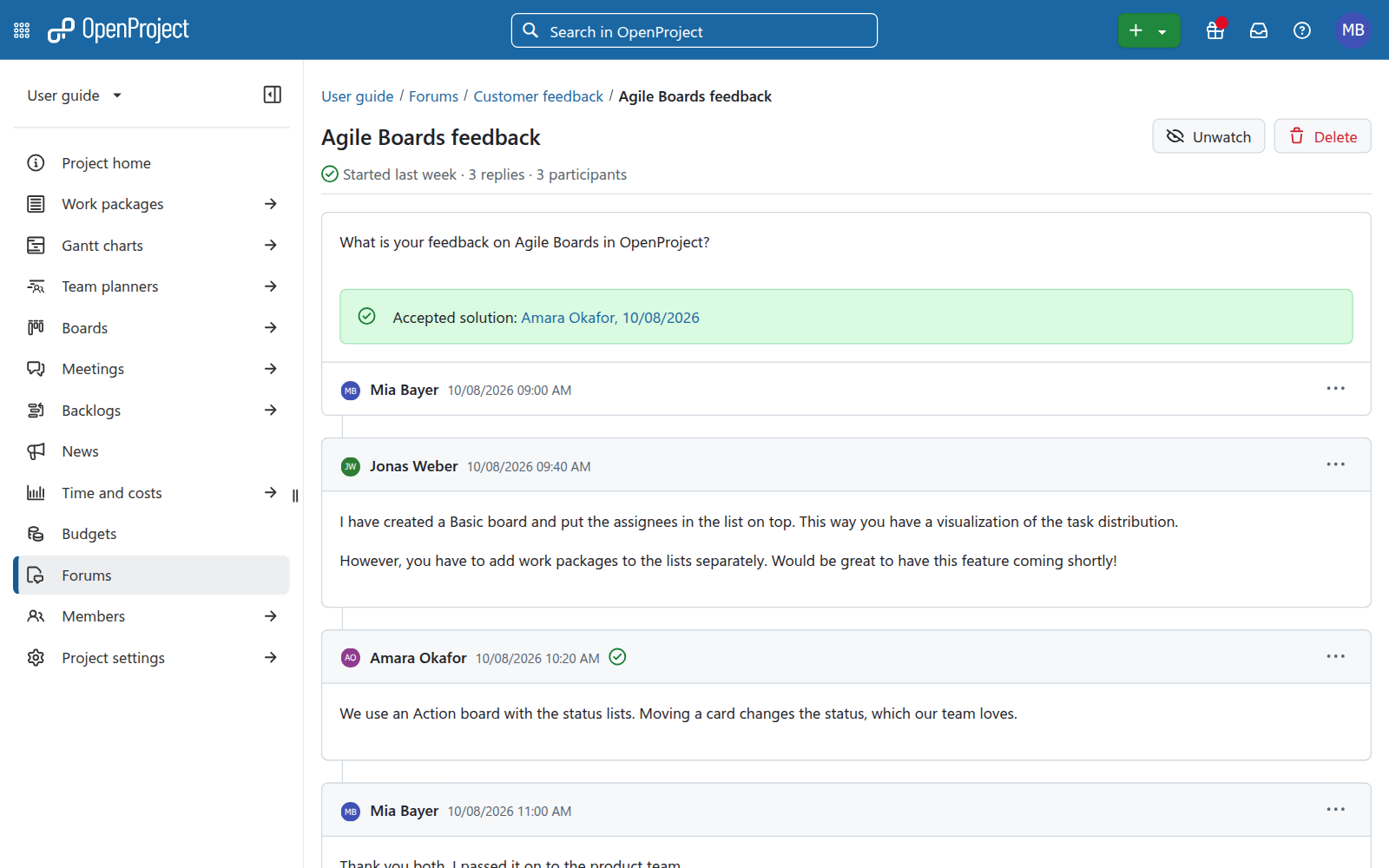
To withdraw a reply as solution, select Remove as solution in the same menu.
Create a work package from a topic or a reply
When a discussion leads to something to do, you can create a work package from the post that started it. You need the permission to add work packages in the project.
Hover the post and click the + Add new work package button next to its More (three dots) icon. You can also select Add new work package in the More menu.
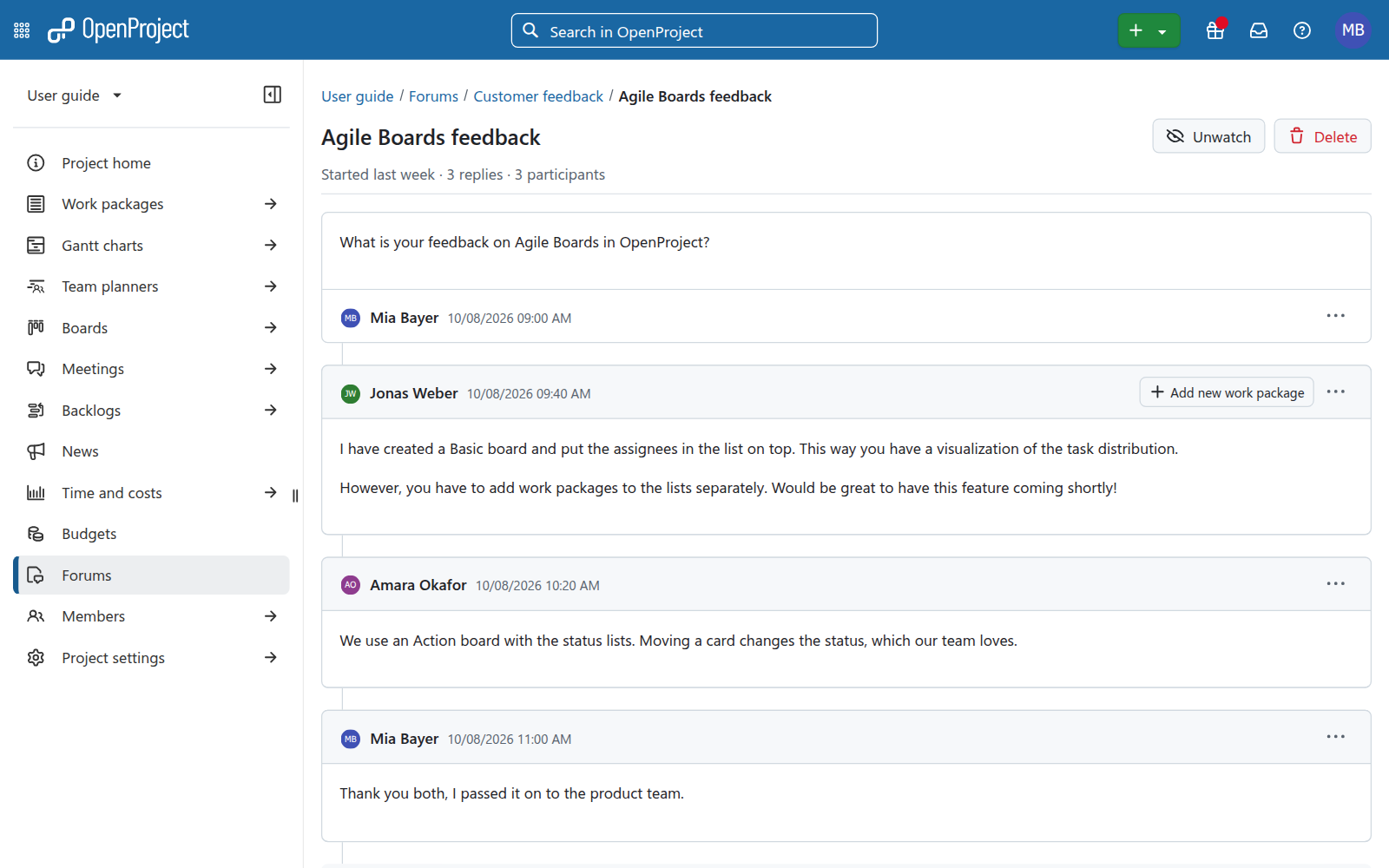
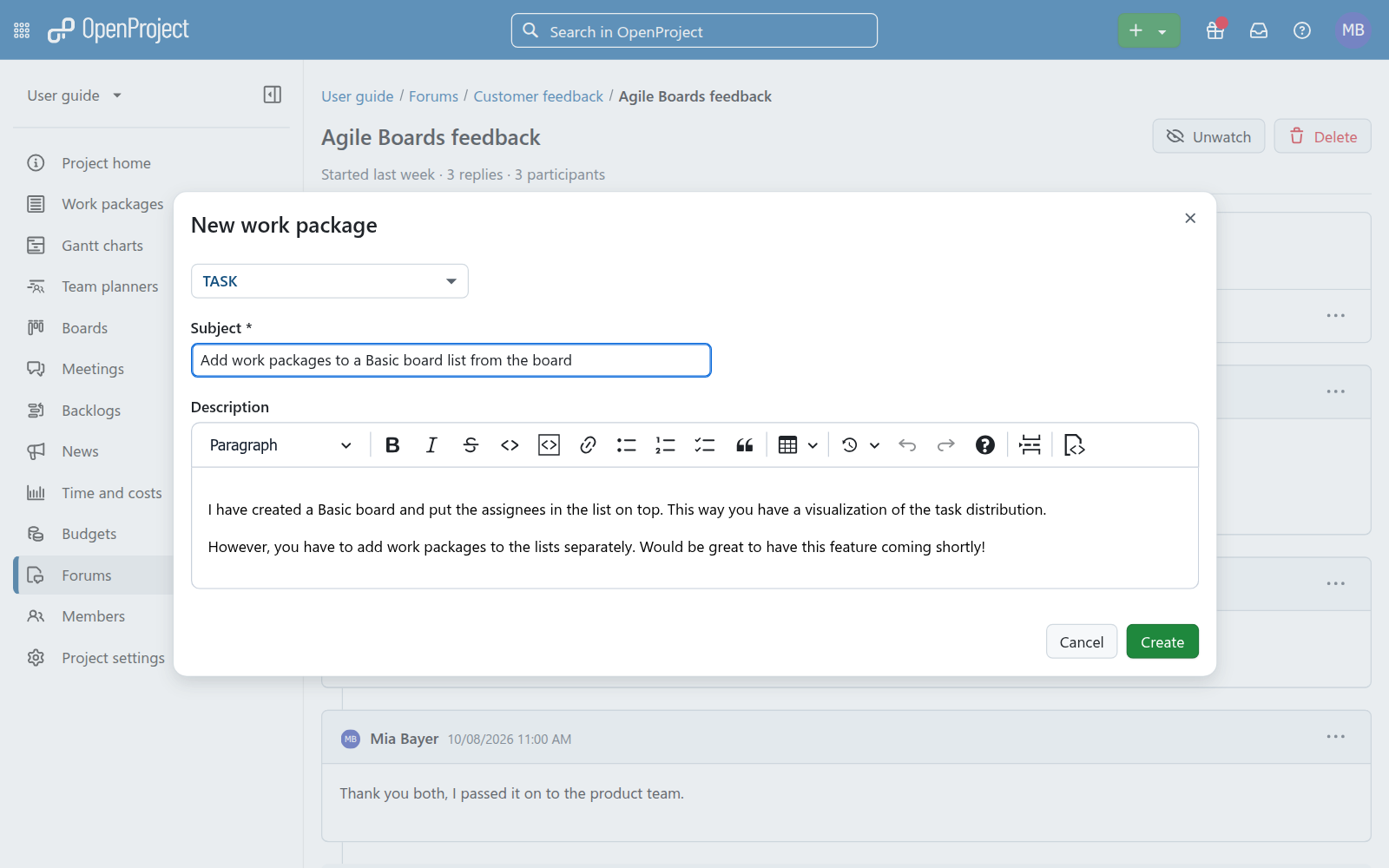
A dialog opens with the subject of the topic as the subject of the work package and the content of the post as its description. Adjust them, choose the type and the other attributes, and click Create.
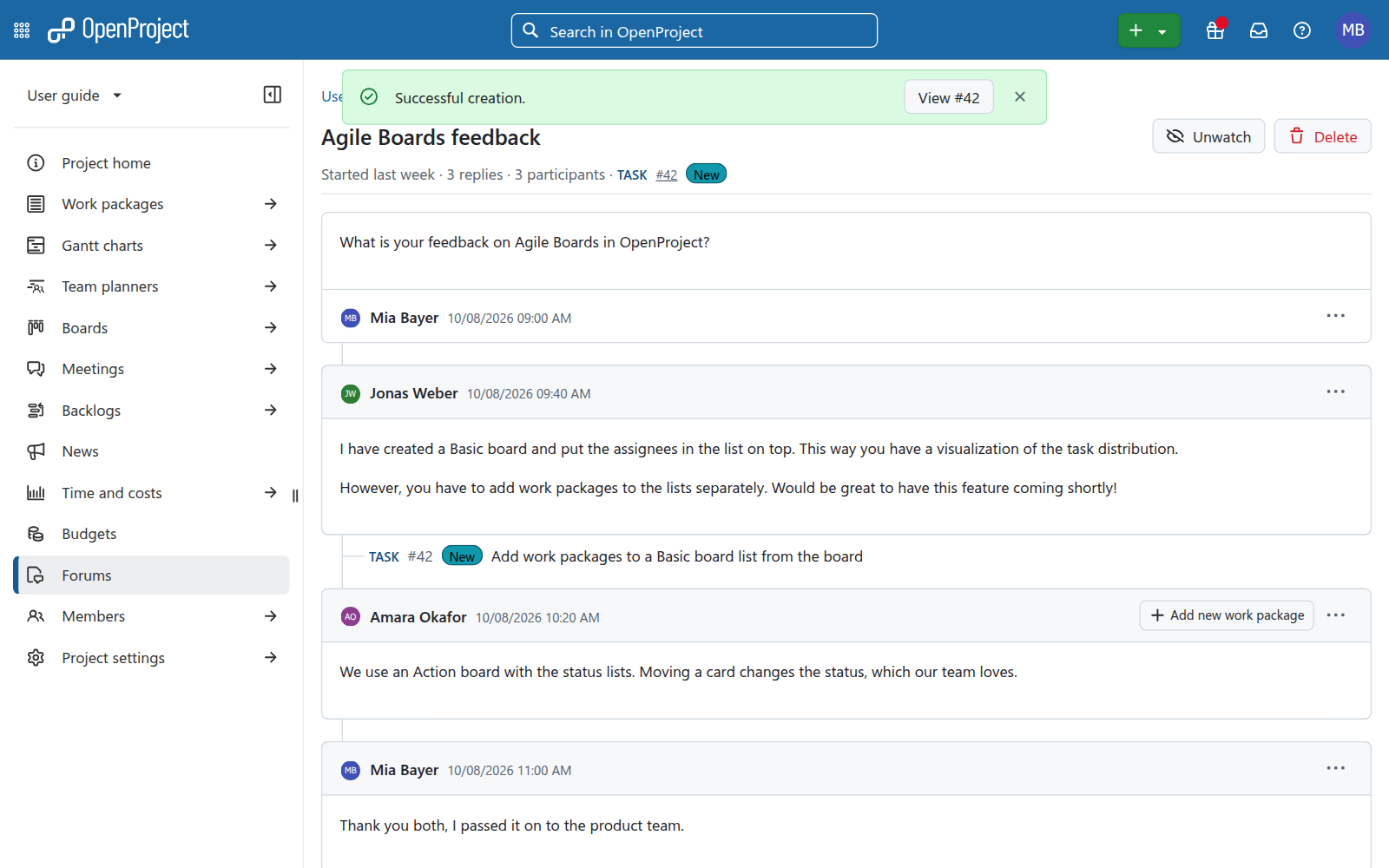
The work package appears in the topic, right under the post it was created from, and the header of the topic lists all the work packages created from it. The success message offers a button to view the new work package.
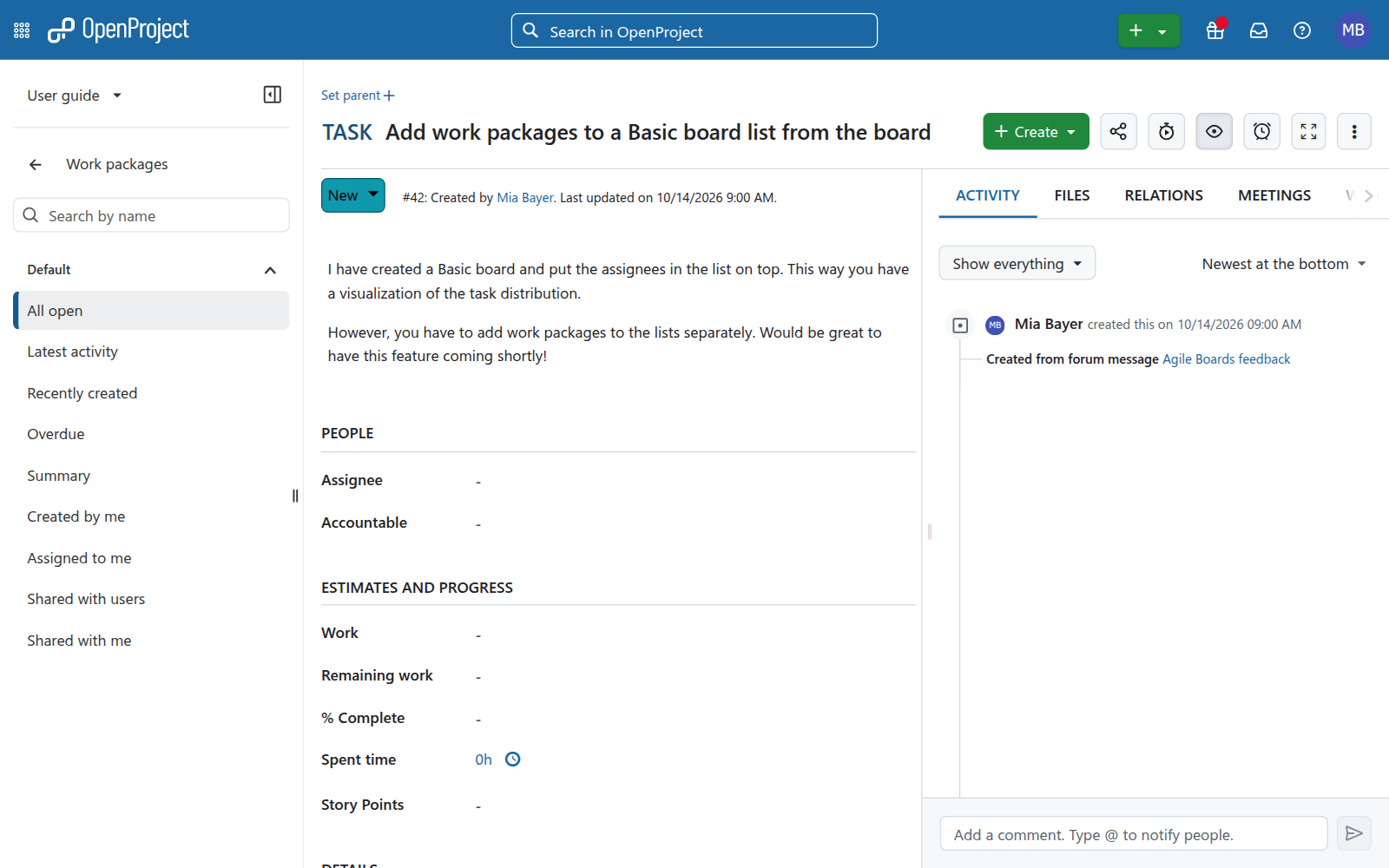
In the Activity tab of the work package, the first entry links back to the forum post it was created from.
Suivre un forum
To keep informed about changes in a forum, e.g. new topics or new replies, you can add yourself as a Watcher of a forum.
Open an existing forum from the list and click the Watch button in the top right corner of the forum.
You will then be notified via e-mail according to your e-mail notifications about new topics and replies in this forum.
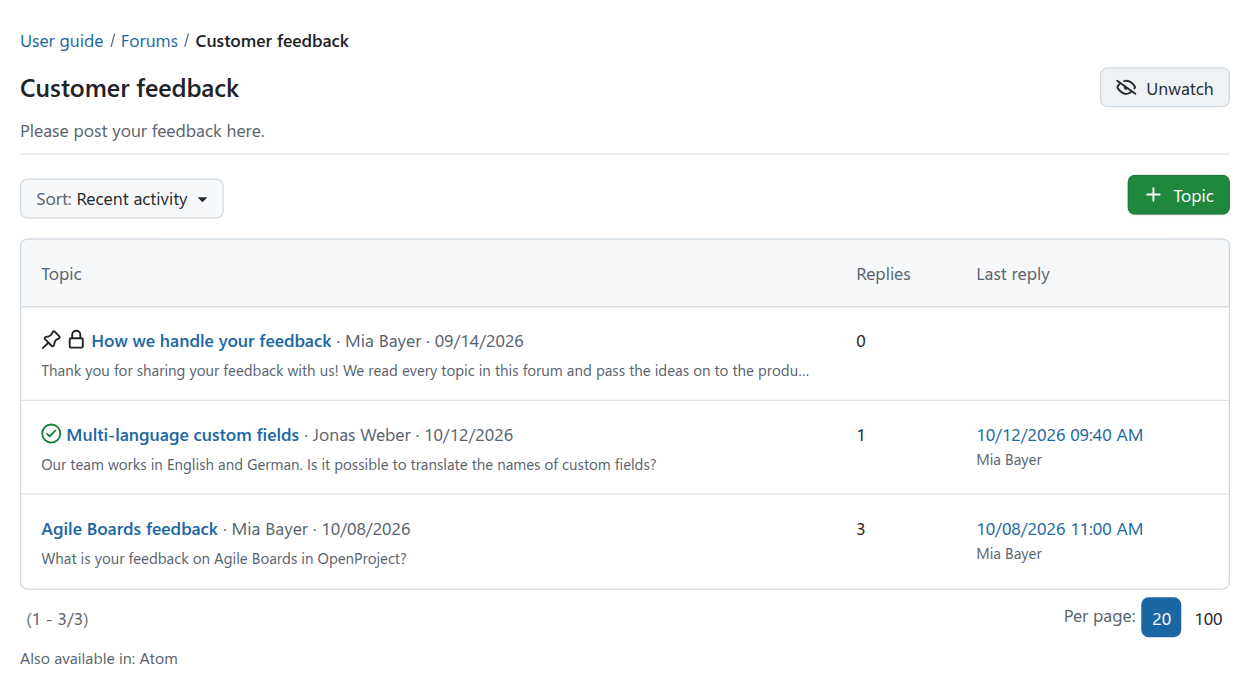
The button will then change to Unwatch.
Watch a topic
If you watch a forum, you automatically watch all of its topics. Alternatively, you can also watch only certain topics within a forum. You also automatically watch the topics you start or reply to.
To do so, open the topic and click the Watch button in its top right corner.
Ne plus suivre un forum
To stop being informed via e-mail about new topics and replies in a forum, click the Unwatch button on the top right of the forum.
Unwatch a topic
The same applies to unwatch a topic. Open the topic which you do not want to watch any longer and click the Unwatch button.
Edit a topic or a reply
To edit a post in a forum, click the More (three dots) icon of the post and select Edit message. This works for the opening post of a topic and for each reply.
Make your changes and click the Save button.
Delete a topic or a reply
To delete a topic with all its replies, open it and click the Delete button in its top right corner.
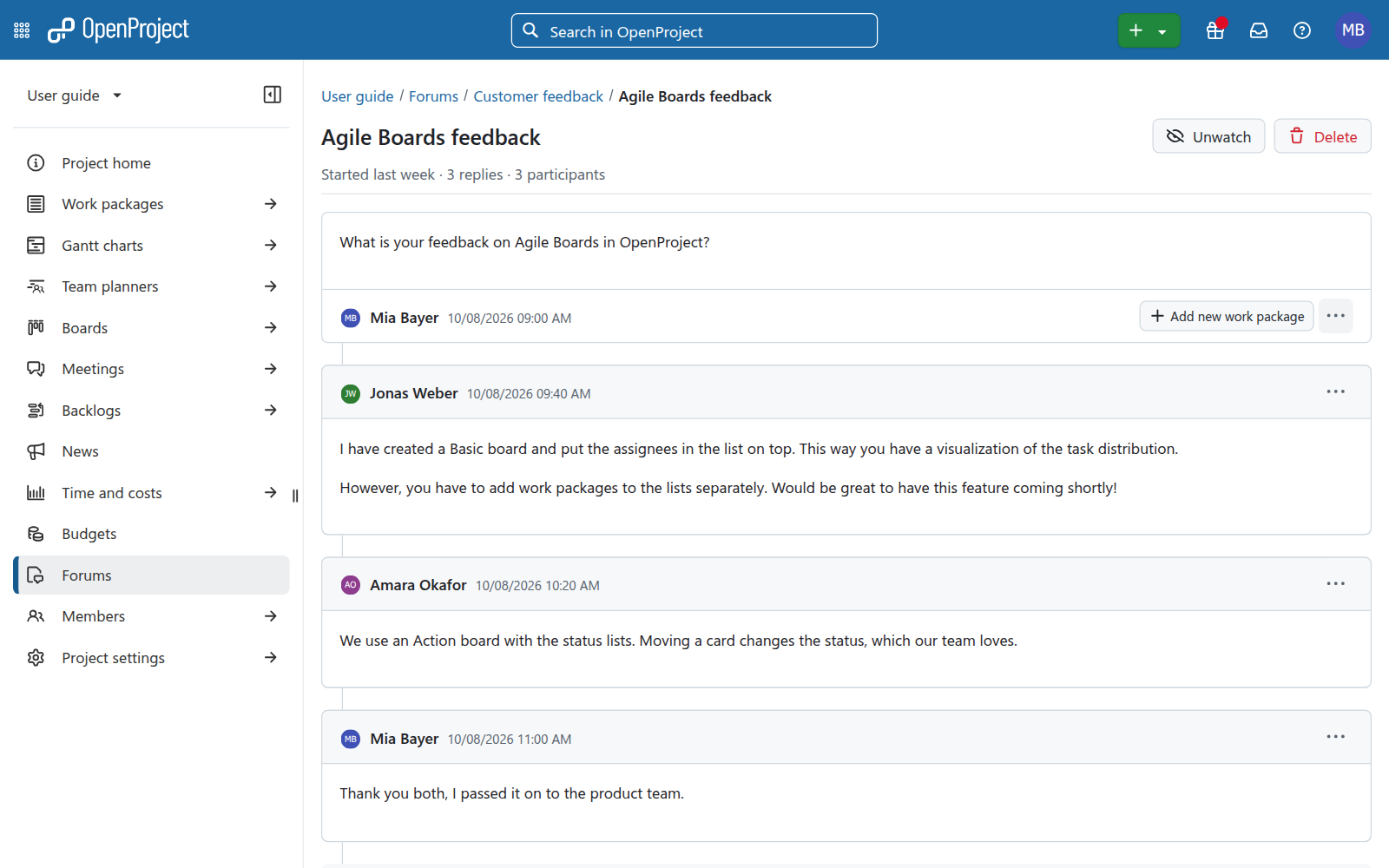
To delete a single reply, click the More (three dots) icon of the reply and select Delete.