Meeting outcomes
The features described on this page apply to all meeting types, i.e. one-time meetings and individual occurrences of recurring meetings.
Meeting outcomes help you document what was discussed and decided during a meeting. You can capture outcomes as written notes (e.g. decisions or summaries) or as work packages to create follow-up tasks that stay connected to the meeting agenda.
| Topic | Content |
|---|---|
| Add agenda item outcomes | How to add outcomes to agenda items. |
| Agenda outcomes in work packages | Where outcomes appear in work packages. |
Add agenda item outcomes
During a meeting, stakeholders will often make relevant decisions, add useful information, or specify follow-up steps. In OpenProject, these can be added as outcomes to each agenda item. To note outcomes, the meeting status has to first be set to in progress.
Conseil
To be able to add Agenda meeting outcomes, Manage outcomes permission needs to be granted under Roles and permissions in system administration.
Once a meeting is in progress, there will be a + Outcome button at the end of each agenda item. Click + Outcome and choose one of the following options:
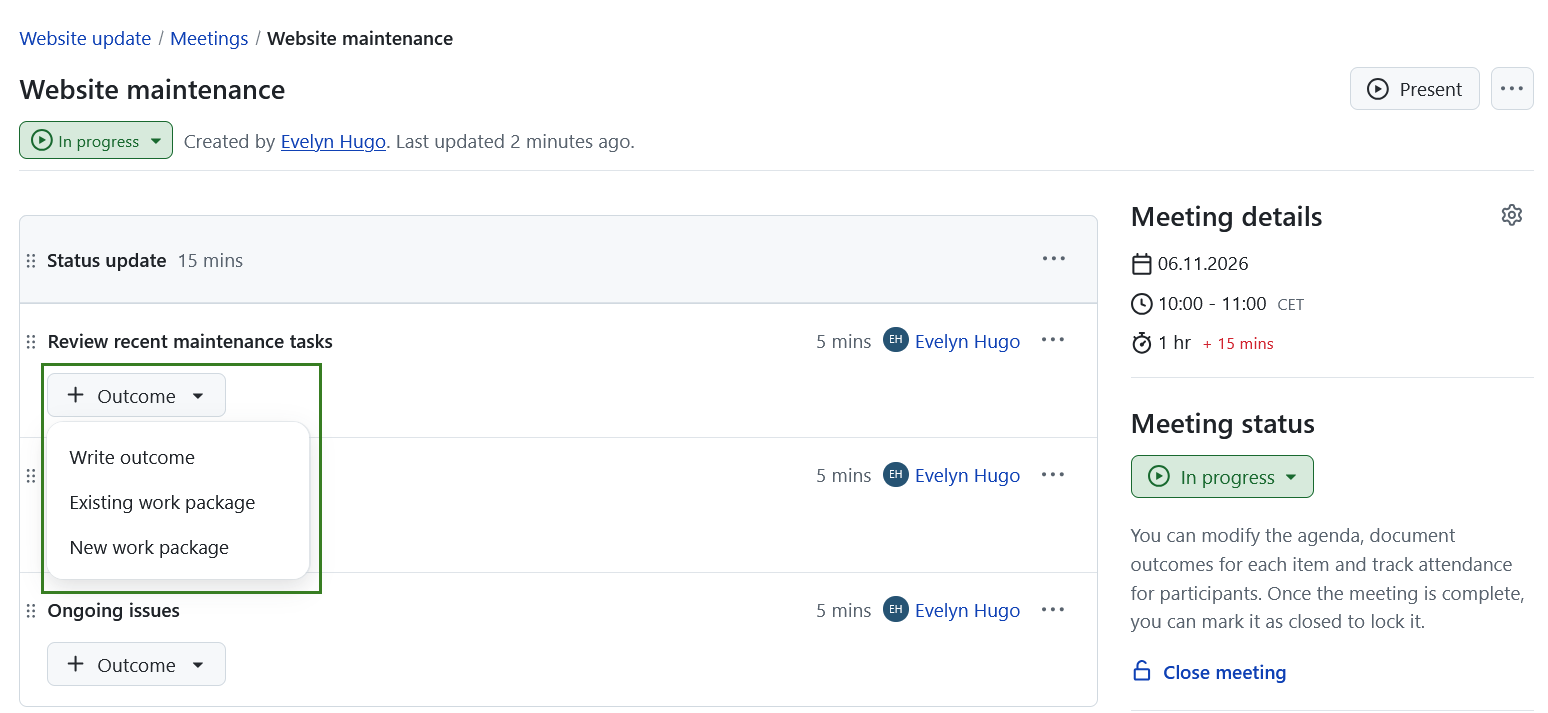
Write outcome
Use this option to add a written outcome, such as a decision, a short summary, or meeting notes.
An editor will appear, allowing you to enter and format text, similar to editing an agenda item.
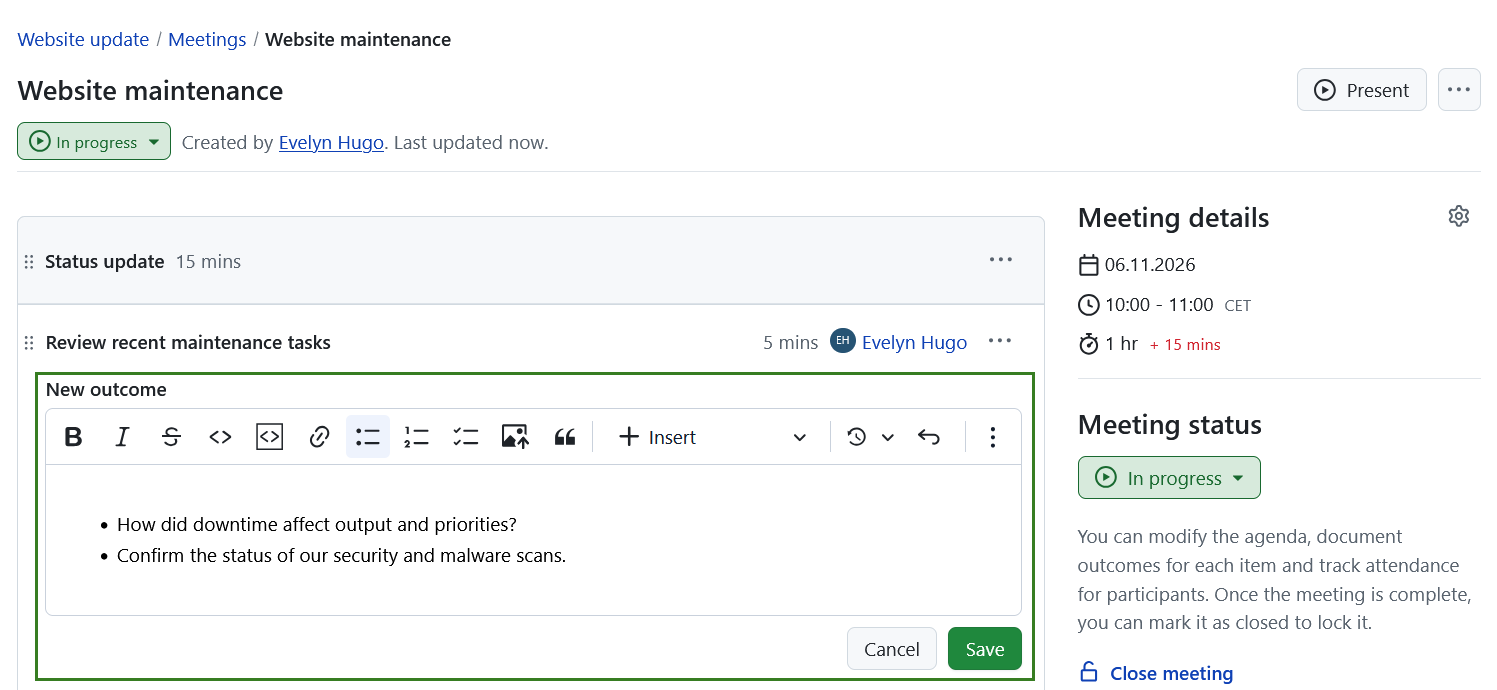
Click Save to add the agenda item outcome.
Conseil
You can save multiple outcomes per agenda item in OpenProject.
After saving a written outcome, you can still edit it. Click the More (three dots) menu on the right edge of each outcome item and select Edit outcome.
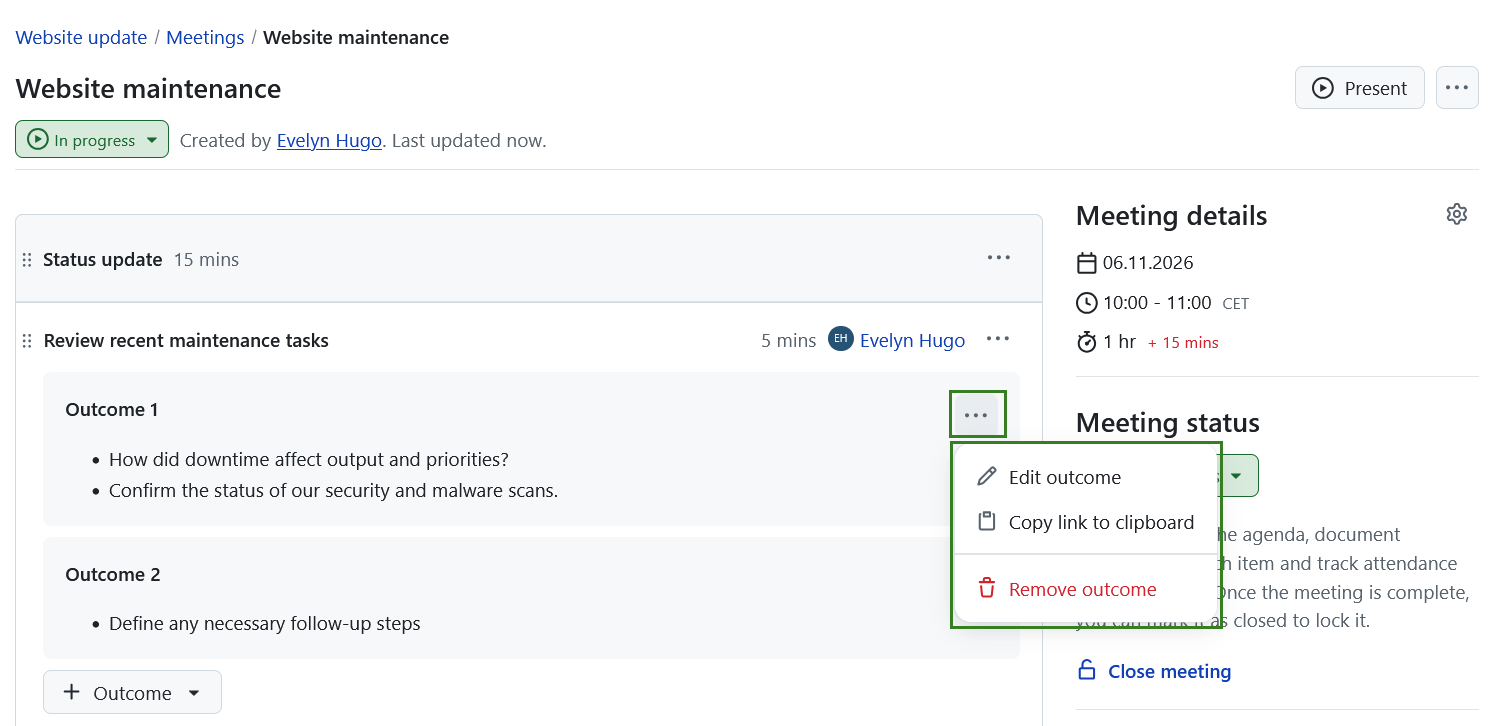
This menu also allows you to Copy link to clipboard and to Remove the outcome.
Existing work package
Use this option to add an already existing work package as a meeting outcome. This is helpful if the follow-up task already exists and you want to document that it was discussed during the meeting.
You can use the search bar to search for a work package name or ID.
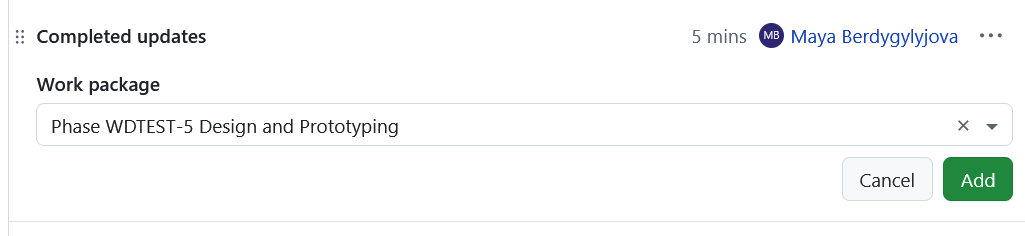
Once added, the work package will appear as an outcome under the agenda item. Work package outcomes can be removed again if needed. From the More (three dots) menu, you can copy the work package URL or remove the outcome.
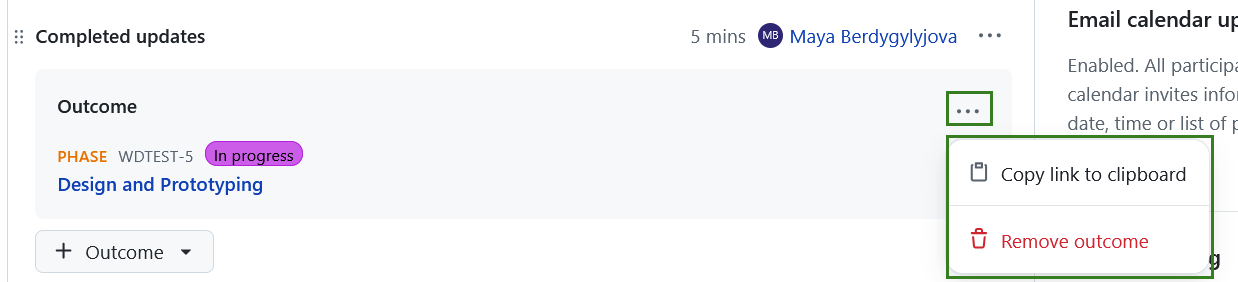
New work package
Use this option to create a new work package directly from the meeting and add it as an outcome. This is useful for quickly creating follow-up tasks during the meeting while keeping them linked to the agenda item and meeting outcomes.
When you select New work package, a work package creation dialog will open.
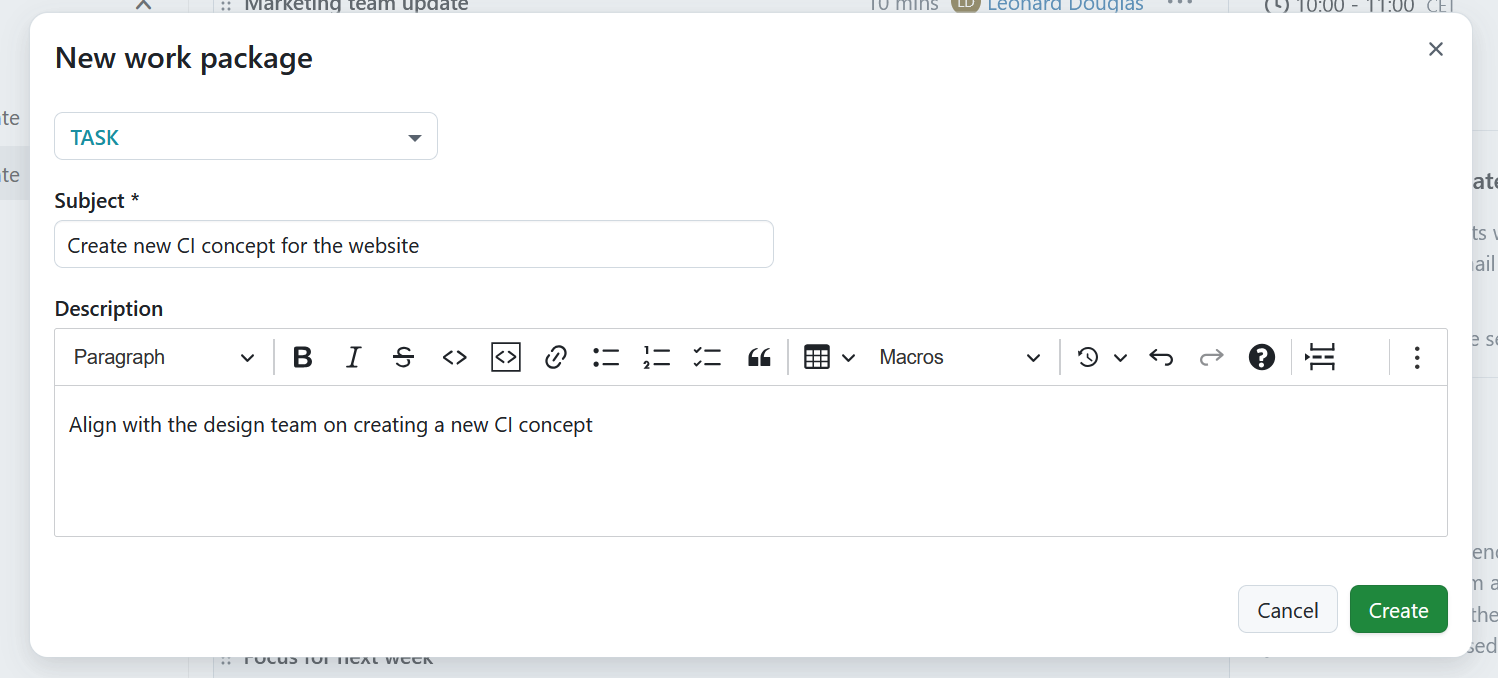
After creating it, the new work package will be shown as an outcome under the agenda item.
Conseil
Creating work packages as meeting outcomes requires users to have both Manage outcomes and Create work packages permissions.
Agenda outcomes in work packages
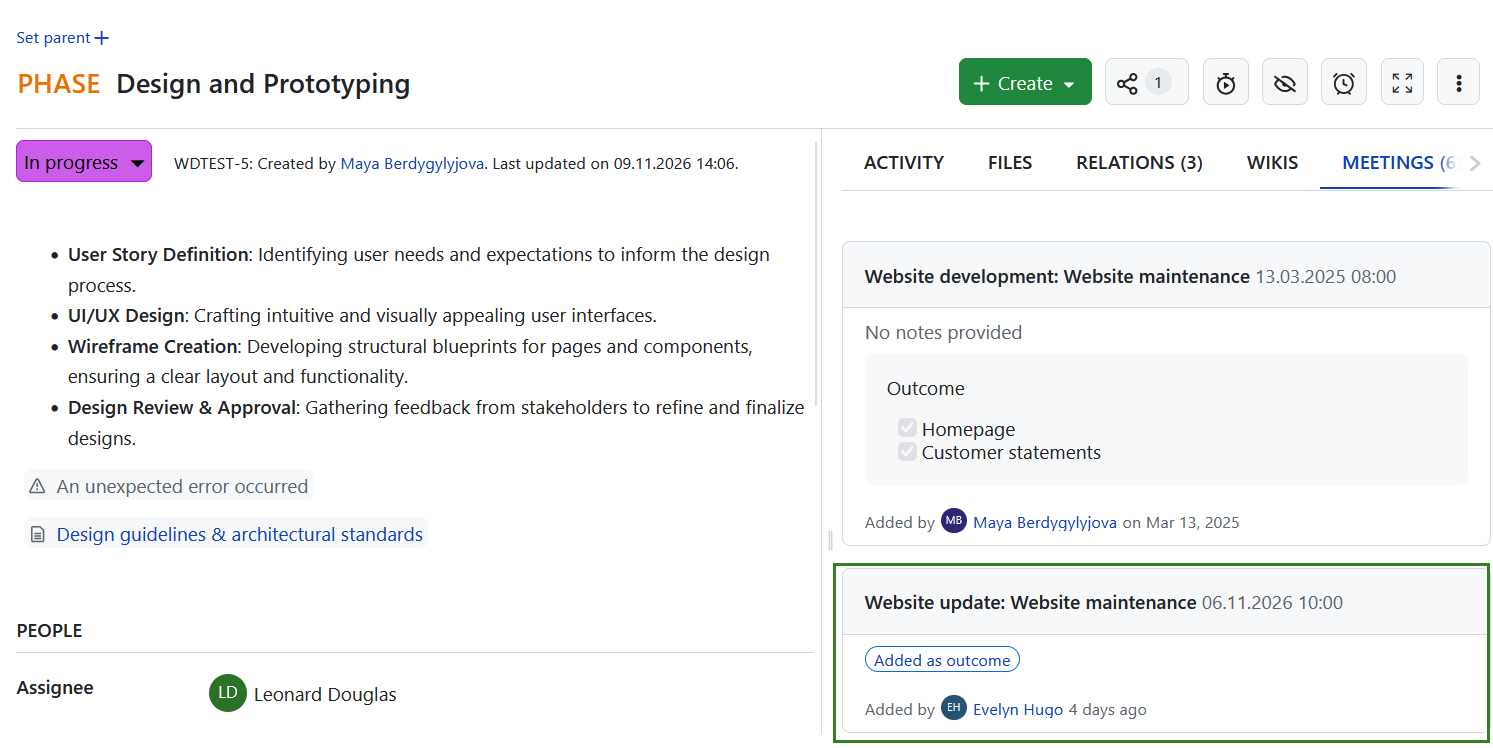
Meeting agenda outcomes are also displayed in the Meetings tab of the linked work package in a read-only format. They are marked with an Added as outcome label so that it is clear how the work package is connected to the meeting.