Projektvorlagen
Projektvorlagen sind nützlich für Projekte, die eine ähnliche Struktur oder Teamzusammensetzung haben. Sie sparen Zeit beim Einrichten neuer Projekte.
Erstellen Sie eine Projektvorlage
Sie können eine Projektvorlage in OpenProject erstellen, indem Sie ein neues Projekt erstellen und Ihr Projekt nach Ihren Bedürfnissen konfigurieren. Geben Sie dem Projekt einen klaren Namen, um es als Vorlage zu identifizieren, z.B. Projekt XY [Template].
Konfigurieren Sie alles, was Sie in zukünftigen Projekten enthalten haben möchten:
- Fügen Sie Projektmitglieder hinzu.
- Wählen Sie die erforderlichen Module aus und geben Sie die erforderlichen Daten ein.
Wichtig
Einstellungen und Daten aus den Modulen Budgets und Zeit und Kosten werden beim Kopieren einer Vorlage nicht berücksichtigt. Aus diesem Grund sollten diese Module nicht in Vorlagen konfiguriert werden, da die daraus erstellten Projekte nicht die entsprechenden Daten enthalten.
- Richten Sie die Standardprojektstruktur im Gantt-Diagramm ein.
- Erstellen Sie Arbeitspaketvorlagen.
Nachdem Sie das Projekt konfiguriert haben, navigieren Sie zu Projektkonfiguration → Informationen. Klicken Sie auf das Symbol „Mehr“ (drei Punkte) in der oberen rechten Ecke und wählen Sie im Dropdown-Menü die Option „Als Vorlage festlegen“ aus.
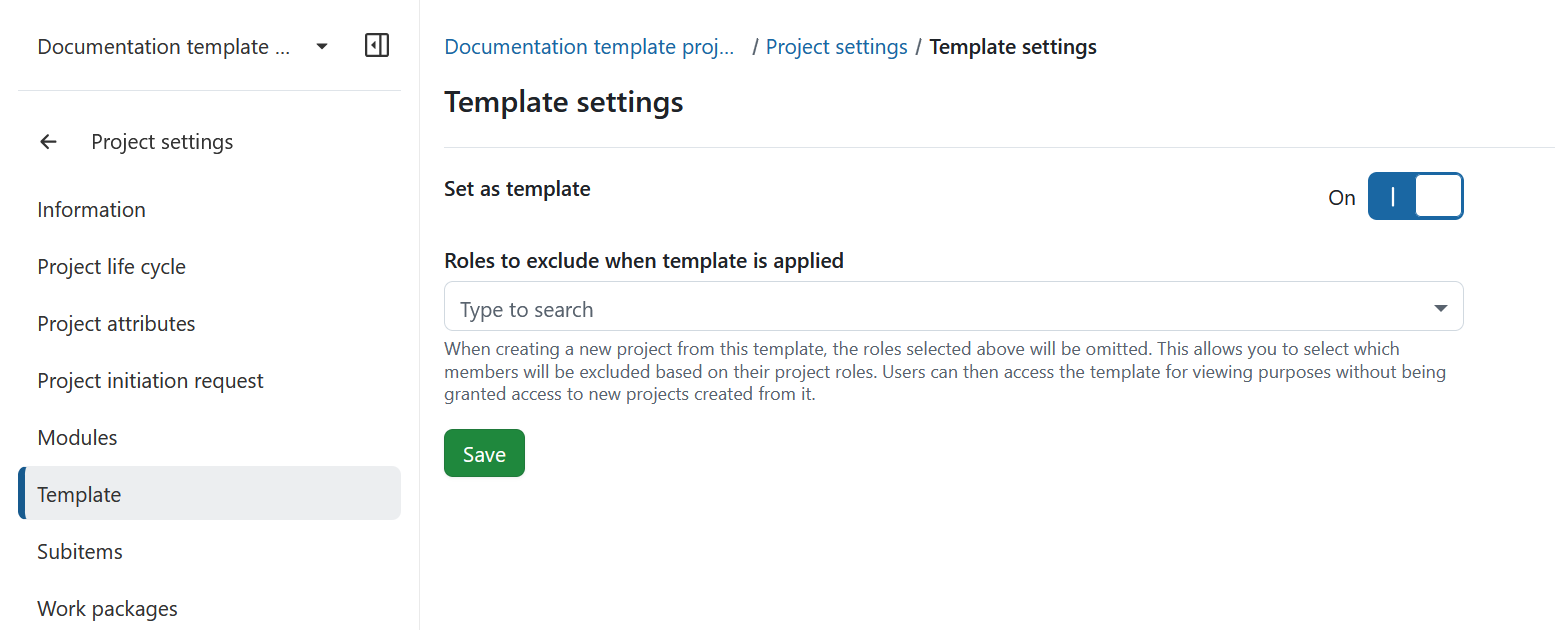
Alternativ können Sie zu Projektkonfiguration → Vorlage navigieren und den Schalter Als Vorlage speichern aktivieren.
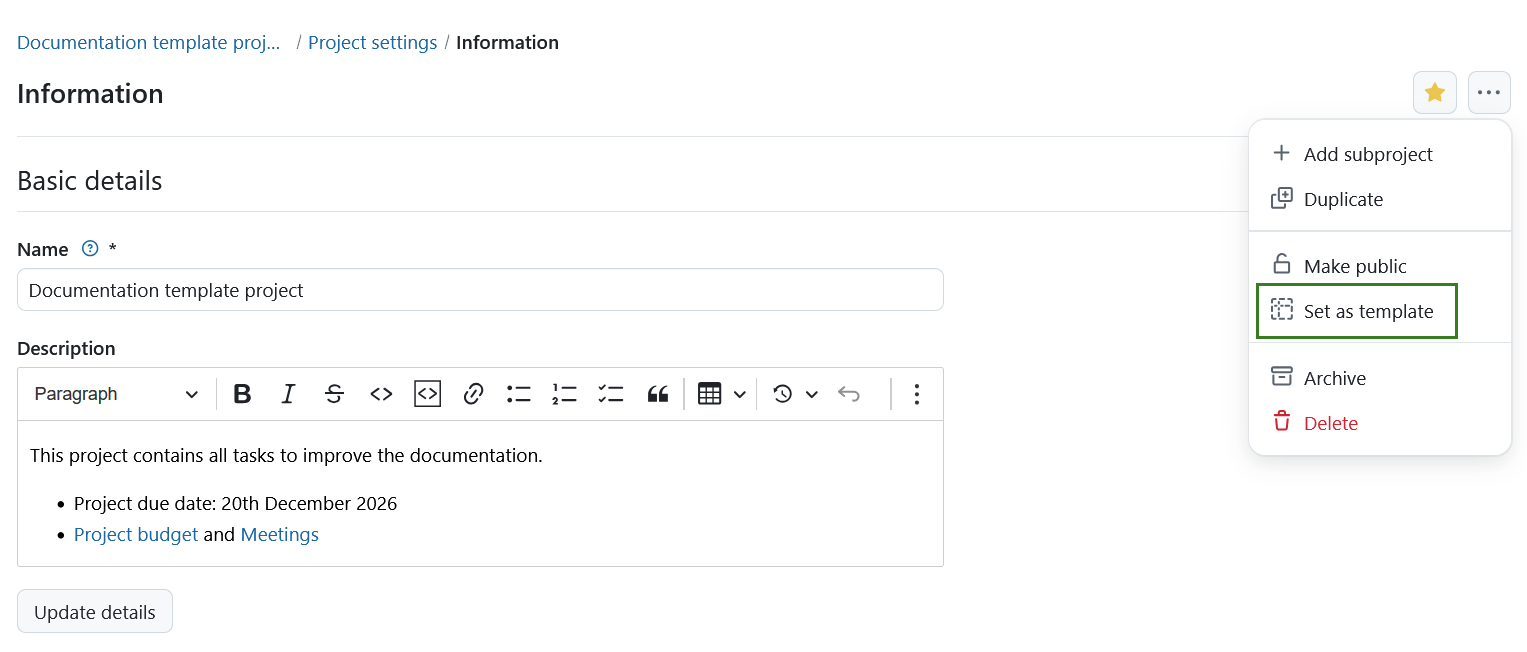
Konfigurieren Sie eine Projektvorlage
Um vorlagenspezifische Einstellungen zu konfigurieren, navigieren Sie zu Projektkonfiguration → Vorlage.
Hier können Sie Folgendes konfigurieren:
- Als Vorlage speichern: Aktivieren oder deaktivieren Sie den Schalter, um das aktuelle Projekt als Vorlage festzulegen bzw. die Vorlage zu entfernen.
- Rollen, die bei der Anwendung der Vorlage ausgeschlossen werden sollen: Wählen Sie die Projektrollen aus, deren Mitglieder nicht berücksichtigt werden sollen, wenn ein neues Projekt anhand dieser Vorlage angelegt wird.
Mit der Einstellung „Bei Anwendung der Vorlage auszuschließende Rollen“ können Sie festlegen, welche Mitglieder in Projekte kopiert werden, die anhand der Vorlage erstellt werden. Mitglieder, die eine der ausgewählten Projektrollen innehaben, werden bei der Anwendung der Vorlage nicht berücksichtigt.
Auf diese Weise können Benutzer auf die Vorlage zu Anzeigezwecken zugreifen, ohne automatisch Zugriff auf neue Projekte zu erhalten, die auf deren Grundlage erstellt wurden.
Klicken Sie auf Speichern, um Ihre Änderungen zu bestätigen.
Hinweis
Nur Administrator:innen können Projekte als Vorlagen festlegen oder entfernen.
Verwenden Sie die Projektvorlage
Sie können ein neues Projekt erstellen, indem Sie eine vorhandene Vorlage verwenden. Dies kopiert die Einstellungen und die Struktur der Vorlage in das neue Projekt. Erfahren Sie in unserem Grundlagenhandbuch wie man ein neues Projekt in OpenProject anlegt.
Tipp
Wenn Sie keine Vorlagenoptionen sehen, kann dies daran liegen, dass noch keine Projekte als Projektvorlagen festgelegt wurden oder dass Sie keinen Zugriff auf Vorlagenprojekte haben. Es werden nur Vorlagen angezeigt, die öffentlich sind oder bei denen Sie ein Projektmitglied sind, sodass verschiedene Benutzergruppen jeweils nur die für sie relevanten Vorlagen sehen können.
Alternativ können Sie das Projekt duplizieren, um es als Vorlage zu verwenden.
Dieses Video ist derzeit nur auf Englisch verfügbar.
Weitere Informationen finden Sie in unseren Blog-Artikeln zu den Themen Erstellen, Konfigurieren und Verwalten von Projekten in OpenProject und Projektvorlagen in OpenProject.