Meeting follow-up
The features described on this page apply to all meeting types, i.e. one-time meetings and individual occurrences of recurring meetings.
To follow up on tasks that were created or discussed during a meeting, see Agenda outcomes in work packages.
| Topic | Content |
|---|---|
| Meeting history | How to see what changed in a meeting. |
| Export a meeting | How to export a meeting as a PDF. |
Meeting history
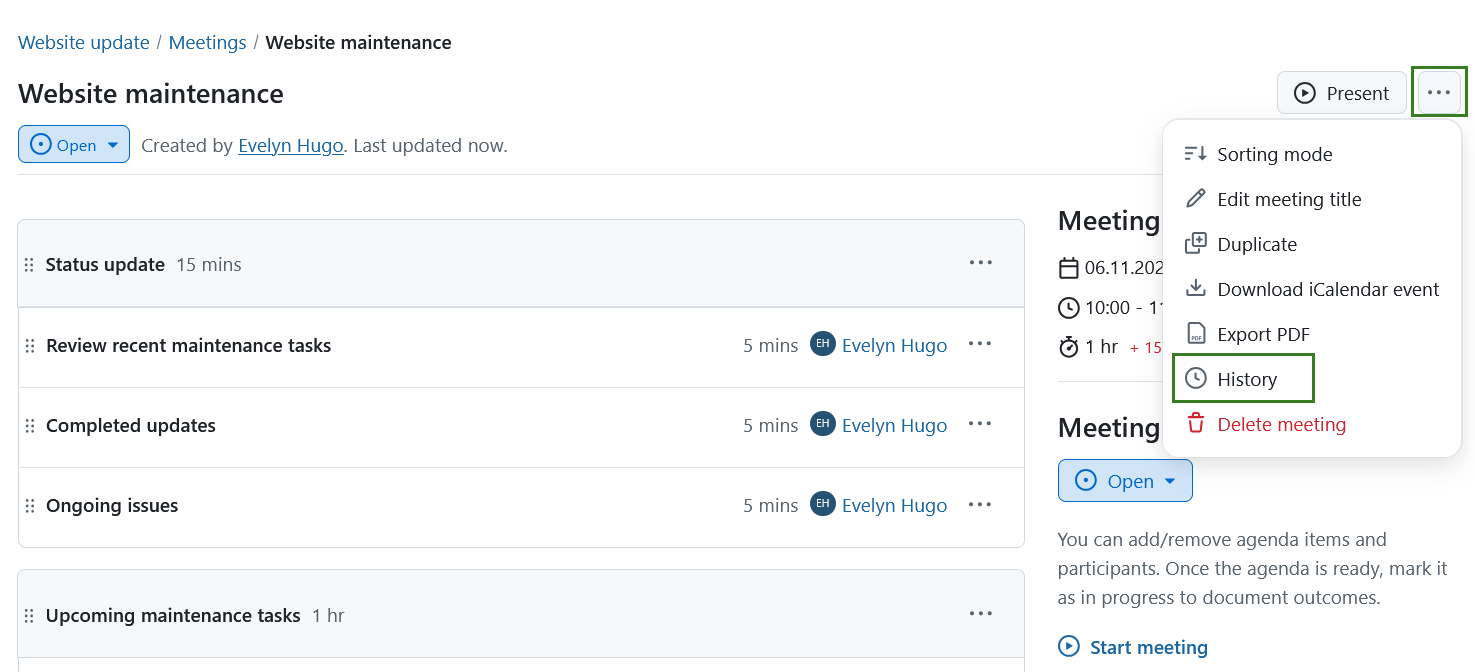
You can track what changes were made to a meeting and by which user. Select the dropdown by clicking on the More (three dots) icon in the top right corner and select Meeting history.
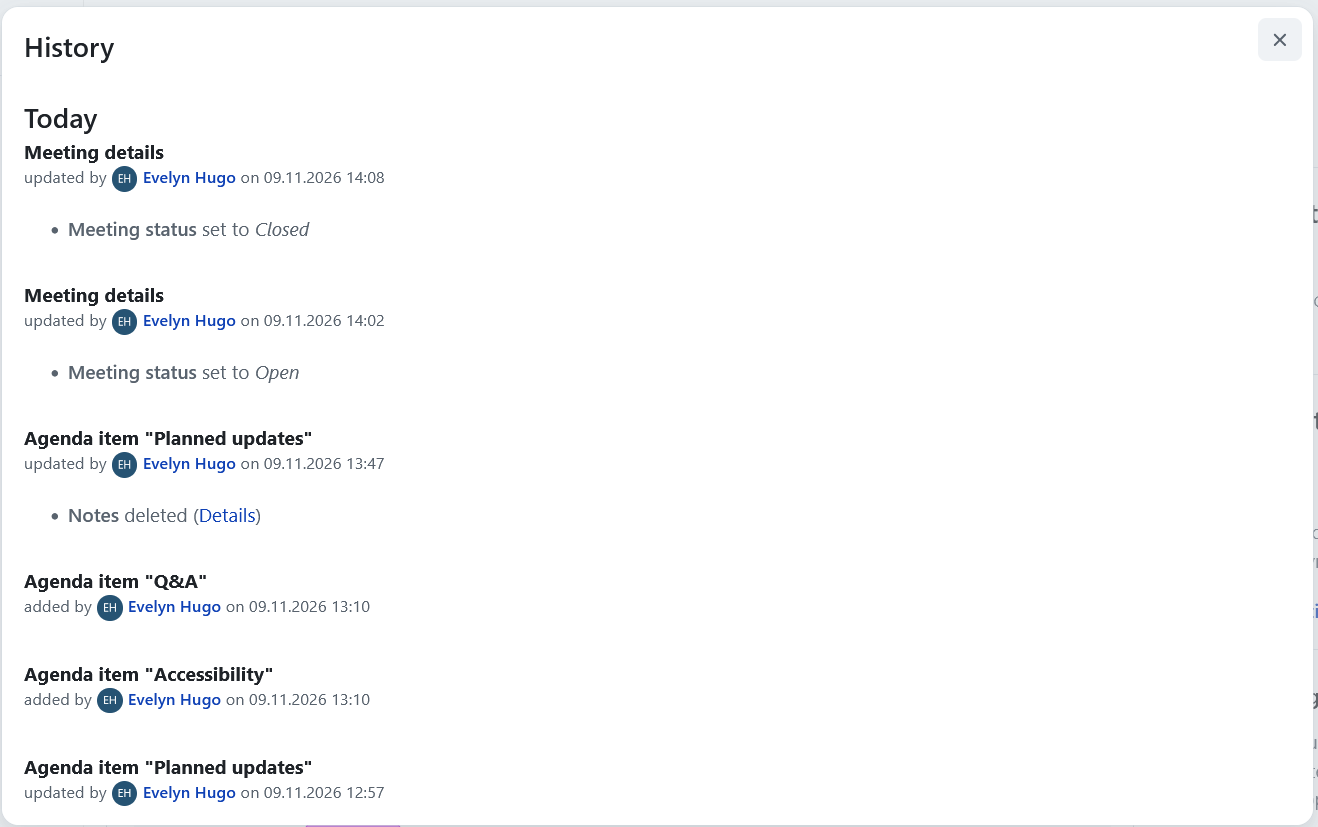
This will display meeting history details.
Export a meeting
You can export a meeting in OpenProject in a PDF format. A meeting can be exported regardless of the meeting state (open, in progress or closed).
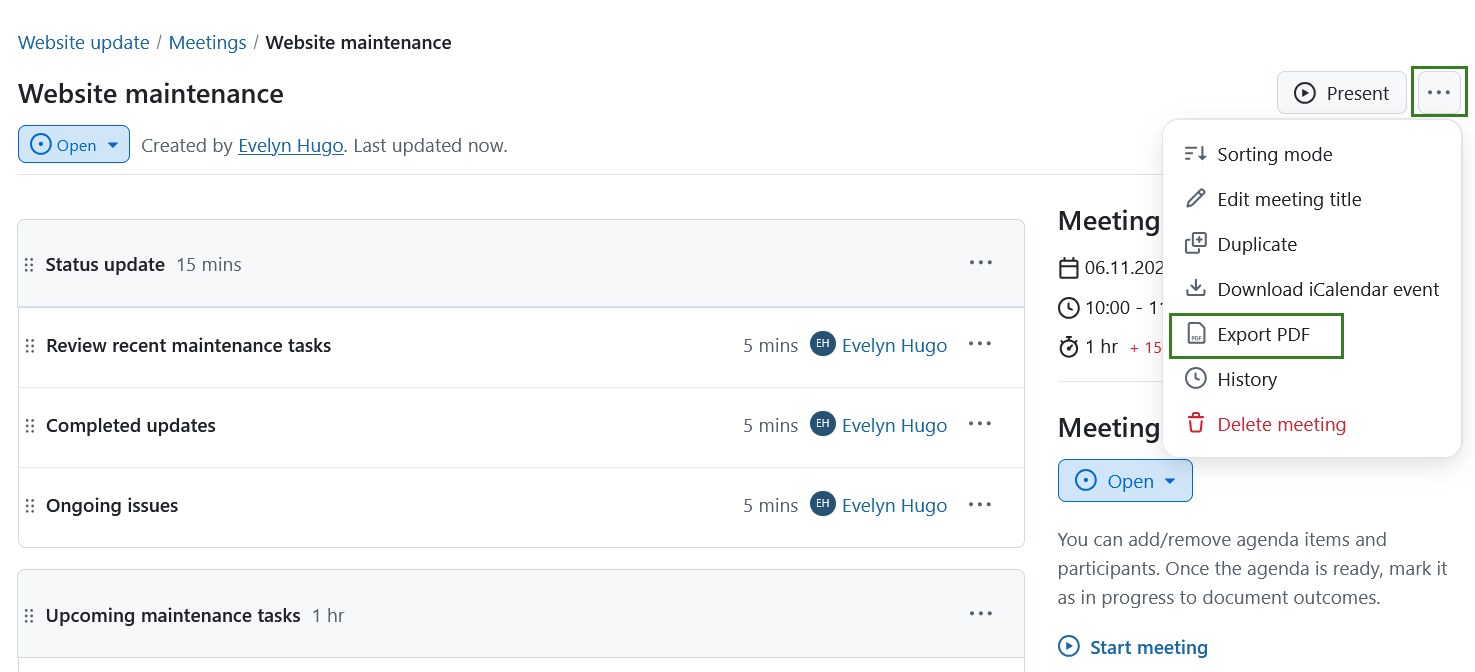
To export a meeting select the dropdown by clicking on the More (three dots) icon in the top right corner and select Export PDF.
The Export PDF dialogue will open. Here you can specify what elements should be included into the PDF and specify the footer text. Options include:
- Include list of participants: a list of participants will be preset above the meeting agenda (this option is selected by default)
- Include list of attachments: a list containing the filenames of attachments will be appended at the end
- Include backlog: includes list of backlog elements
- Include agenda outcomes: includes agenda outcomes (if your agenda outcomes contain confidential information, you can choose to not include them in the export).
You can also specify the Footer text, which will appear on the bottom of every page. The default text for the PDF export footer is the project name.
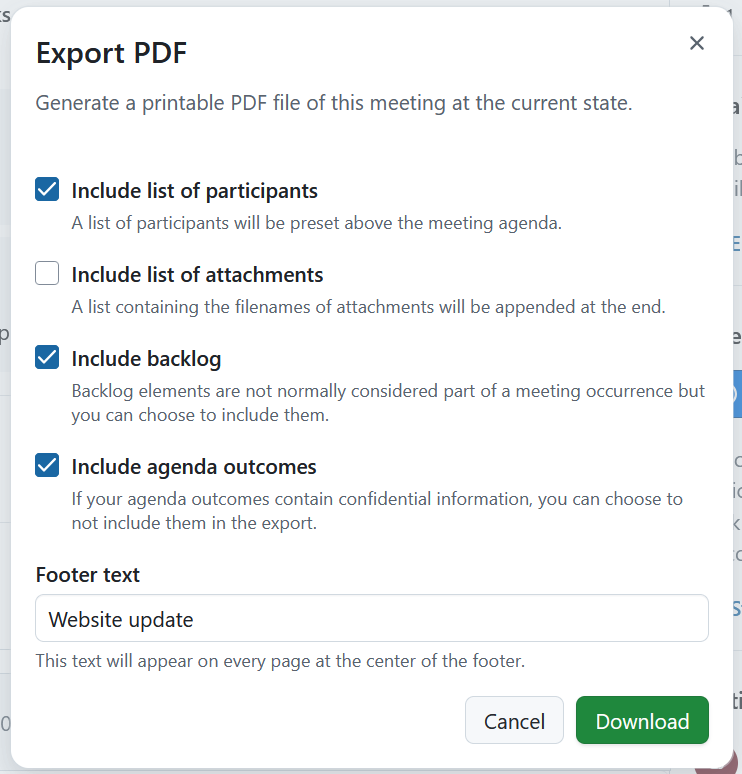
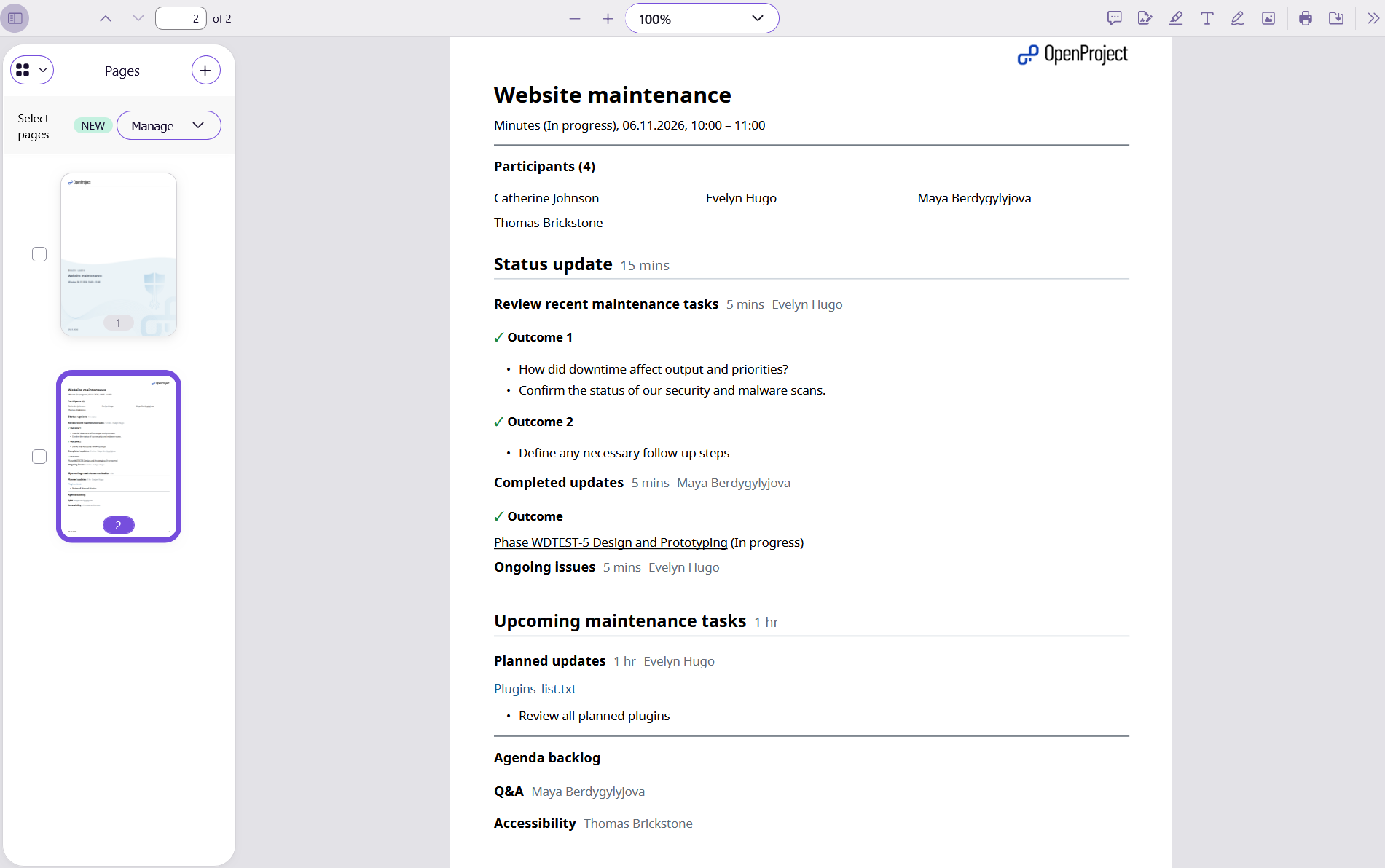
Click the Download button to generate a PDF. First page of the PDF is the title page. The generated PDF will include all the meeting details and agenda. Meeting participants, agenda outcomes, a list of attachments and backlog items will only be included if selected for the export.
Hinweis
Macros from the editor macros dropdown are not supported in the PDF.