Recurring meetings management
With OpenProject 15.3, meetings were enhanced by introducing a clear distinction between one-time meetings and recurring meetings. This page covers the features and functionalities of recurring meetings. For information on one-time meetings, please refer to this page. For features that apply to all meetings, see Meeting features.
Recurring meetings are helpful to schedule and organize meetings that happen regularly and which have the same structure. They consist of individual occurrences that repeat with a defined frequency and interval, and are all based on a meeting template consisting of predefined sections, agenda items and participants.
Hinweis
The Meetings module needs to be activated in the Project settings to be able to create and edit meetings.
| Topic | Content |
|---|---|
| Create and edit recurring meetings | How to create and edit recurring meetings in OpenProject. |
| Edit recurring meetings template | How to edit a template for recurring meeting series. |
| Sorting mode and voting | How sorting modes and votes work across meeting occurrences. |
| Edit recurring meeting series | How to edit recurring meeting series in OpenProject. |
| Edit a recurring meeting occurrence | How to edit a single meeting within recurring meeting series. |
| Meeting backlogs for recurring meetings | How to edit backlogs for recurring meetings in OpenProject. |
Create and edit recurring meetings
You can create a recurring meeting from within a project, from the global Meetings module, or using the + button in the header navigation. For steps on setting up one-time meetings, please consult this page.
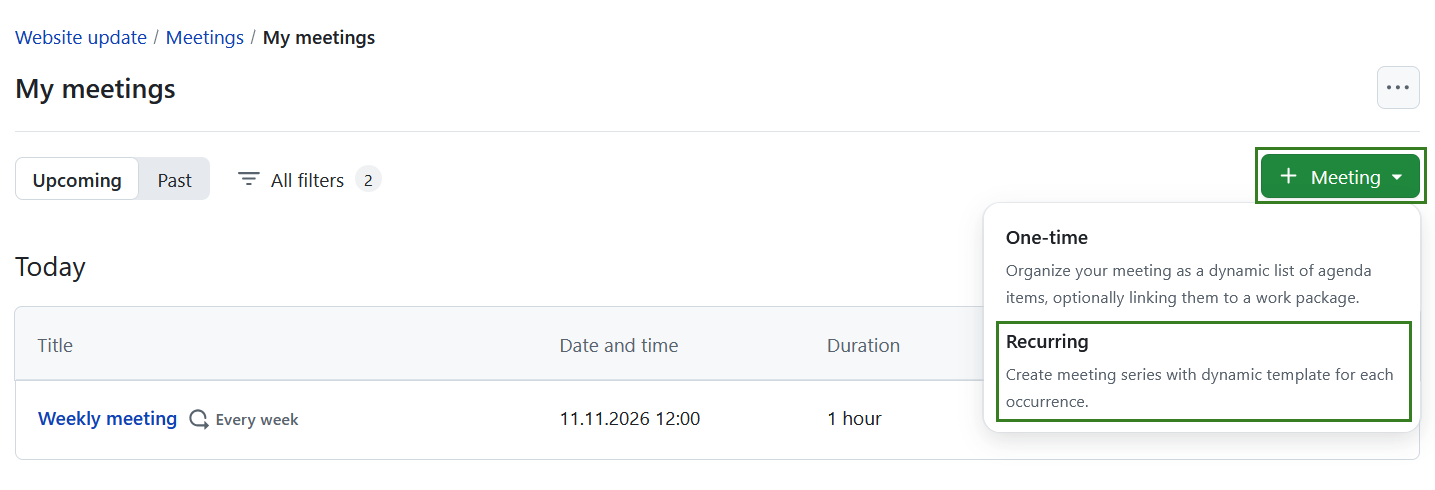
To create a new recurring meeting, click the green + Meeting button in the upper right corner and select Recurring. Alternatively, from anywhere in OpenProject, click the + button in the header navigation, select Meetings, then Meeting series. Both routes lead to the same meeting-series creation steps.
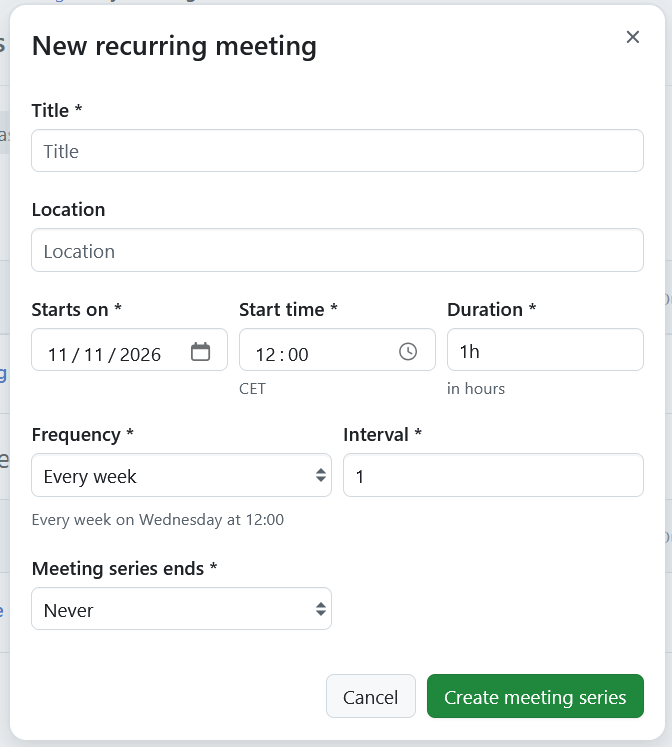
Enter your meeting’s title, location, start and end date and time, duration, frequency and interval. Note that if you are creating a meeting from a global module you will first need to select a project to which the meeting belongs.
Hinweis
The date is set to the present day by default, while the start time is automatically rounded up to the next half-hour. For example, if the current time is 10:09, the start time is set to 10:30.
Tipp
Duration can be entered both in hours and minutes. For example for a meeting that should last for 1.5 hours, you can enter:
- 1.5h
- 90m
- 90min
- 1:30
Frequency offers the following options:
- Every day
- Every working day
- Every week
- Day of month: This option allows you to schedule meetings to recur on the same calendar date every month
- Monthly on a weekday: This option allows you to choose an ordinal position and a weekday
Depending on the selected frequency, one or more of the following additional fields may appear:
Interval is a required integer field that defines the recurrence pattern of a meeting series. It specifies how often a meeting should repeat within the selected recurrence scheme. For example:
- Daily, Interval = 2 → The meeting occurs every two days.
- Weekly, Interval = 4 → The meeting occurs every four weeks.
Tipp
For working day-based recurrence, the Interval field is hidden and always set to 1, meaning the meeting occurs on every working day without customization.
Day of month is a required field indicating the date of the month, on which meetings will recur. For example, if you enter 4, the meeting will be scheduled on the 4th of every month.
Position is a required ordinal indicator field ranging from first, second, third, fourth to last. For example: Every first Monday of the month.
Weekday is a required field used to select a day of the week, from Monday through Sunday.
Meeting series ends field is a dropdown field that defines when a recurring meeting series should come to an end. The following options are available:
- Never - the meeting series runs indefinitely
- After a specific date – lets you specify an end date (the final occurrence will be scheduled on or before this date, depending on the recurrence pattern). The total number of occurrences up to the specified date is displayed in a caption below the End date field.
- After a number of occurrences – lets you specify the number of individual occurrences after which the series will end. The end date corresponding to the specified number of occurrences is displayed in a caption below the Occurrences field.
Hinweis
If the scheduled start time does not match the actual first occurrence, the caption is extended to state: “The first occurrence of this series will be on (date/time)”.
Click the Create meeting series button to save your changes. This will create the recurring meeting series and redirect you to the meeting template page.
Edit recurring meetings template
After creating a meeting series, you are redirected to the recurring meeting template, which will open in the draft mode by default. At this point, no meeting within the recurring meeting series has yet been set up. You need to first define a template that will be the basis of all upcoming meetings. In other words, all new iterations of meetings in the series will be a copy of this template.
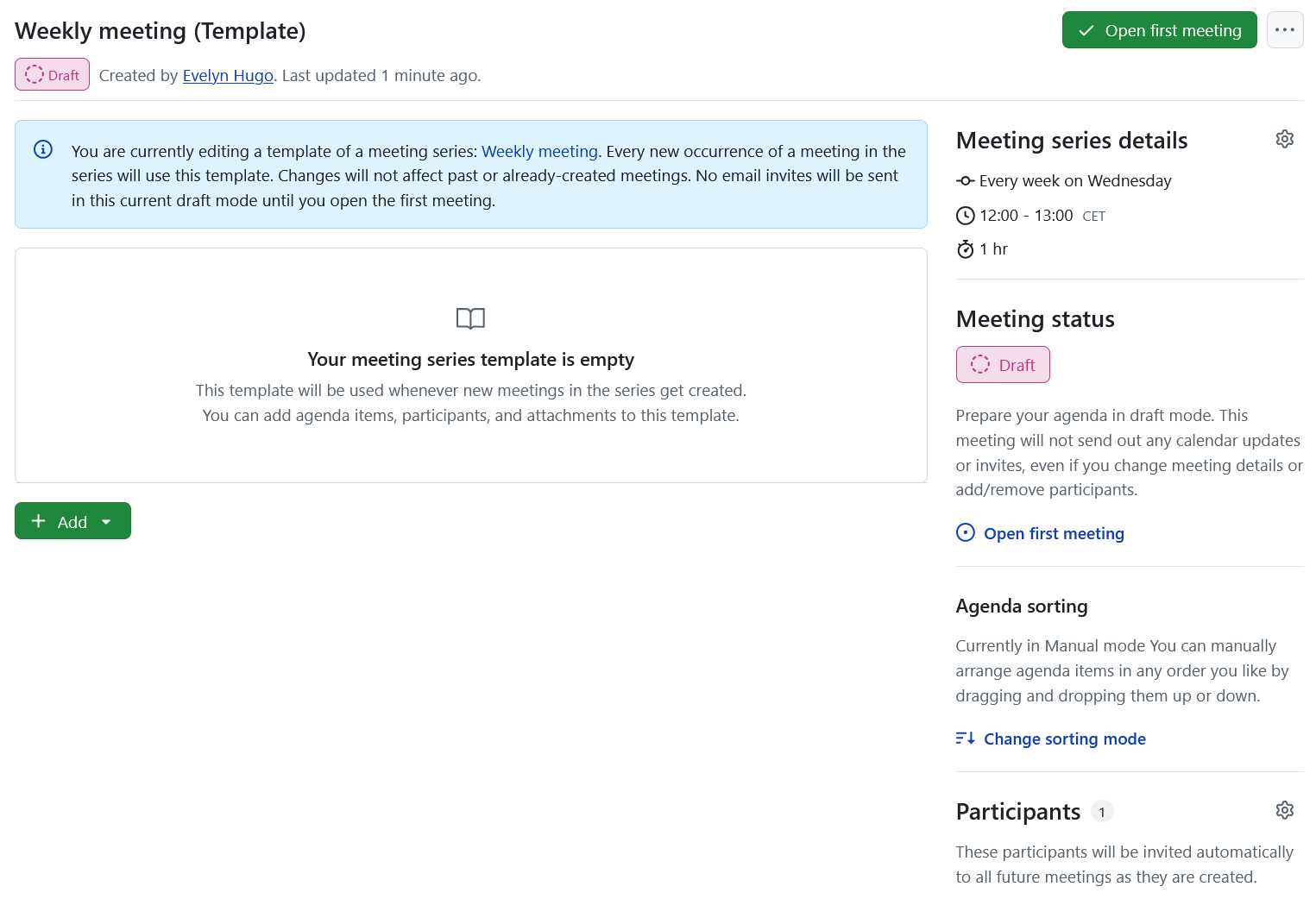
You can define the template the same way that you would the agenda of any meeting: you can add sections, agenda items, work packages and even a set of participants. Keep in mind that every new occurrence of a meeting in the series will use this template. After you are done editing the meeting template, you can create the first meeting by clicking Open first meeting button, which will direct you to the first open meeting occurrence in the new series.
Wichtig
Once you leave the draft mode, you can no longer return, i.e. you can still edit your template, but the changes may be visible (depending on the e-mail notification status).
You will be asked to decide whether or not meeting series participants should receive calendar invites and updates. Depending on your choice, a corresponding banner will inform you of the consequent actions.
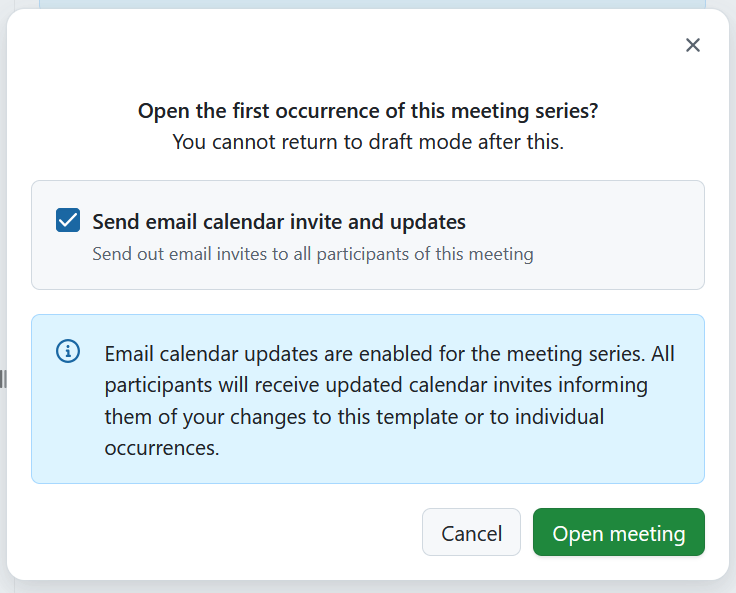
Hinweis
Multiple meeting updates made within a short period of time are combined into a single notification email. Participants will receive one email showing all changes, including participant updates and changes to meeting details.
Exception: Meeting deletion notifications are sent immediately and separately.
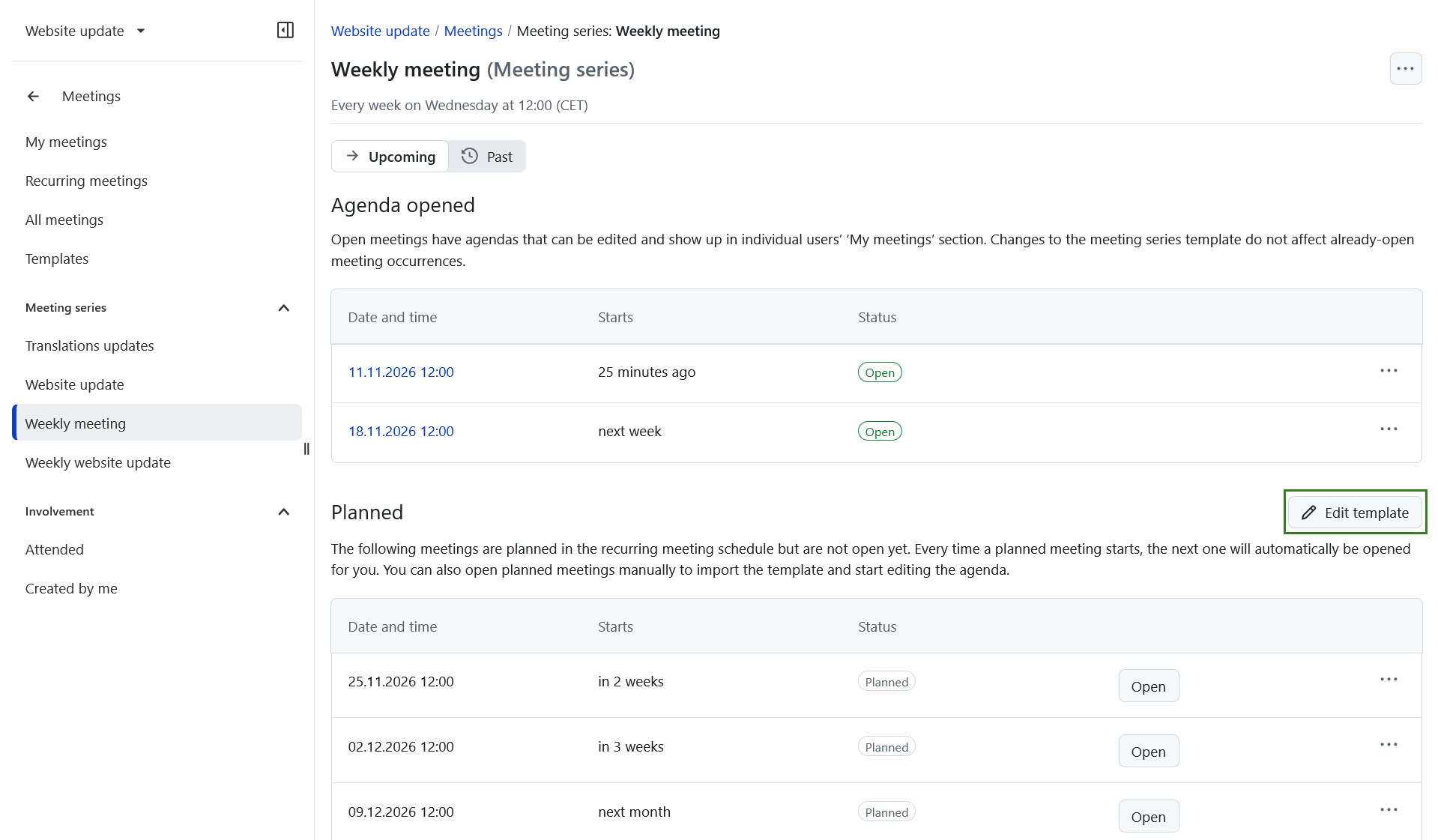
You can always adjust the template at a later date by selecting the meeting series from the left hand menu and clicking Edit template on the meeting series index page. These changes will not affect past or already created (opened) meetings.
Sorting mode and voting
Set the template’s Sorting mode to Manual or Vote-based using Change sorting mode in the sidebar or Sorting mode in the template’s More (three dots) menu. This requires the Edit meetings permission in the project.
When a planned occurrence is opened and its agenda is created from the template, it inherits the template’s sorting mode. In vote-based mode, each agenda item starts at Votes: 0. Participants vote in the individual occurrence, not in the template; votes are independent for each occurrence.
Changing the template’s sorting mode affects future occurrences created from it, not meetings that have already been opened. You can also change the mode for an individual occurrence without changing the template or other occurrences.
See Sort agenda items and vote for voting controls, sorting rules and permissions. The series backlog remains manually sorted and does not support voting.
Edit recurring meetings
Edit recurring meeting series
The left side menu displays all existing meeting series. Click on one will open the index page for this particular series, displaying all meeting occurrences planned for this series, and are grouped into:
- Open: lists all meetings within the series that have been opened and can be edited. All open meetings will also be displayed under My Meetings section.
- Planned: lists all meetings within the selected meeting series that are scheduled, but not yet open. Every time a planned meeting starts, the next one will open automatically. You can also open any of the planned meetings manually to import the template and start editing the agenda.
Tipp
Once a meeting is open, changes to the template do not affect it.
To edit the meeting series, select the More (three dots) icon on the far right side of the meeting series name and select Edit meeting series.
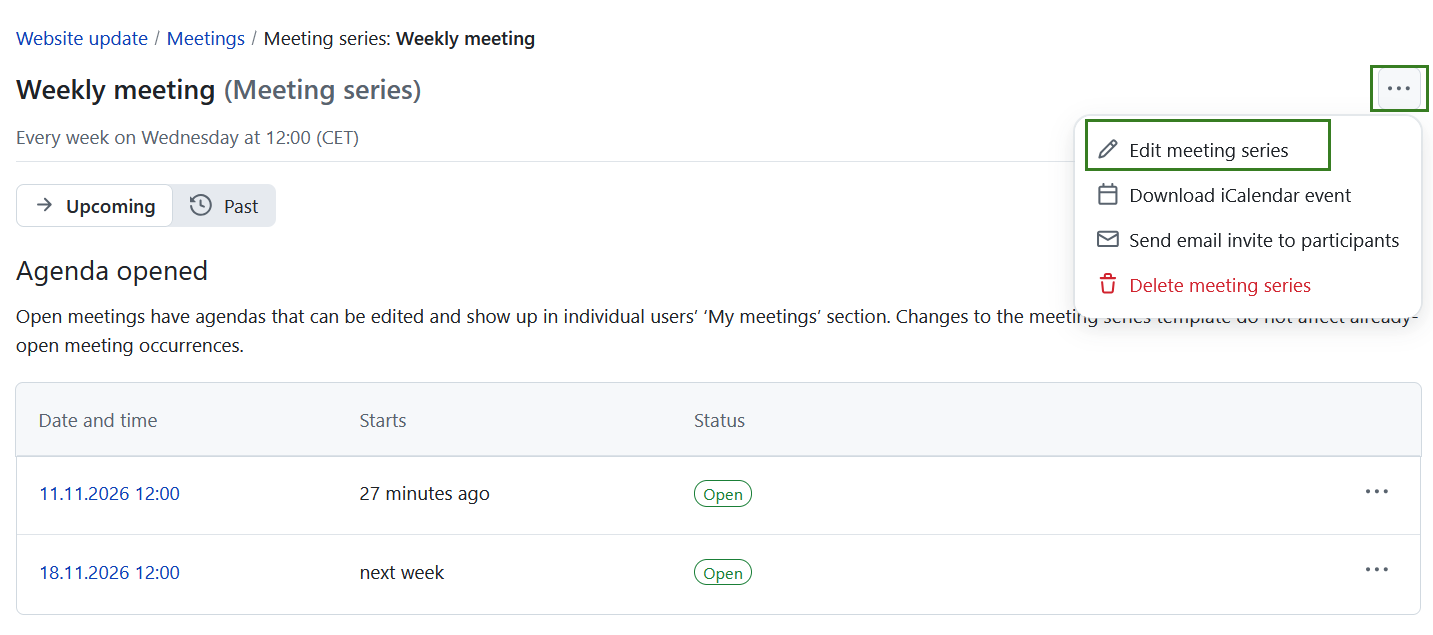
Within the same menu you also have the following options:
-
Download meeting series as iCalendar event
-
Send email to all participants
-
End meeting series (this option is only displayed if the series has not been ended before)
-
Delete meeting series
Edit a recurring meeting occurrence
To edit a single meeting within recurring meeting series you have to open it first by clicking the Open button next to the meeting. It will then be displayed under Agenda opened section on the recurring meeting index page, where you can click the meeting date and time.
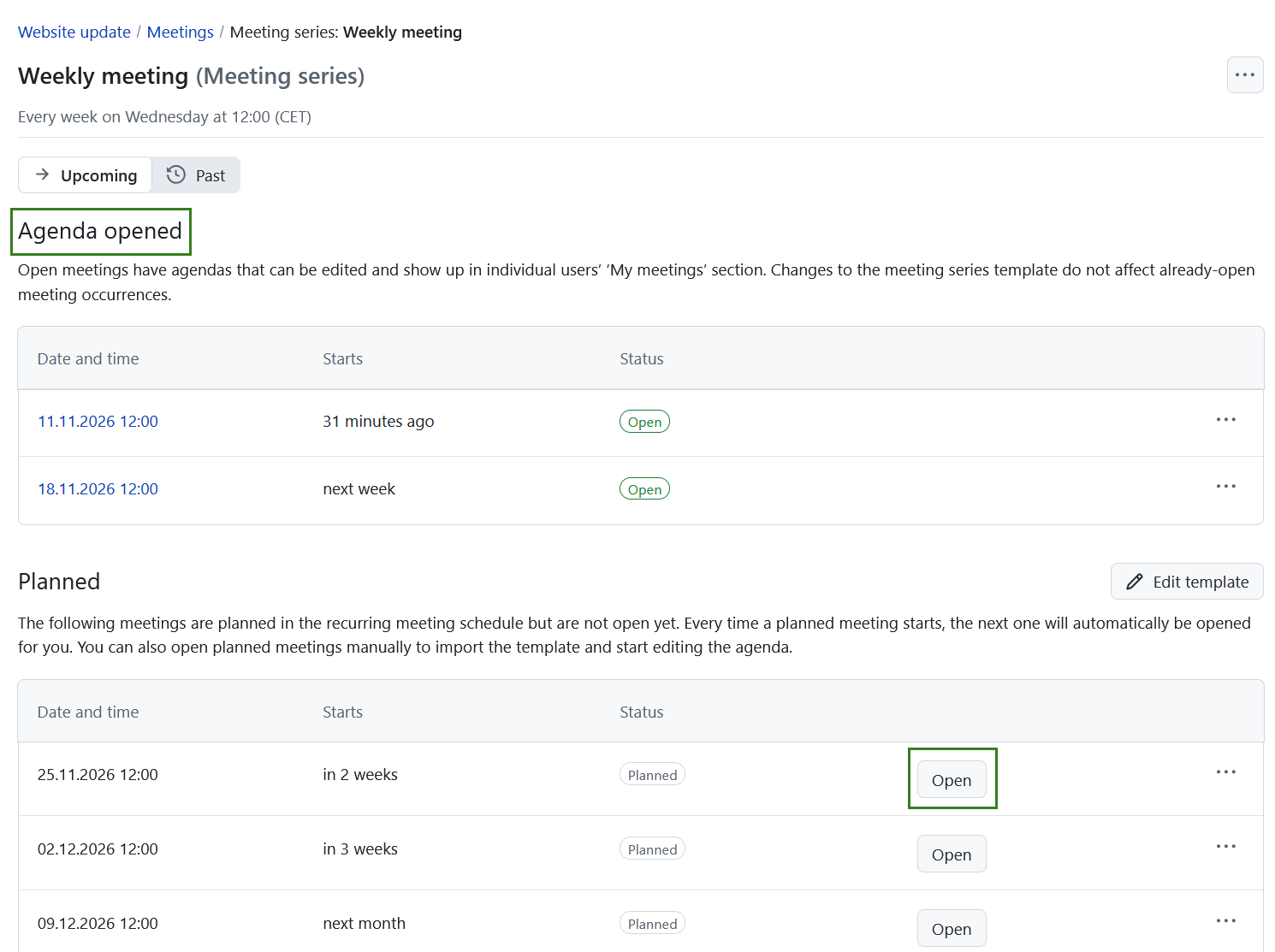
This will open the specific meeting page. You can then edit the meeting by using the same meeting features as for any other meeting, including adding sections and agenda points, documenting agenda item outcomes, inviting participants and adding attachments.
Additionally you can copy a specific meeting series occurrence as a one-time meeting. To do that click the More (three dots) icon and select Duplicate as one-time meeting.
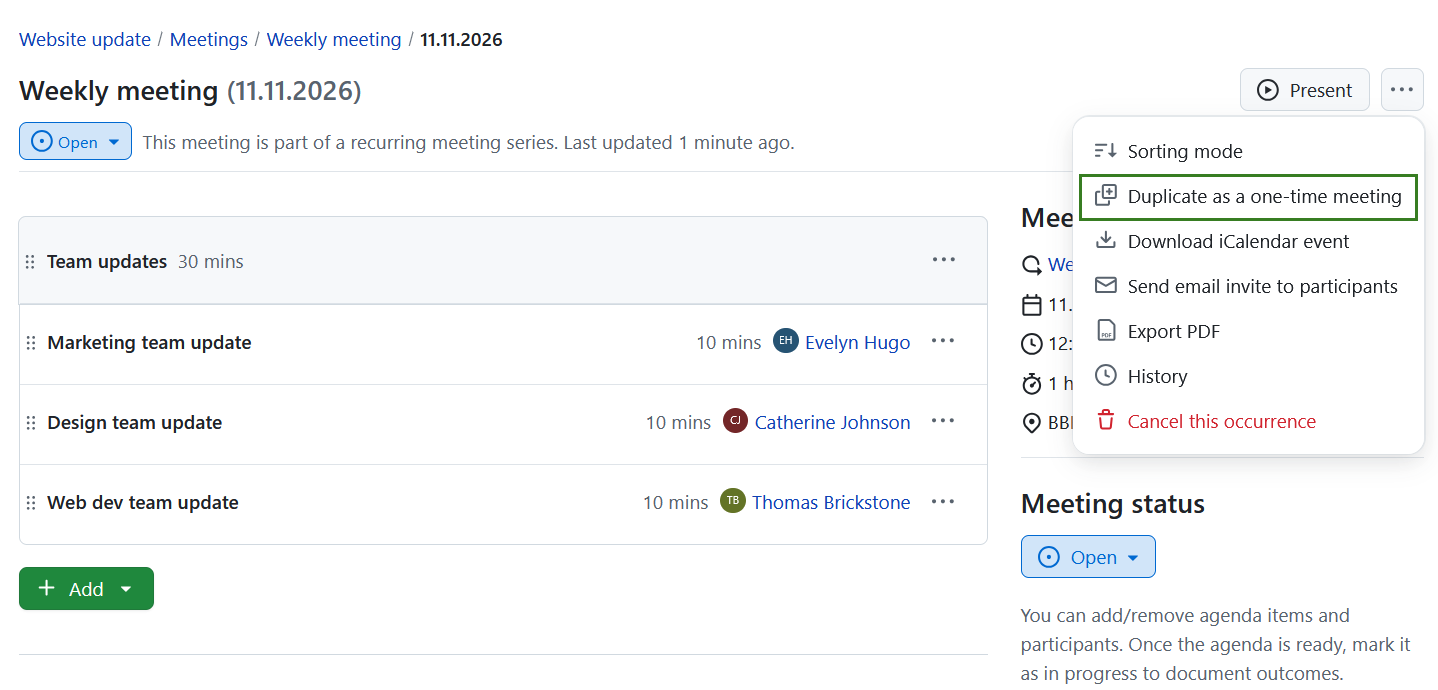
Within the same menu you also have the following options:
- Download iCalendar event
- Send email invite to participants
- Export PDF
- History
- Cancel this occurrence
Move an agenda item to next meeting
In addition to all the options available when clicking on the three-dot More (⋯) menu for an agenda item when editing a meeting agenda, you will see one additional option to move the agenda item to the next meeting occurrence in the series.
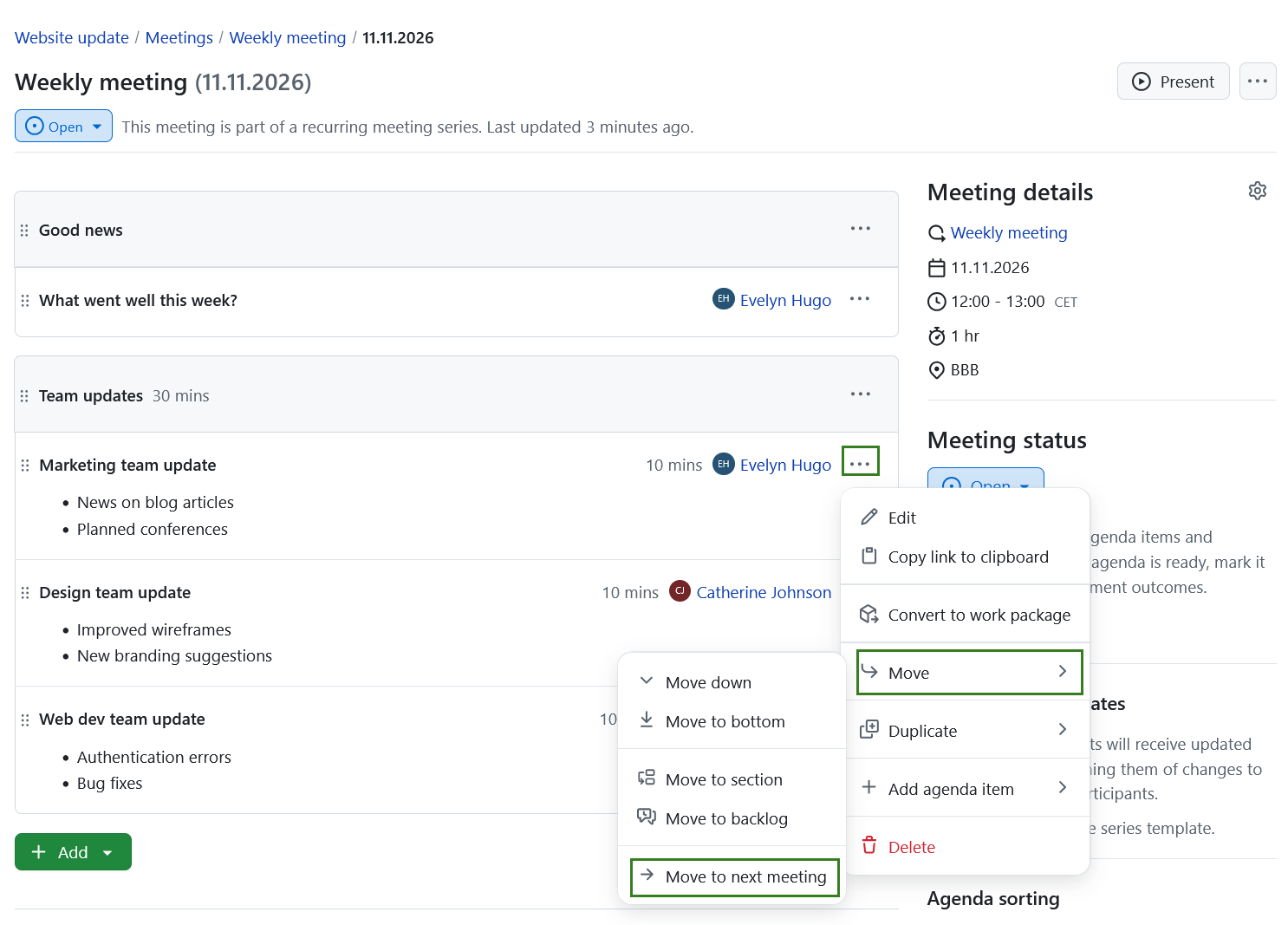
Clicking this option will display a confirmation dialog. From there, choose where to move the item: a section of the agenda or the backlog. If the next meeting has a section with the same name as the current section of the agenda item, that section is preselected. Otherwise, the last section is preselected.
Tipp
You can also move an agenda item to the next meeting directly from presentation mode, using the More (three dots) menu of the current agenda item.
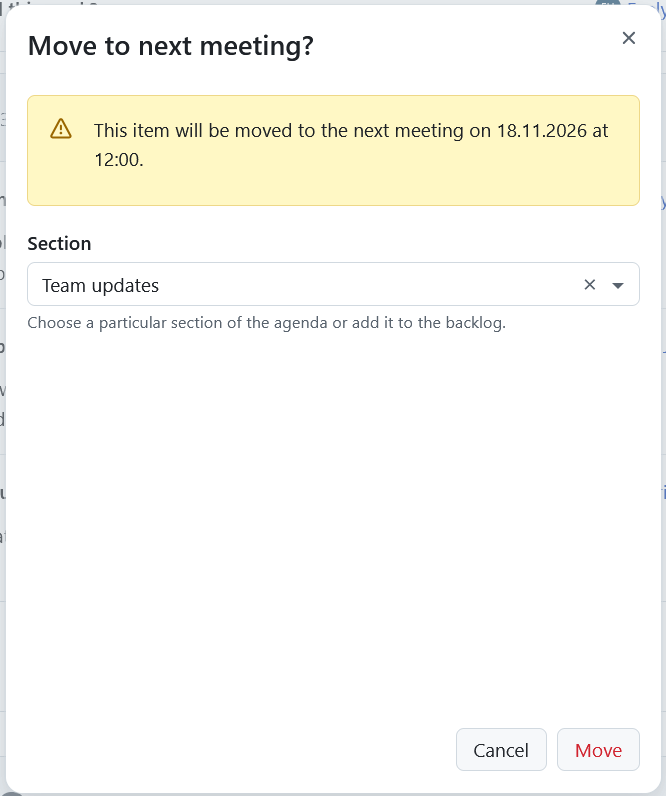
Confirming will move the agenda item and outcomes (if any exist) into the next immediate meeting occurrence.
Votes are not carried over to the next meeting. The moved item starts without votes and follows the destination meeting’s sorting mode.
Duplicate an agenda item to next meeting
If you don’t want to move an agenda item to the next meeting (and remove it from the current one), but instead keep it in the current meeting protocol and still discuss it again next time, you can duplicate it to the next occurrence.
This can be useful, for example, if an item was discussed but needs a follow-up in the next meeting, while the current meeting minutes should remain complete.
To do duplicate an agenda item into the next meeting, open the More (⋯) menu of an agenda item and select Duplicate → Duplicate in next meeting.
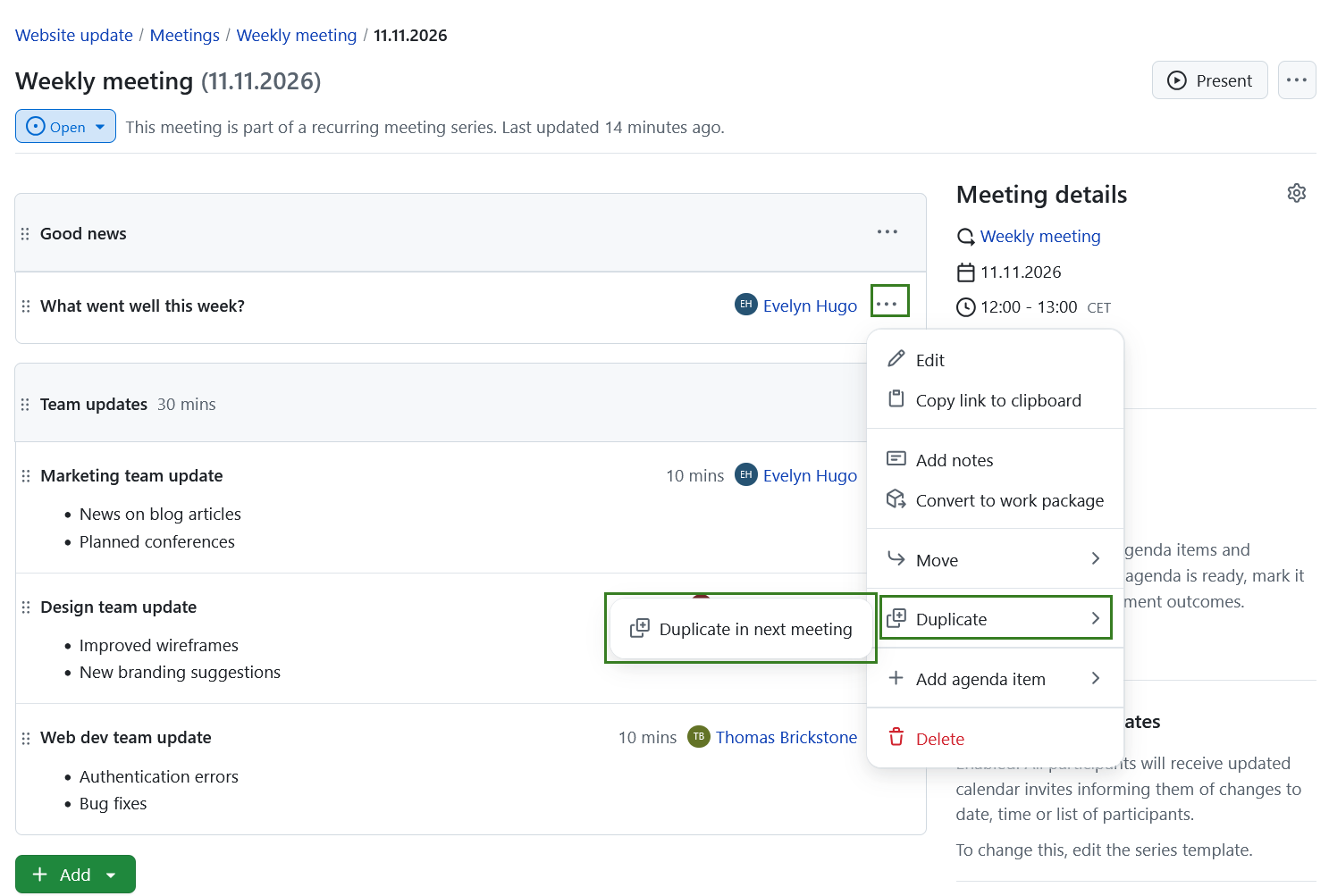
Clicking this option will display a confirmation dialog. You will then need to select a destination from the dropdown menu: either a section of the agenda or the backlog.
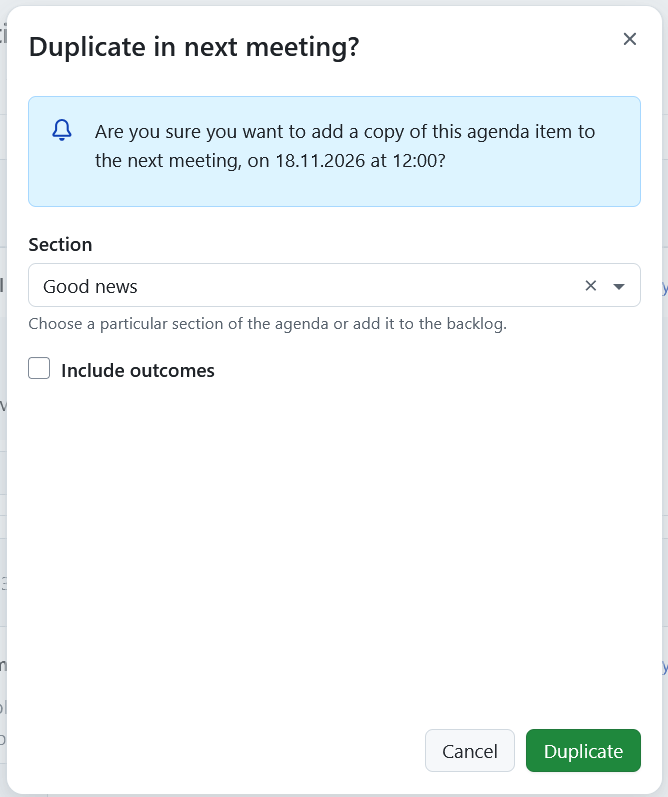
If the agenda item has outcomes, you can also select Include outcomes to duplicate them along with the agenda item. The duplicated outcomes are independent of the original ones, so changing them later will not affect the outcomes in the current meeting.
Confirming will create a copy of the agenda item in the next immediate meeting occurrence. The original agenda item will remain in the current meeting, keeping the protocol intact.
The copied item starts without votes and follows the destination meeting’s sorting mode. Votes on the original item remain unchanged.
Meeting backlogs for recurring meetings
Series backlogs
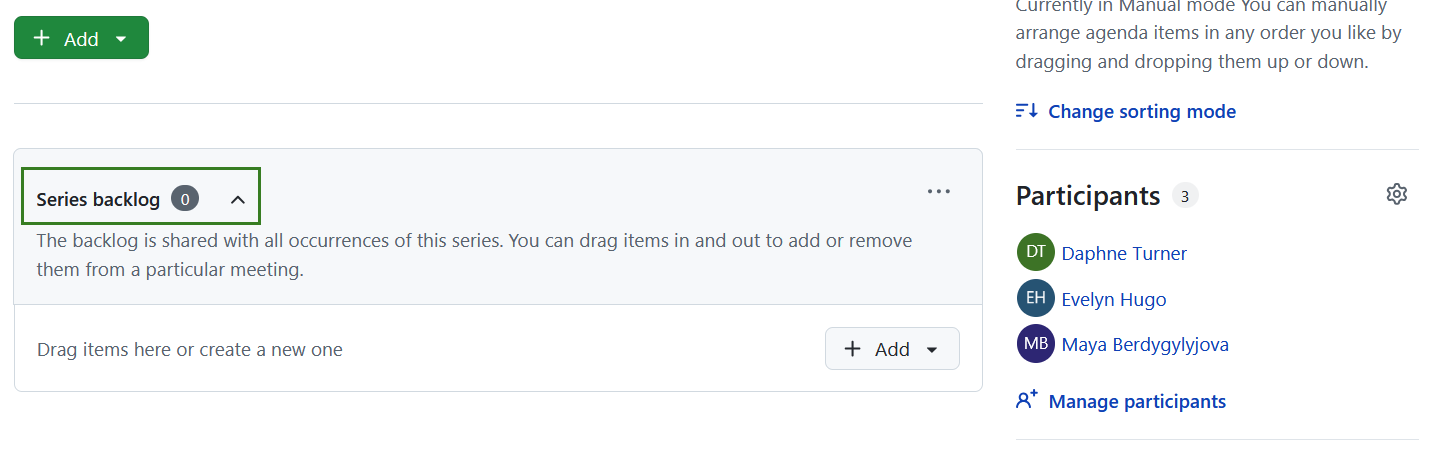
A series backlog is a special pre-existing section below the actual agenda items of that occurrence where additional agenda items maybe be listed for consideration. These items may then be added to a particular occurrence by the meeting organizer either before or during a meeting.
The backlog can be collapsed or expanded by clicking on the the title. Agenda backlog for recurring meetings will be visible for all meetings in the series.
Tipp
By default, the backlog is expanded when the meeting status is open, collapsed if the meeting status is in progress, and hidden if the meeting is closed.
Add and edit items to series backlogs
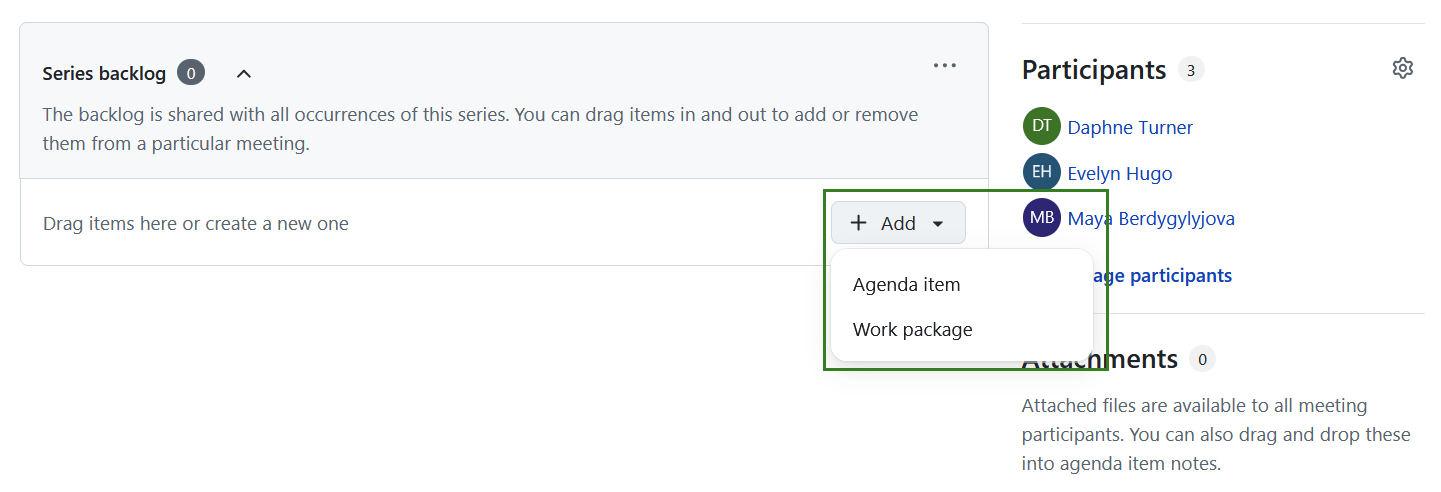
You can add agenda items and link work packages in the same way as you would within the meeting agenda: either by dragging and dropping via the handle on the left or by using the Add button.
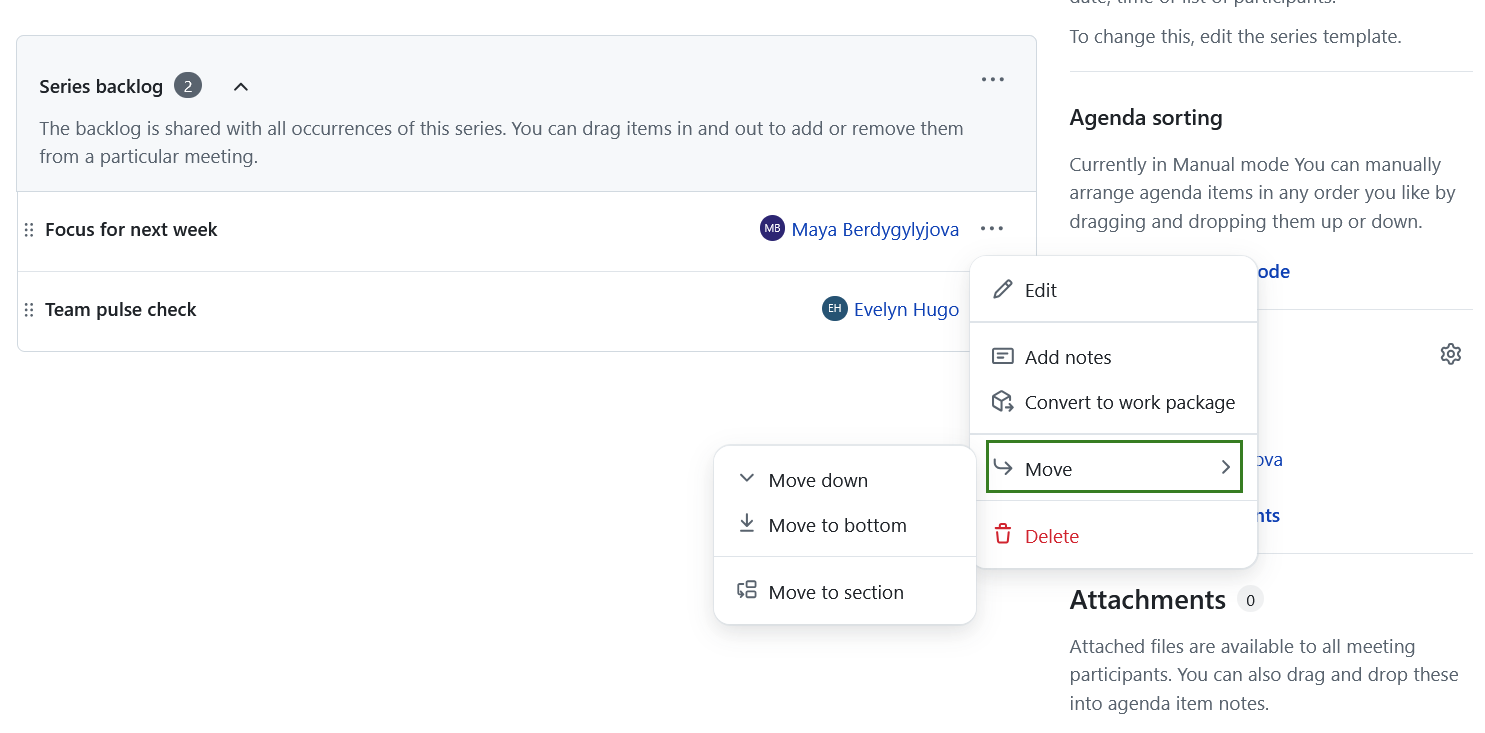
The dropdown More (three dots) icon on the right opens a menu allowing editing, reordering or deleting an item in the series backlog. Here you can also add notes and move a backlog item to a section of the meeting agenda. If there are multiple sections in the current meeting, you will be asked to select a section first.
Clear agenda backlogs
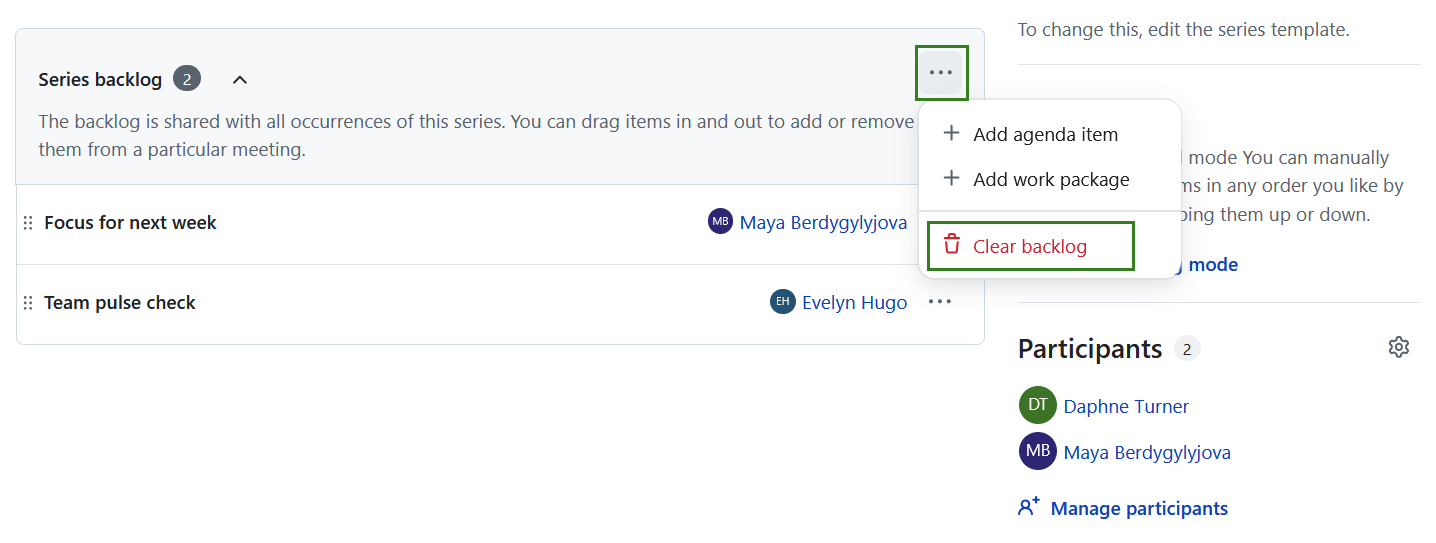
You can either remove single items from a series backlog or clear an entire backlog by clicking the Clear backlog option under More (three dots) menu next to the backlog name. Use this option with caution, as the action cannot be undone.