Memberships
The Memberships page lists every membership across all projects in one filterable list. This way, system administrators can find out who holds a given role, including in archived projects, without opening the member list of each project.
To open the page, navigate to Administration > Users and permissions > Memberships.
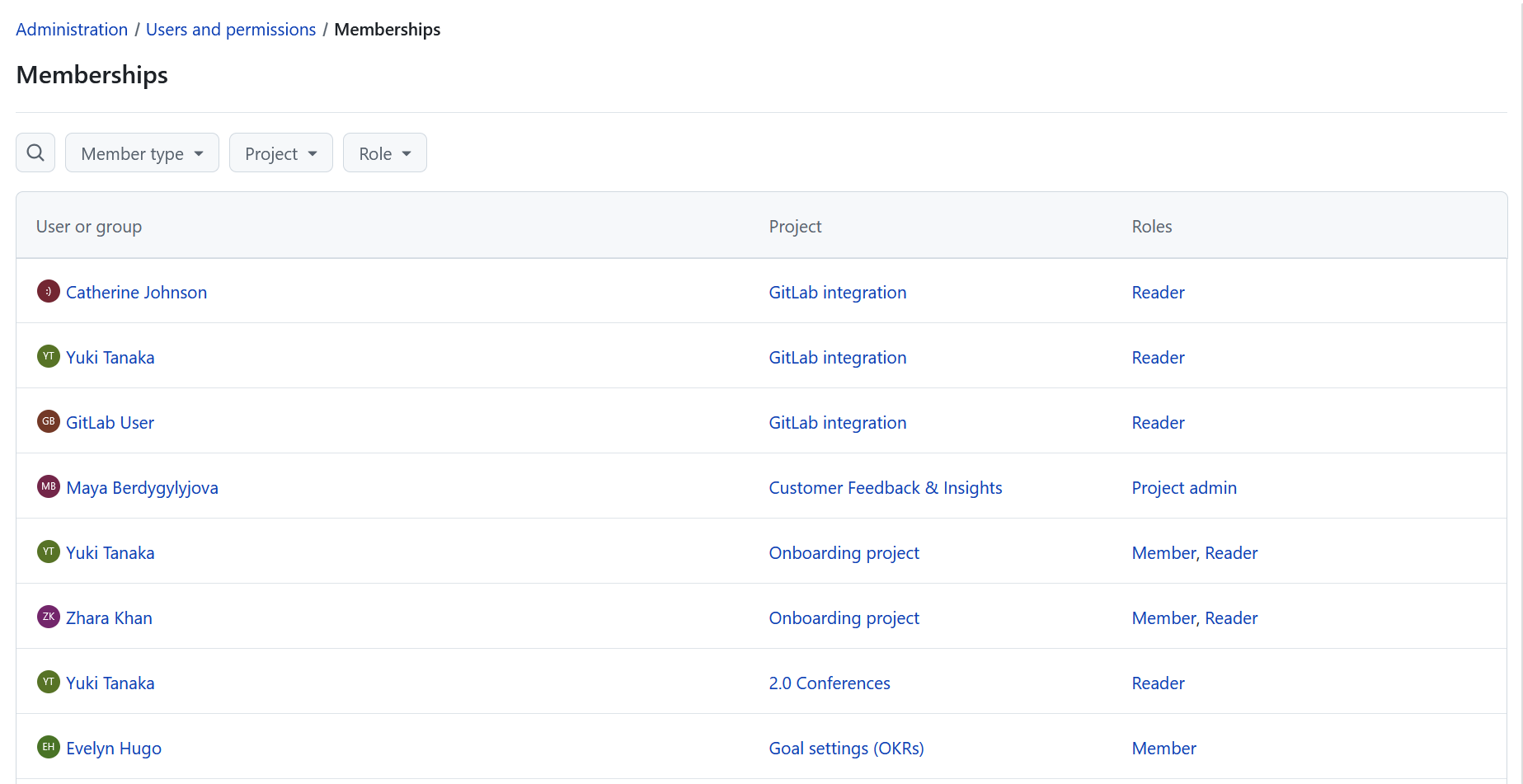
Memberships list
Each row in the list shows one membership, with the columns User or group, Project, and Roles. If a member has several roles in a project, all of them are listed in the same row.
- If a role comes from a group membership, the group is shown next to the role, for example Member (via: Group Customer Support). This indicates that the member did not get the role directly.
- A global role is indicated by the word Global in the project’s column.
- Memberships in archived projects are included in the list. Their project names are shown as plain text, since archived projects have no page that can be opened.
- User and group names link to the user or group, project names link to the project, and each role name links to the role’s edit page in Roles and permissions.
The list is paginated.
Search and filter memberships
Above the list, you can narrow down the memberships:
- Search: Click the search icon and enter a name to filter the list by the member’s name.
- Member type: Shows only users, groups, or placeholder users. You can select several types.
- Project: Shows only memberships in the selected projects.
- Role: Shows only memberships with the selected roles.
The number next to a filter shows how many values are selected in it.
Dica
Before you delete a role, filter the list by that role to see which members are still using it.