PDF report export
With PDF Reports, you can export detailed up-to-date work plans for your project in a clean and practical format. It includes a title page, a table of contents (listing all of the work packages), followed by the description of single work packages in a block form. The table of contents is clickable and is linked to the respective pages within the report, making navigation much easier.
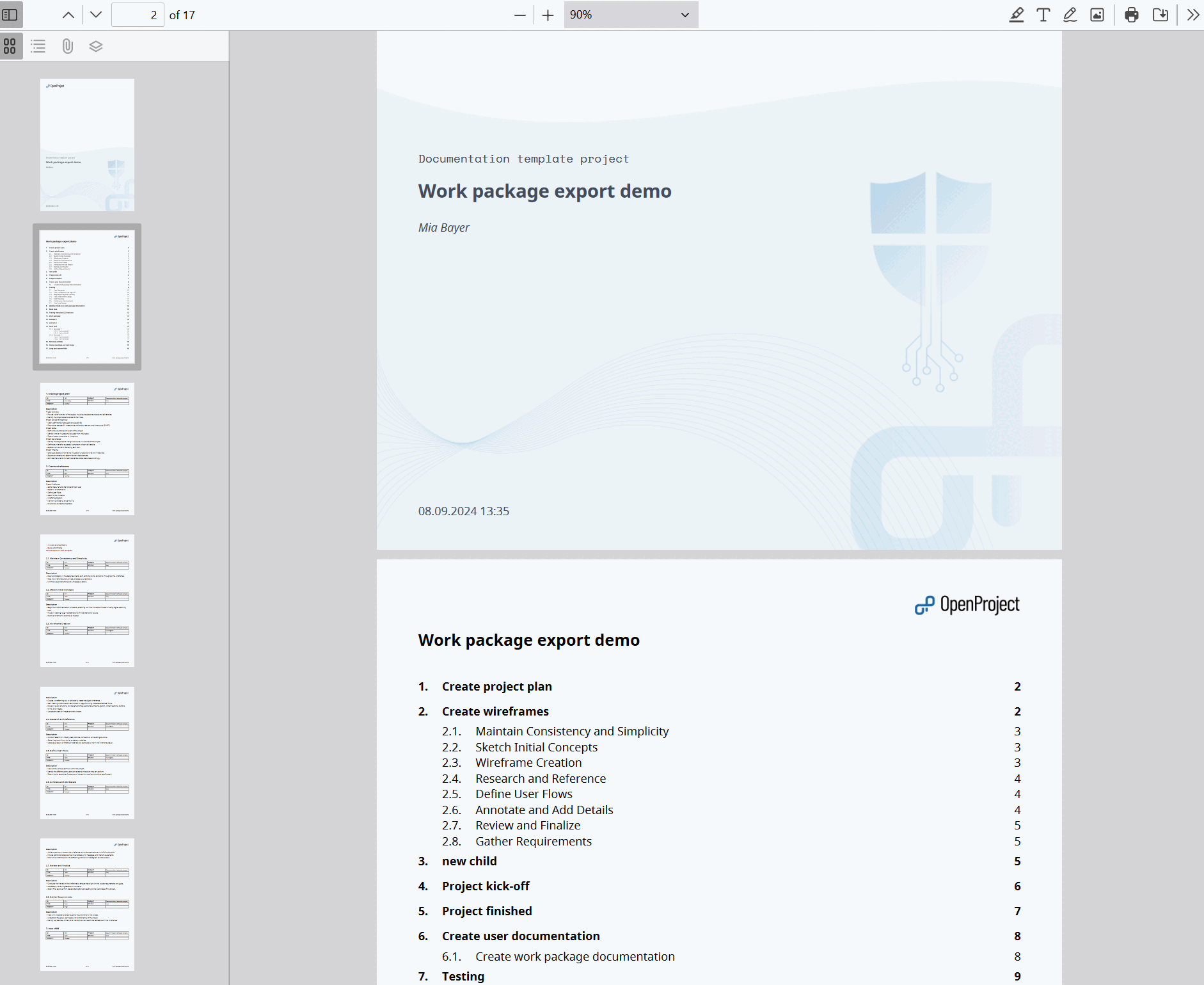
Report content
For each work package, a table of attributes is included, where attributes correspond to the columns you specified for the export. It is followed by the long text fields you selected, which support embedded work package and project attributes.
Options
The following options are available for the PDF report:
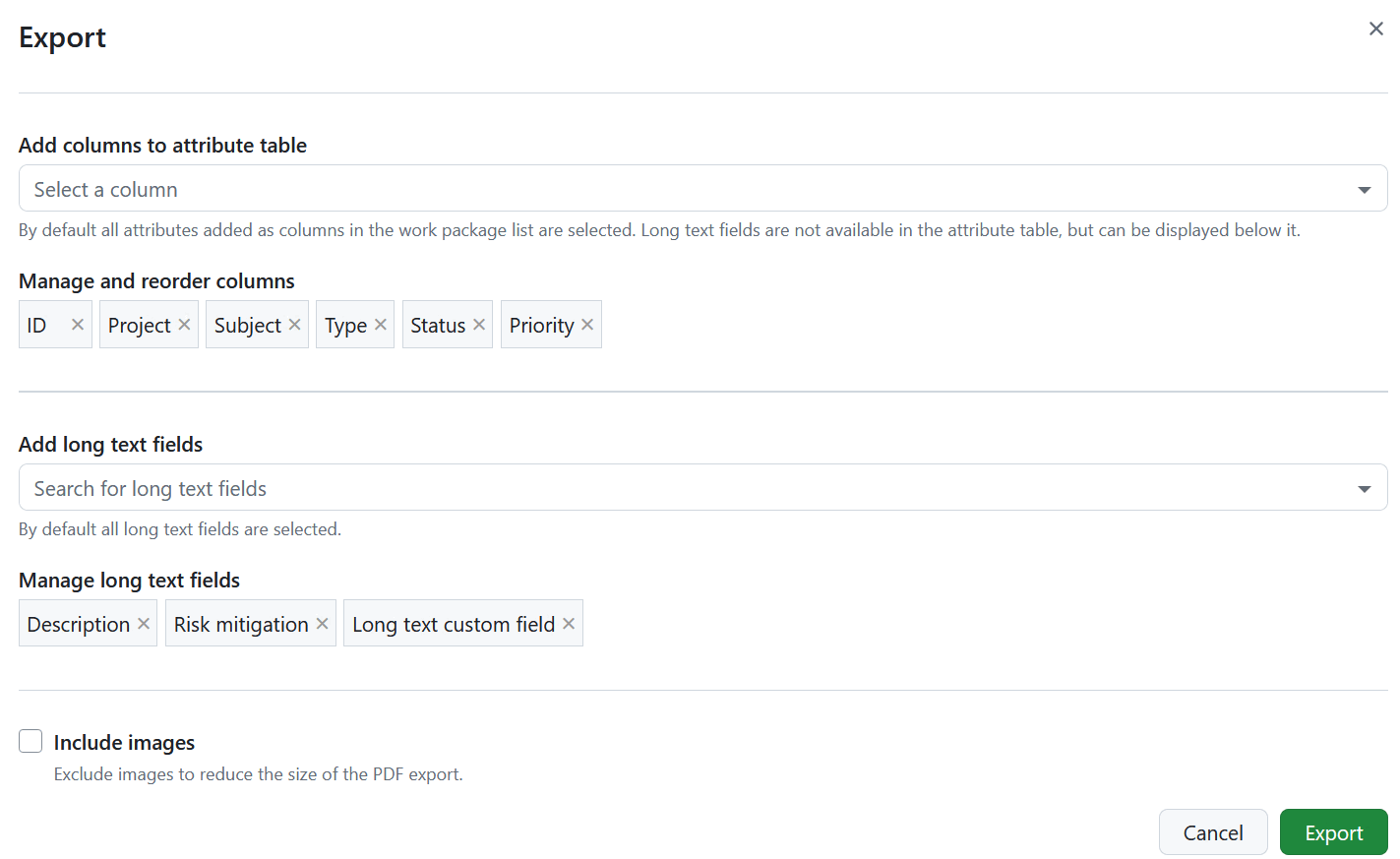
Columns
Use the Add columns to attribute table option to select which attributes are listed in the attribute table of every work package and to change their order. The pre-selected columns are the ones in the work package table query. Learn how to save the work package view.
The subject is not available as a column, since every work package block is already headed by its subject. Long text fields are not part of the attribute table either, but can be displayed below it.
Unlike the other export formats, the report also accepts relation columns, such as children or blocked by. Adding them creates the relation blocks described below.
Long text fields
Below the attribute table, the report can display the work package description and all long text custom fields. Use the Add long text fields option to select which of them are included and drag them to change the order in which they appear in the report.
All long text fields are selected by default. Remove a field from the selection to leave it out of the report.
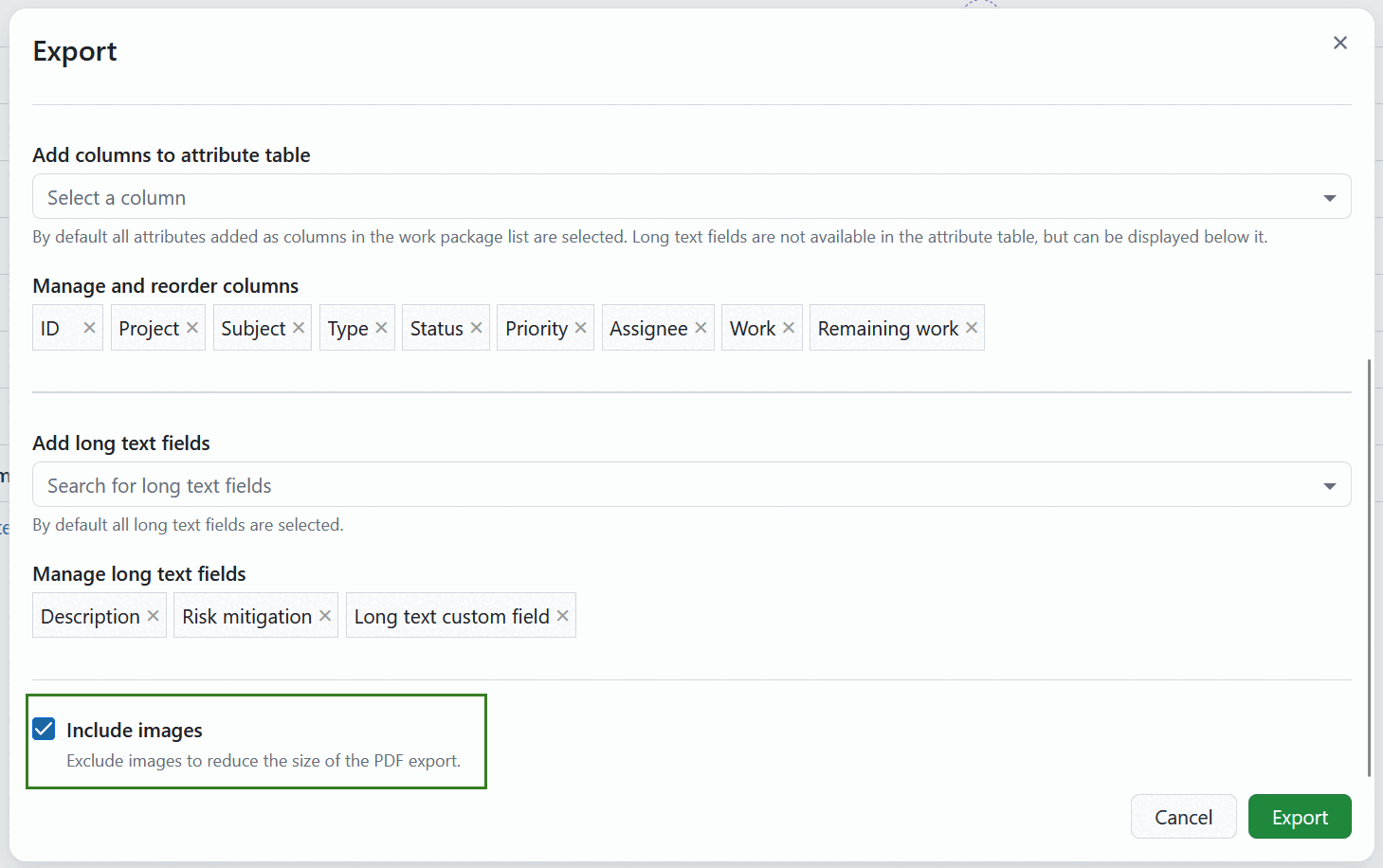
Include images
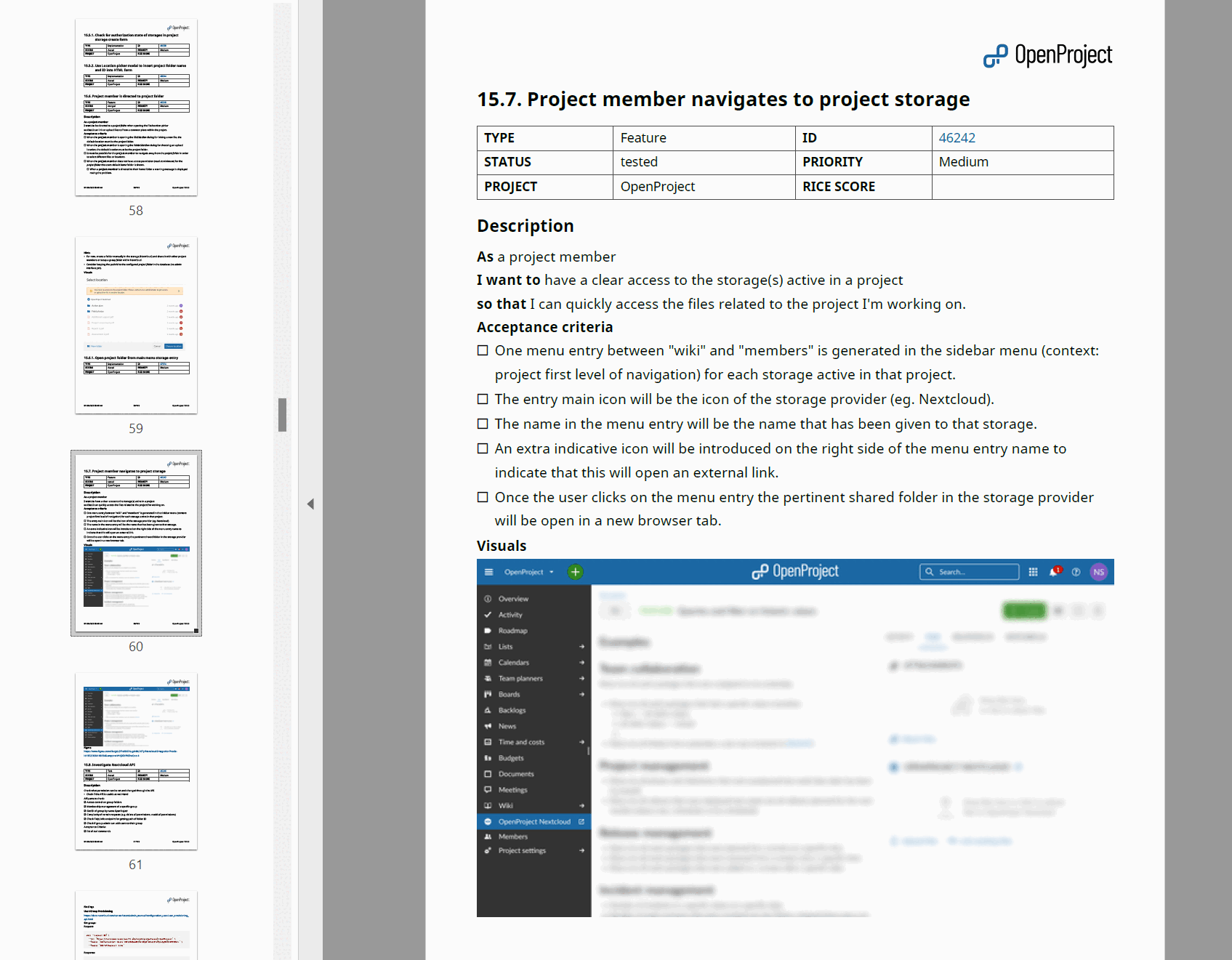
The Include images option is activated by default, so your PDF Report includes the images from the work package description. Deactivate it to reduce the size of the PDF export. Supported formats include PNG, JPG, GIF and WebP. If an animated WebP or a GIF is used, the first frame will be included into the report.
Note
Images attached or linked in the work package Files section or in the Activity comments are not included in the PDF Report with images.
Display sums
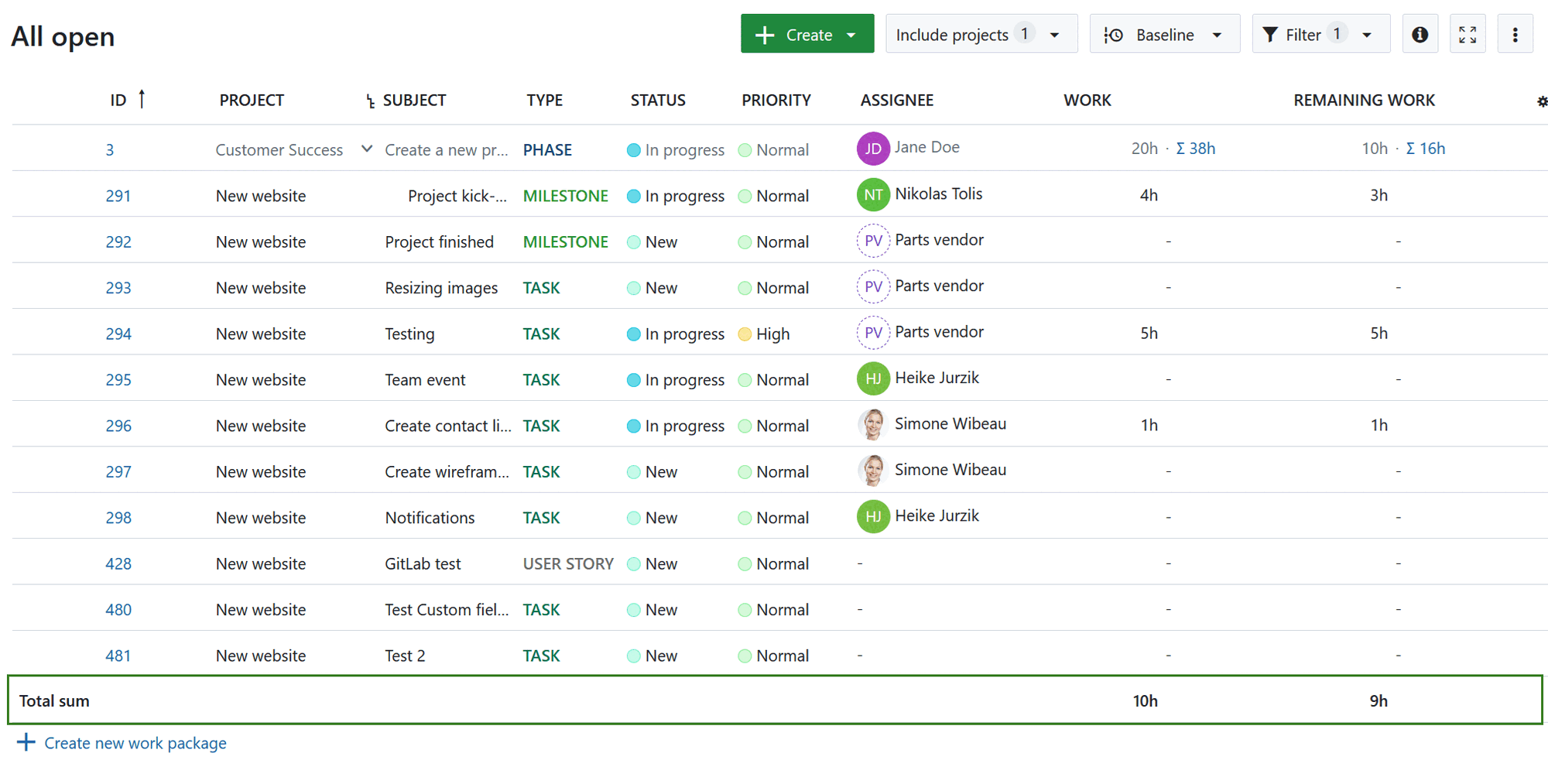
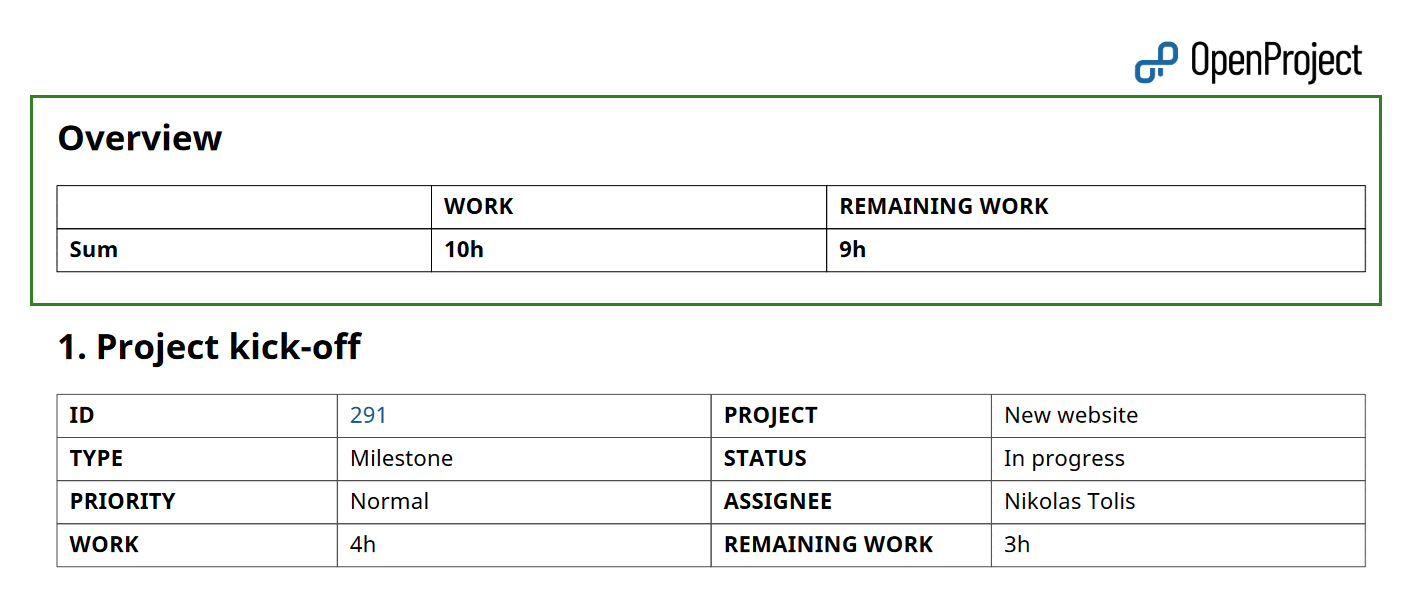
If “display sums” is activated in the work package table, then the sum table is included between the table of contents and work packages description in an Overview section.
Display relations
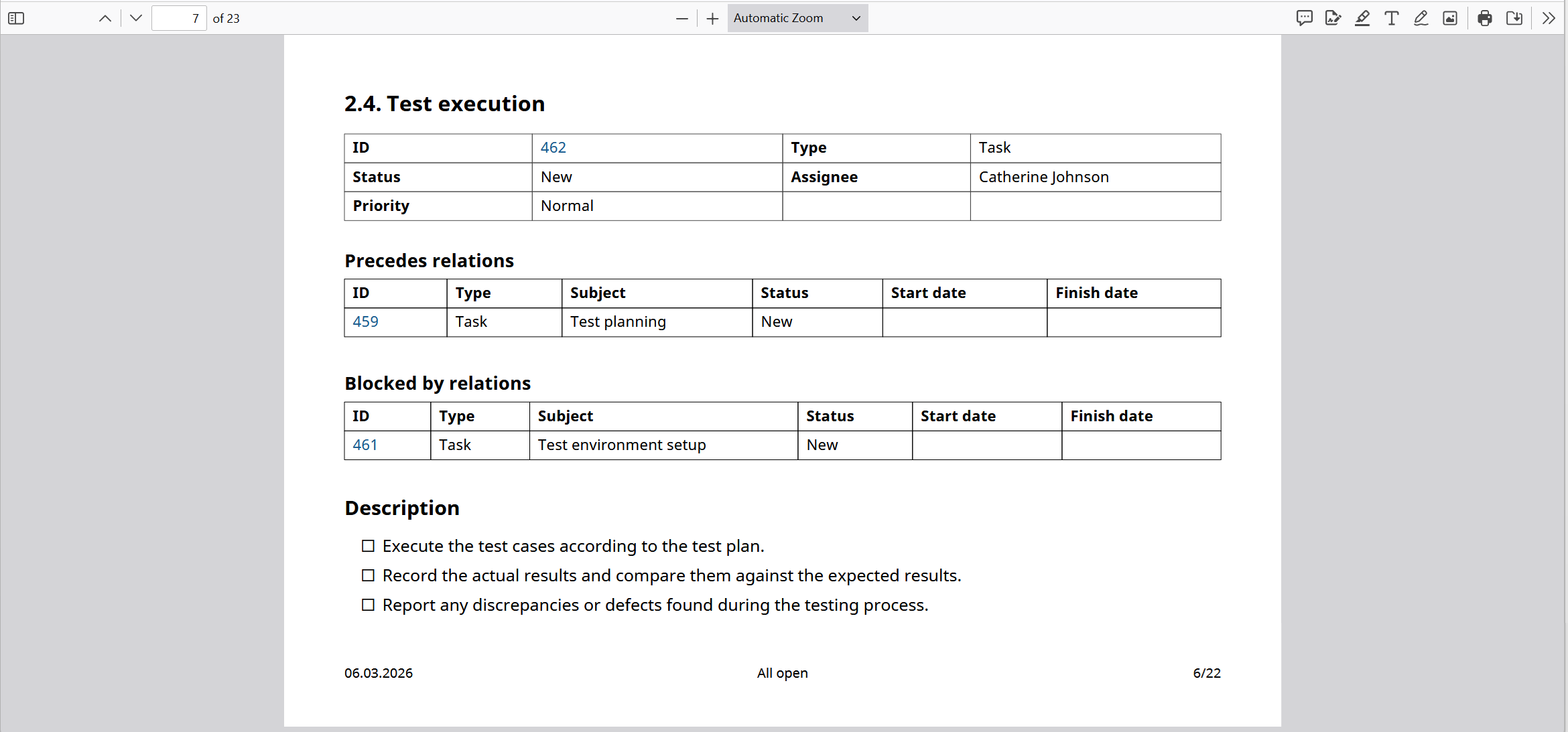
If relations, such as children, blocked by, followed by, etc. are included in the report as columns, they will be included in dedicated blocks.
Each block lists the related work packages in a table with the columns ID, Type, Subject, Status, Start date and Finish date.
See Export work packages for how to trigger an export and adjust the general export options.