Manage versions
Versions help you structure and track work towards releases, milestones, or other delivery goals. Assign work packages to a version to plan and monitor their progress in the Roadmap.
Create a new version
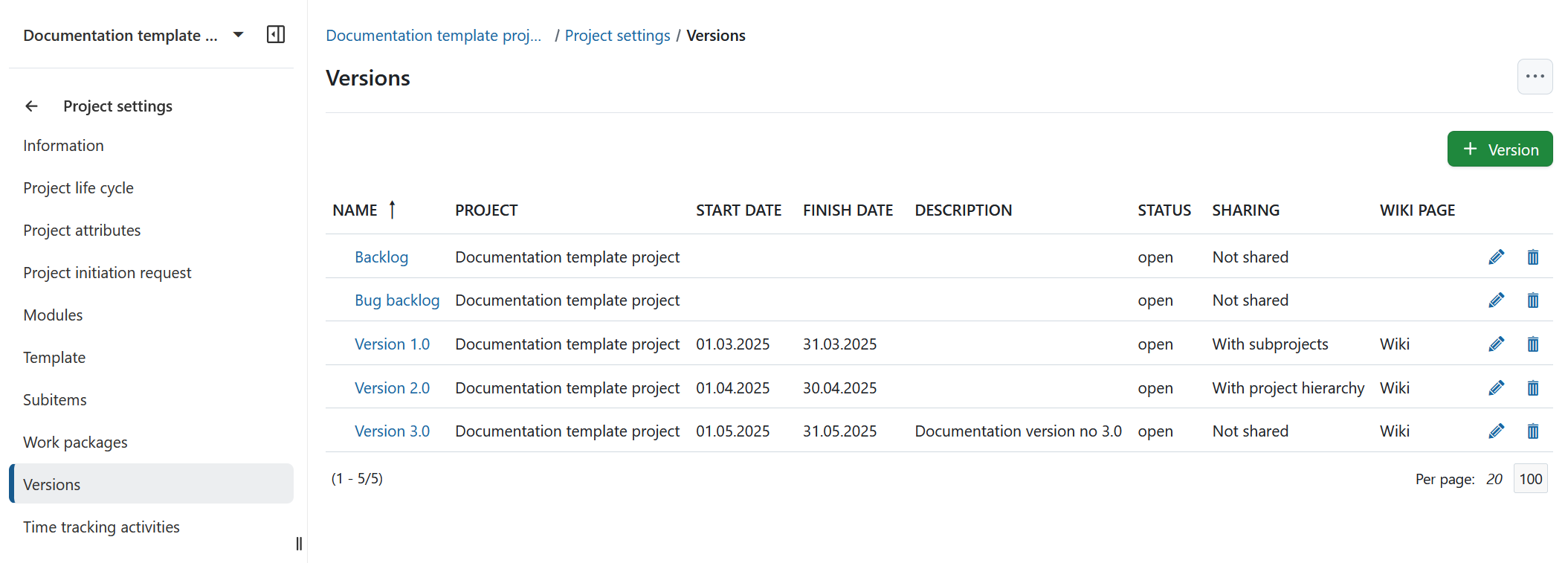
Navigate to Project settings → Versions in the project menu. You will see an overview of all existing versions. By default, the existing versions will be sorted by the Name, which is indicated by an arrow next to the column header. To change the sorting order, click the name of the column you want to sort by.
To create a new version for your project, click the green + Version button.
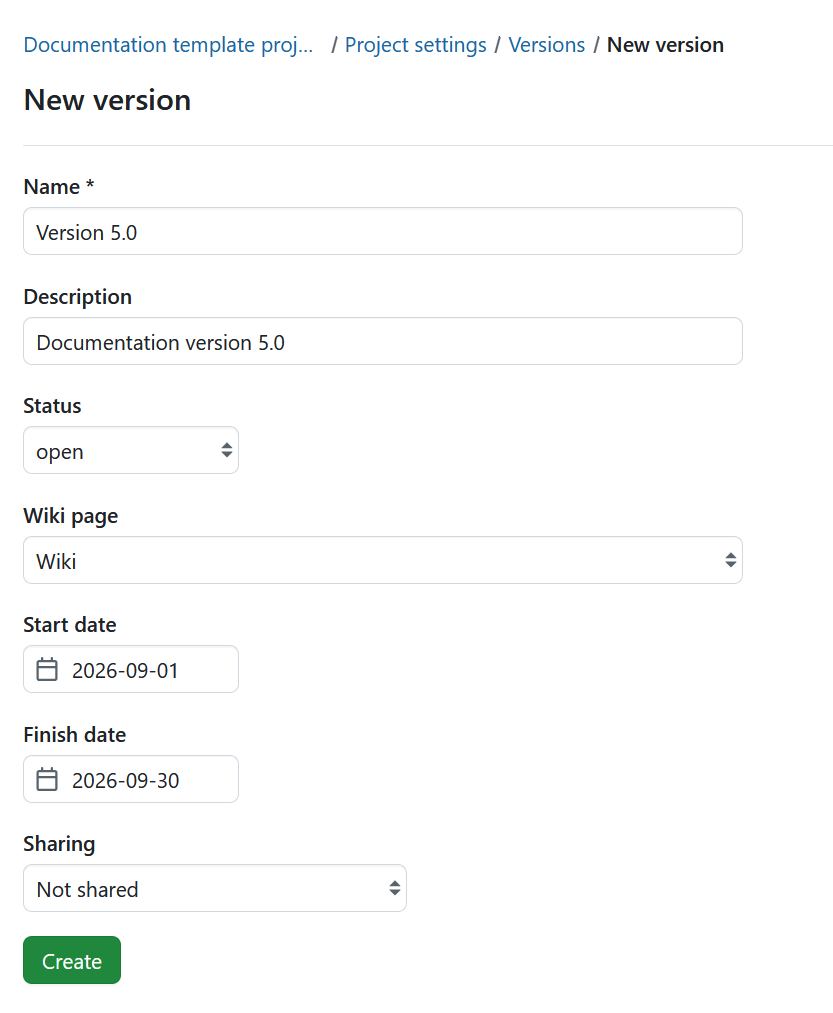
You can configure the following details:
- Name: Set a name for the version.
- Description: Add a description to clarify the purpose of the version.
- Status: Choose the status of the version. The default status is open.
- Wiki page: Select a wiki page to link directly from the version in the Roadmap.
- Start and finish date: Set the planned start and finish dates.
- Sharing: Choose which projects the version should be shared with. Depending on the selected option, the version can be available only in the current project or also in related projects.
For example, let’s consider the following project hierarchy:
Parent project
├── Project A
│   ├── Project A1
│   │   └── Project A1a
│   └── Project A2
└── Project B
    ├── Project B1  ← current project
    │   ├── Project B1a
    │   │   └── Project B1a-i
    │   └── Project B1b
    └── Project B2
Assuming the version you are creating or editing belongs to Project B1:
- Not shared: The version is available only in the current project.
Project B1 ✓ ← current project
- With subprojects: The version is available in the current project and all of its subprojects, including subprojects nested at lower levels.
Project B1          ✓  ← current project
├── Project B1a     ✓
│   └── Project B1a-i ✓
└── Project B1b     ✓
- With project hierarchy: The version is available in the current project, all of its parent projects, and all of its subprojects. Other projects under the same parent are not included.
Parent project      ✓
└── Project B       ✓
    ├── Project B1  ✓  ← current project
    │   ├── B1a     ✓
    │   └── B1b     ✓
    └── Project B2  ✗
- With project tree: The version is available in all projects that belong to the same project tree. This includes the current project, its parent projects and subprojects, as well as other projects under the same top-level parent and their subprojects.
In this example, Project A and Project B have the same top-level parent, Parent project, so they and their subprojects are part of the same project tree.
Parent project          ✓  ← common parent
├── Project A           ✓
│   ├── Project A1      ✓
│   │   └── Project A1a ✓
│   └── Project A2      ✓
└── Project B           ✓
    ├── Project B1      ✓  ← current project
    │   ├── Project B1a ✓
    │   └── Project B1b ✓
    └── Project B2      ✓
- With all projects: The version is available in all projects across the entire OpenProject instance, regardless of their position in the project hierarchy.
Click the Create button to save your changes.
Edit a version
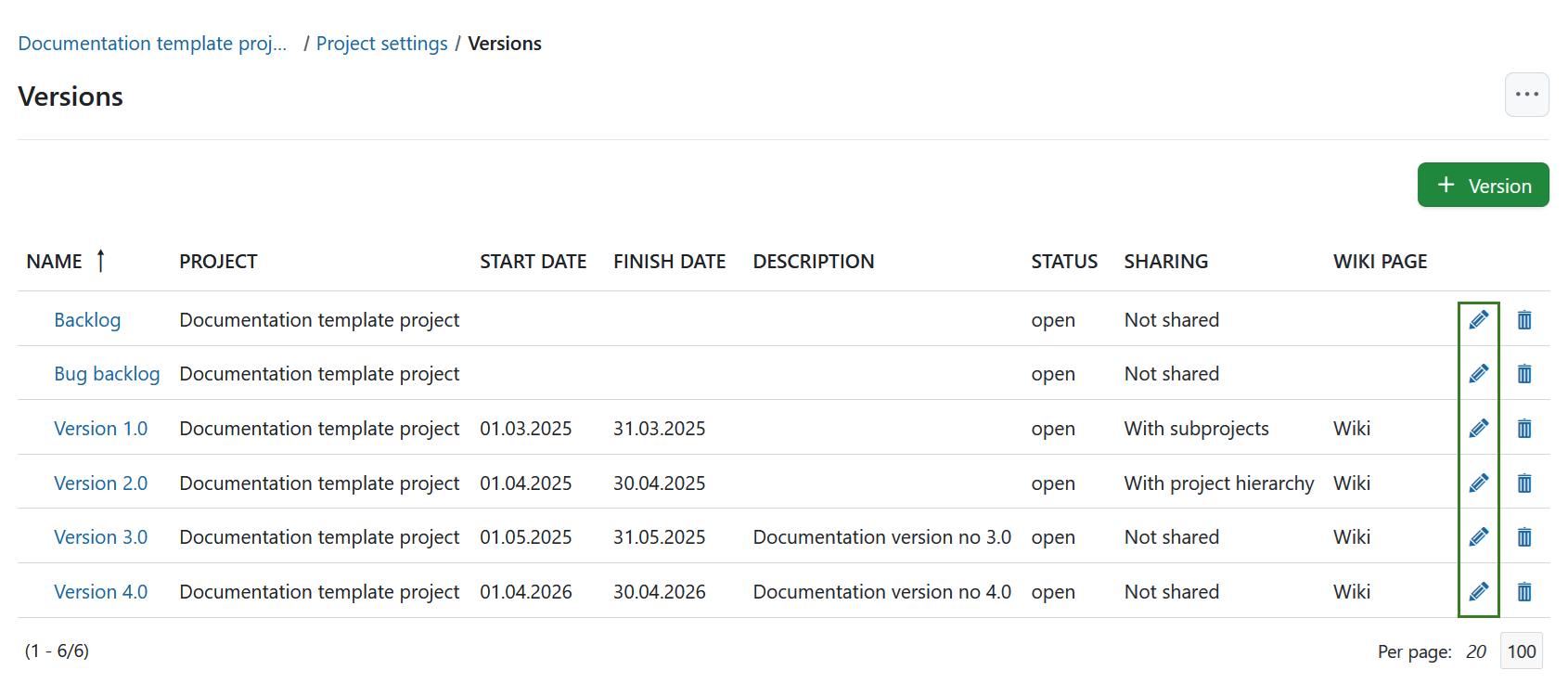
Click on the edit icon at the right of the row to edit the version.
Note
You can only edit versions in the project they were originally created in. In projects where a version is shared, the edit option won’t be available.
Close a version
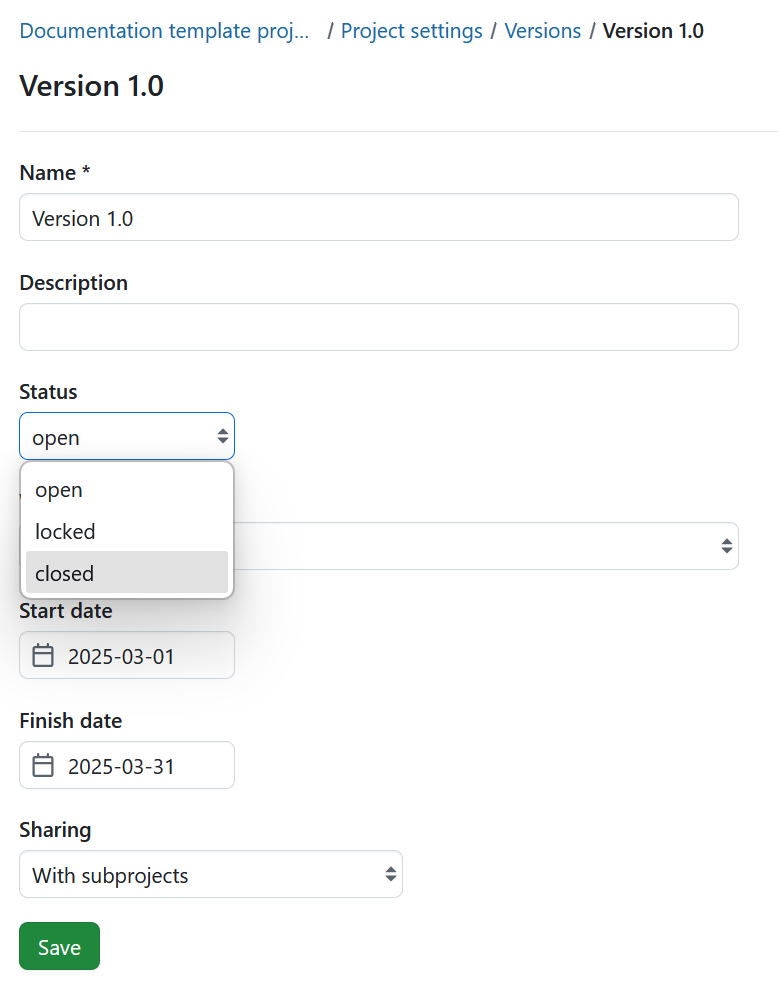
To close a version, open its details and set the Status to Closed.
Close completed versions
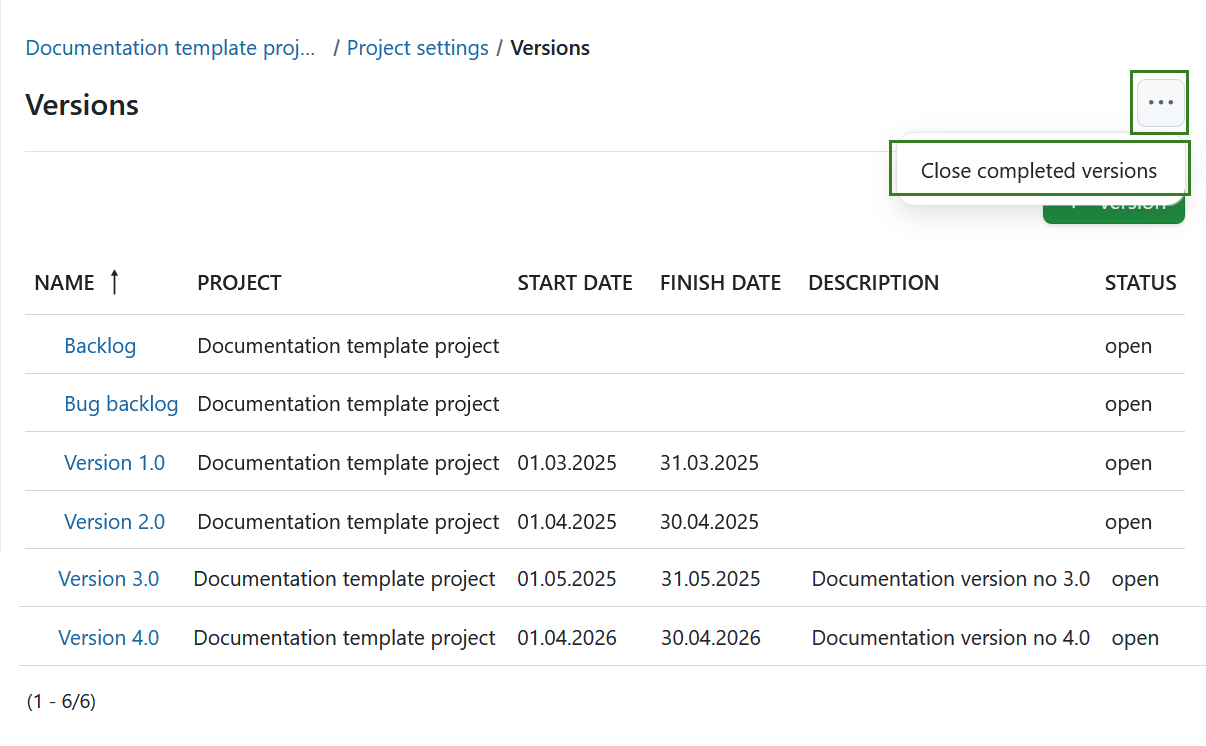
To close all completed versions at once, click the More (three dots) icon in the top right corner and click Close completed versions.
Delete a version
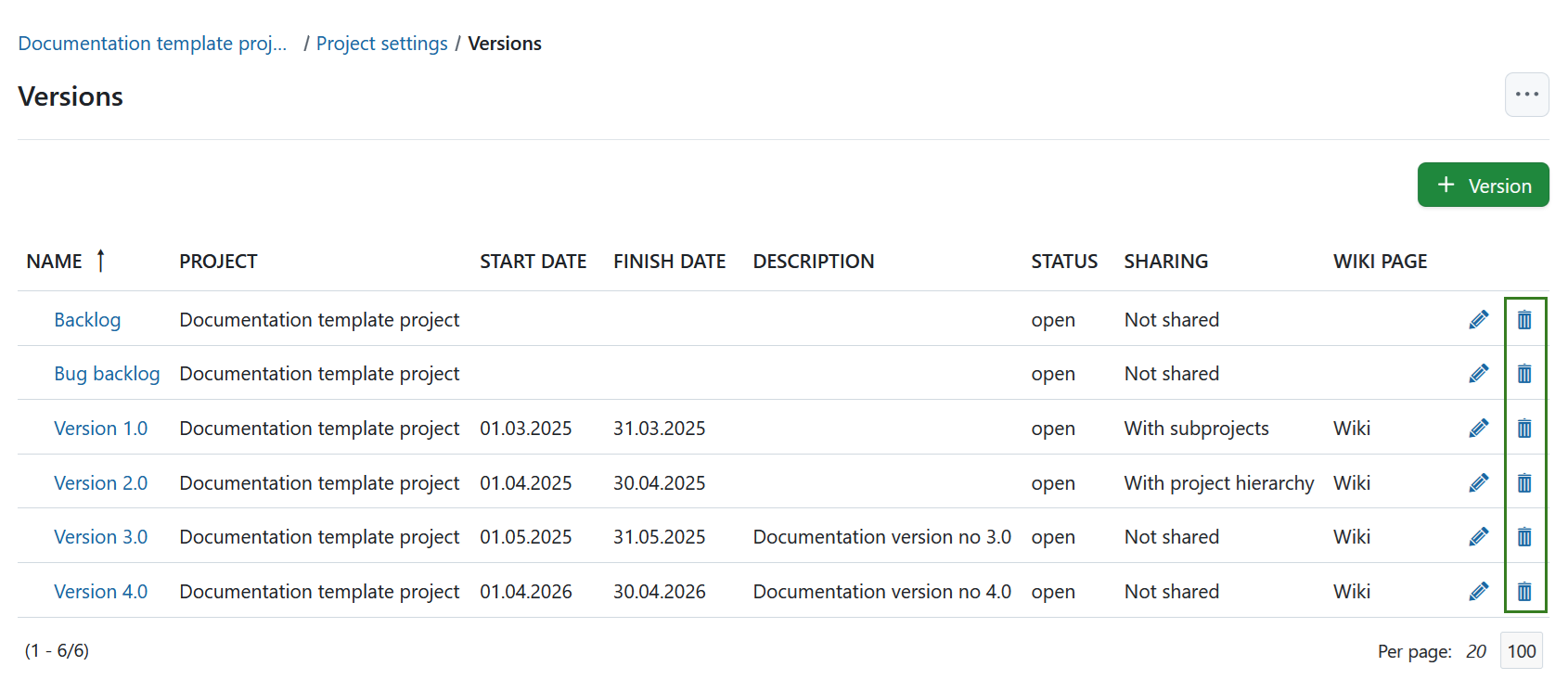
To remove a version, press the respective delete button at the end of the corresponding line in the Versions overview.
Differences between open, locked and closed versions
There are a few differences between open, locked and closed versions:
- Open version: Versions in this state can be used throughout the system. Work packages can be added or removed. The version is visible in both the Backlogs and Roadmap modules.
- Locked version: Work packages cannot be added or removed. The version is not visible in the Backlogs module but is still shown in the Roadmap module. Use case: You’ve finalized the scope of a sprint or release and want to prevent changes while it’s being worked on.
- Closed version: Work packages cannot be added or removed. The version is no longer shown in the Backlogs or Roadmap modules, unless you explicitly filter for closed versions. Use case: The release or sprint is complete, and you’ve moved on to the next one.