MCP Server

OpenProject allows AI agents and similar tools to integrate through an API called Model Context Protocol (MCP). This allows agents to access information from your OpenProject instance and perform actions.
Configuration
In your MCP client, you have to configure the endpoint of the OpenProject MCP server, which is available under /mcp, so for example:
https://your-openproject.example.com/mcp
Authentication
Authentication with MCP can happen in the ways that authentication for regular API endpoints can happen as well. The two distinct use cases for authentication are authentication for a single user via personal API tokens or authentication for different users sharing the same (web) application through OAuth.
Personal access with API tokens
This way of authentication requires no further setup on the administration side of OpenProject. The only requirement is that the “Enable API tokens” setting is enabled.
Afterwards users that want to make use of MCP on a personal basis, can create a personal API token and configure an MCP client with that token. However, this only works properly with locally running MCP clients that are only used by a single user and it requires the user to configure the MCP endpoint themselves.
Shared access via OAuth
If multiple users shall be able to use information from the same OpenProject instance and when using web-based MCP clients, the typical configuration will involve an admin setting up the MCP client and OpenProject once, so that regular users can then utilize the preconfigured connection, granting the MCP client the necessary permissions through an OAuth flow.
The MCP endpoints require access with a token that includes the mcp scope. These tokens can be obtained in all ways usually supported by OpenProject already, namely:
- Tokens issued from OpenProject
- Tokens issued from a compliant OpenID Connect provider
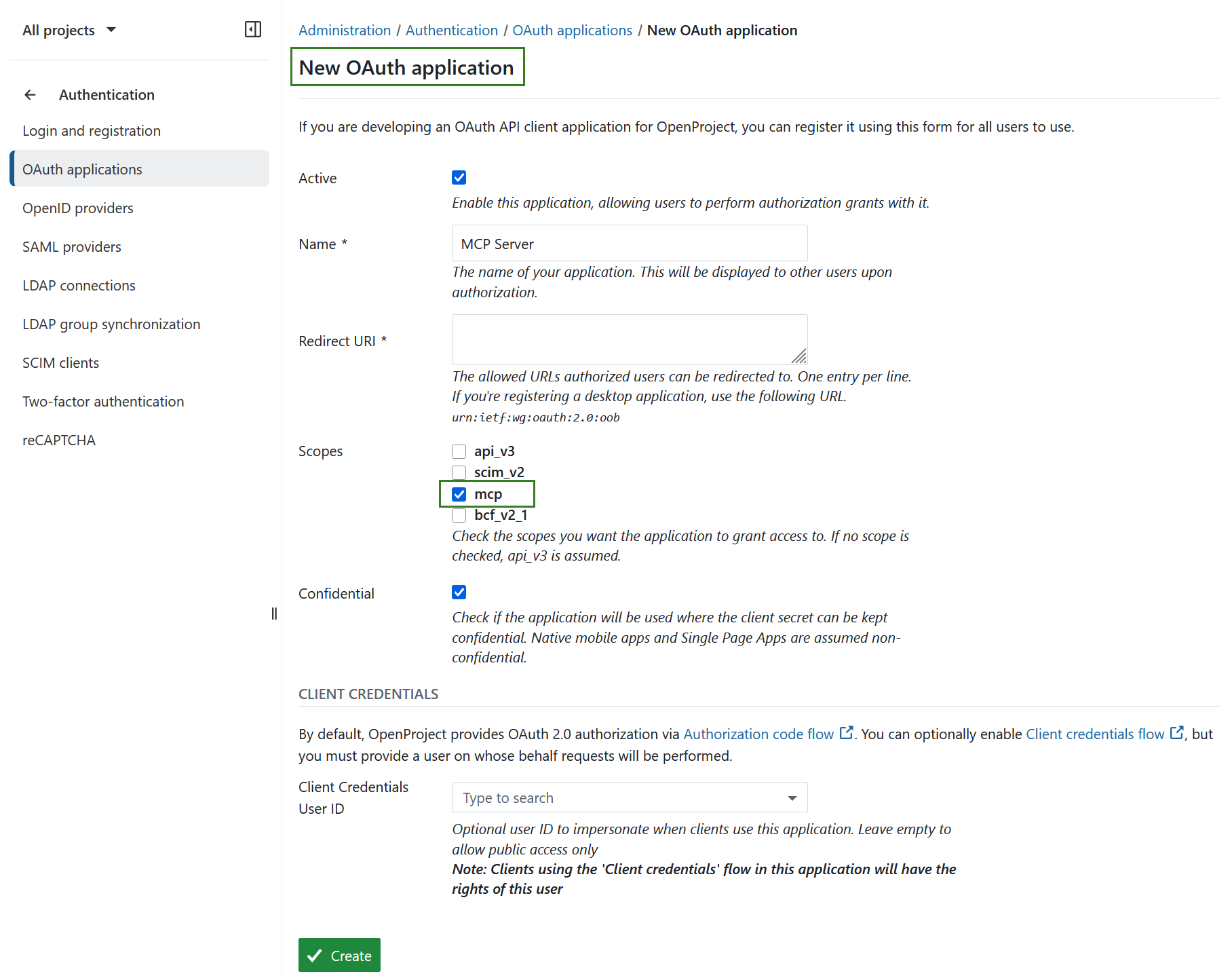
In case OpenProject is used as the authentication provider, the configuration for the client has to be prepared by the administrator. Go to Administration -> Authentication -> OAuth applications and create an application with the mcp scope, entering the “Redirect URI” according to the instructions of your MCP client.
Important
Make sure that the application is marked as confidential.
Customization
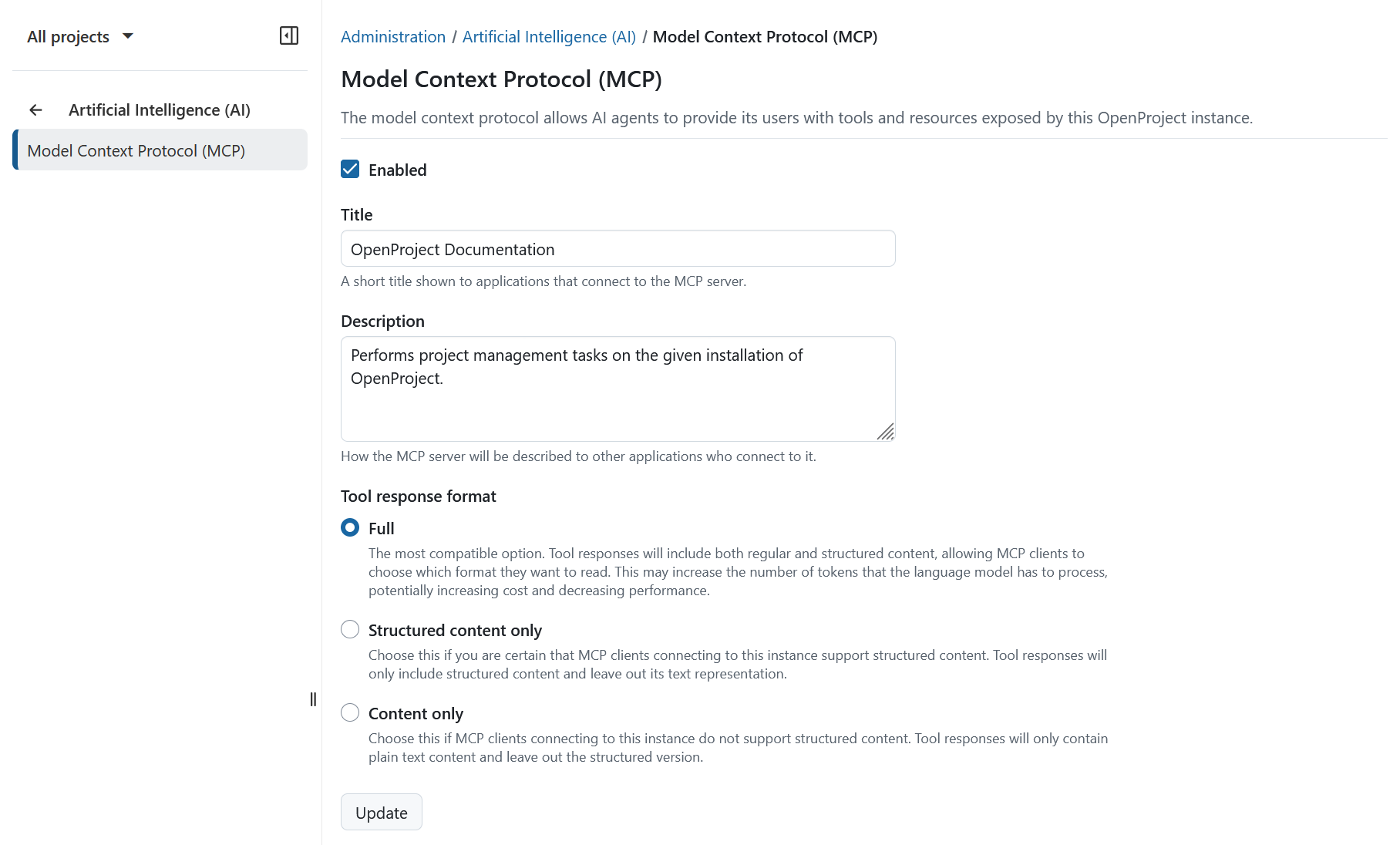
You can customize the MCP server further under Administration -> Artificial Intelligence (AI) -> Model Context Protocol (MCP).
Here you can enable or disable the entire MCP server and change the MCP server titles and descriptions indicated towards MCP clients. If you think that your MCP client is passing duplicated information to the language model, you can also change the response format, though for most purposes the default should work well.
The available response format options are:
- Full: The most compatible option. Tool responses will include both regular and structured content, allowing MCP clients to choose which format they want to read. This may increase the number of tokens that the language model has to process, potentially increasing cost and decreasing performance.
- Structured content only: Choose this if you are certain that MCP clients connecting to this instance support structured content. Tool responses will only include structured content and leave out its text representation.
- Content only: Choose this if MCP clients connecting to this instance do not support structured content. Tool responses will only contain plain text content and leave out the structured version.
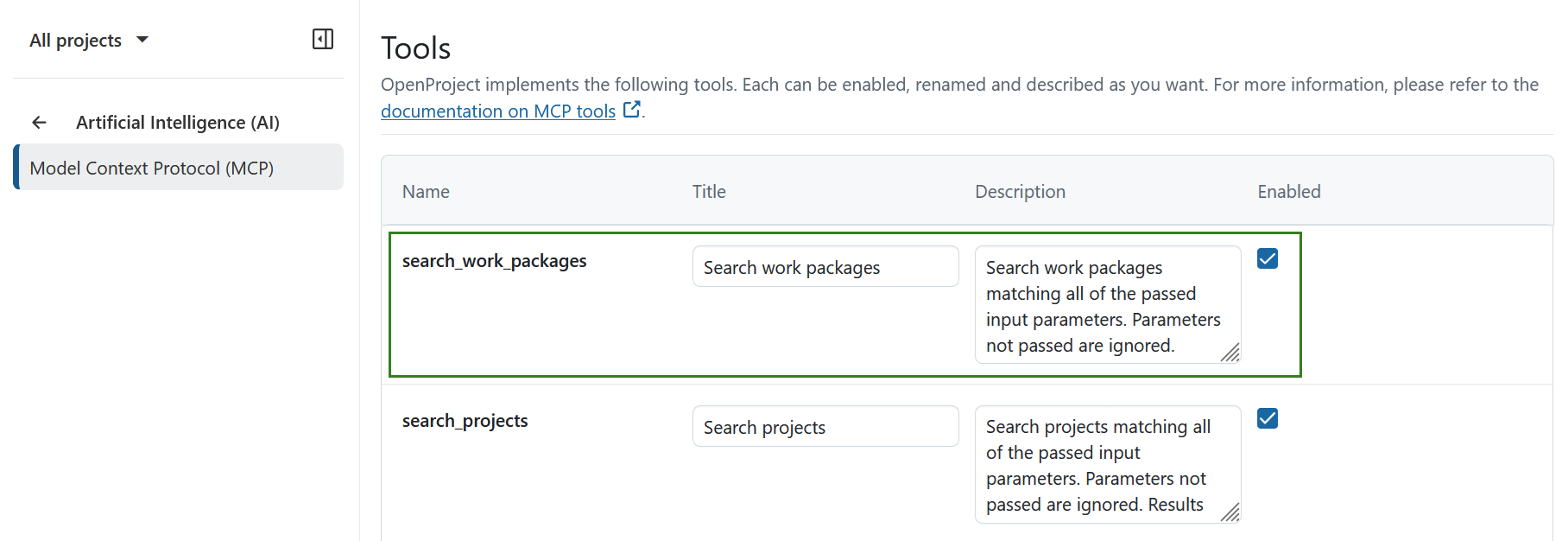
Individual tools and resources can also be enabled or disabled. Their titles and descriptions can be customized. This can be useful if you want to introduce alternative terminology for certain entities or limit the functionality available through MCP. want to introduce alternative terminology for certain entities or limit the functionality available through MCP.
For example, if work packages are called “work items” in your day-to-day language, you can rename Search work packages to Search work items. This helps users understand what the tool does and gives the language model an additional cue that “work items” is an alias for work packages.
The lists below show the tools and resources provided by OpenProject by default. Titles, descriptions and availability can differ if they have been customized by an administrator.
Tools
MCP tools allow connected clients to perform operations in OpenProject. Each tool can be enabled or disabled, and its title and description can be customized under the MCP administration settings.
| Name | Title | Description |
|---|---|---|
create_time_entry | Create time entry | Create a new time entry. |
create_work_package | Create work package | Create a new work package. |
create_work_package_comment | Create work package comment | Add a comment to a work package. |
create_work_package_relation | Create work package relation | Create a new relation between two work packages. |
current_user | Current user | Returns the currently authenticated user. Also available as an MCP resource. |
delete_time_entry | Delete time entry | Delete an existing time entry. |
delete_work_package_relation | Delete work package relation | Delete an existing relation between two work packages. |
list_statuses | List statuses | Lists all work package statuses available on this OpenProject instance. Also available as an MCP resource. |
list_types | List types | Lists all work package types available on this OpenProject instance. Also available as an MCP resource. |
list_work_package_comments | List work package comments | List comments of the given work package. |
list_work_package_relations | List work package relations | List relations of the given work package towards other work packages. |
search_custom_field_items | Search custom field items | Access items available as values for the given custom field. Usable for hierarchy and weighted item list custom fields. |
search_custom_fields | Search custom fields | Show details of the custom fields matching given criteria. |
search_portfolios | Search portfolios | Search portfolios matching all of the passed input parameters. Parameters not passed are ignored. Results are limited to a maximum of 100 portfolios. To get the rest of the results, call the tool again with a page number of 2 or higher. |
search_programs | Search programs | Search programs matching all of the passed input parameters. Parameters not passed are ignored. Results are limited to a maximum of 100 programs. To get the rest of the results, call the tool again with a page number of 2 or higher. |
search_projects | Search projects | Search projects matching all of the passed input parameters. Parameters not passed are ignored. Results are limited to a maximum of 100 projects. To get the rest of the results, call the tool again with a page number of 1 or higher. |
search_time_entries | Search time entries | Search time entries matching all of the passed input parameters. Parameters not passed are ignored. Results are limited to a maximum of 40 time entries. To get the rest of the results, call the tool again with a page number of 2 or higher. |
search_users | Search users | Search users matching all of the passed input parameters. Parameters not passed are ignored. Results are limited to a maximum of 100 users. To get the rest of the results, call the tool again with a page number of 2 or higher. |
search_versions | Search versions | Search versions matching all of the passed input parameters. Parameters not passed are ignored. Results are limited to a maximum of 100 versions. To get the rest of the results, call the tool again with a page number of 2 or higher. |
search_work_packages | Search work packages | Search work packages matching all of the passed input parameters. Parameters not passed are ignored. Results are limited to a maximum of 40 work packages. To get the rest of the results, call the tool again with a page number of 2 or higher. Names of custom fields should be resolved through the corresponding tool before showing them to the user. They should not be rendered as ‘customFieldN’. |
update_time_entry | Update time entry | Update an existing time entry. |
update_work_package | Update work package | Updates a work package in-place. |
update_work_package_relation | Update work package relation | Update an existing relation between two work packages. |
Search tools support pagination. The tool description exposed to your MCP client contains the applicable result limit and pagination information.
Resources
MCP resources allow connected clients to access OpenProject data. Each resource can be enabled or disabled, and its title and description can be customized under the MCP administration settings.
| Name | Title | Description |
|---|---|---|
current_user | Current user | Representation of the currently authenticated user. |
custom_field | Custom field | Access custom fields of this OpenProject instance. |
project | Project | Access projects of this OpenProject instance. |
status | Work Package Status | Access work package statuses of this OpenProject instance. |
status_list | Work Package Statuses List | A list of all work package statuses configured in this OpenProject instance. |
type | Work Package Type | Access work package types of this OpenProject instance. |
type_list | Work Package Types List | A list of all work package types configured in this OpenProject instance. |
user | User | Access users of this OpenProject instance. |
version | Work Package Version | Access work package versions of this OpenProject instance. |
work_package | Work Package | Access work packages of this OpenProject instance. |
Working with work packages
Work package IDs
MCP tools that accept a work package ID support both the numeric ID and the work package’s semantic/display ID. This allows MCP clients to use the identifiers shown to users in OpenProject instead of requiring the underlying numeric ID.
Work package search responses
The search_work_packages tool returns a compact representation of matching work packages by default. This reduces the amount of data transferred to the MCP client and helps avoid unnecessary context usage when processing search results.
The compact response includes:
- ID
- Subject
- Type
- Author
- Status
- Start date
- Finish date
- Assignee
The work package description and other additional attributes are not included in the compact response.
If the MCP client needs complete work package information, it can request the expanded response through the corresponding search_work_packages input parameter. The tool schema and description exposed to the MCP client provide the available parameter and its usage.
Time tracking
OpenProject provides MCP tools for working with time entries. MCP clients can search time entries and, depending on the authenticated user’s permissions, create, update and delete time entries.
The relevant tools are:
search_time_entriescreate_time_entryupdate_time_entrydelete_time_entry
Actions performed through MCP use the permissions of the authenticated OpenProject user.