Manage groups
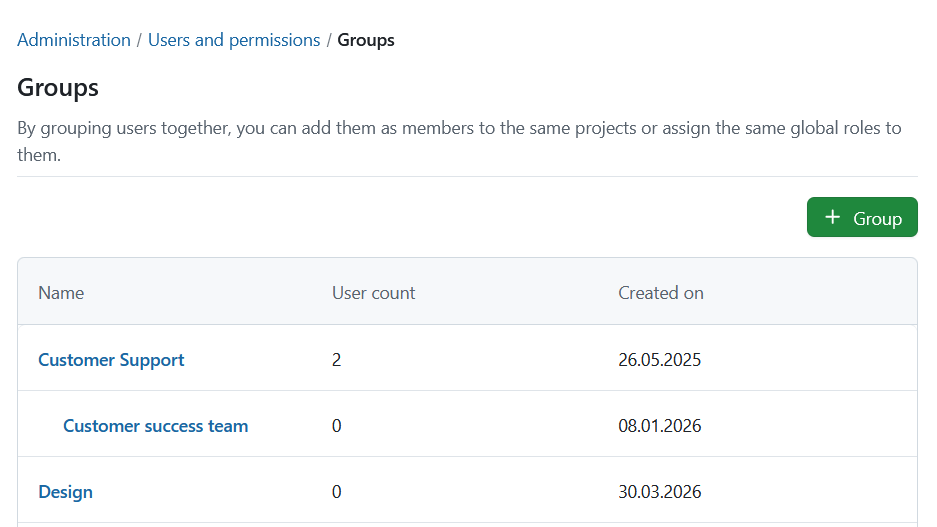
A Group is defined as a list of users who can be assigned to a project with a selected role. New groups can be defined in Administration -> Users and permissions -> Groups.
OpenProject allows creating tailored project member groups, which grant additional permissions to individual users within a project. Instead of adding individual users to a project, you can add a user group, e.g. Marketing. You can edit existing groups, create new ones, add and remove users or delete groups.
Groups can also be structured using subgroups. By assigning a parent group, a group becomes part of that hierarchy. Members and permissions from the parent group are automatically applied to its subgroups. This helps organize groups more efficiently and reuse them across projects.
Add a new group
After selecting Groups from the administration menu, a list of the existing groups is shown, or a prompt to create a group if none exist.
Click the green + Group button to create a new group.
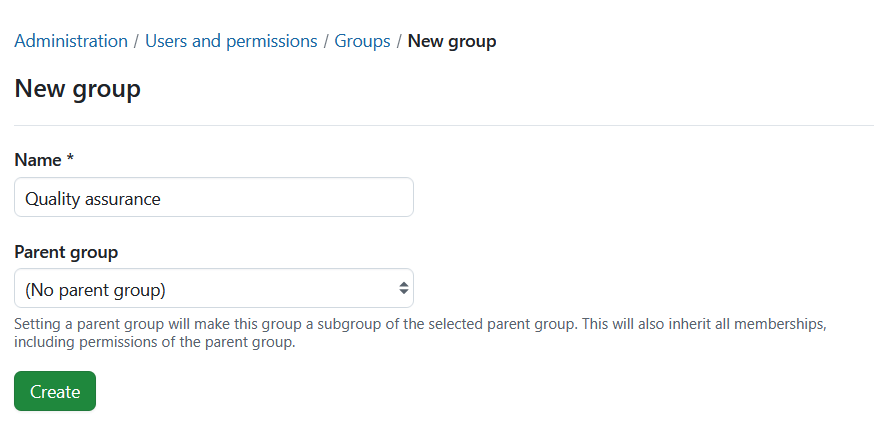
Give your new group a unique name. Optionally, you can assign it to a parent group. This places the group within a hierarchy, where it inherits project memberships and permissions from the parent group. The default setting is No parent group.
Click the green Create button to finish.
Add users to a group, edit or remove groups
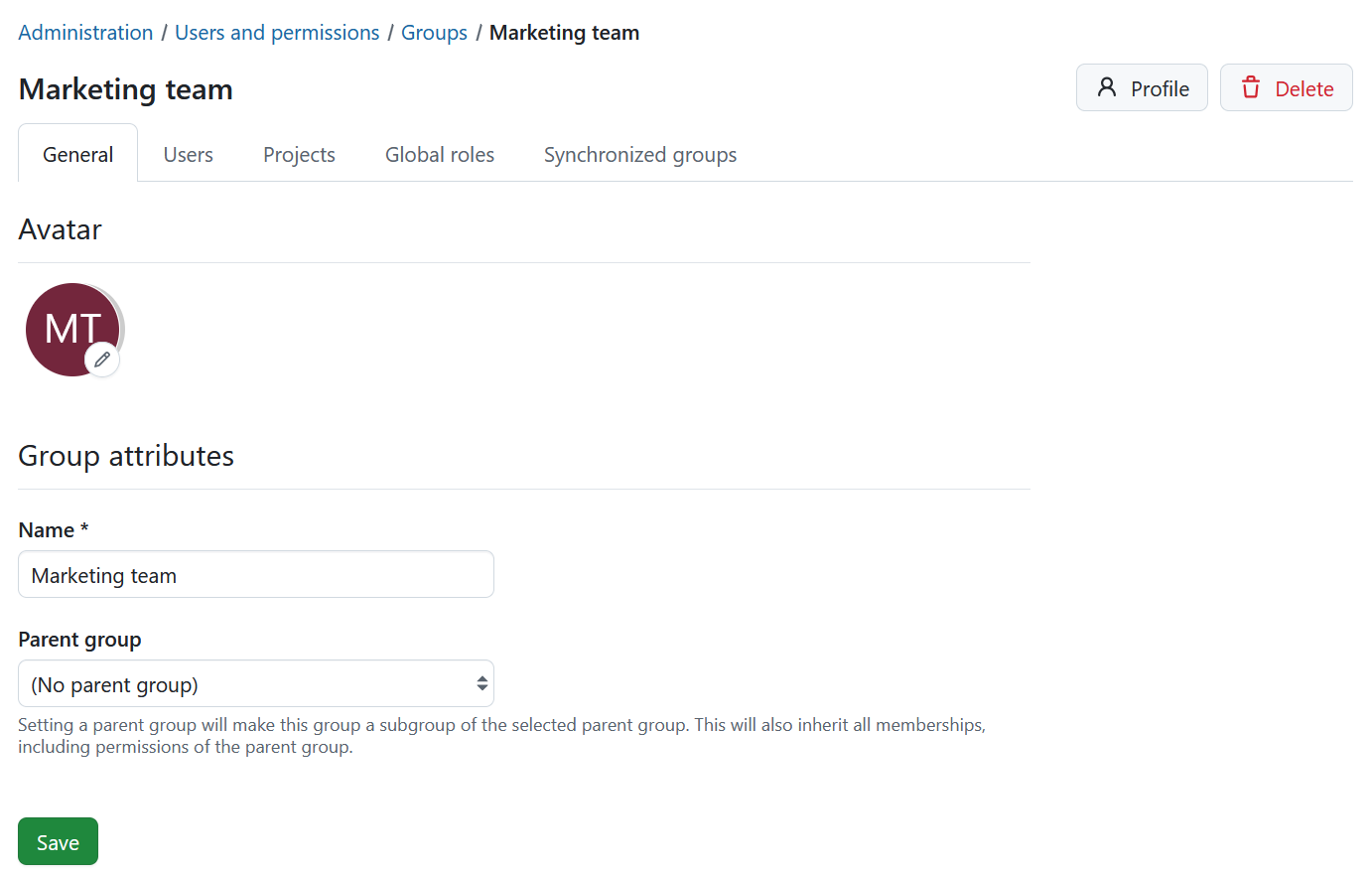
To add users to a group, edit or delete it, start by clicking the name of the group.
You will then see the detailed view of the group, including the following tabs:
- General
- Users
- Projects
- Global roles
- Synchronized groups
Change the group avatar
The group avatar is displayed wherever the group appears, for example as an assignee or in the list of project members.
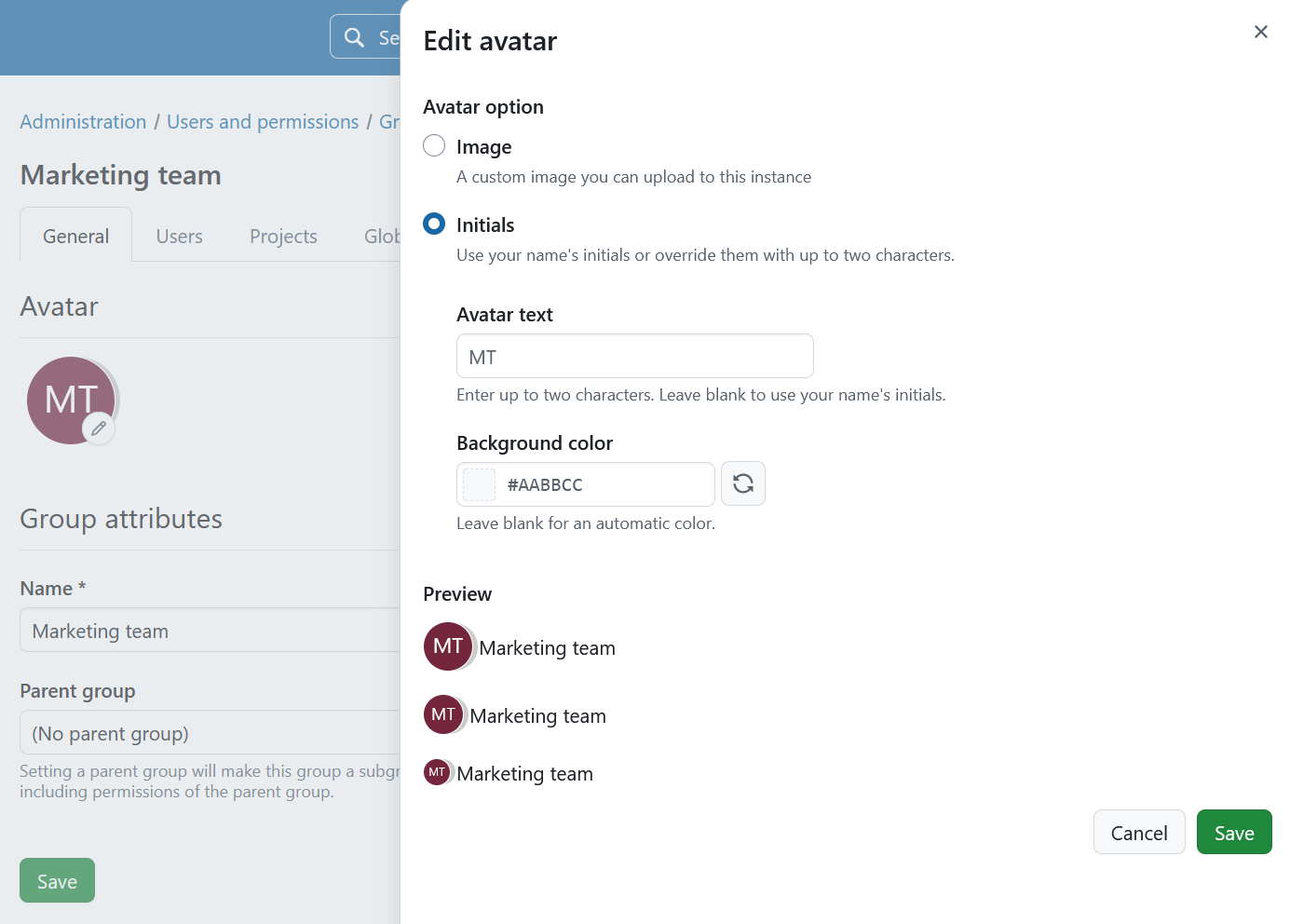
The current avatar is displayed at the top of the General tab. Click the avatar to open the Edit avatar dialog.
The following avatar options are available for groups:
- Image: Upload a custom image. This option is available only if custom avatars are enabled in the avatar settings.
- Initials: Use the initials of the group name or enter up to two custom characters. You can also select a background color.
Groups cannot use Gravatar. For more information about editing avatars, see Set an avatar.
Add users to a group
Select the Users tab. Select the users you want to add to this group from the New user drop-down list. Click the green Add button. Users already in the group are not shown in the list. Click the X next to a user to remove that user from the group.
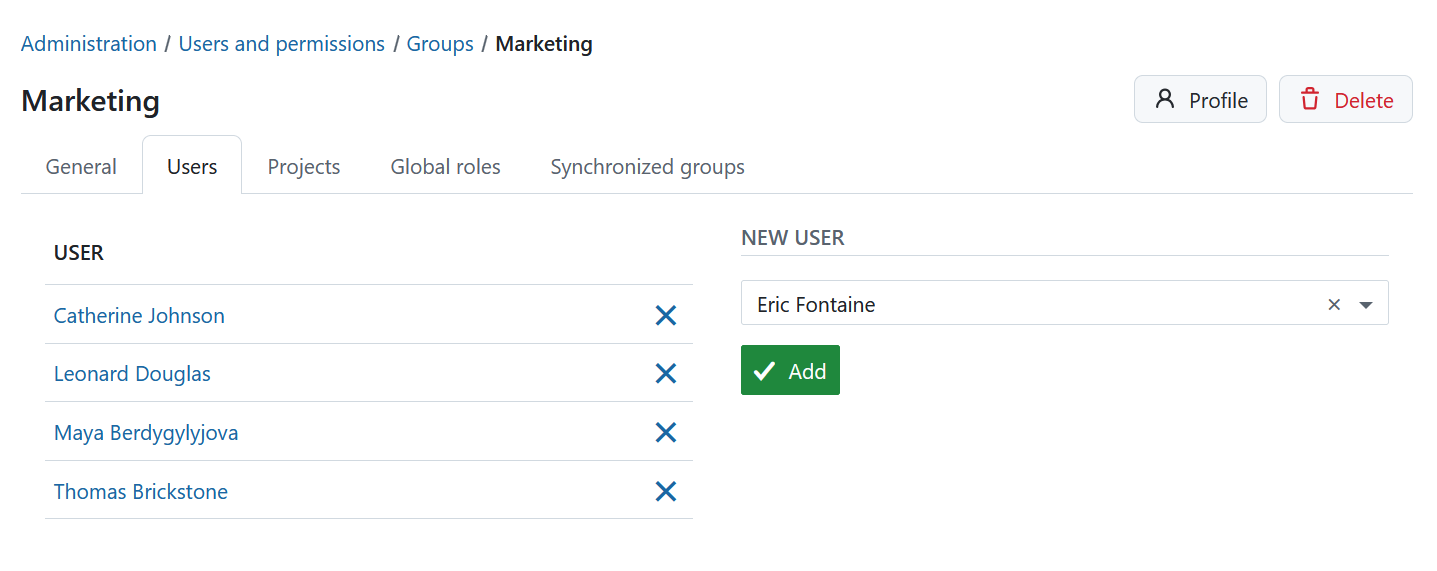
Adding a user to a group also adds that user to the member list of all projects in which this group was assigned a role (e.g. Member).
Removing a user from a group also removes the roles assigned to that user through the group in any projects where the group is a member. If the user has no other roles in a project (i.e., they were added only through the group and not individually), they are removed from that project entirely.
Add a group to projects
Click the Projects tab. Select the projects you want to add this group to from the New project drop-down list. Tick the roles that you want the group to have. Click the green Add button. Users in the group are added to that project’s members using the role selected.
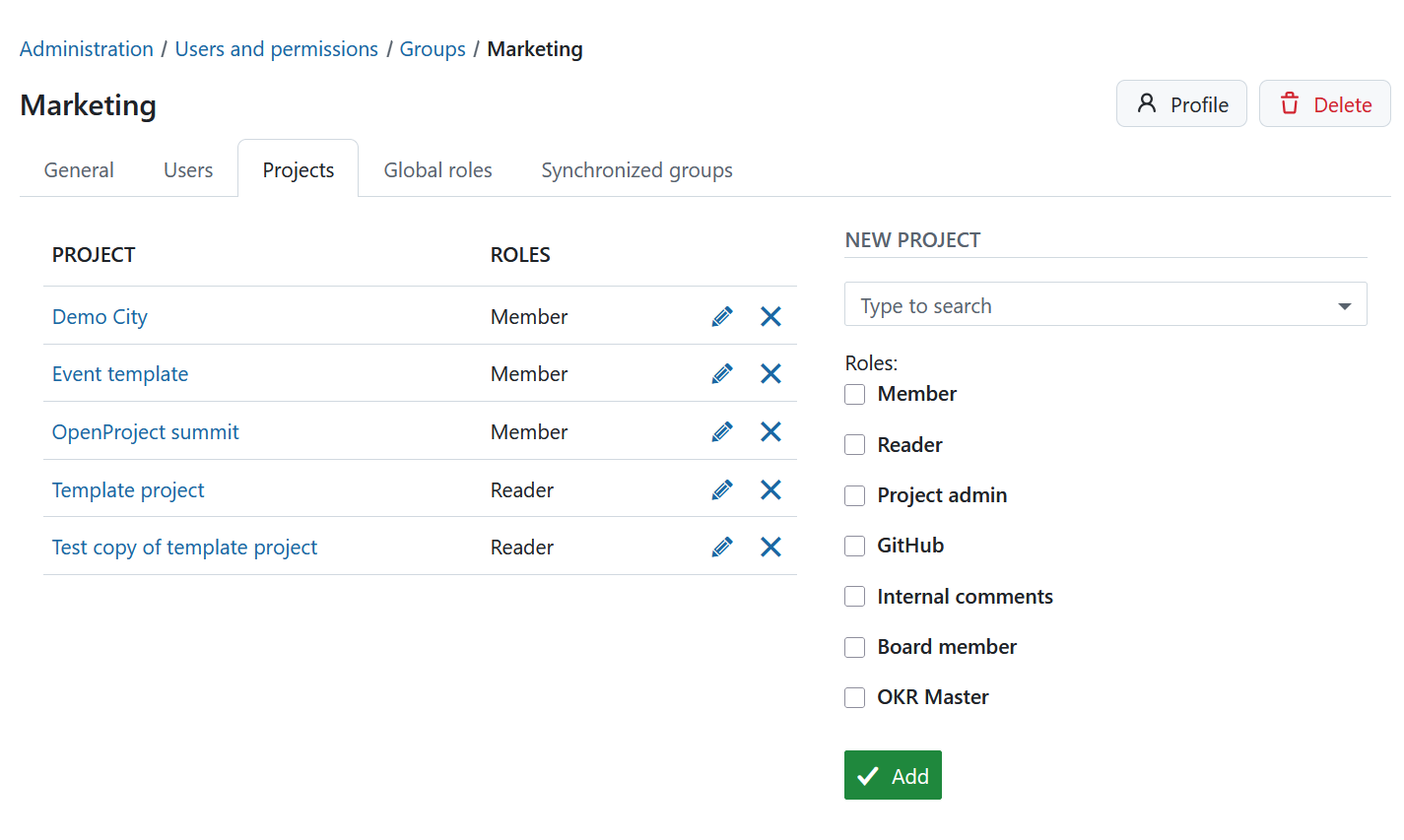
Add global roles to a group
Click the Global Roles tab. Select the global roles you want to add to this group. Click the Add button.
To add a global role to a group, at least one global role needs to be created in the system (a role with the Global role field ticked).
Synchronized groups
Click the Synchronized groups tab to see if this group has been synchronized with groups in external identity providers like OpenID. If no synchronization has yet been set up, this list will be empty. You can set this up in your Authentication settings.
Delete a group
To delete a group click on the delete icon in the respective line of the group list.
Deleting a group removes the role from the members of any project using that group. If a user has no other roles (i.e. who were only added as a member of this group and not individually) they are removed from the respective project completely.
Impact of groups on project members
Groups impact project members lists and user details. Changes in groups, project members or users may affect the other two.
Find out more about the behavior of groups as project members from a project admin’s perspective here.
Group profile
Similar to users, groups have a profile page which shows their name and members. Each member of a group is only visible for users with the necessary permissions (e.g. user has permission to see this member in a common project or user is system administrator).
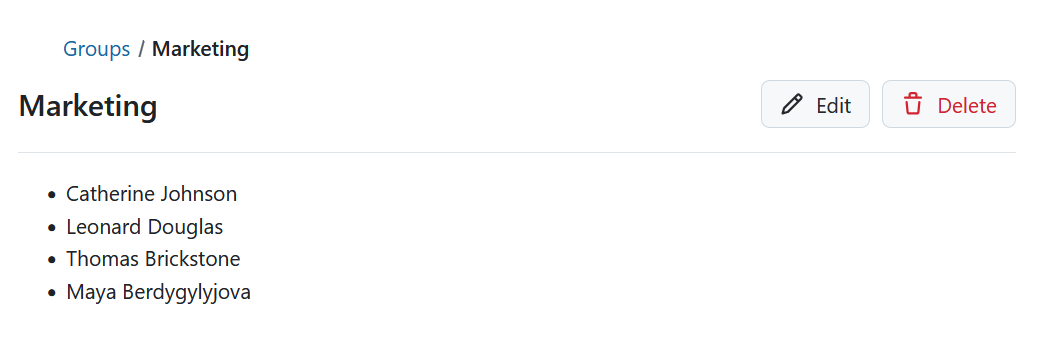
The profile page can be accessed via the group’s settings page, via the overview page of projects the group is a member of and via mentions of the group.