Criar pacotes de trabalho
| Tópico | Conteúdo |
|---|---|
| Criar pacotes de trabalho | Como criar um novo pacote de trabalho num projeto. |
| Adicionar anexos a um pacote de trabalho | Como adicionar anexos a um pacote de trabalho. |
Criar pacotes de trabalho
Existem várias formas de criar pacotes de trabalho no OpenProject:
- Através do cabeçalho de navegação a partir de qualquer ponto da aplicação
- Em linha na tabela de pacotes de trabalho para criar rapidamente vários pacotes de trabalho
- Numa vista de ecrã dividido que permite especificar informações pormenorizadas desde o início
Crie um pacote de trabalho através da navegação de cabeçalho
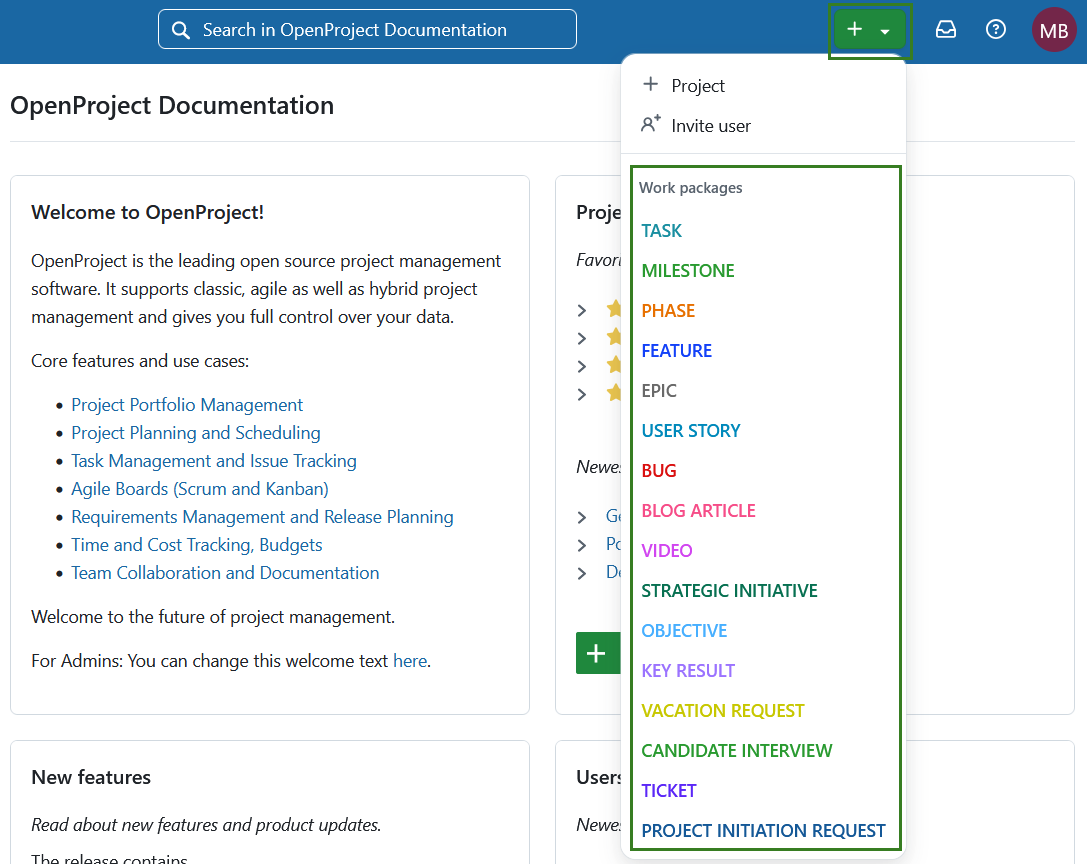
Pode criar um pacote de trabalho a partir de qualquer ponto da aplicação, clicando no botão verde + na navegação do cabeçalho e selecionando diretamente um tipo de pacote de trabalho.
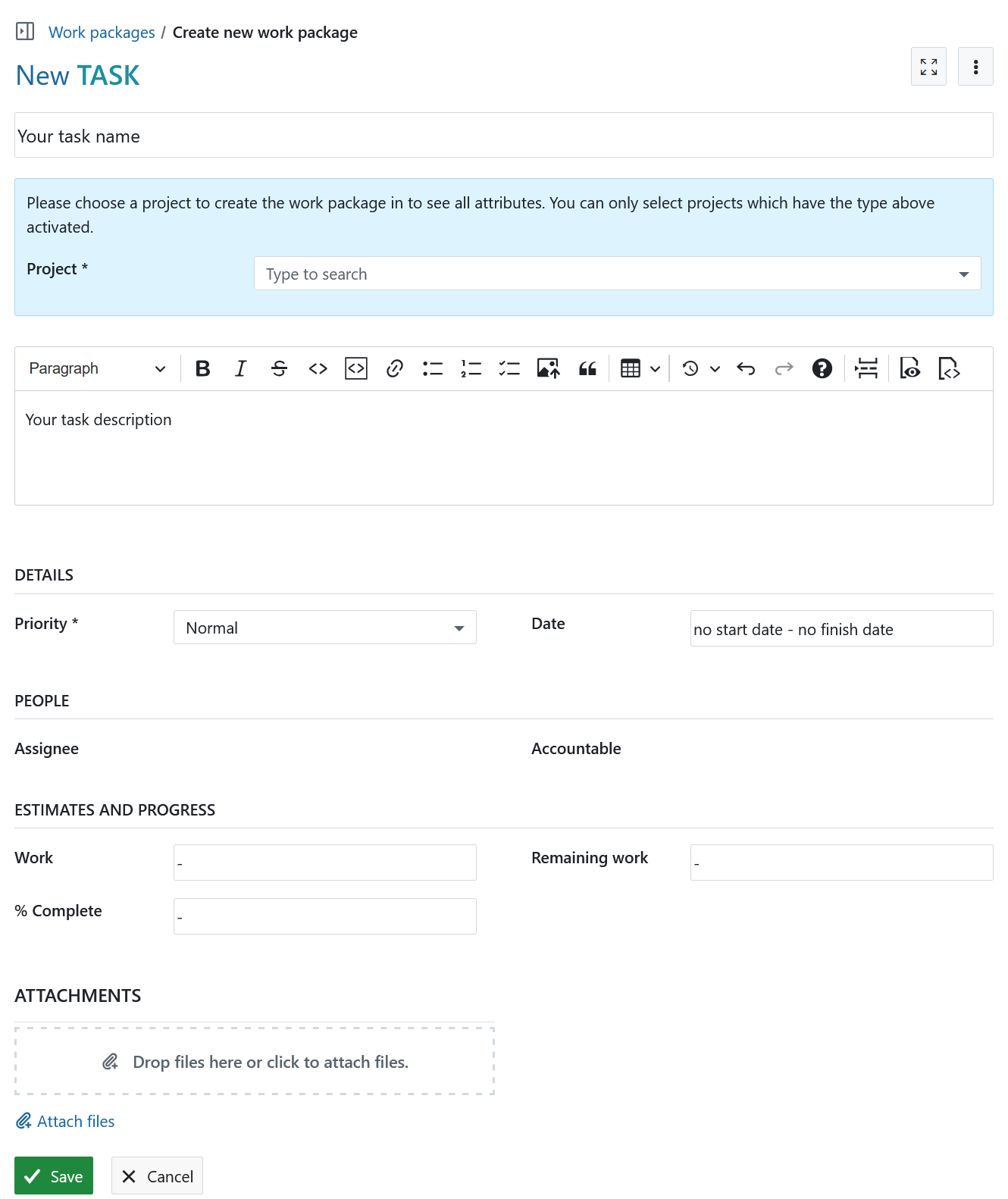
Será aberto um formulário onde pode especificar o projeto, o nome, a descrição, a prioridade, as datas, etc. Dependendo do tipo de pacote de trabalho selecionado, o formulário pode incluir campos adicionais para preencher.
Dica
Se ainda não tiver selecionado o projeto, Encarregado e Responsável não mostrarão valores selecionáveis. Assim que selecionar um projeto, os membros do projeto selecionado serão selecionáveis.
Crie um pacote de trabalho no módulo de pacotes de trabalho
Também pode criar um pacote de trabalho diretamente a partir do módulo de pacote de trabalho (quer num projeto específico, quer a partir do nível global do módulo).
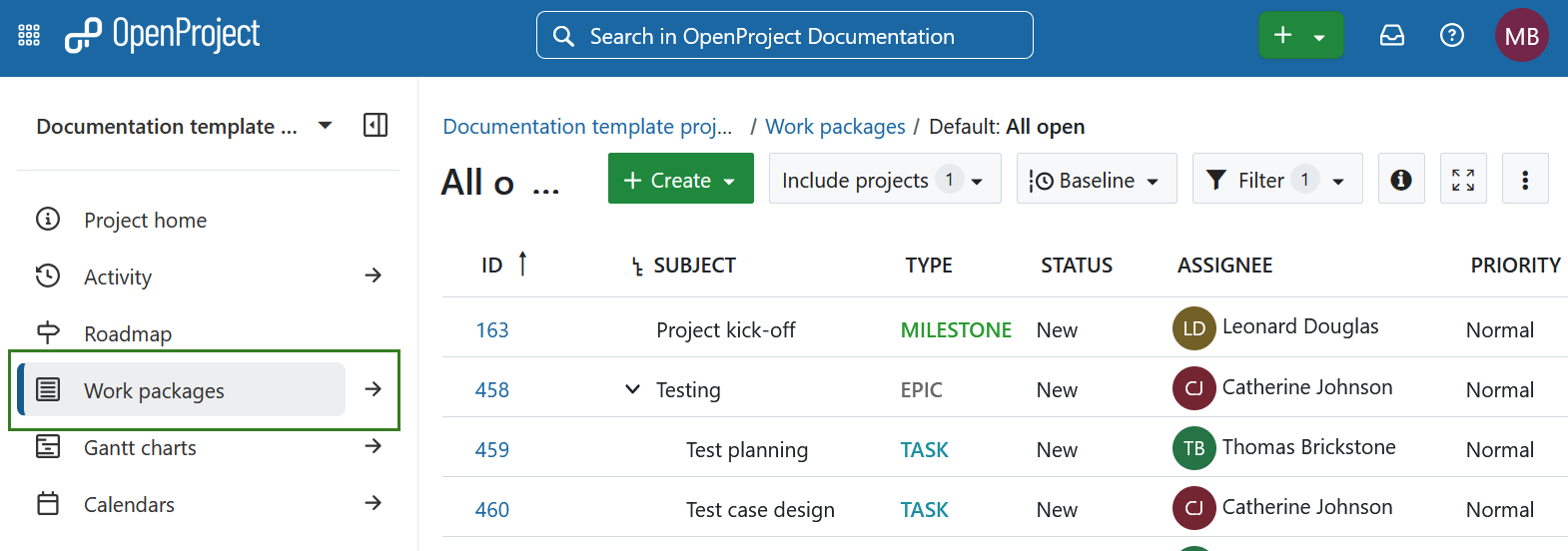
Selecione um projeto e navegue para o módulo Pacote de trabalho no menu do módulo do projeto à esquerda. Em alternativa, selecione o módulo global Pacotes de trabalho.
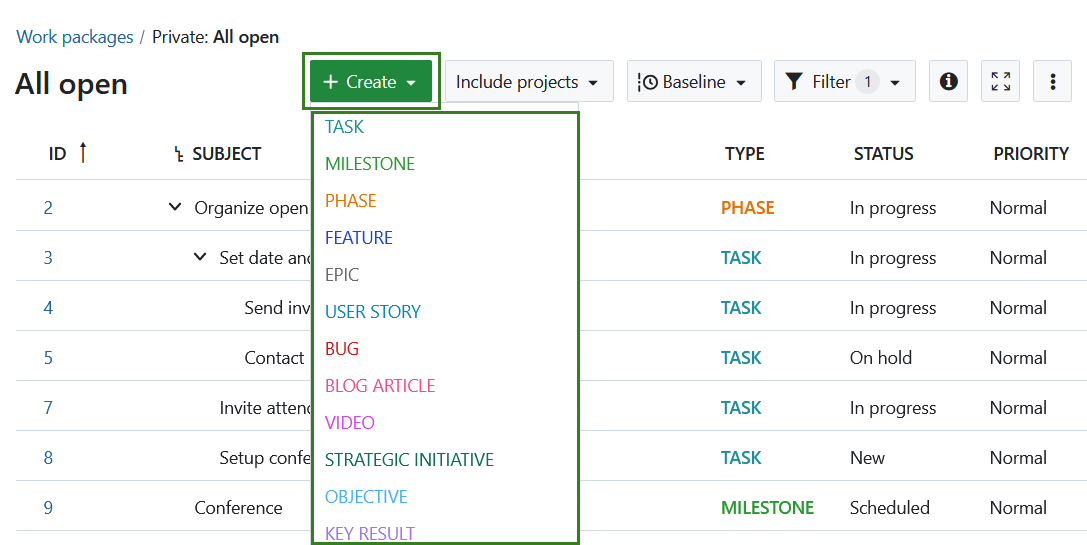
Clique no botão + Criar acima da tabela de pacotes de trabalho e selecione o tipo de pacote de trabalho que pretende criar.
Criar um pacote de trabalho na vista de tabela
Para criar novos pacotes de trabalho diretamente em linha na vista de tabela, clique na ligação + Criar novo pacote de trabalho por baixo da tabela.
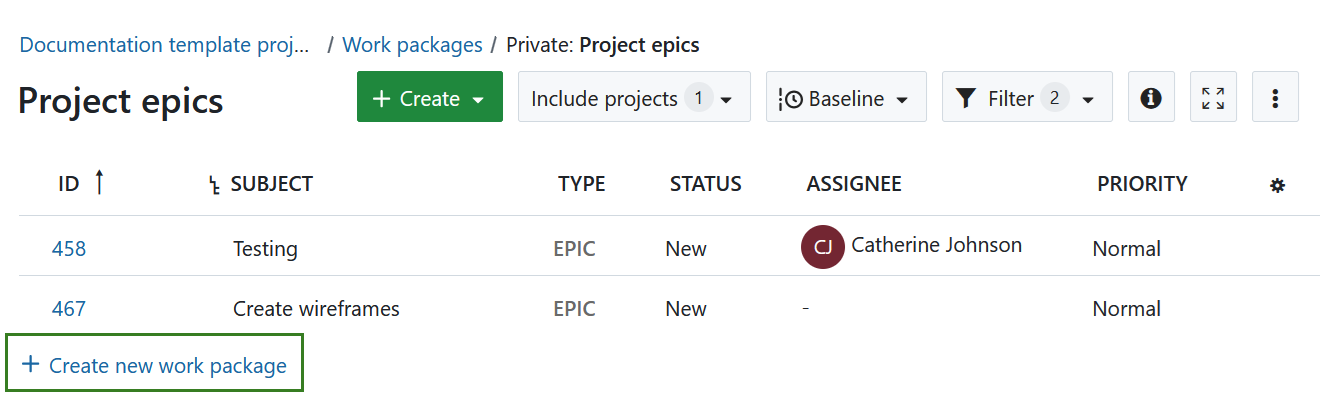
O novo pacote de trabalho aparece numa linha destacada na tabela. Introduza o assunto do pacote de trabalho, altere atributos, tais como o Tipo ou o Estado, diretamente na tabela e prima Enter para guardar as alterações.
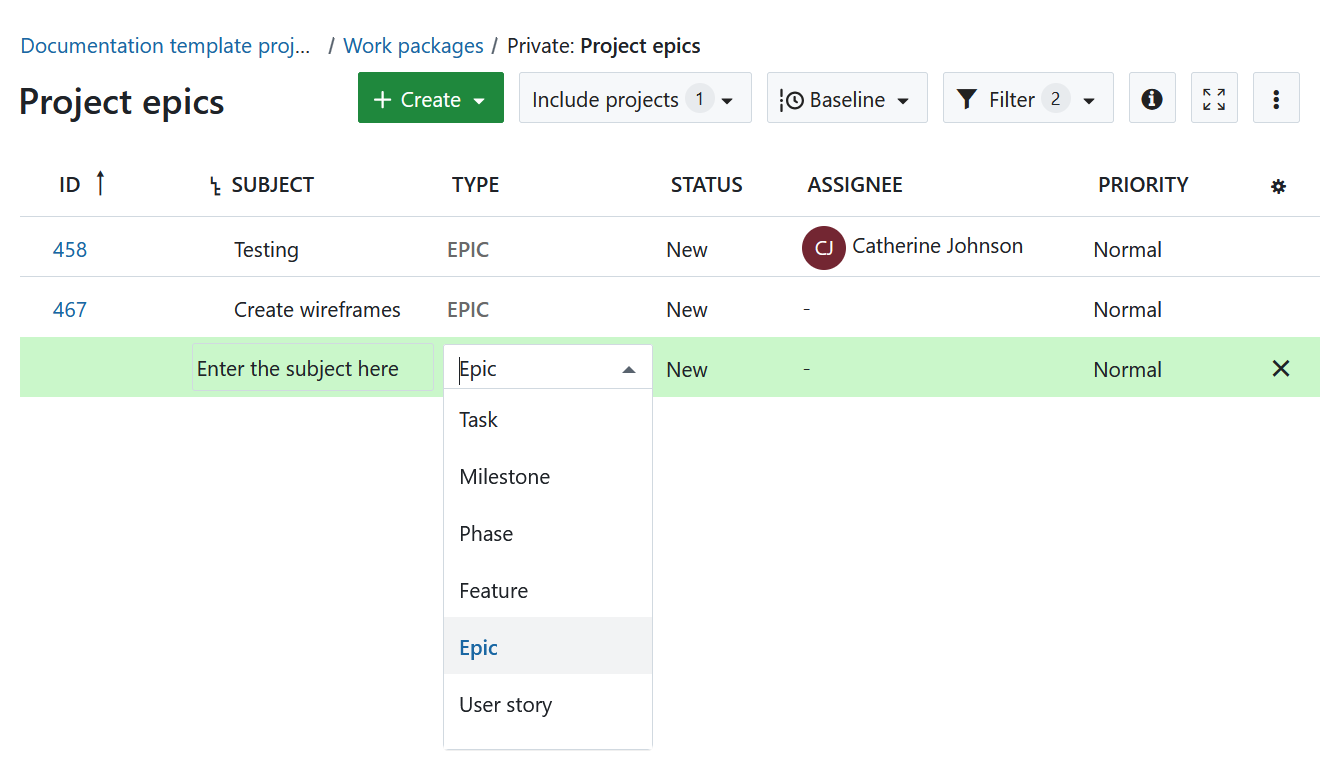
Desta forma, pode criar rápida e facilmente novos pacotes de trabalho na tabela.
Criar um pacote de trabalho na vista de ecrã dividido
Para introduzir informações detalhadas no pacote de trabalho desde o início, pode criar um pacote de trabalho na vista de ecrã dividido. No módulo Pacote de trabalho, clique no botão verde + Criar e selecione o tipo de pacote de trabalho que pretende criar.
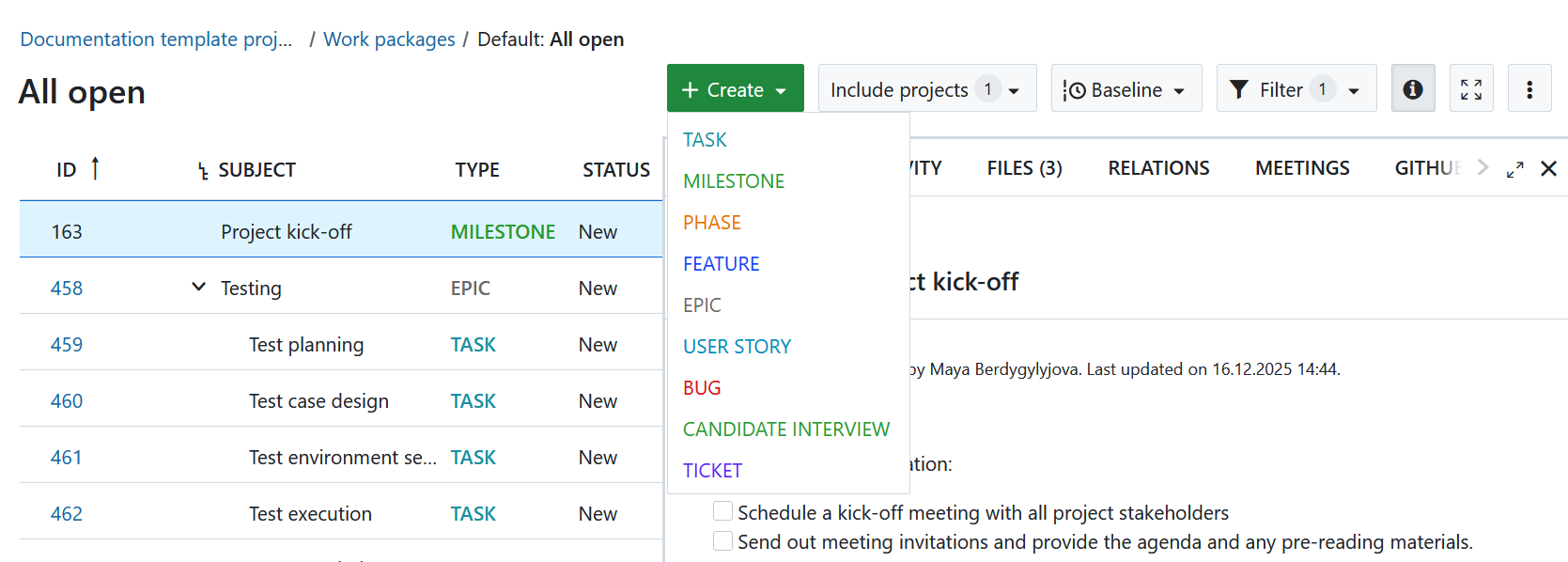
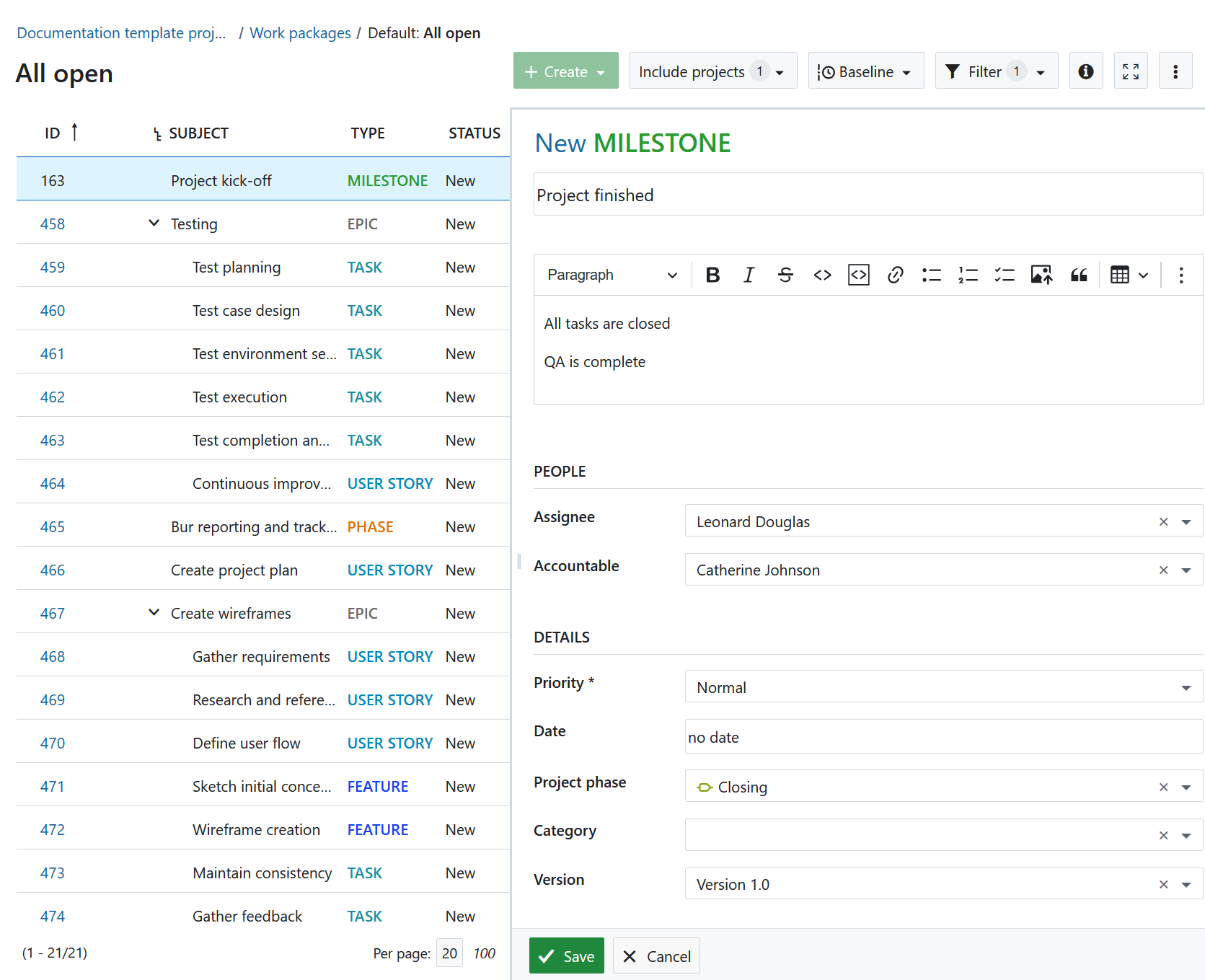
O novo formulário do pacote de trabalho será aberto na vista de ecrã dividido. Introduza todas as informações, como descrição, encarregado, estado, prioridade, data de vencimento e muito mais.
Clique no botão Guardar.
Adicione emojis aos pacotes de trabalho
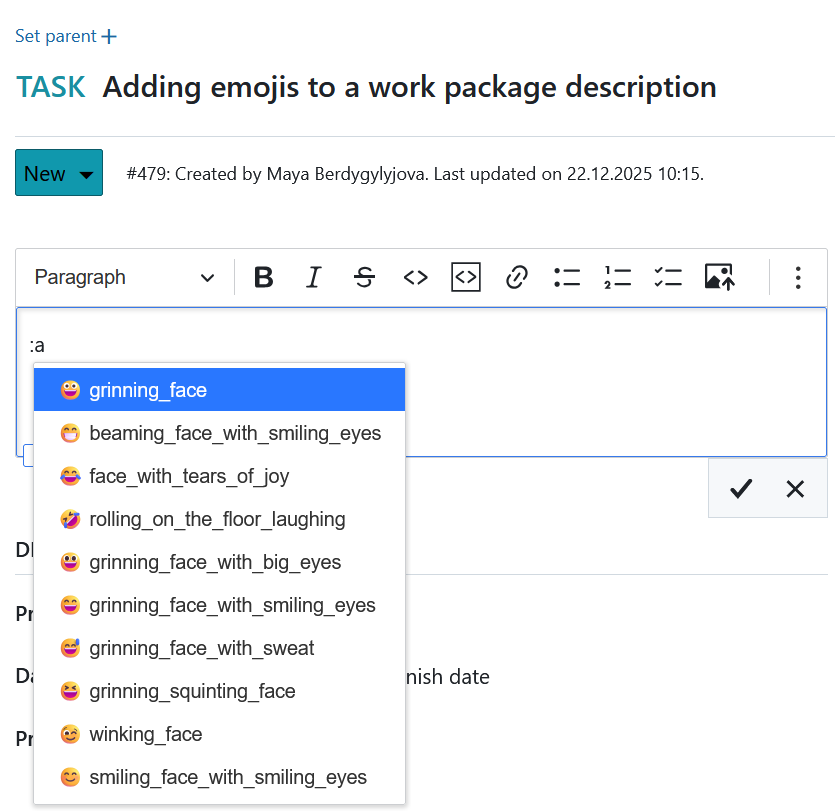
Pode adicionar emojis a todos os editores de texto, incluindo a descrição do pacote de trabalho. Introduza dois pontos e uma letra, por exemplo, :a no editor de texto e obtenha uma lista de sugestões de emojis que pode utilizar.
Para saber como criar um pacote de trabalho filho, clique aqui.
Adicionar anexos a pacotes de trabalho
Pode adicionar imagens diretamente, por exemplo, através de copiar e colar na Descrição do pacote de trabalho. Também pode utilizar a barra de ferramentas acima da descrição do pacote de trabalho e clicar no ícone Inserir imagem:

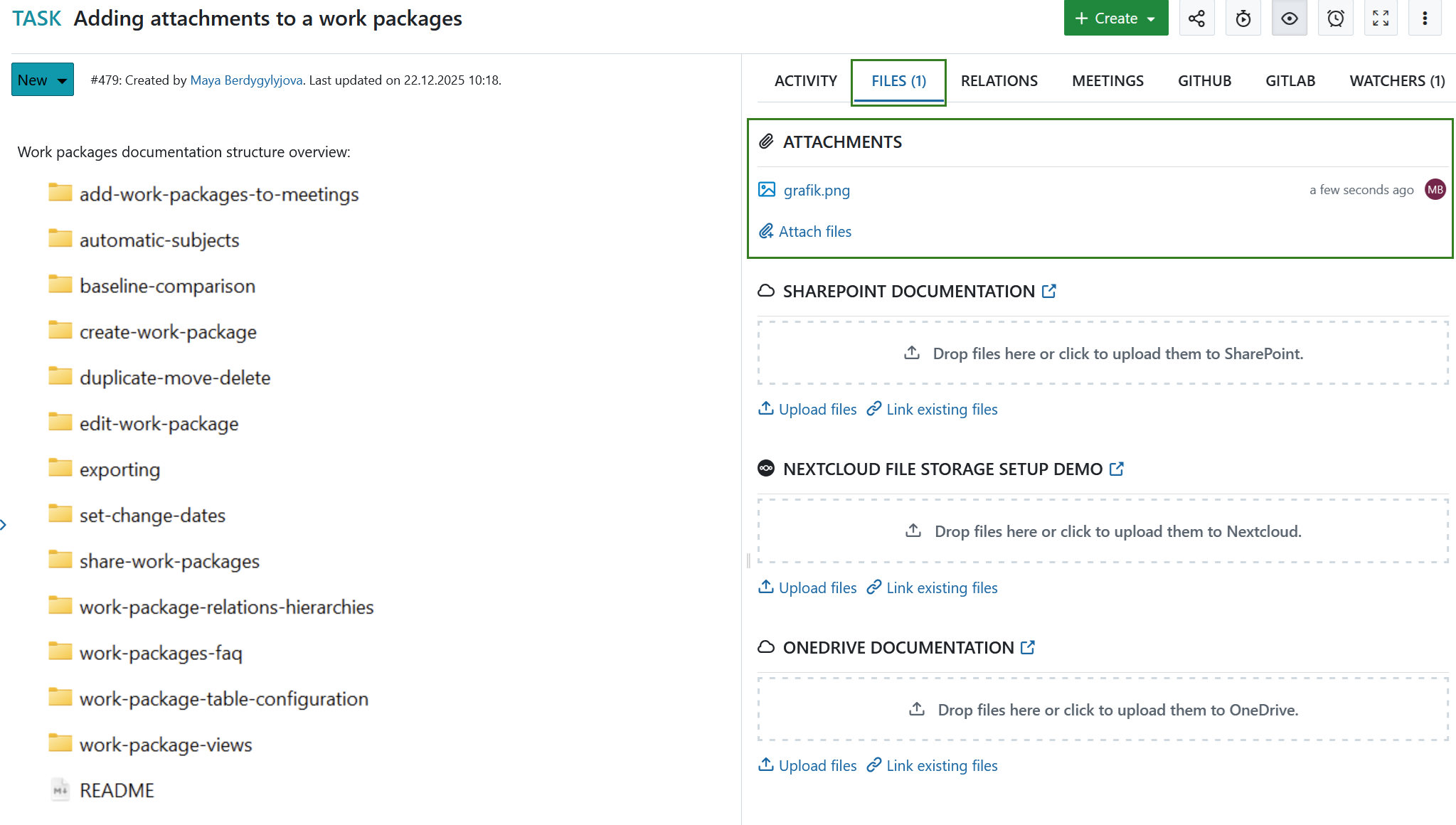
Na parte inferior do formulário do pacote de trabalho, pode adicionar ficheiros através de arrastar e largar ou selecionar um ficheiro de uma pasta para o carregar para o pacote de trabalho.
Dica
Também é possível que os utilizadores que não são membros do projeto adicionem anexos aos pacotes de trabalho se lhes tiver sido concedida a permissão por um administrador. Pode ser útil, por exemplo, para confirmar relatórios de erros.
Descubra como editar pacotes de trabalho existentes.
Nota
Também pode utilizar as integrações Nextcloud, OneDrive ou SharePoint para carregar ficheiros para um armazenamento de ficheiros ou ligar ficheiros ou pastas já existentes a um pacote de trabalho no separador Files.