Integração do SharePoint (complemento Enterprise)
Pode utilizar o SharePoint como armazenamento de ficheiros integrado no OpenProject.

[!NOTA] Esta funcionalidade inclui a utilização das integrações do OneDrive e do SharePoint.
Esta integração permite-lhe:
- Ligue ficheiros e pastas armazenados no SharePoint a pacotes de trabalho no OpenProject
- Visualizar, abrir e transferir ficheiros e pastas associados a um pacote de trabalho através do separador Ficheiros
Importante
Para poder utilizar o SharePoint como armazenamento de ficheiros no seu projeto, o administrador da sua instância deve primeiro ter concluído a configuração da integração do SharePoint. Em seguida, um administrador de projeto pode ativar o armazenamento integrado nos Armazenamentos de ficheiros para um projeto.
| Tópico | Descrição |
|---|---|
| Ligue o OpenProject ao SharePoint | Como ligar o seu projeto OpenProject ao SharePoint |
| Associar ficheiros e pastas a pacotes de trabalho | Como associar os seus ficheiros e pastas a pacotes de trabalho no OpenProject |
| Carregar ficheiros a partir do OpenProject | Como carregar ficheiros para o SharePoint a partir do OpenProject |
| Transferir, abrir pastas e remover ligações | Como transferir e abrir ficheiros e pastas e remover ligações |
| Permissões e controlo de acesso | Permissões e controlo de acesso no armazenamento de ficheiros do SharePoint |
| Possíveis erros e resolução de problemas | Erros comuns na integração do SharePoint e como os resolver |
Ligue as suas contas OpenProject e SharePoint
Para começar a utilizar esta integração, terá primeiro de ligar as suas contas OpenProject e Microsoft. Para tal, abra qualquer pacote de trabalho num projeto em que um armazenamento de ficheiros SharePoint tenha sido adicionado e ativado por um administrador, e siga estes passos:
- Selecione qualquer pacote de trabalho. Vá para o separador Ficheiros e, na secção de armazenamento de ficheiros correta, clique no botão Início de sessão de armazenamento.
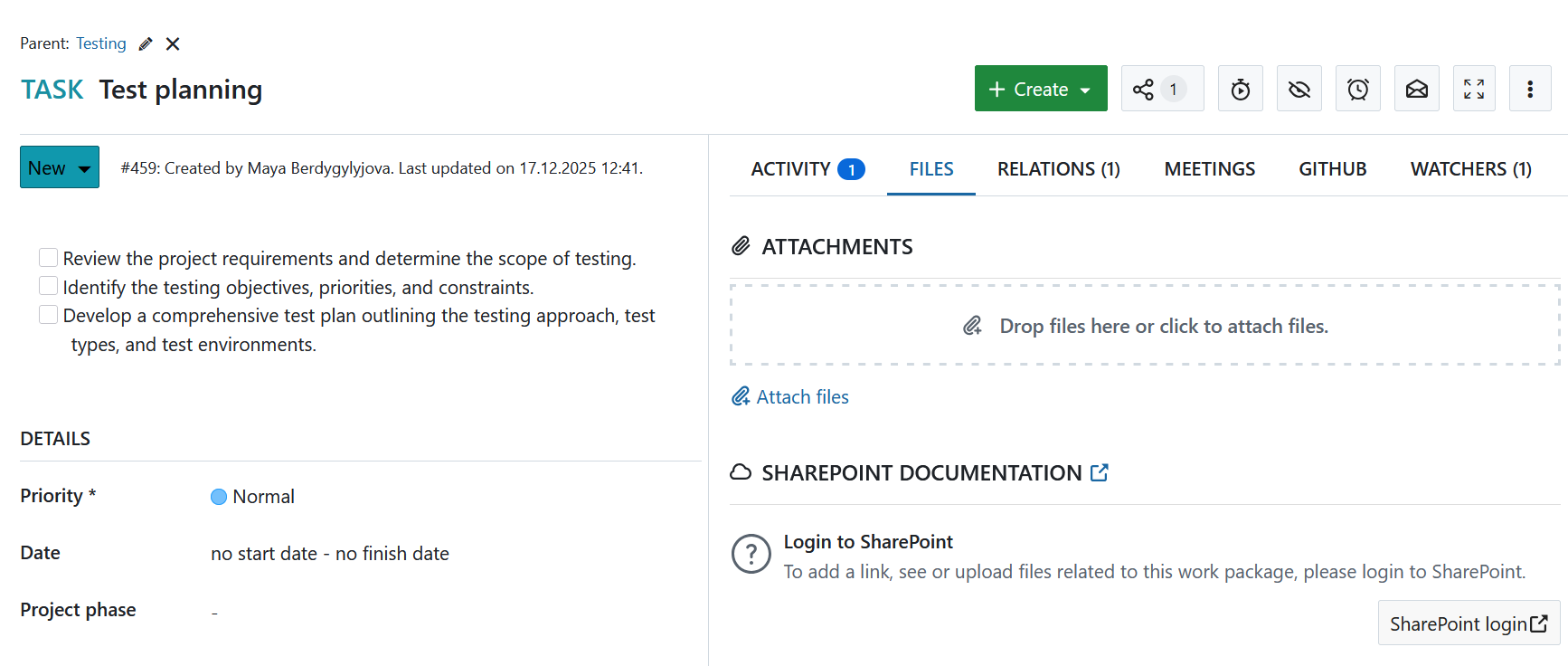
- Verá uma mensagem de início de sessão da Microsoft a pedir-lhe para iniciar sessão. Introduza as suas credenciais e inicie sessão.
- Uma vez iniciada a sessão, regressará automaticamente ao pacote de trabalho no OpenProject e verá que já pode começar a carregar e a associar ficheiros.
Associar ficheiros e pastas a pacotes de trabalho
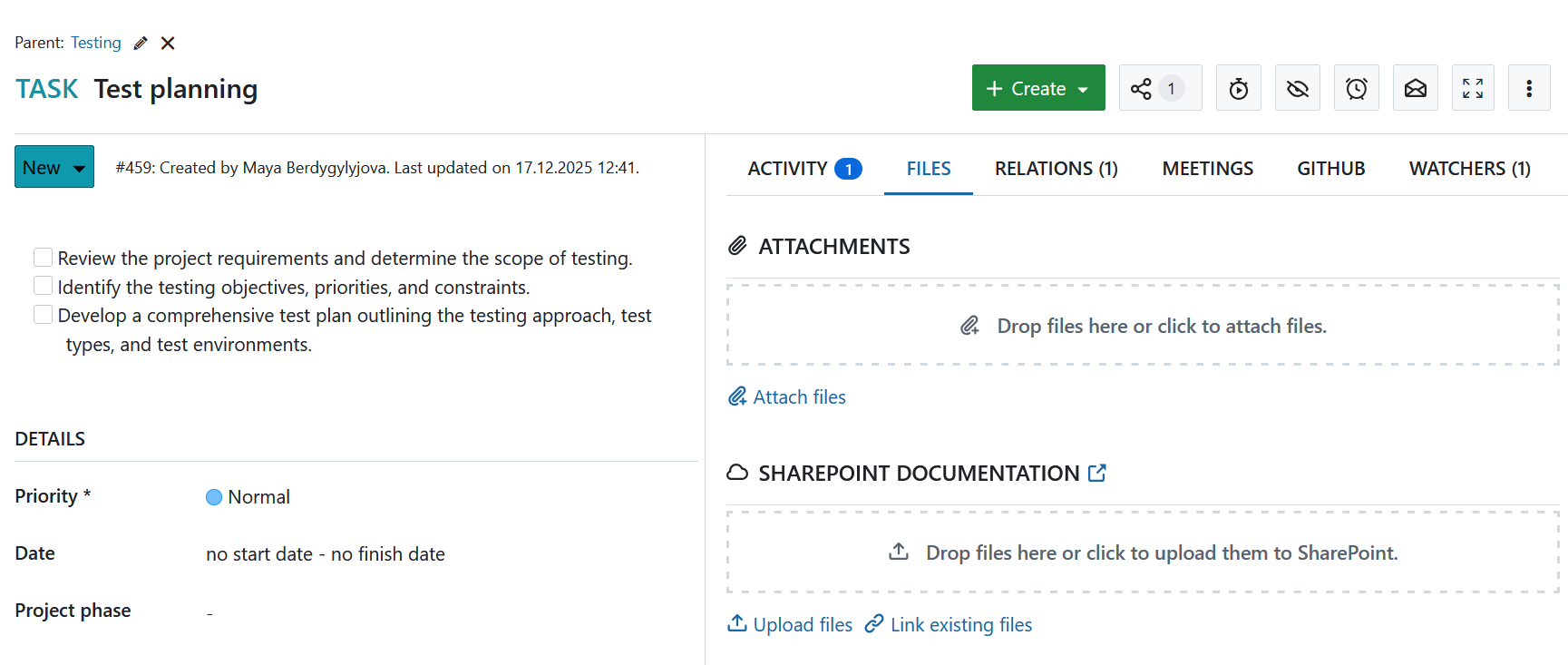
Para além de listar os ficheiros diretamente ligados a um pacote de trabalho, o separador Ficheiros mostra os ficheiros SharePoint que estão ligados ao pacote de trabalho atual. Ao passar o rato sobre qualquer ficheiro associado, terá opções para abrir ou transferir o ficheiro, mostrar a pasta que o contém no SharePoint ou remover a associação.
Para associar um ficheiro SharePoint ao pacote de trabalho atual, pode:
- selecione um ficheiro local, que será carregado para o armazenamento do SharePoint e ligado a este pacote de trabalho
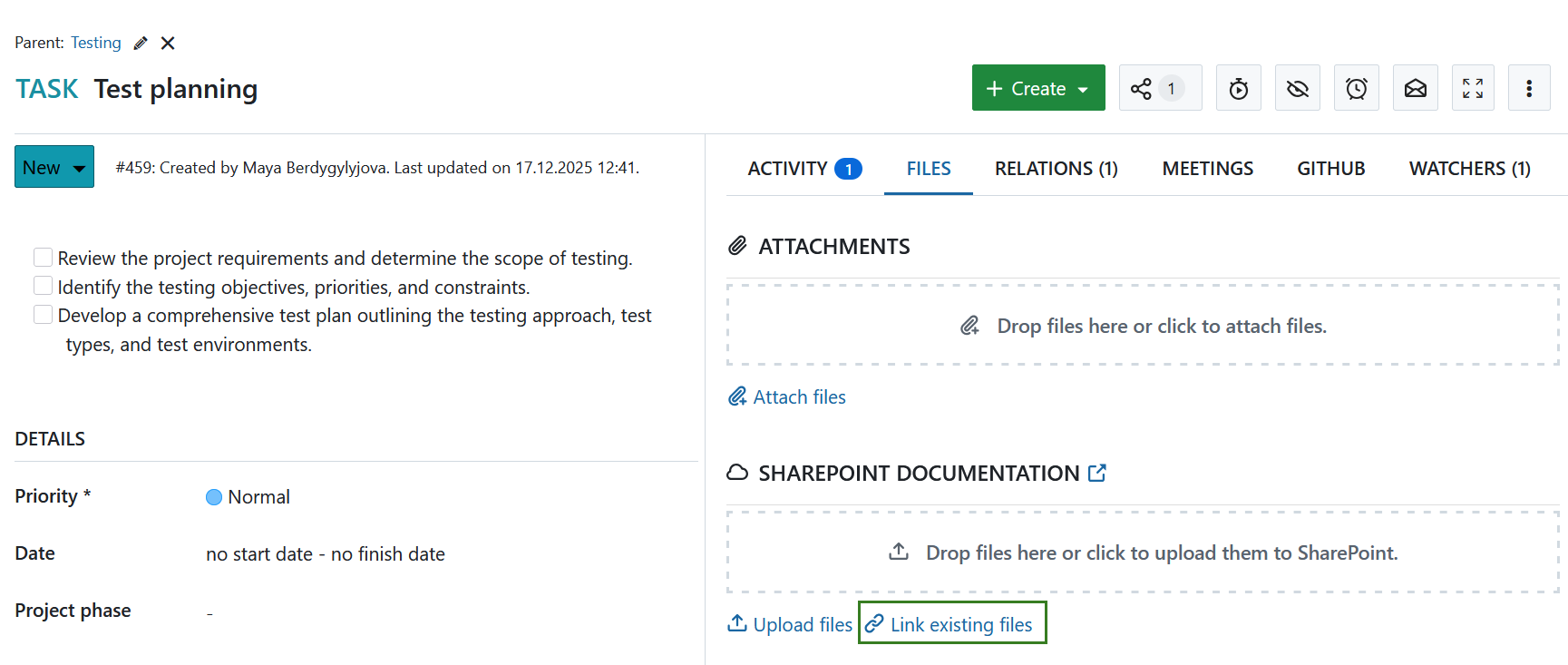
- selecione um ficheiro existente no SharePoint para o qual criar uma ligação
Nota
O local padrão que é aberto no seletor de arquivos é a raiz do ficheiro da unidade do SharePoint configurada.
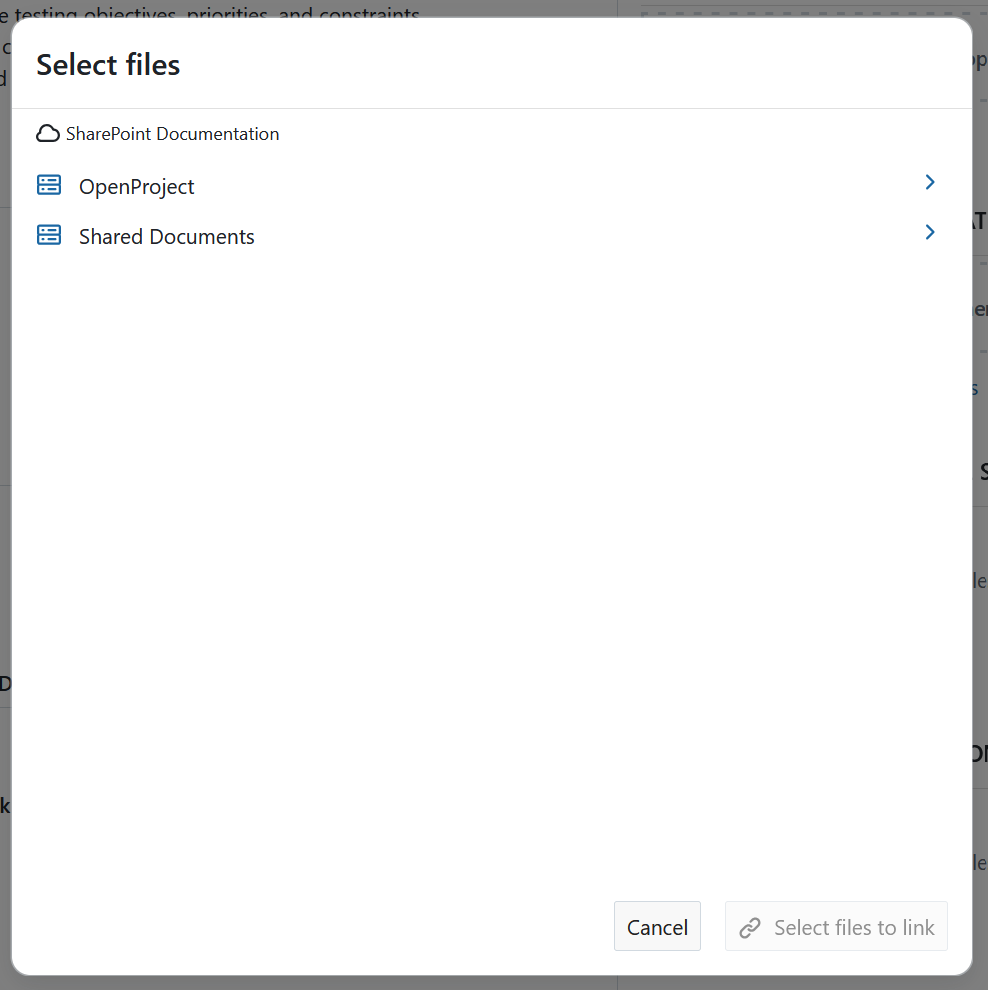
Selecione qualquer pasta ou ficheiro (ou vários) que pretenda ligar e, em seguida, clique no botão Ligar.
Selecione ficheiros para ligar a um pacote de trabalho OpenProject a partir de um armazenamento de ficheiros SharePoint](openproject_user_guide_sharepoint_storage_select_multiple_files_to_link.png)
Carregar ficheiros a partir do OpenProject
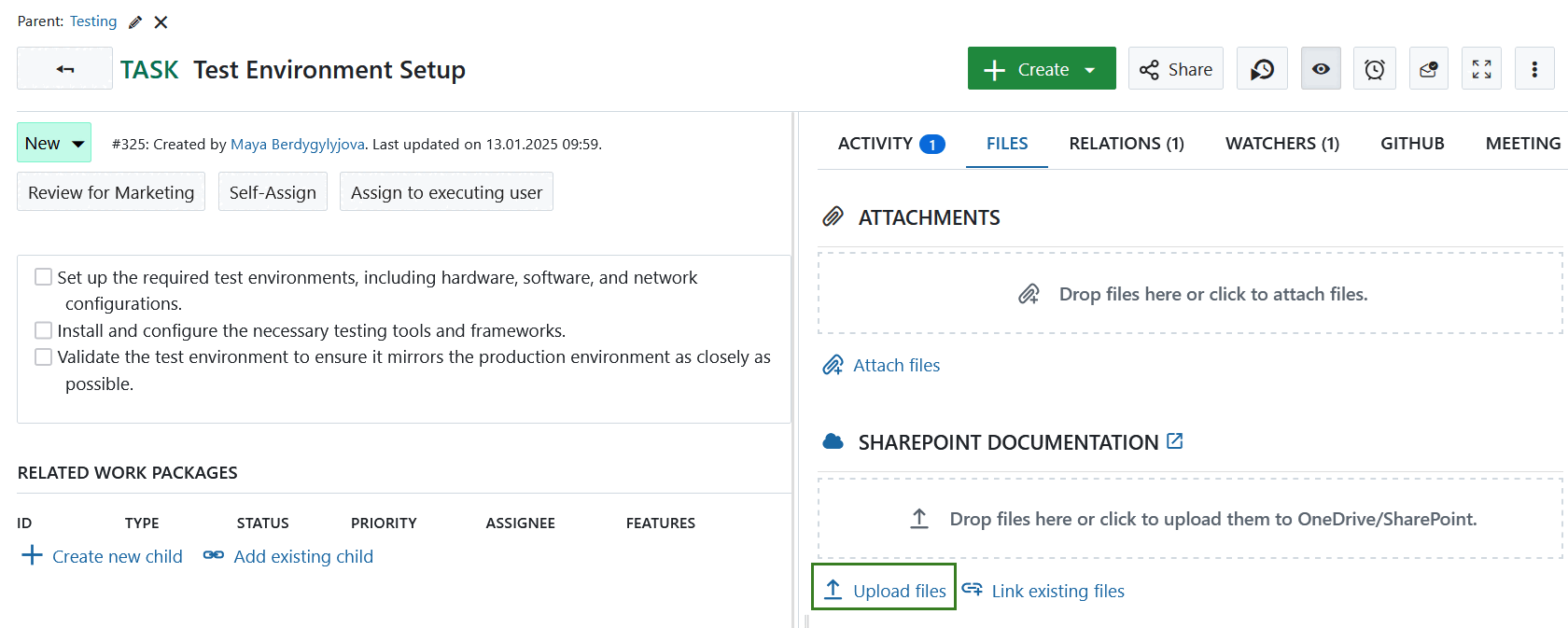
Se o ficheiro que pretende associar ainda não tiver sido carregado para o SharePoint, pode fazê-lo clicando na ligação Carregar ficheiros.
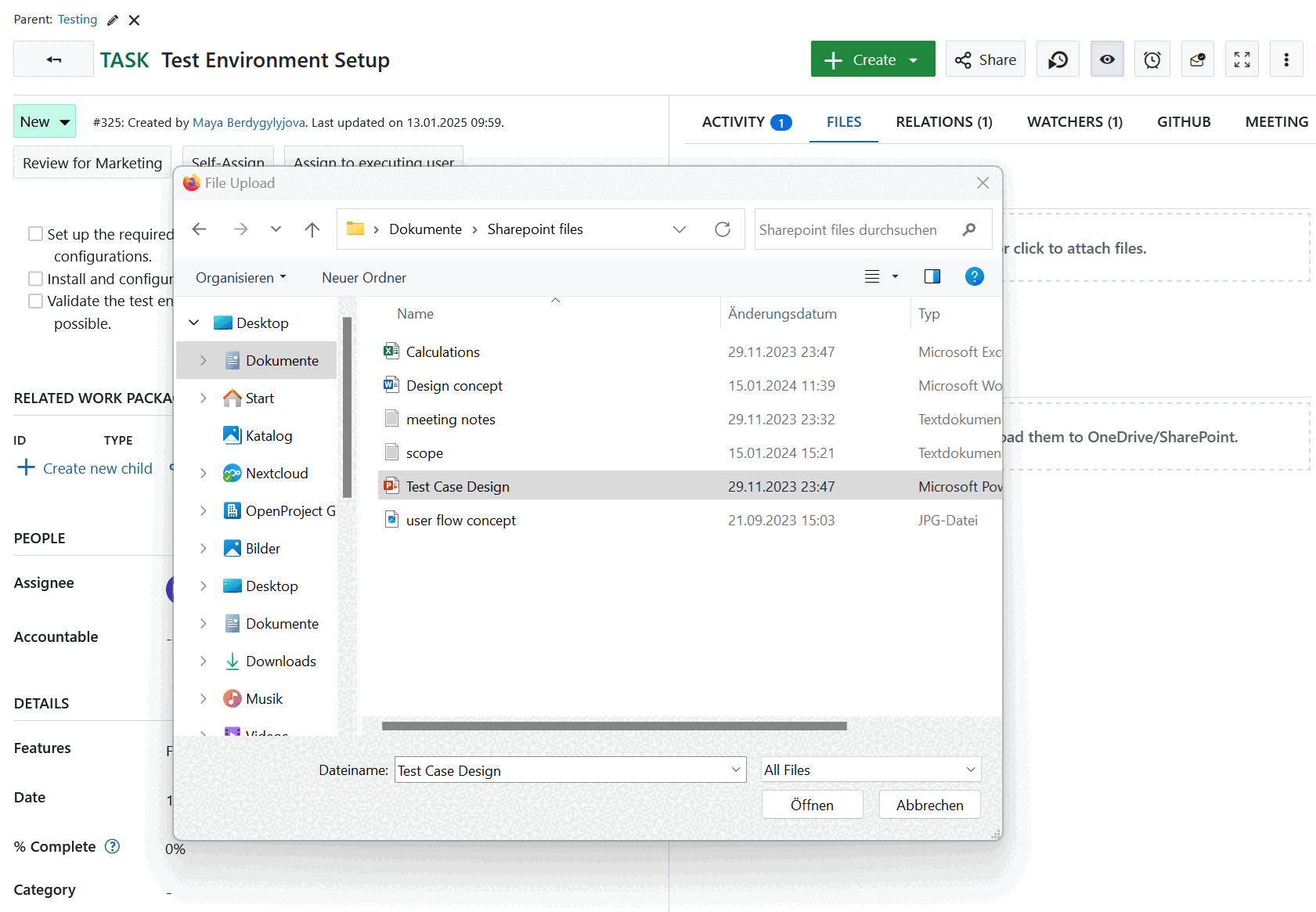
Em seguida, será pedido que selecione um ficheiro (ou vários ficheiros) no seu computador que pretende carregar para o SharePoint.
Em alternativa, também pode arrastar um ficheiro ou pasta do seu computador para a zona de arrastamento que aparecerá sob o nome do seu armazenamento de ficheiros SharePoint.
Depois de ter selecionado ou largado os ficheiros que gostaria de carregar, terá de selecionar a localização no SharePoint onde devem ser armazenados.
Nota
O local padrão que é aberto no seletor de arquivos é a raiz do ficheiro da unidade do SharePoint configurada.
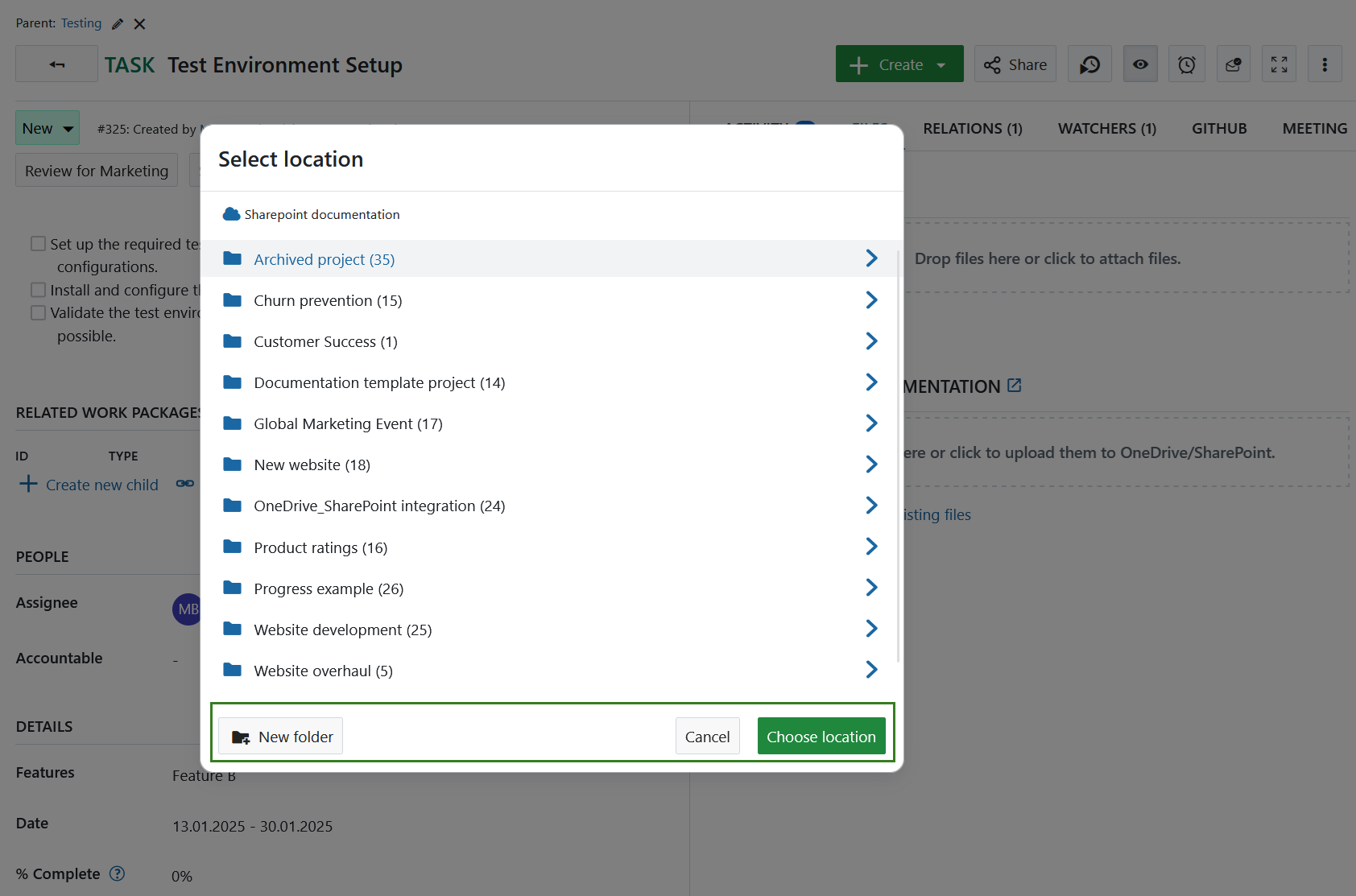
Pode clicar nas pastas que vê para navegar até elas. Os úteis caminhos de navegação mostram-lhe onde se encontra na hierarquia de pastas.
Para navegar um nível acima ou para voltar à raiz, basta clicar no elemento principal relevante nos caminhos de navegação.
Dica
Se tiver navegado muito fundo (mais de 4 níveis), os níveis intermédios podem ser colapsados para poupar espaço, mas poderá sempre navegar de volta para o elemento principal imediato ou para a raiz para voltar atrás.
Nesta altura, também pode criar diretamente uma nova pasta na sua estrutura de pastas do Sharepoint, utilizando o botão Nova pasta.
Para guardar os ficheiros que carregou na pasta atualmente aberta, clique no botão Escolher localização.
O ficheiro selecionado é carregado para a sua instância SharePoint e ligado ao pacote de trabalho atual. Aparece sob o nome do ficheiro de armazenamento.
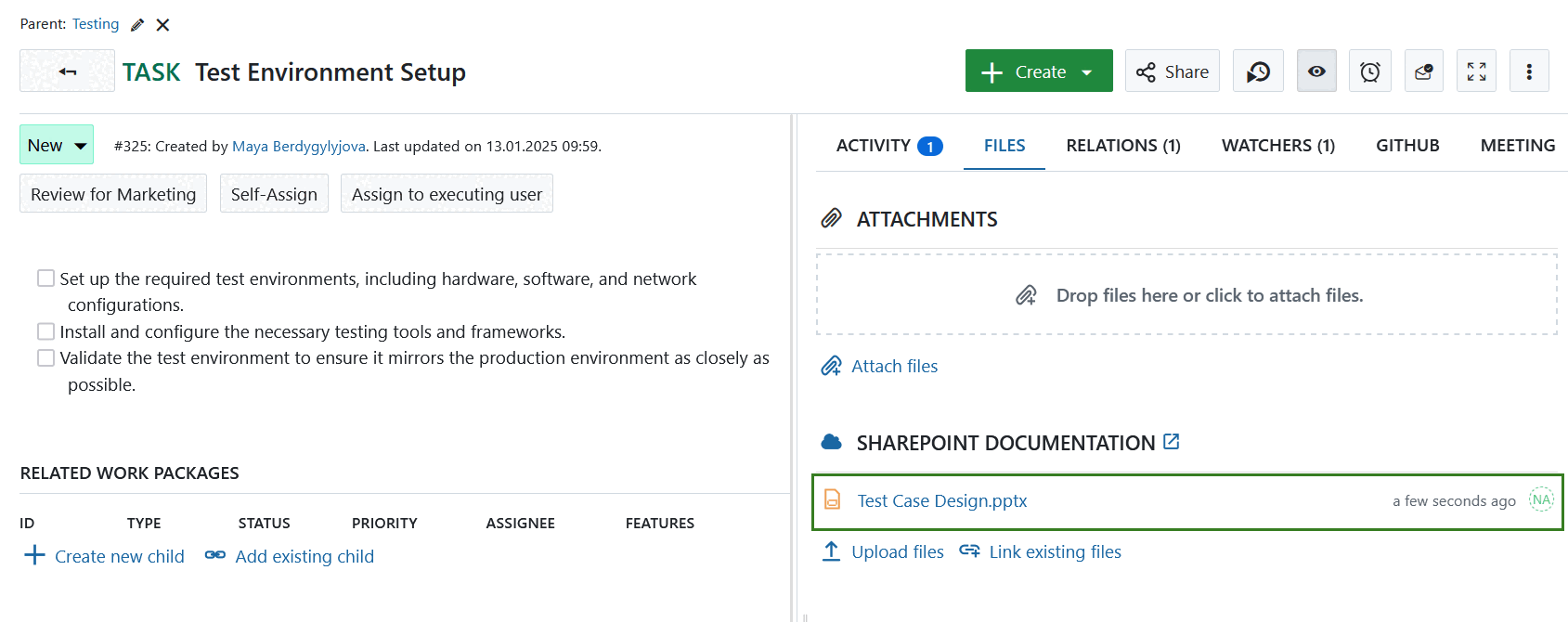
Se um ficheiro tiver sido eliminado no armazenamento de ficheiros do SharePoint, continuará a ser apresentado no separador Ficheiros. No entanto, não será selecionável. Se passar o rato sobre um ficheiro eliminado, verá a mensagem que indica que o ficheiro não foi encontrado.

Transferir, abrir pastas e remover ligações
Se quiser desassociar um ficheiro ou pasta associados, passe o cursor sobre o mesmo na lista de ficheiros associados e clique no ícone Desassociar.
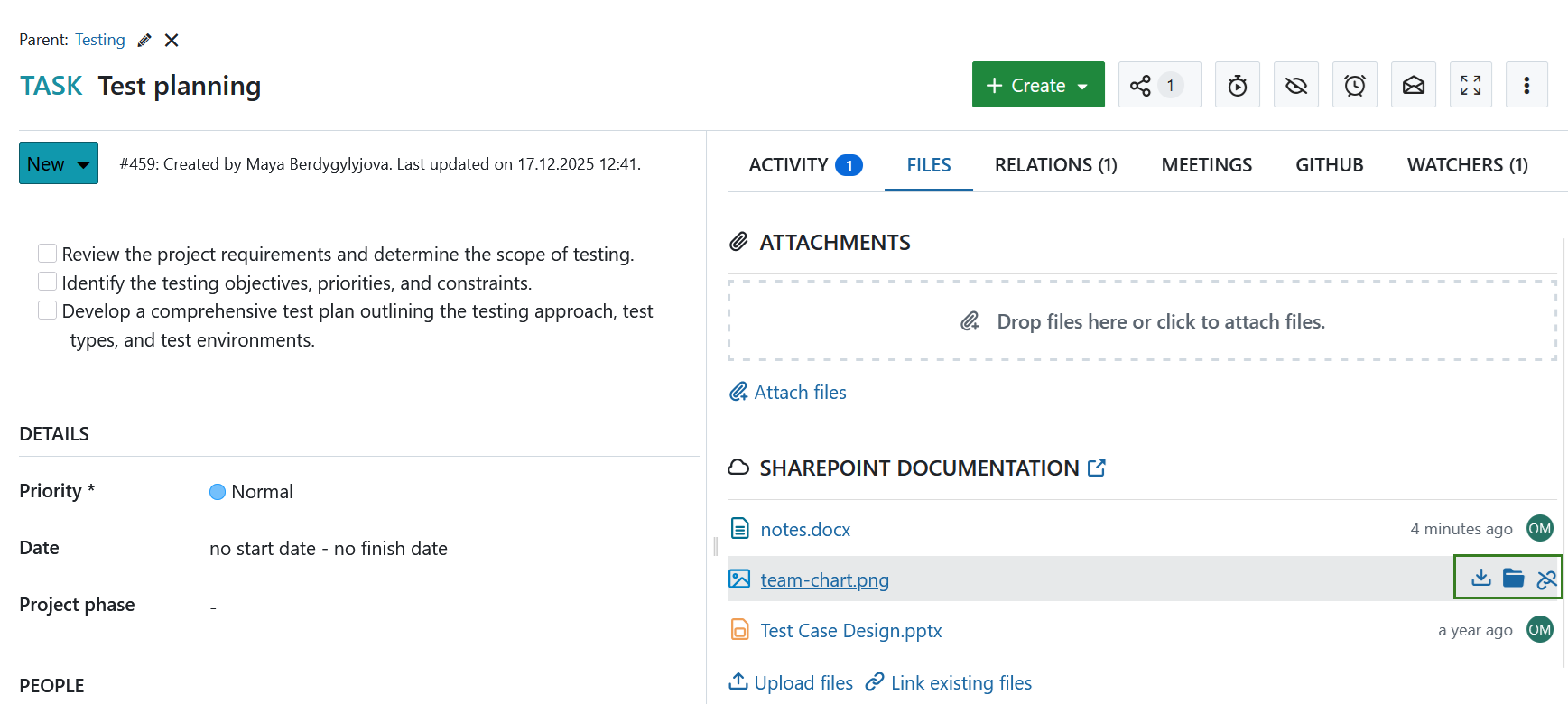
Respetivamente, para transferir um ficheiro, clique no ícone Transferir no menu de contexto da ligação do ficheiro na lista dos ficheiros associados.
Se clicar no ícone de Pasta, a pasta SharePoint que contém este ficheiro será aberta num separador separado.
Permissões e controlo de acesso
Quando um ficheiro ou pasta do SharePoint está ligado a um pacote de trabalho, um utilizador do OpenProject que tenha acesso a esse pacote de trabalho poderá:
- Ver o nome do ficheiro ou pasta associado
- Ver quando foi modificado pela última vez (ou criado, se ainda não tiver sido modificado)
- Ver quem o modificou pela última vez (ou quem o criou, se ainda não tiver sido modificado)
No entanto, todas as ações disponíveis dependem das permissões que o utilizador do OpenProject (ou mais precisamente, a conta SharePoint associada a esse utilizador) tem no SharePoint. Por outras palavras, um utilizador que não tenha permissão para aceder ao ficheiro no SharePoint também não poderá abrir, transferir ou modificar o ficheiro no OpenProject.
Tenha em atenção que, com as pastas de projeto geridas automaticamente, estas permissões são definidas pelo OpenProject com base nas permissões do utilizador no OpenProject.
Possíveis erros e resolução de problemas
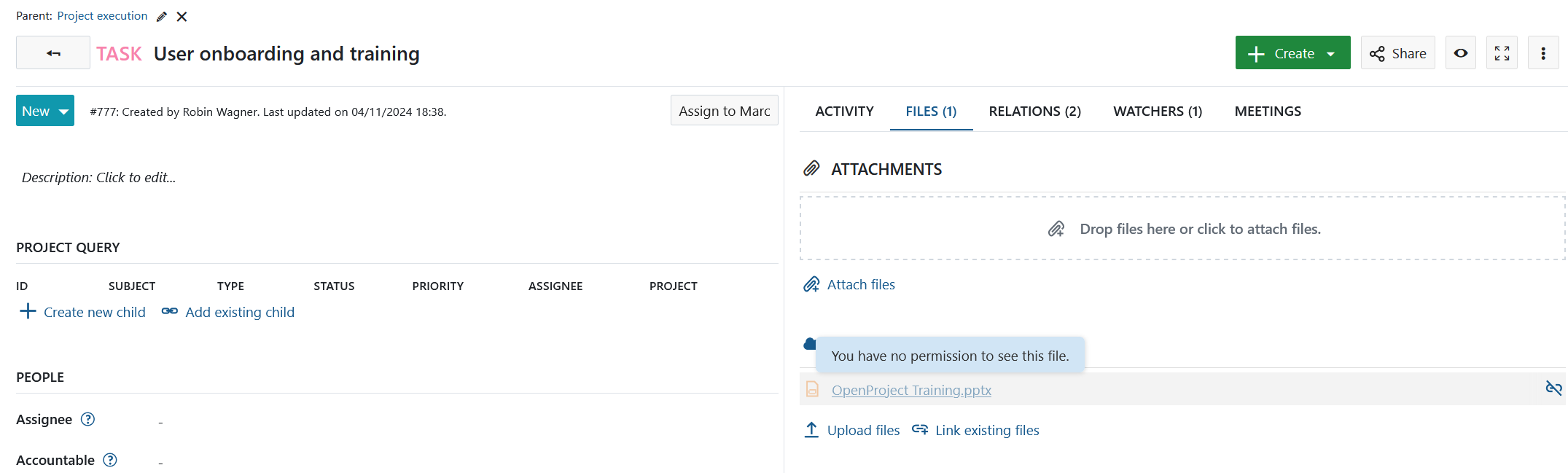
Não tem permissão para ver este ficheiro
Se não conseguir ver os detalhes de um ficheiro, ou se não conseguir abrir alguns dos ficheiros associados a um pacote de trabalho, pode ser porque a sua conta SharePoint não tem as permissões necessárias. Nesse caso, poderá ver o nome do ficheiro, a hora da última modificação e o nome do modificador, mas não poderá efetuar quaisquer outras ações. Para abrir ou aceder a estes ficheiros, contacte o seu administrador do SharePoint ou o criador do ficheiro para receber as permissões necessárias.