Página de inicio del proyecto
La página de inicio del proyecto es un panel de control con información importante sobre sus respectivos proyectos. Esta página muestra toda la información relevante para su equipo, como los miembros, las noticias, la descripción del proyecto, los informes de los paquetes de trabajo o el estado del proyecto. La información sobre el resumen proyecto se presenta utilizando atributos del proyecto y widgets.
| Tema | Contenido |
|---|---|
| ¿Cuál es la página de inicio del proyecto? | ¿Qué puedo hacer en la página de inicio del proyecto? |
| Ciclo de vida del proyecto | ¿Qué es el ciclo de vida de un proyecto? |
| Atributos del proyecto | ¿Qué son los atributos del proyecto y cómo puedo utilizarlos? |
| Marcar proyecto como favorito | ¿Cómo puedo marcar un proyecto como favorito? |
| Archivar un proyecto | ¿Cómo puedo archivar un proyecto desde la página de inicio del proyecto? |
| Widgets del proyecto | ¿Qué son los widgets y cómo puedo añadirlos a la página de inicio de mi proyecto? |
¿Cuál es la página de inicio del proyecto?
La página de inicio del proyecto es una página de resumen centralizada que muestra toda la información esencial de un proyecto seleccionado. Su propósito es servir como única fuente de verdad para todo el equipo del proyecto, proporcionando un acceso rápido a los datos clave y al progreso del proyecto.
Puede acceder al resumen del proyecto navegando hasta Inicio del proyecto en el menú del proyecto situado a la izquierda.
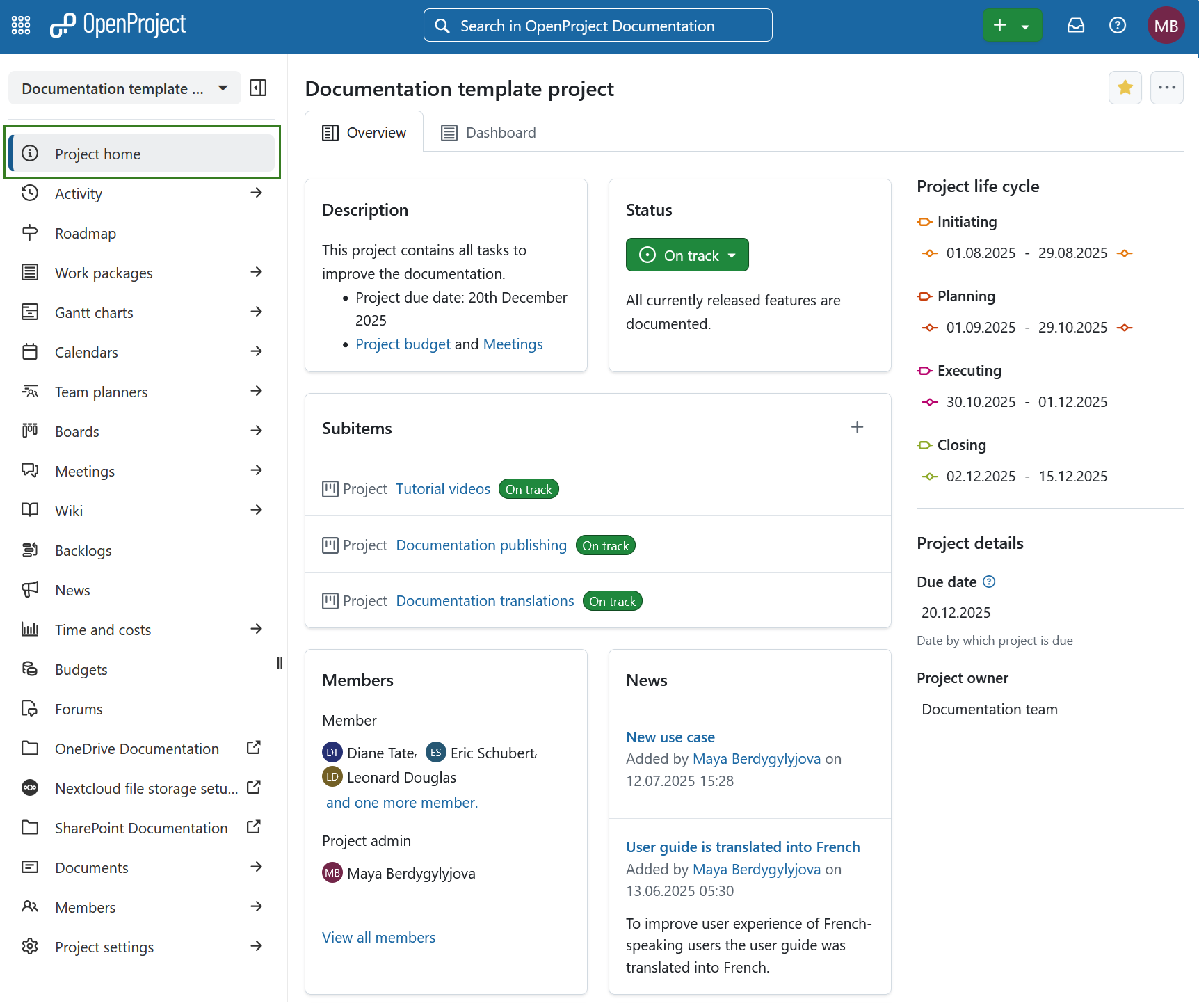
En la página de resumen del proyecto verá las siguientes secciones:
- La pestaña Resumen es un conjunto preconfigurado de widgets del proyecto para ofrecer un resumen conciso del estado del proyecto.
- La pestaña Panel de control proporciona acceso a todos los widgets disponibles y permite personalizar completamente el diseño y el contenido según las preferencias de usuario.
- Ciclo de vida del proyecto
- Atributos del proyecto
Aquí también puede marcar un proyecto como favorito o archivarlo.
Resumen del proyecto
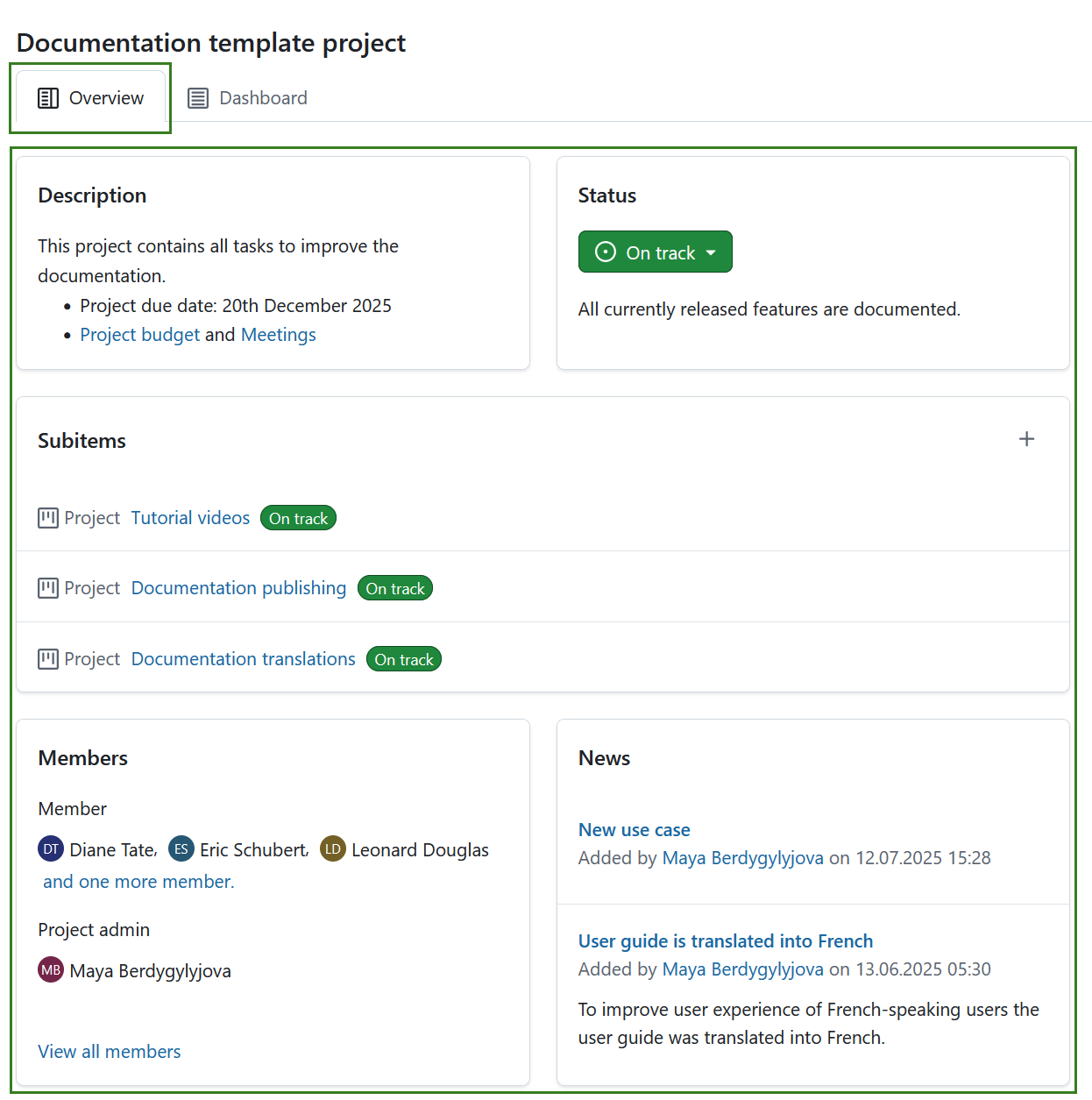
La pestaña Resumen está preconfigurada para ofrecer un resumen conciso del estado del proyecto. Su disposición es fija y no puede modificarse. Incluye los siguientes widgets:
-
Opcional: Atributos del proyecto.
Consejo
Los atributos del proyecto suelen mostrarse bajo la sección ciclo de vida del proyecto, a la derecha, pero también puede colocarse una sección de atributos del proyecto en el centro, bajo los widgets predefinidos. Esta colocación puede modificarse en la administración del sistema.
Más información sobre widgets del proyecto.
Pnale de control de proyecto
La pestaña Panel de control de la página de inicio proporciona acceso a todos los widgets disponibles y permite personalizar completamente el diseño y el contenido según las preferencias del usuario. Más información sobre widgets del proyecto.

Consejo
Puede añadir los mismos widgets al panel de control del proyecto, que también se muestran en la parte de resumen del proyecto de la página de inicio del proyecto.
Marcar un proyecto como favorito
Puede marcar el proyecto como Favorito haciendo clic en el icono Favorito (estrella) de la esquina superior derecha. El color del icono cambiará a amarillo y el proyecto se marcará como favorito tanto en la página de inicio del proyecto como en la lista de proyectos. Más información sobre listas de proyectos.

Para eliminar un proyecto de favoritos pulse de nuevo el icono Favorito.
Archivar un proyecto
Puede archivar un proyecto directamente desde la página de inicio del proyecto. Para ello, haga clic en el icono Más (tres puntos) y seleccione Archivar proyecto.
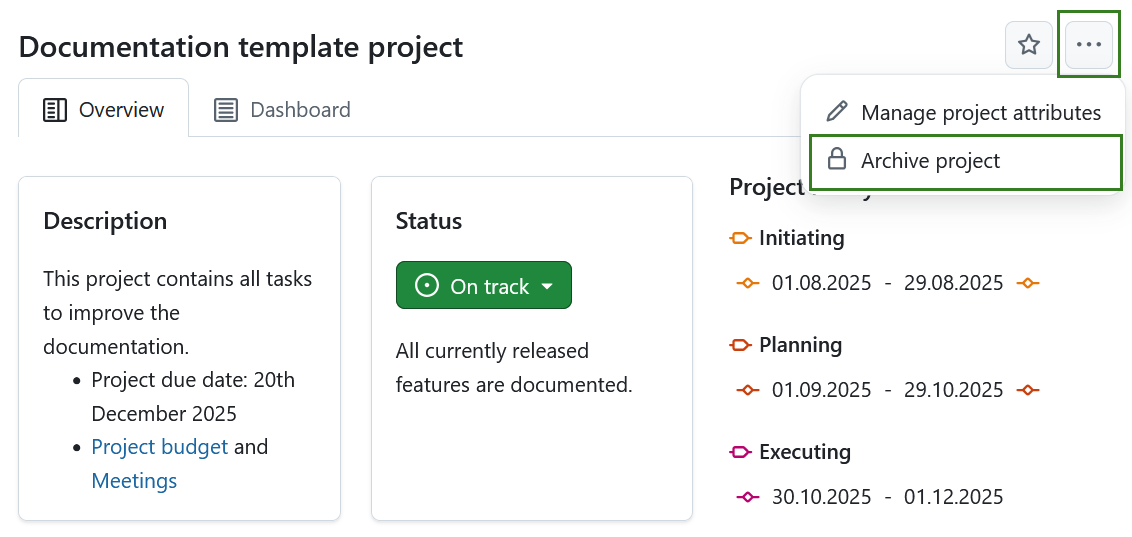
[NOTA] Esta opción está siempre disponible para los administradores de instancias y proyectos. También puede activarse para roles específicos habilitando el permiso archivar proyecto para ese rol a través de la página Roles y permisos en la configuración del administrador.
También puede archivar un proyecto en configuraciones del proyecto o en una lista de proyectos.