Crear paquetes de trabajo
| Tema | Contenido |
|---|---|
| Crear paquetes de trabajo | Cómo crear un nuevo paquete de trabajo en un proyecto. |
| Añadir archivos adjuntos a un paquete de trabajo | Cómo añadir archivos adjuntos a un paquete de trabajo. |
Crear paquetes de trabajo
Existen varias formas de crear paquetes de trabajo en OpenProject:
- A través de la navegación del encabezado desde cualquier punto de la aplicación.
- En línea en la tabla de Paquetes de trabajo para crear rápidamente varios Paquetes de trabajo.
- En una vista de pantalla dividida que le permite especificar información detallada desde el principio.
Crear un paquete de trabajo a través de la navegación del encabezado
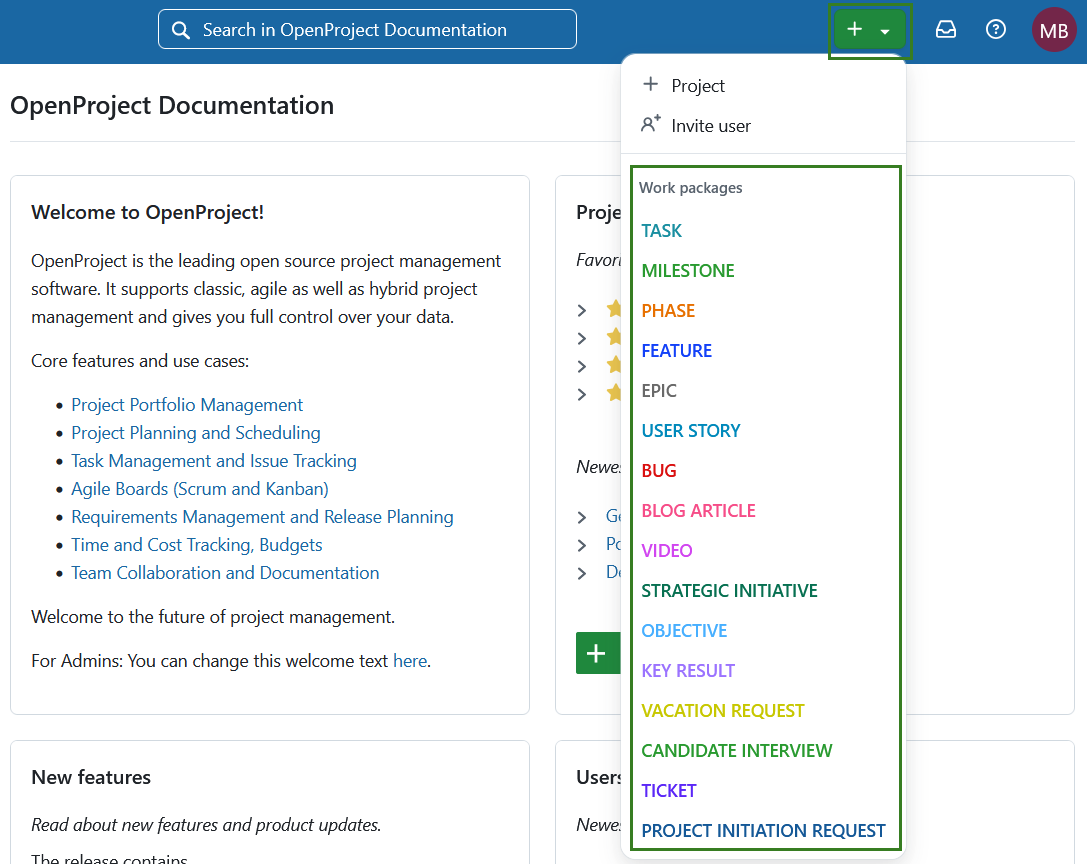
Puede crear un paquete de trabajo desde cualquier lugar de la aplicación haciendo clic en el botón verde + de la navegación del encabezado y seleccionando directamente un tipo de paquete de trabajo.
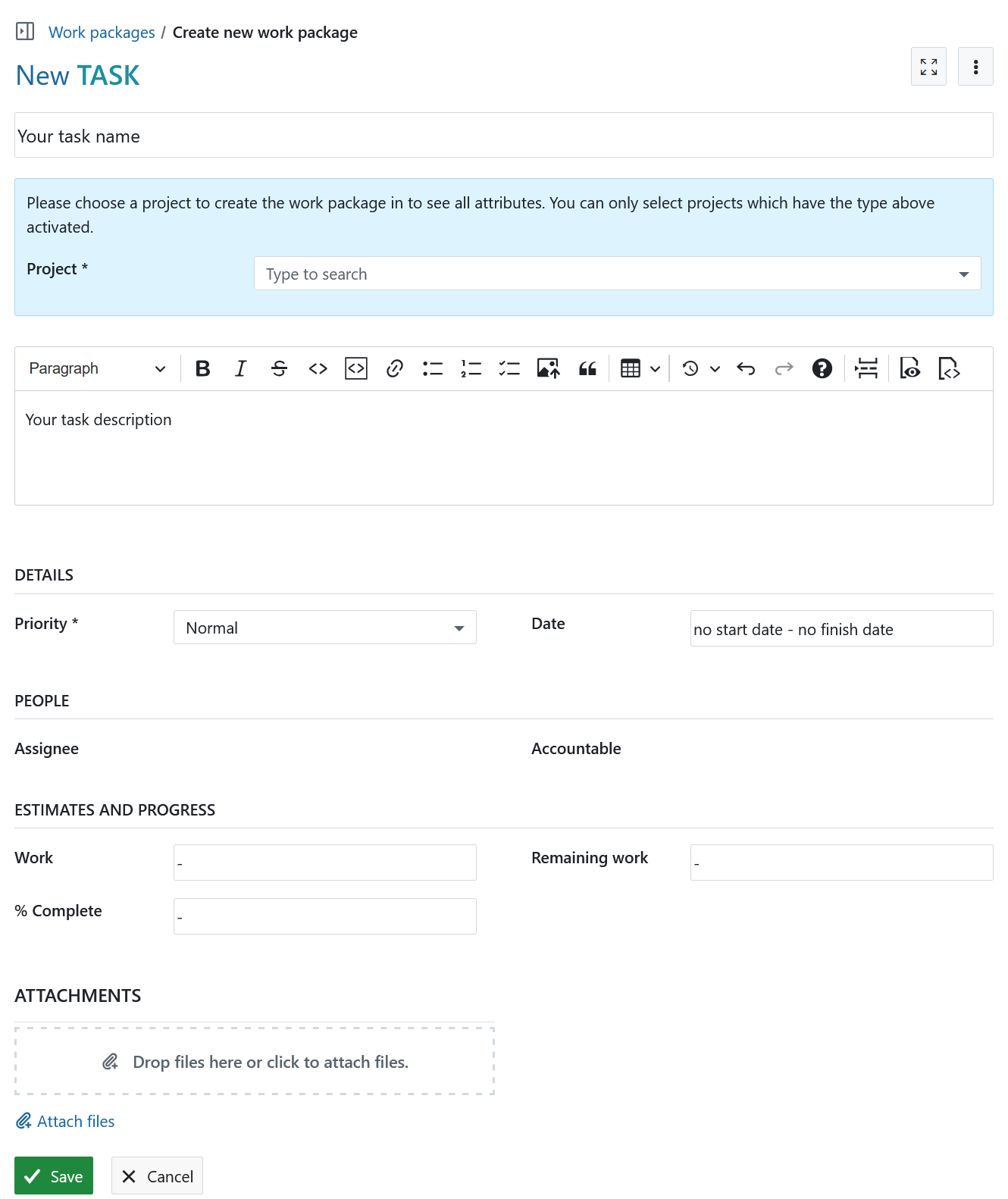
Se abrirá un formulario en el que podrá especificar el proyecto, el nombre, la descripción, la prioridad, las fechas, etc. Dependiendo del tipo de paquete de trabajo seleccionado, el formulario puede incluir campos adicionales para rellenar.
Consejo
Si aún no ha seleccionado el proyecto, Asignado y Contable no mostrarán valores seleccionables. Una vez que seleccione un proyecto, se podrán seleccionar los miembros del proyecto seleccionado.
Crear un paquete de trabajo en el módulo de paquetes de trabajo
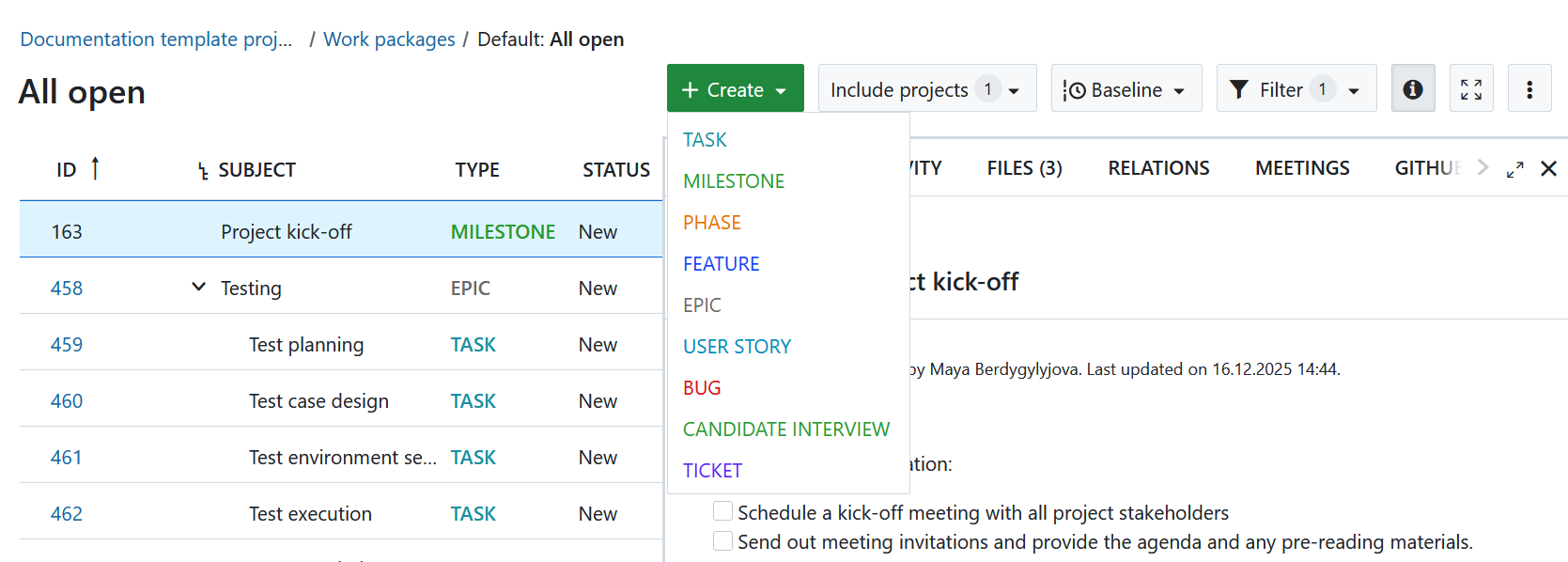
También puede crear un paquete de trabajo directamente desde el módulo del paquete de trabajo (ya sea dentro de un proyecto específico o desde el nivel global del módulo).
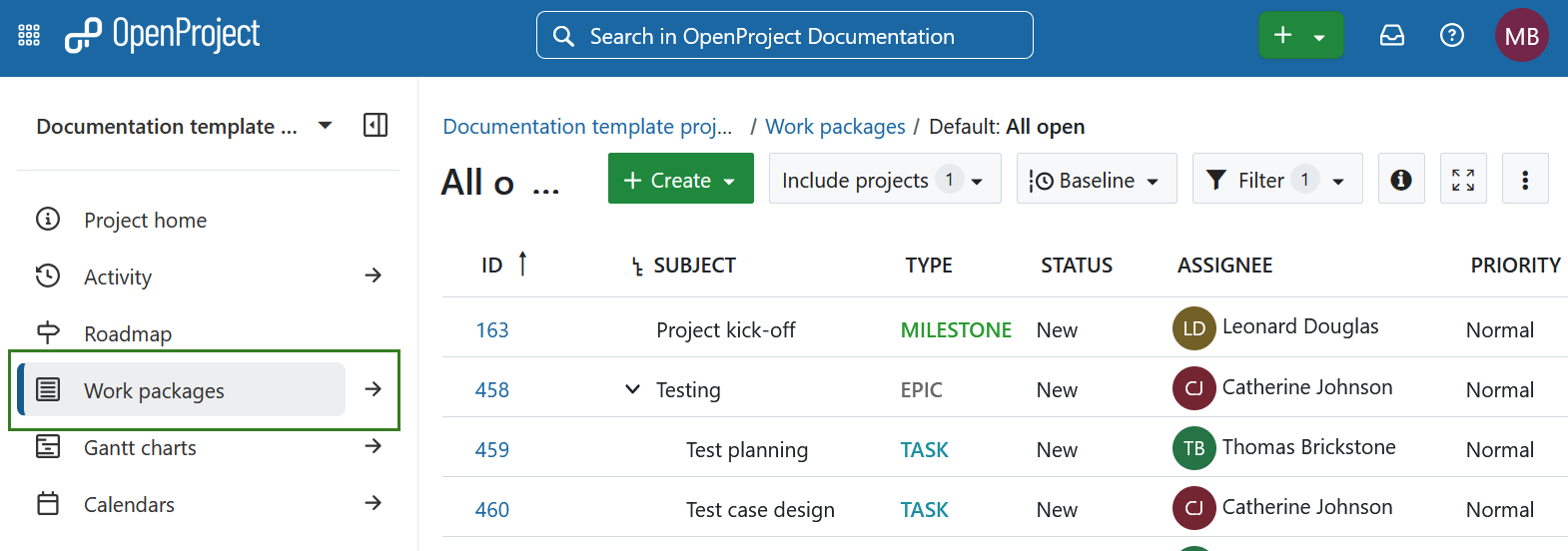
Seleccione un proyecto y vaya al módulo Paquete de trabajo en el menú del módulo del proyecto situado a la izquierda. Como alternativa, seleccione el módulo global Paquetes de trabajo.
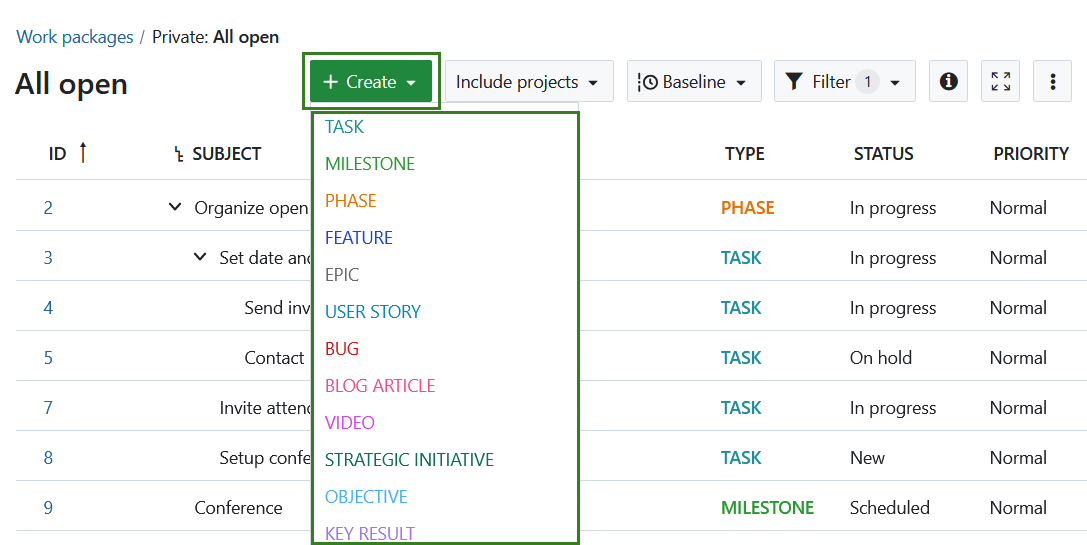
Pulse el botón + Crear situado encima de la tabla de paquetes de trabajo y seleccione el tipo de paquete de trabajo que desea crear.
Crear un paquete de trabajo en la vista de tabla
Para crear nuevos paquetes de trabajo directamente en línea en la vista de tabla, haga clic en el enlace + Crear un nuevo paquete de trabajo situado debajo de la tabla.
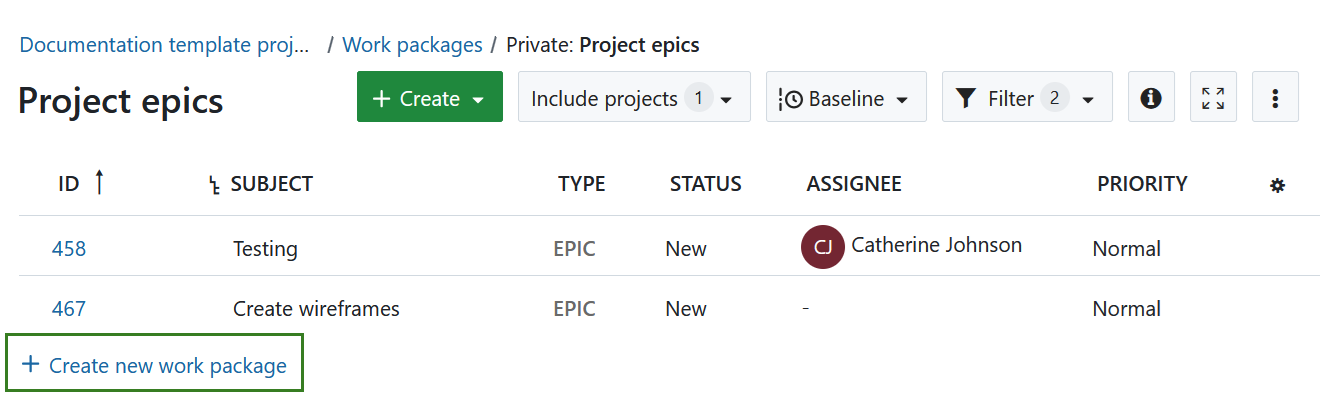
El nuevo paquete de trabajo aparece en una fila resaltada de la tabla. Escriba el asunto del paquete de trabajo, cambie los atributos, como Tipo o Estado directamente en la tabla y pulse Intro para guardar los cambios.
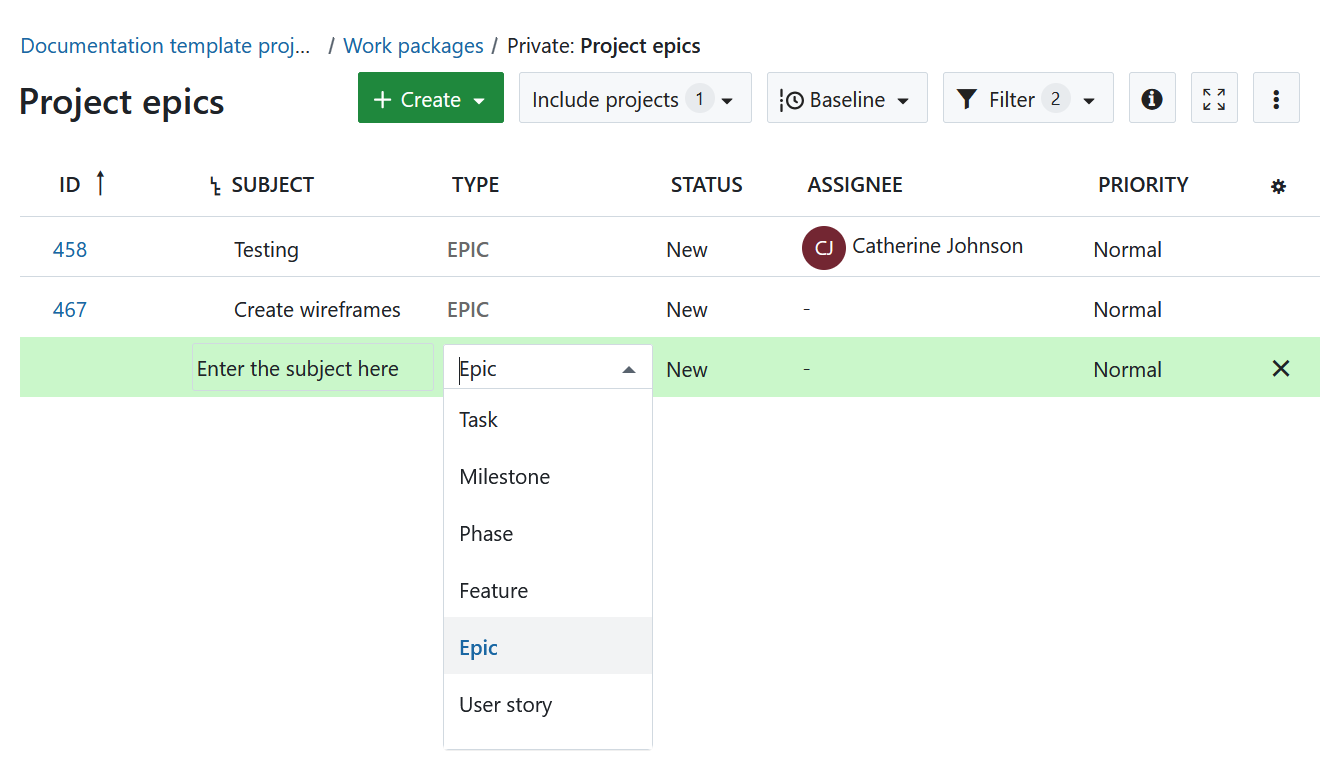
De este modo, podrá crear rápida y fácilmente nuevos paquetes de trabajo en la tabla.
De este modo, podrá crear rápida y fácilmente nuevos paquetes de trabajo en la lista, igual que en Excel.
Para introducir información detallada en el paquete de trabajo desde el principio, puede crear un paquete de trabajo en la vista de pantalla dividida. En el módulo Paquete de trabajo, pulse el botón verde + Crear y seleccione el tipo de paquete de trabajo que desea crear.
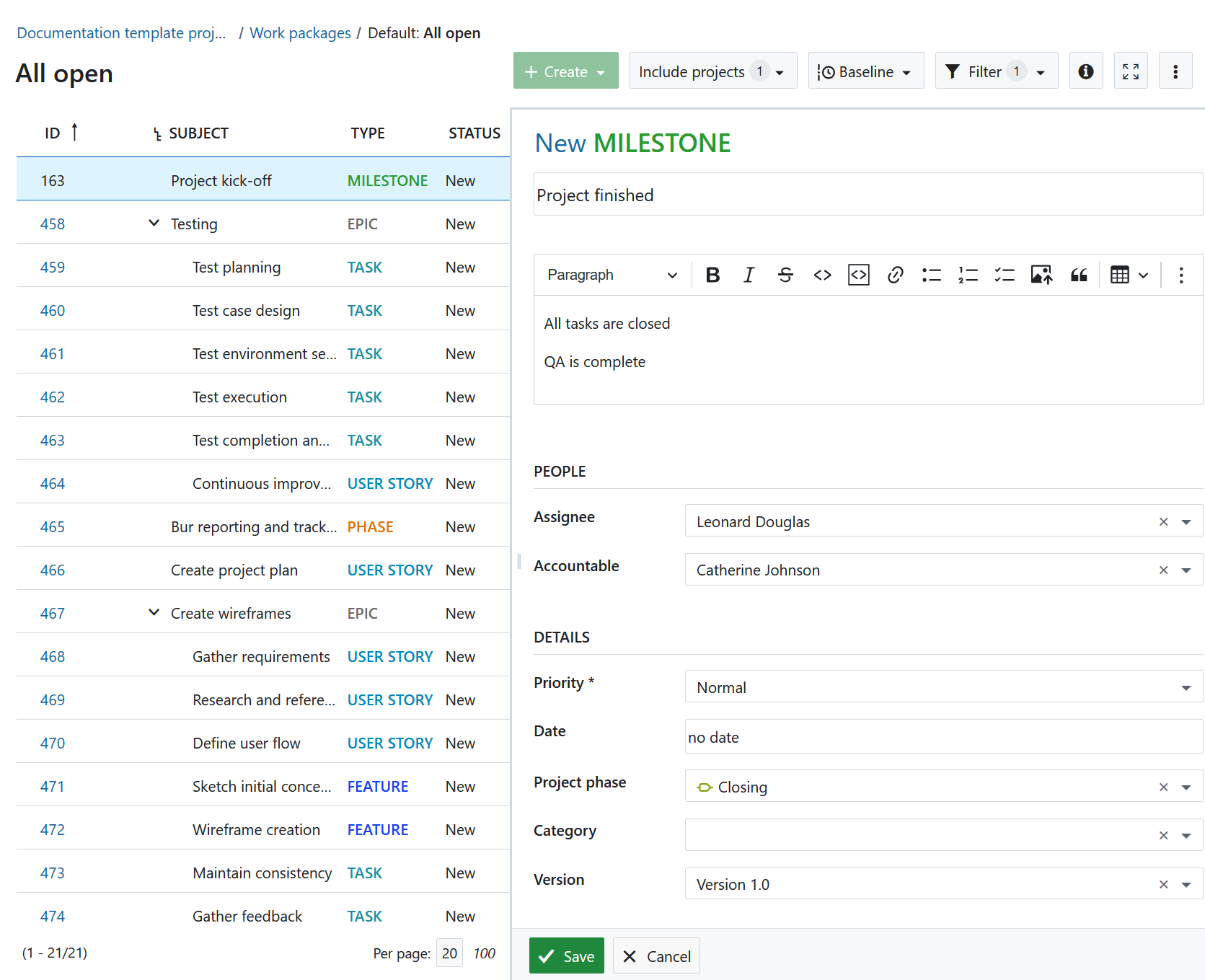
El nuevo formulario del paquete de trabajo se abrirá en la vista de pantalla dividida. Introduzca toda la información, como Descripción, Asignado, Estado, Prioridad, Fecha de vencimiento y más.
Pulse el botón Guardar.
Añadir emojis a los paquetes de trabajo
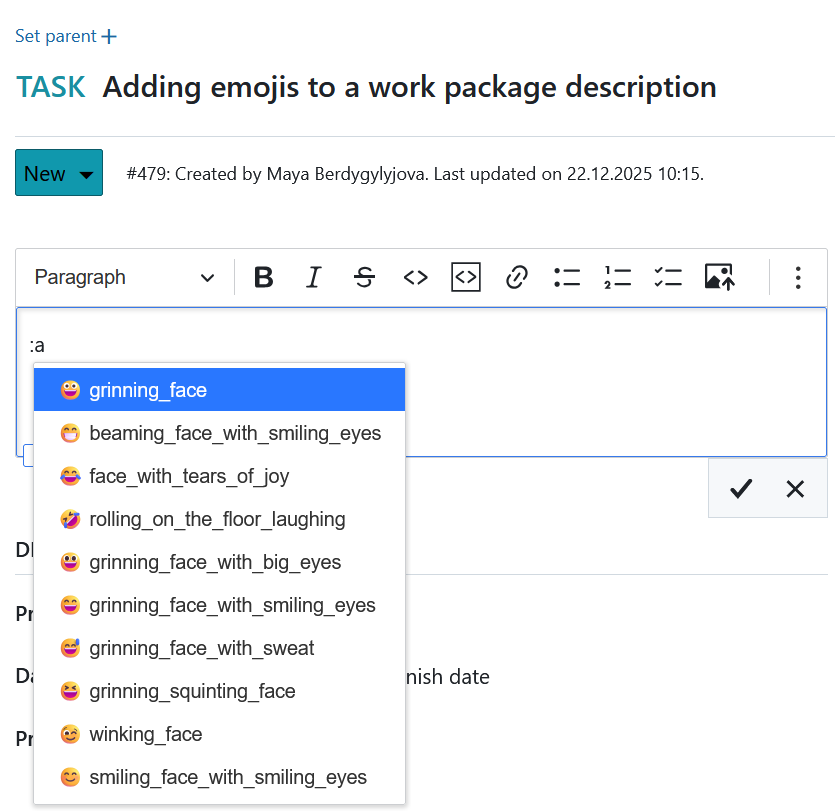
Puede añadir emojis a todos los editores de texto, incluida la descripción del paquete de trabajo. Escriba dos puntos y una letra, por ejemplo, :a en el editor de la wiki y consigue una lista sugerida de emojis que puede usar.
Para saber cómo crear un paquete de trabajo secundario, haga clic aquí.
Añadir archivos adjuntos a paquetes de trabajo
Puede añadir imágenes directamente, por ejemplo, mediante copiar y pegar en la descripción del paquete de trabajo. También puede utilizar la barra de herramientas situada encima de la descripción del paquete de trabajo y hacer clic en el icono Insertar imagen:

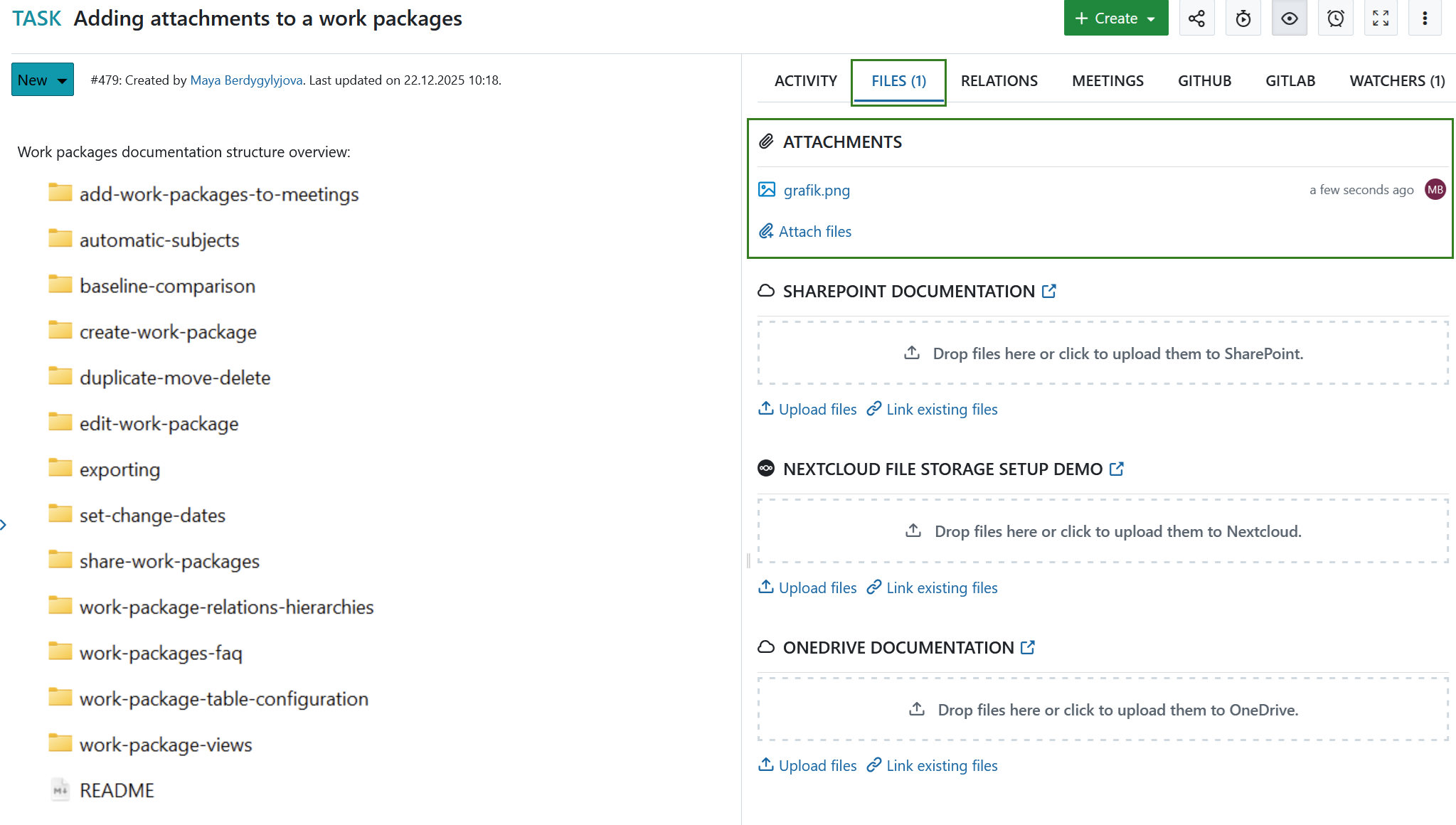
En la parte inferior del formulario del paquete de trabajo puede añadir archivos mediante arrastrar y soltar o seleccionar el archivo de una carpeta para cargarlo en el paquete de trabajo.
Consejo
También es posible que usuarios que no son miembros del proyecto añadan archivos adjuntos a los paquetes de trabajo si un administrador les ha concedido el permiso. Esto puede ser útil, por ejemplo, para confirmar informes de errores.
Descubra cómo editar paquetes de trabajo existentes.
Nota
También puede utilizar las integraciones Nextcloud, OneDrive o SharePoint para cargar archivos en un almacén de archivos o vincular archivos o carpetas ya existentes a un paquete de trabajo en la pestaña Archivos.