Integración de OneDrive (extensión Enterprise)
Puede utilizar OneDrive como almacenamiento de archivos integrado en OpenProject.

Nota
Esta función incluye el uso de las integraciones de OneDrive y SharePoint.
Esta integración le permite:
- Vincular archivos y carpetas almacenados en SharePoint con paquetes de trabajo en OpenProject
- Ver, abrir y descargar archivos y carpetas vinculados a un paquete de trabajo a través de la pestaña Archivos
Importante
Para poder utilizar OneDrive como almacenamiento de archivos en su proyecto, el administrador de su instancia debe haber completado primero la Configuración de la integración de OneDrive. Entonces un administrador del proyecto puede activar el almacenamiento integrado en Almacenamientos de archivos para un proyecto.
| Tema | Descripción |
|---|---|
| Conectar OpenProject a OneDrive | Cómo conectar su proyecto OpenProject y OneDrive |
| Vincular archivos y carpetas a paquetes de trabajo | Cómo vincular archivos y carpetas a paquetes de trabajo en OpenProject |
| Cargar archivos desde OpenProject | Cómo subir archivos a OneDrive desde OpenProject |
| Descargar, abrir carpetas y eliminar enlaces | Cómo descargar y abrir archivos y carpetas y eliminar enlaces |
| Permisos y control de acceso | Permisos y control de acceso en el almacenamiento de archivos de OneDrive |
| Posibles errores y solución de problemas | Errores comunes en la integración de OneDrive y cómo solucionarlos |
Conectar sus cuentas de OpenProject y OneDrive
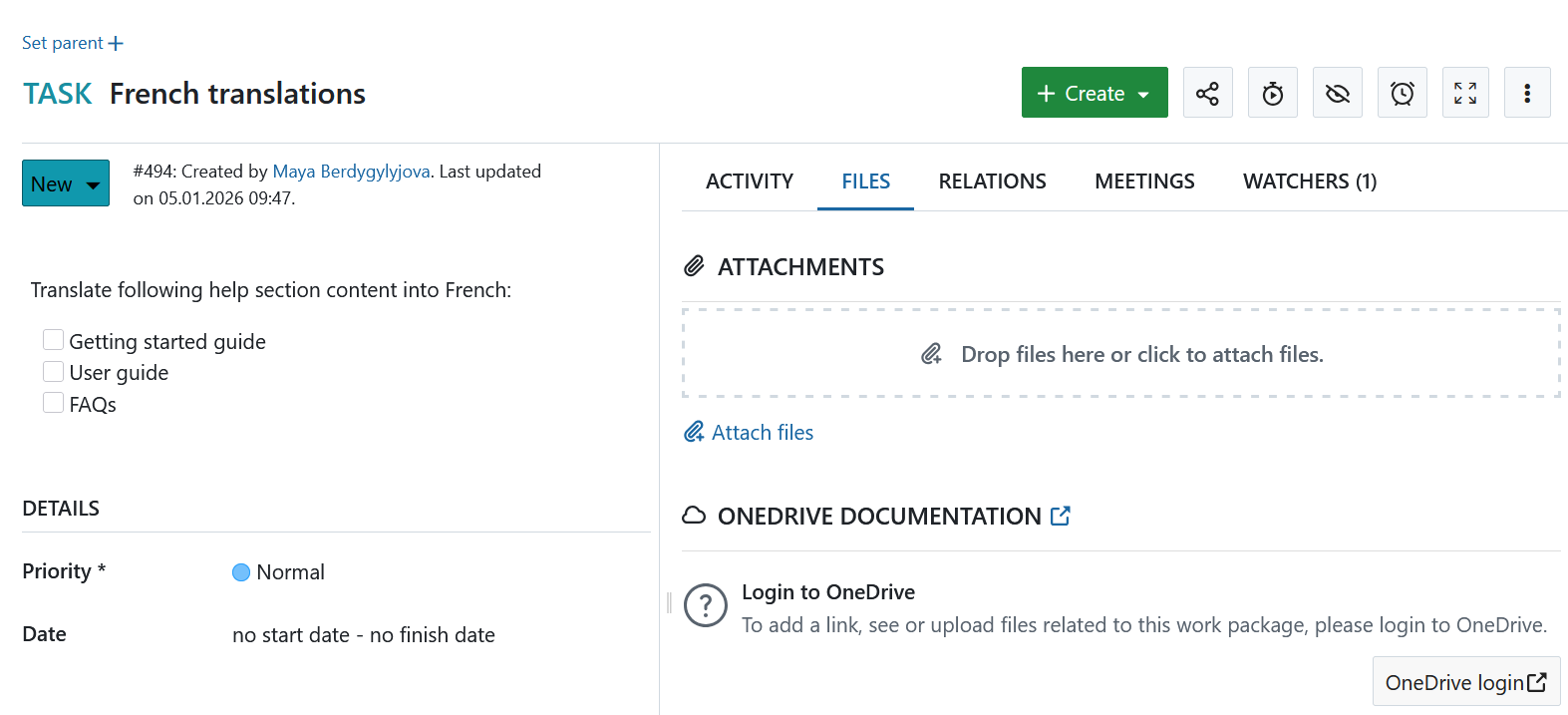
Para empezar a utilizar esta integración, primero tendrá que conectar sus cuentas de OpenProject y Microsoft. Para ello, abra cualquier paquete de trabajo de un proyecto en el que un administrador haya añadido y habilitado un almacenamiento de archivos de OneDrive y siga estos pasos:
-
Seleccione el paquete de trabajo Vaya a la pestaña Archivos y, dentro de la sección correcta de almacenamiento de archivos, haga clic en el botón Inicio de sesión de almacenamiento.
-
Aparecerá un mensaje de inicio de sesión de Microsoft pidiéndole que inicie sesión. Introduce tus credenciales e inicia sesión.
-
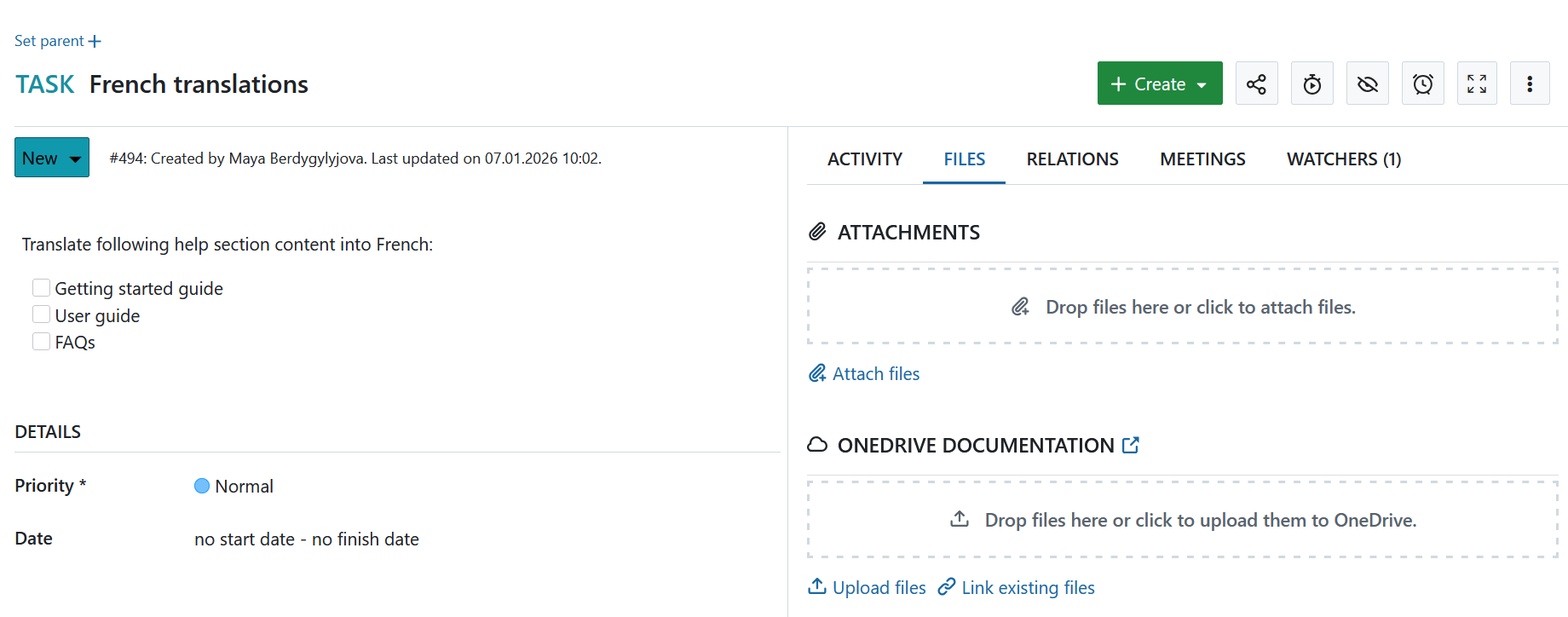
Una vez que haya iniciado sesión, volverá automáticamente al paquete de trabajo en OpenProject y verá que ya puede empezar a cargar y vincular archivos.
Vincular archivos y carpetas a paquetes de trabajo
Además de enumerar los archivos adjuntos directamente a un paquete de trabajo, la pestaña Archivos muestra los archivos de OneDrive que están vinculados al paquete de trabajo actual. Si pasa el ratón por encima de cualquier archivo enlazado, tendrá opciones para abrir o descargar el archivo, mostrar la carpeta que lo contiene en OneDrive o eliminar el enlace.
Para vincular un archivo de OneDrive al paquete de trabajo actual, puede:
- seleccionar un archivo local, que se cargará en el almacenamiento OneDrive y se vinculará a este paquete de trabajo
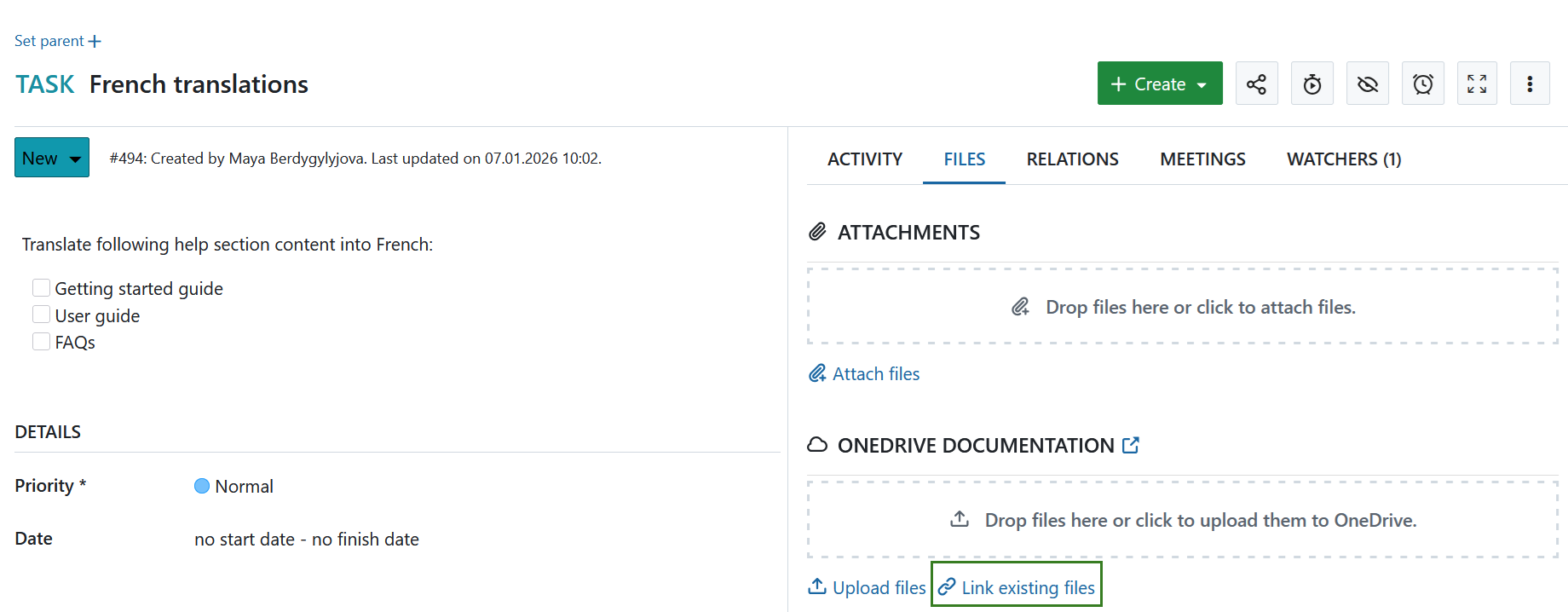
- seleccionar un archivo existente en OneDrive para enlazarlo
Nota
La ubicación predeterminada que se abre en el selector de archivos es la raíz de archivos de la unidad OneDrive configurada.
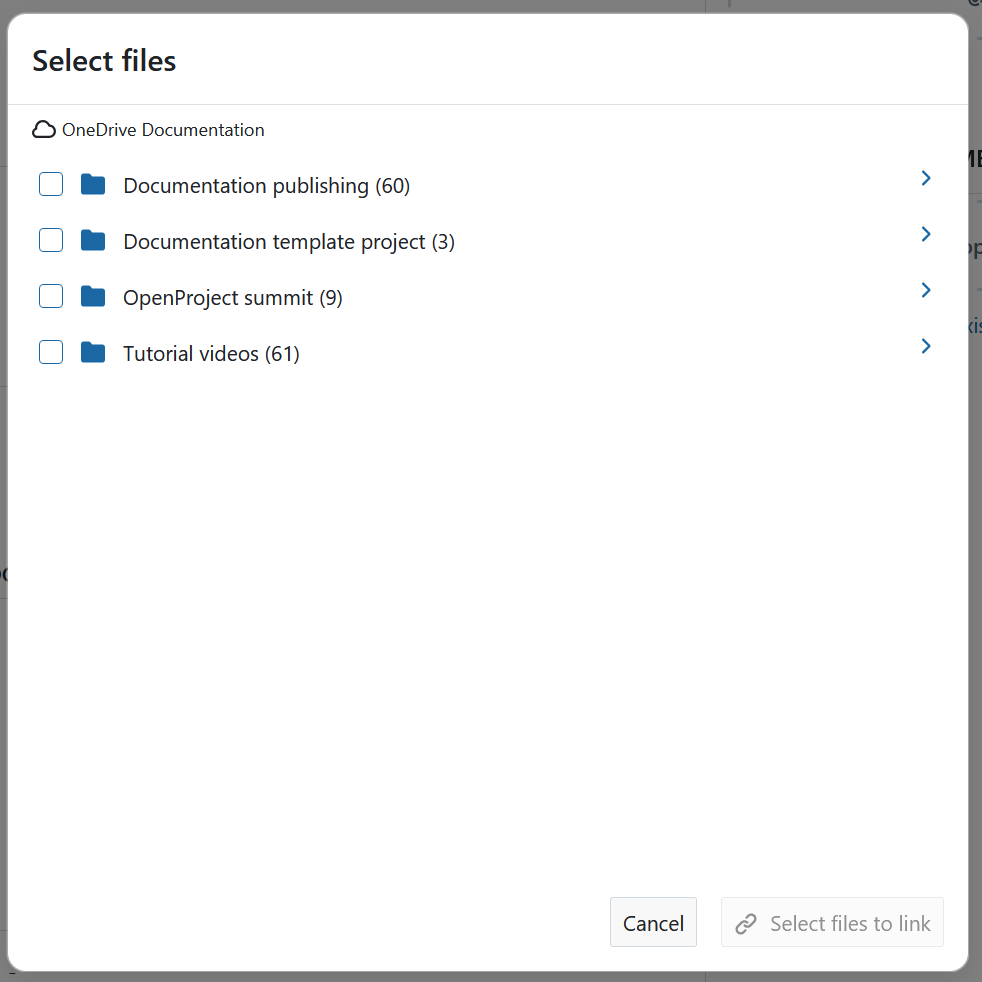
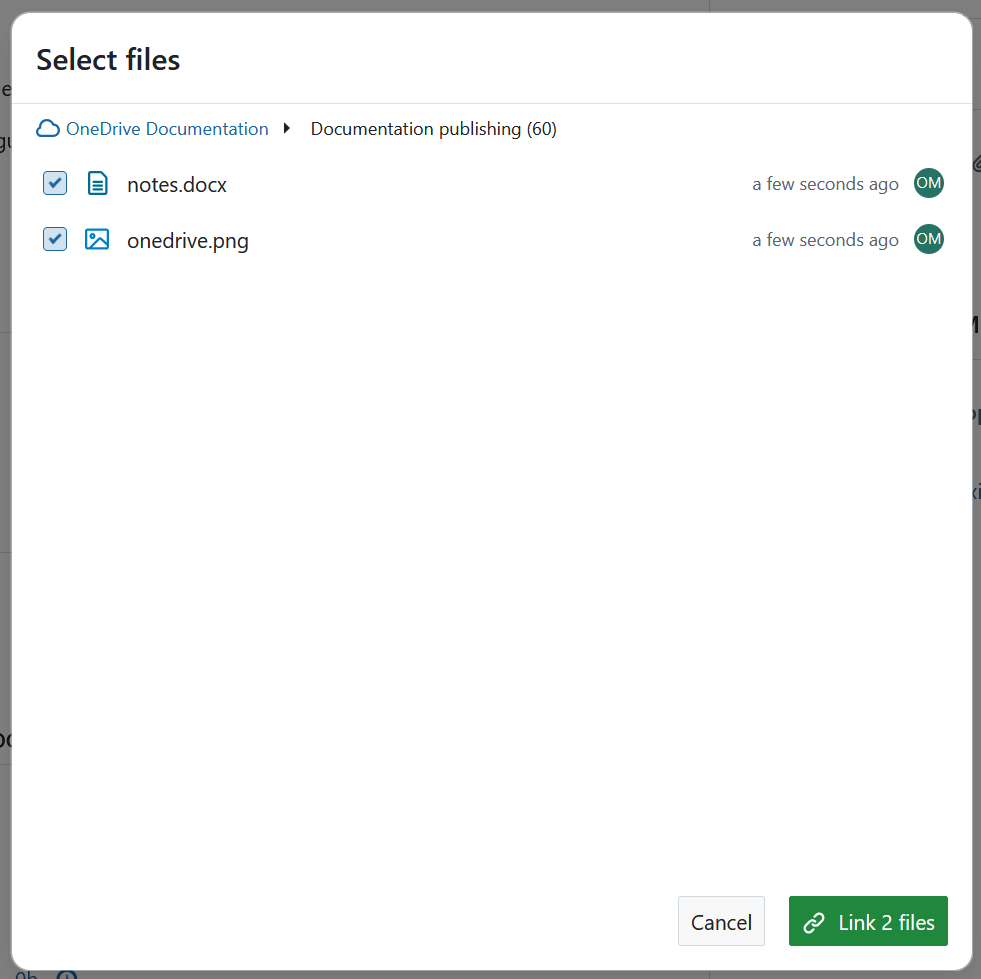
Seleccione cualquier carpeta o archivo (o varios) que desee vincular y, a continuación, haga clic en el botón Vincular.
Subir archivos de OpenProject
Si el archivo que desea vincular aún no ha sido subido a OneDrive, puede hacerlo haciendo clic en el enlace Subir archivos.
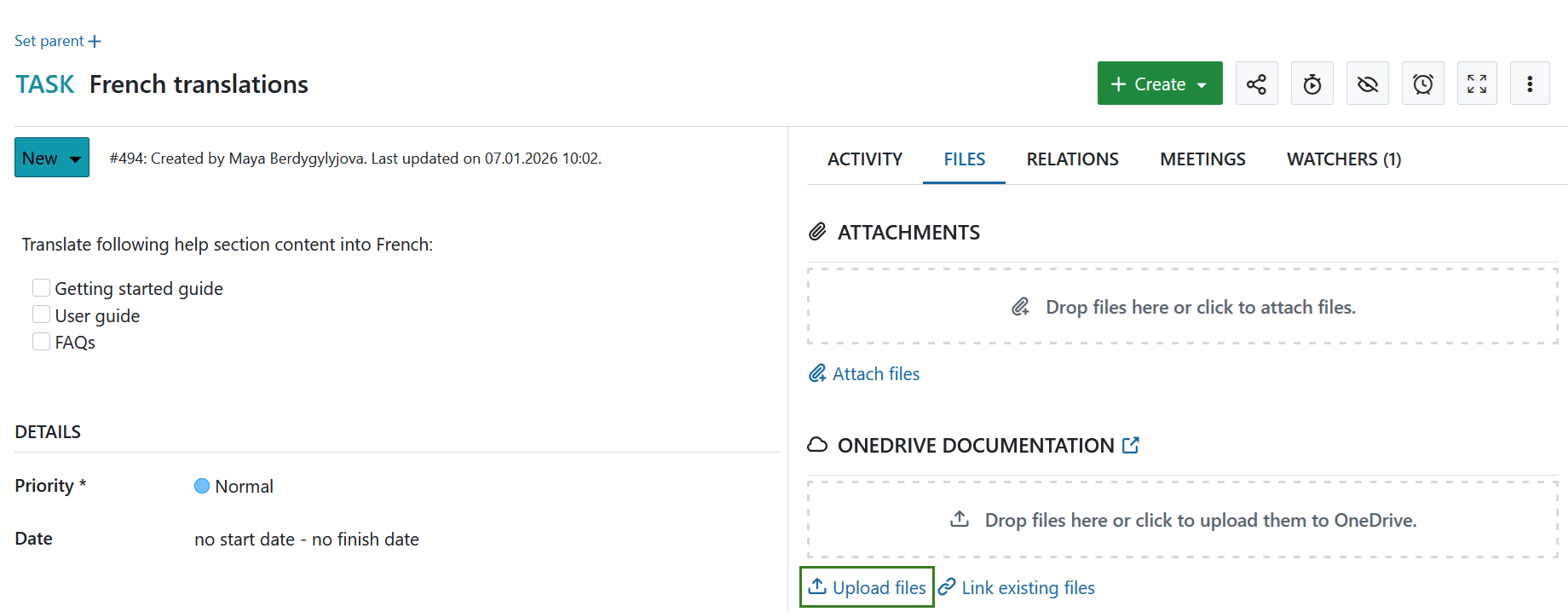
A continuación, se le pedirá que seleccione un archivo (o varios archivos) de su ordenador que desee cargar en OneDrive.
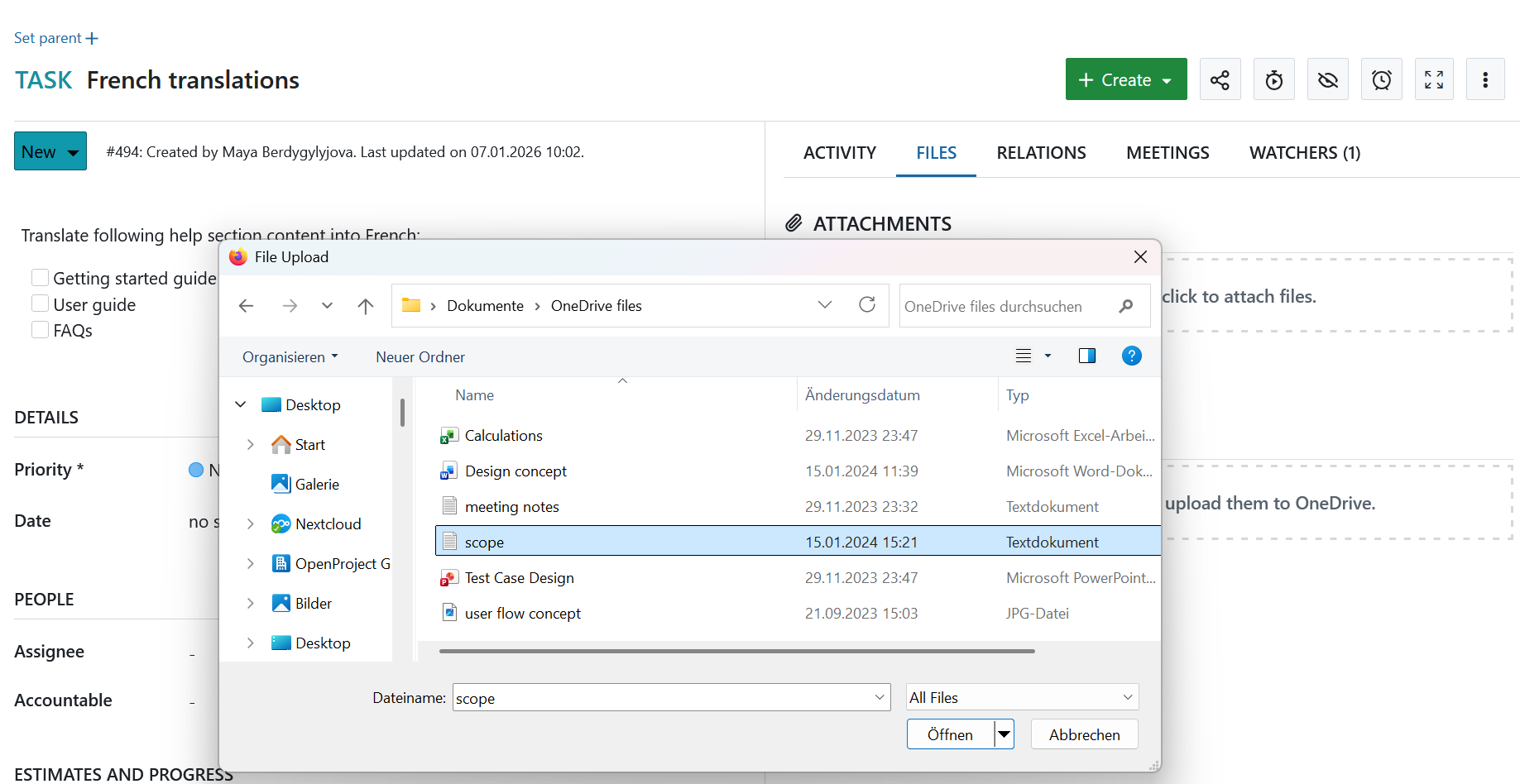
Alternativamente, puede simplemente arrastrar un archivo o carpeta desde su ordenador a la zona de arrastre que aparecerá bajo el nombre de su almacenamiento de archivos OneDrive.
Una vez que haya seleccionado o soltado los archivos que desea cargar, deberá seleccionar la ubicación en OneDrive en la que deben almacenarse.
Nota
La ubicación predeterminada que se abre en el selector de archivos es la raíz de archivos de la unidad OneDrive configurada.
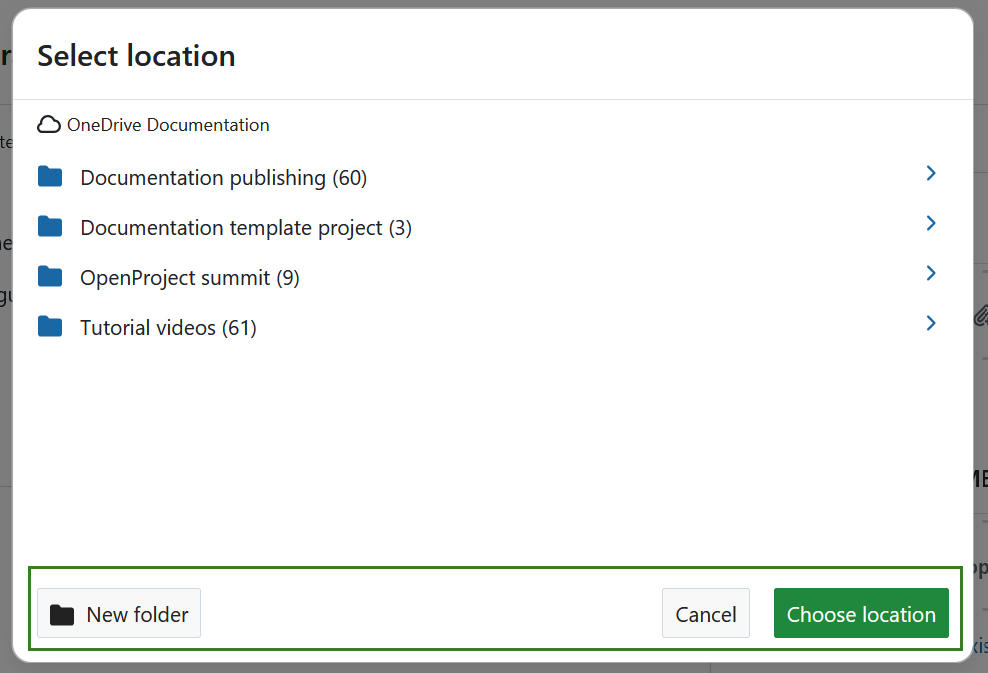
Puede hacer clic en las carpetas que vea para navegar hasta ellas. Una ruta de navegación le muestra dónde se encuentra en la jerarquía de carpetas.
Para navegar un nivel hacia arriba o volver a la raíz, basta con hacer clic en el elemento principal correspondiente en la ruta de navegación.
Consejo
Si ha navegado especialmente profundo (más de 4 niveles), es posible que los niveles intermedios se contraigan para ahorrar espacio, pero siempre podrá navegar de vuelta al principal inmediato o a la raíz para retroceder.
También puede crear directamente una nueva carpeta dentro de la estructura de carpetas de OneDrive en este punto utilizando el botón Nueva carpeta.
Para guardar los archivos cargados en la carpeta abierta en ese momento, pulse el botón Elegir ubicación.
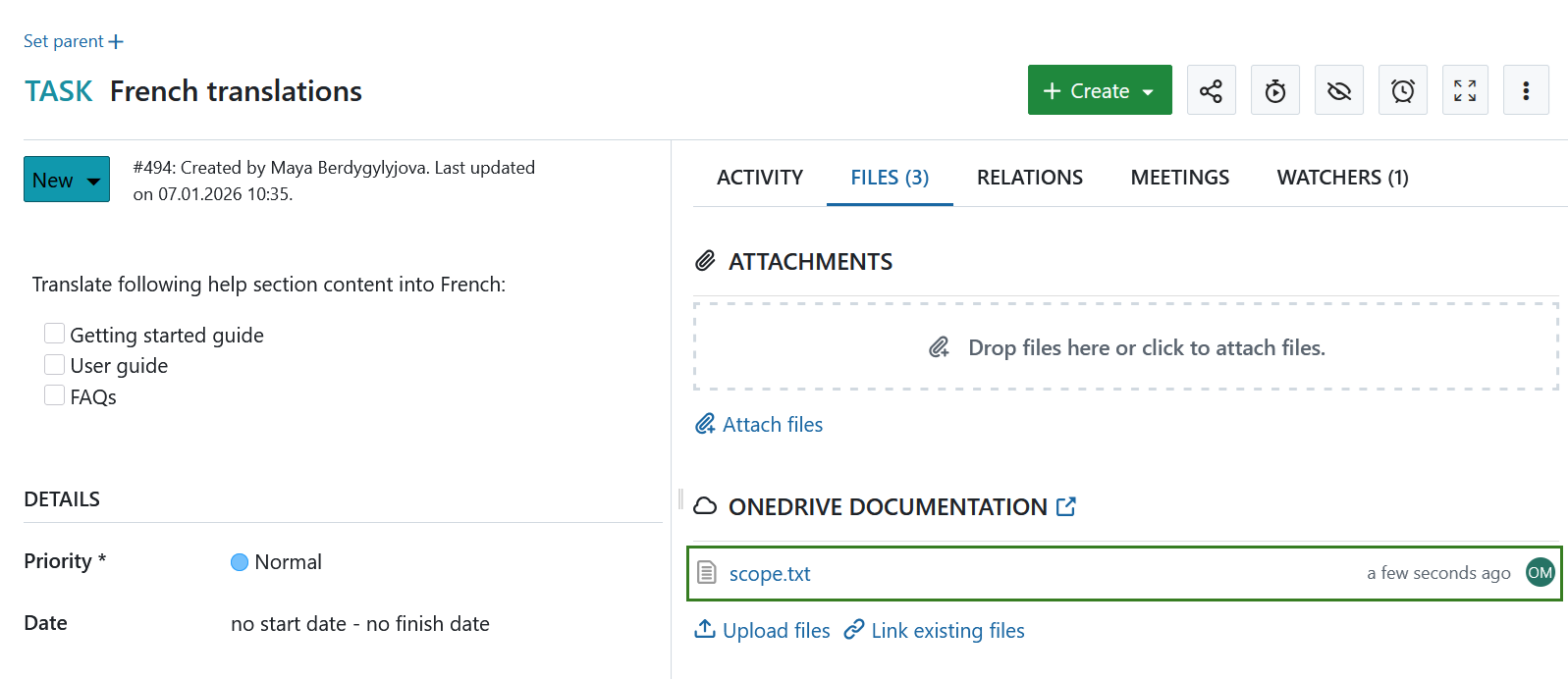
El archivo seleccionado se carga en su instancia de OneDrive y se vincula al paquete de trabajo actual. Aparece bajo el nombre del almacén de archivos.
Si se ha eliminado un archivo en el almacenamiento de archivos de OneDrive, seguirá apareciendo en la pestaña Archivos. Sin embargo, no será seleccionable. Si pasa el cursor sobre un archivo borrado, verá el mensaje indicando que el archivo no pudo ser encontrado.
Se ha eliminado un archivo del almacén de archivos de OneDrive](oneproject_onedrive_deleted_file.png)
Descargar, abrir carpetas y eliminar enlaces
Si desea desvincular algún archivo o carpeta vinculado, sitúese sobre él en la lista de Archivos vinculados y pulse sobre el icono Desvincular.
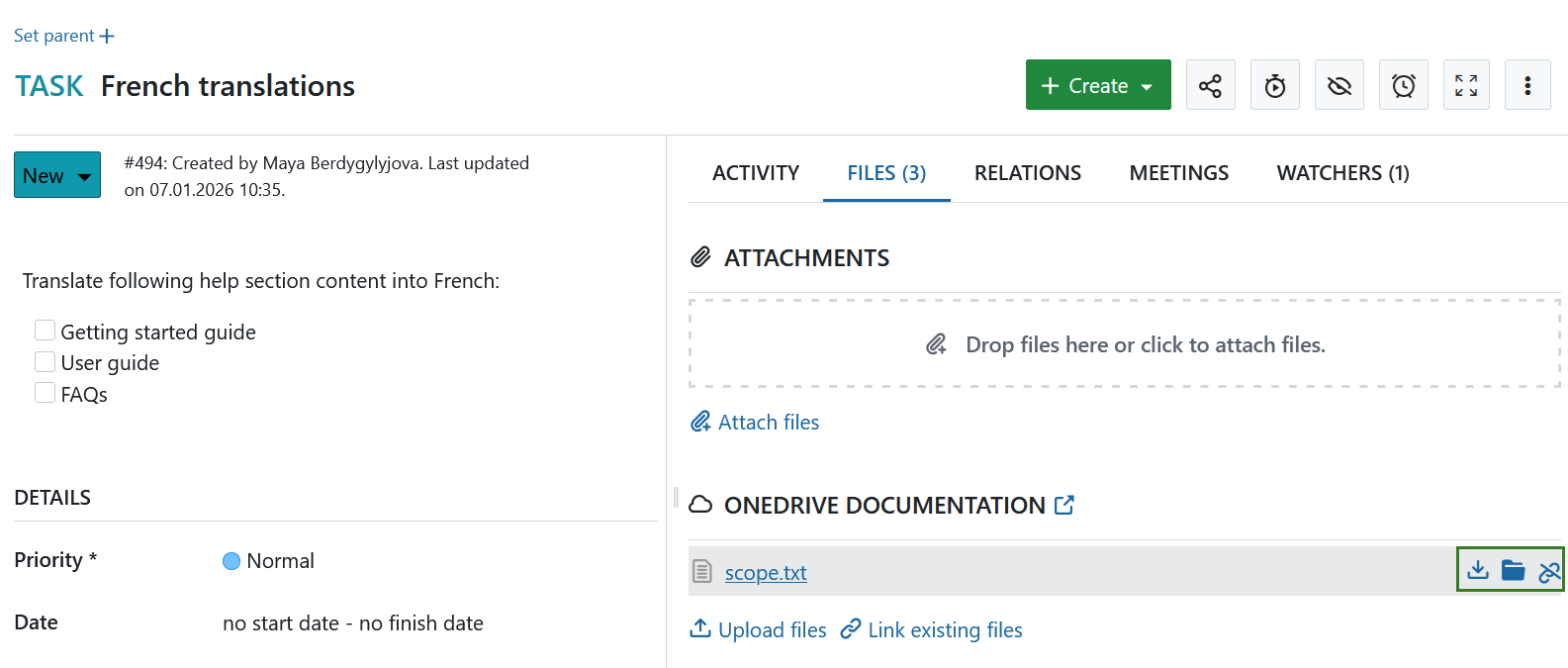
Para descargar un archivo, haga clic en el icono Descargar del menú contextual del enlace del archivo en la lista de archivos enlazados.
Si hace clic en el icono Carpeta, la carpeta de OneDrive que contiene este archivo se abrirá en una pestaña aparte.
Permisos y control de acceso
Cuando un archivo o carpeta de OneDrive está vinculado a un paquete de trabajo, un usuario de OpenProject que tenga acceso a ese paquete de trabajo podrá:
- Ver el nombre del archivo o carpeta vinculado
- Ver cuando fue modificado por última vez (o creado, si aún no ha sido modificado)
- Ver quién lo modificó por última vez (o quién lo creó, si aún no ha sido modificado)
Sin embargo, todas las acciones disponibles dependen de los permisos que el usuario de OpenProject (o más precisamente, la cuenta de OneDrive vinculada a ese usuario) tenga en OneDrive. En otras palabras, un usuario que no tenga permiso para acceder al archivo en OneDrive no podrá abrir, descargar, modificar o desvincular el archivo en OpenProject.
Tenga en cuenta que con las carpetas de proyecto gestionadas automáticamente, estos permisos son establecidos por OpenProject basado en los permisos de usuario en OpenProject.
Posibles errores y solución de problemas
No hay permiso para ver este archivo
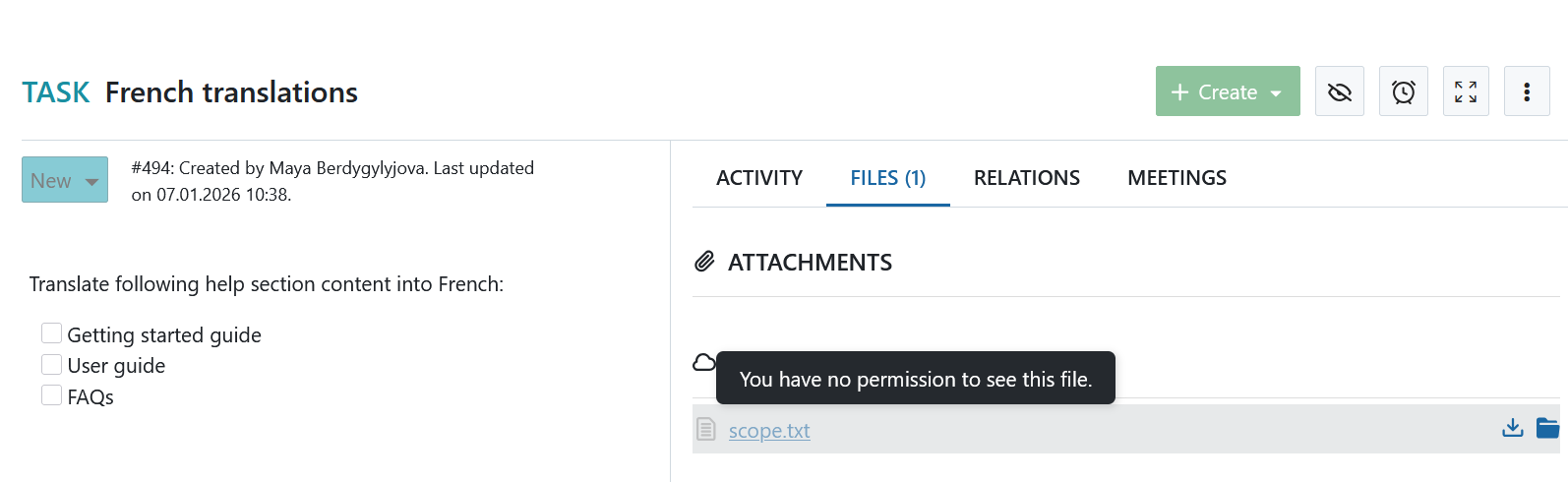
Si no puede ver los detalles de un archivo o no puede abrir algunos de los archivos vinculados a un paquete de trabajo, podría estar relacionado con que su cuenta de OneDrive no dispone de los permisos necesarios. En tal caso, podrá ver el nombre del archivo, la hora de la última modificación y el nombre del modificador, pero no podrá realizar ninguna otra acción. Para abrir o acceder a estos archivos, póngase en contacto con el administrador de OneDrive o con el creador del archivo para que le concedan los permisos necesarios.