Dokumente
Mit dem Modul „Dokumente” können Sie Dokumente direkt im Projekt erstellen oder hochladen.
Hinweis
Verwenden Sie das Modul Dokumente, um Dokumente direkt in Ihren Projekten zu erstellen, zu schreiben oder hochzuladen. Wenn Sie extern gespeicherte Dateien verwalten müssen, sehen Sie sich bitte die Dateispeicher Integrationen an.
Wichtig
Mit der Version 17.0 wurde die Zusammenarbeit an Dokumenten in Echtzeit eingeführt. Sie ist automatisch für die folgenden Installationstypen verfügbar:
- Containerisierte Installationen
- Cloud-gehostete Installationen
Paketinstallationen (DEB/RPM) erfordern eine zusätzliche manuelle Einrichtung. Weitere Einzelheiten entnehmen Sie bitte dem Systemadministrationshandbuch.
Dokumentenindex
Um das Modul Dokumente nutzen zu können, stellen Sie sicher, dass es in den Projekteinstellungen Ihres Projekts aktiviert ist (Projekteinstellungen → Module).
Sobald es aktiviert ist, können Sie in der Seitenleiste Ihres Projekts zum Modul Dokumente navigieren, um zum Dokumentenindex zu gelangen, in dem alle verfügbaren Dokumente aufgelistet sind:
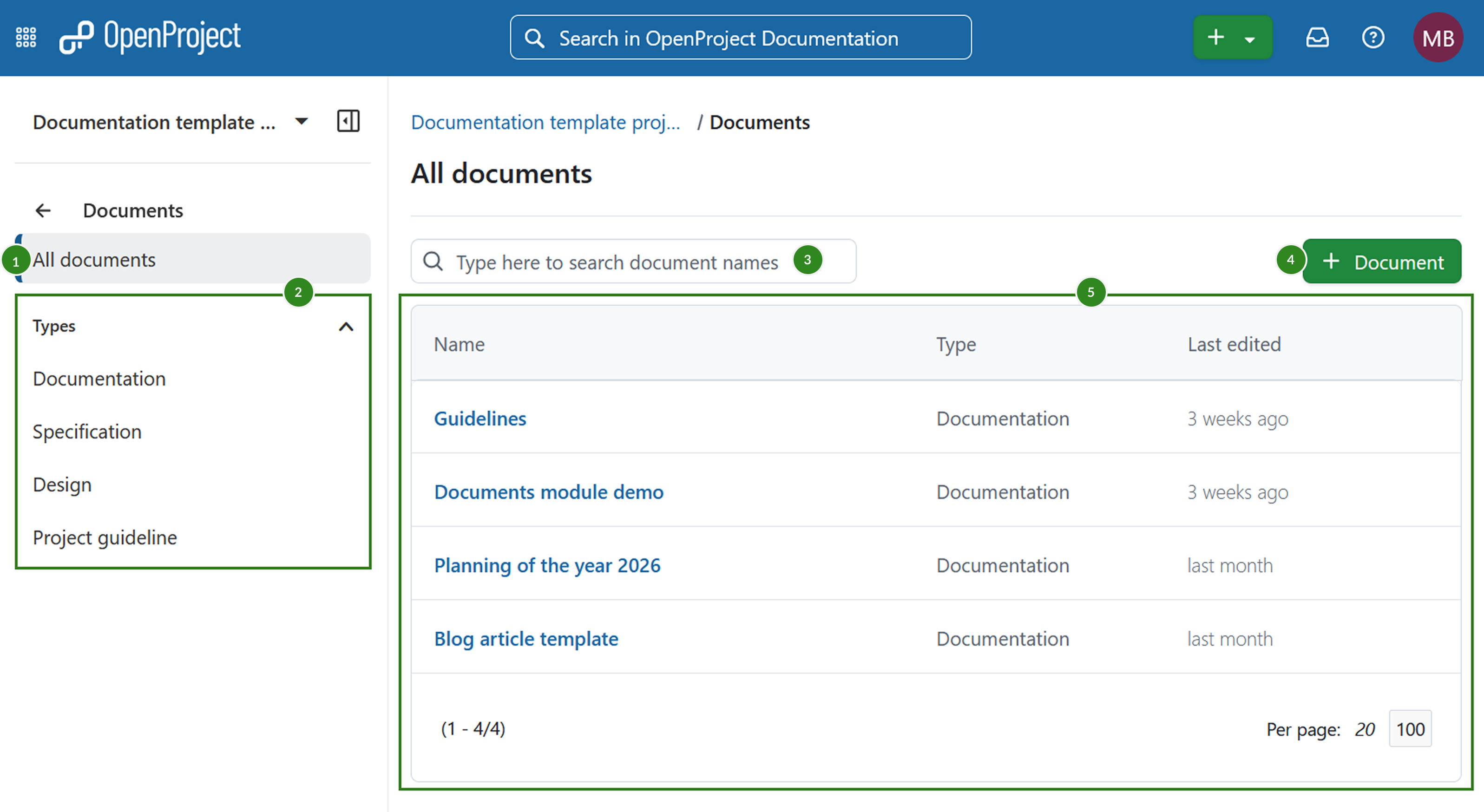
Auf der Seite Dokumenten-Indexseite können Sie:
-
Alle Dokumente ansehen
-
Nach Dokumenttyp filtern
Tipp
If no document types were specified by you yet, default document types are seeded. They include: Note, Idea, Proposal, Specification, Report and Documentation.
-
Schnellfilterung der Dokumentliste anhand des Dokumenttitels benutzen
-
Neues Dokument hinzufügen
-
Eine Liste aller verfügbaren Dokumente, einschließlich ihres Typs und des Datums ihrer letzten Bearbeitung sehen. Dokumente, die vor der Version 17.0 erstellt wurden, werden mit dem Label Legacy gekennzeichnet.
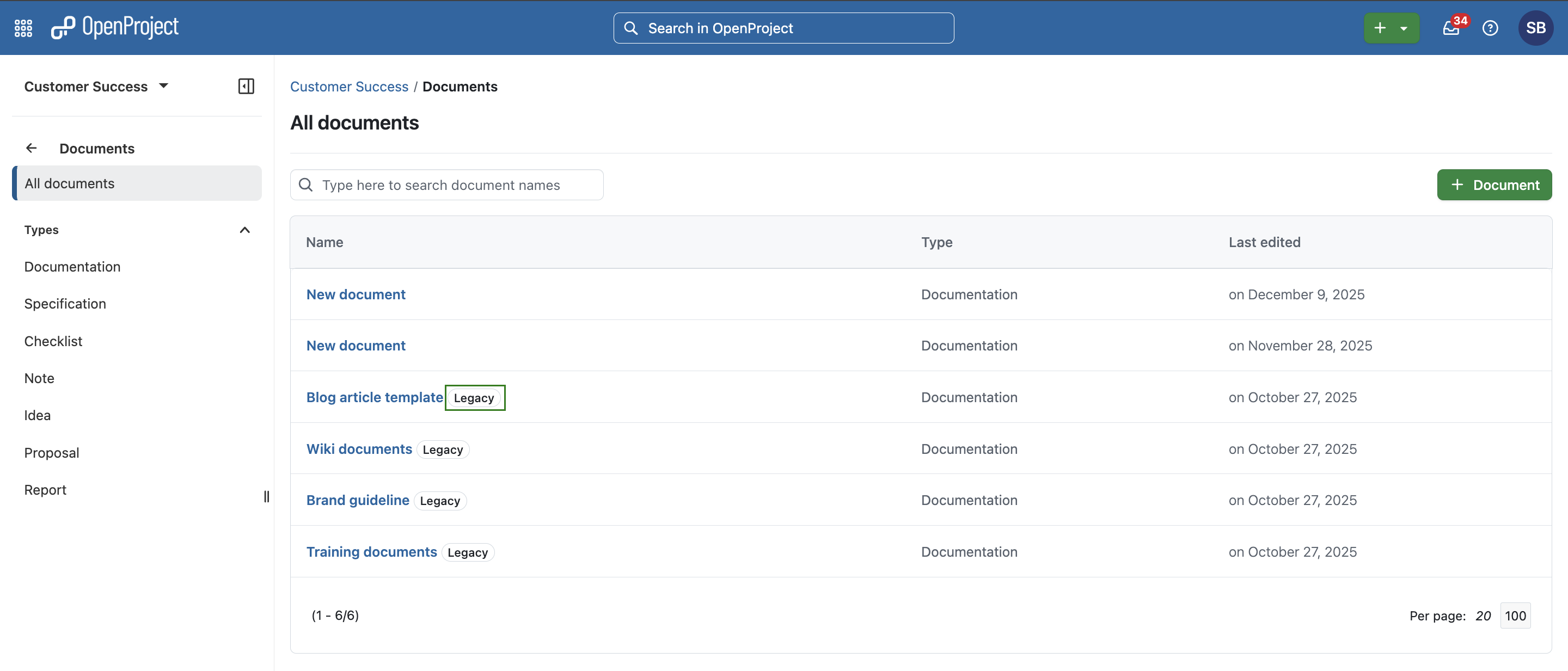
Ein Dokument in OpenProject kann:
- ein direkt im Editor eines Dokuments geschriebener Text
- eine hochgeladene und an ein Dokument angehängte Datei
- sowohl eine hochgeladene und an ein Dokument angehängte Datei als auch eine Textnotiz, die sie beschreibt sein.
Dokument ansehen
Um ein Dokument anzusehen, klicken Sie einfach auf den Namen eines Dokuments im Index. Sie sehen dann das Dokument:
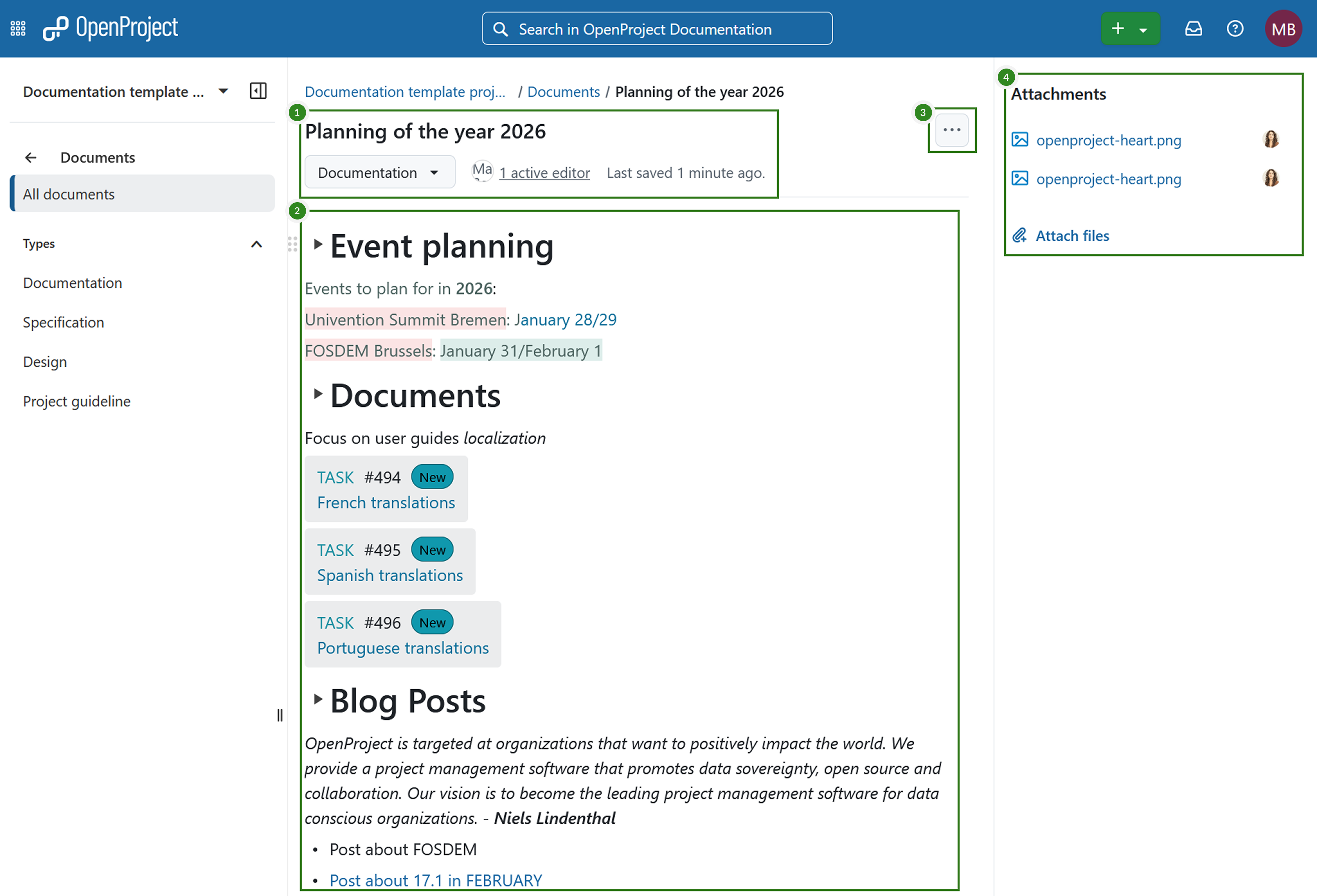
Ein Dokument hat:
- Ein Titel, eine Kategorie, die Anzahl der aktiven Redakteure und das Datum der letzten Speicherung
- Mehr Menü mit Optionen zum Bearbeiten, Kopieren von Links und Löschen eines Dokuments
- Der Text des Dokuments selbst
- Anhänge
Neues Dokument dem Projekt hinzufügen
Um ein neues Dokument zu erstellen, klicken Sie auf die Schaltfläche + Dokument.
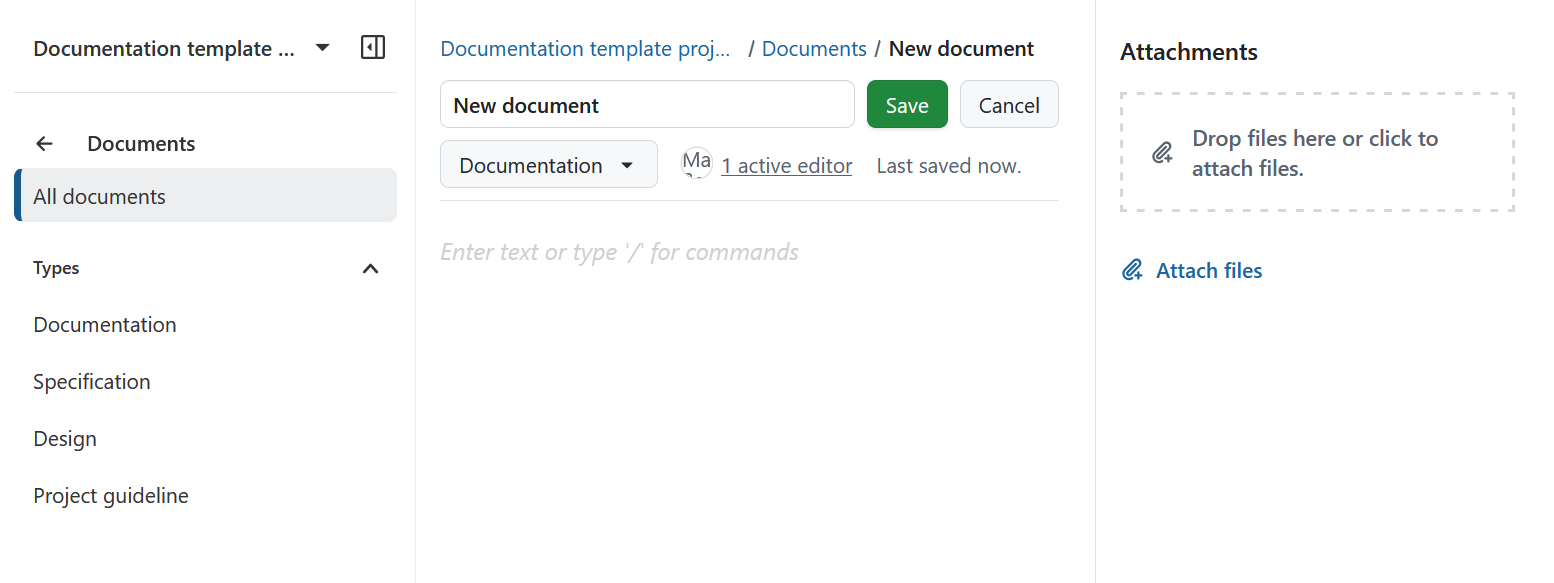
Wählen Sie in dem daraufhin angezeigten Formular die Dokumentenkategorie aus, geben Sie einen Titel und eine optionale Beschreibung ein. Optional können Sie auch eine Datei an das Dokument anhängen.
Bitte beachten Sie, dass diese Dokumentenkategorien vom Administrator Ihrer Instanz erstellt werden.
Die hochgeladenen Dokumente sind sichtbar für alle Projektmitglieder, die über die erforderliche Berechtigung verfügen.
Hinweis
Es gibt keine Versionierung von Dokumenten. Eine Bearbeitung eines beliebigen Feldes oder des Inhalts des Dokuments ist für alle Mitglieder sichtbar.
Ein Projektdokument bearbeiten
Sie können ein Dokument jederzeit bearbeiten.
Um einen Dokumententitel zu bearbeiten, klicken Sie auf das Menü Mehr (drei Punkte) und wählen Sie Titel bearbeiten.
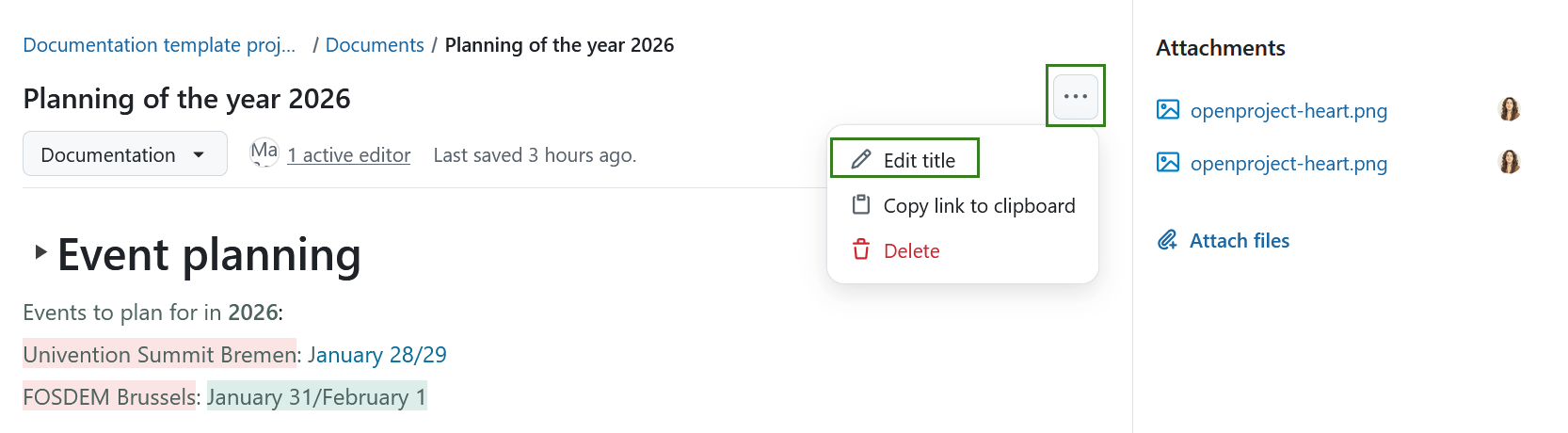
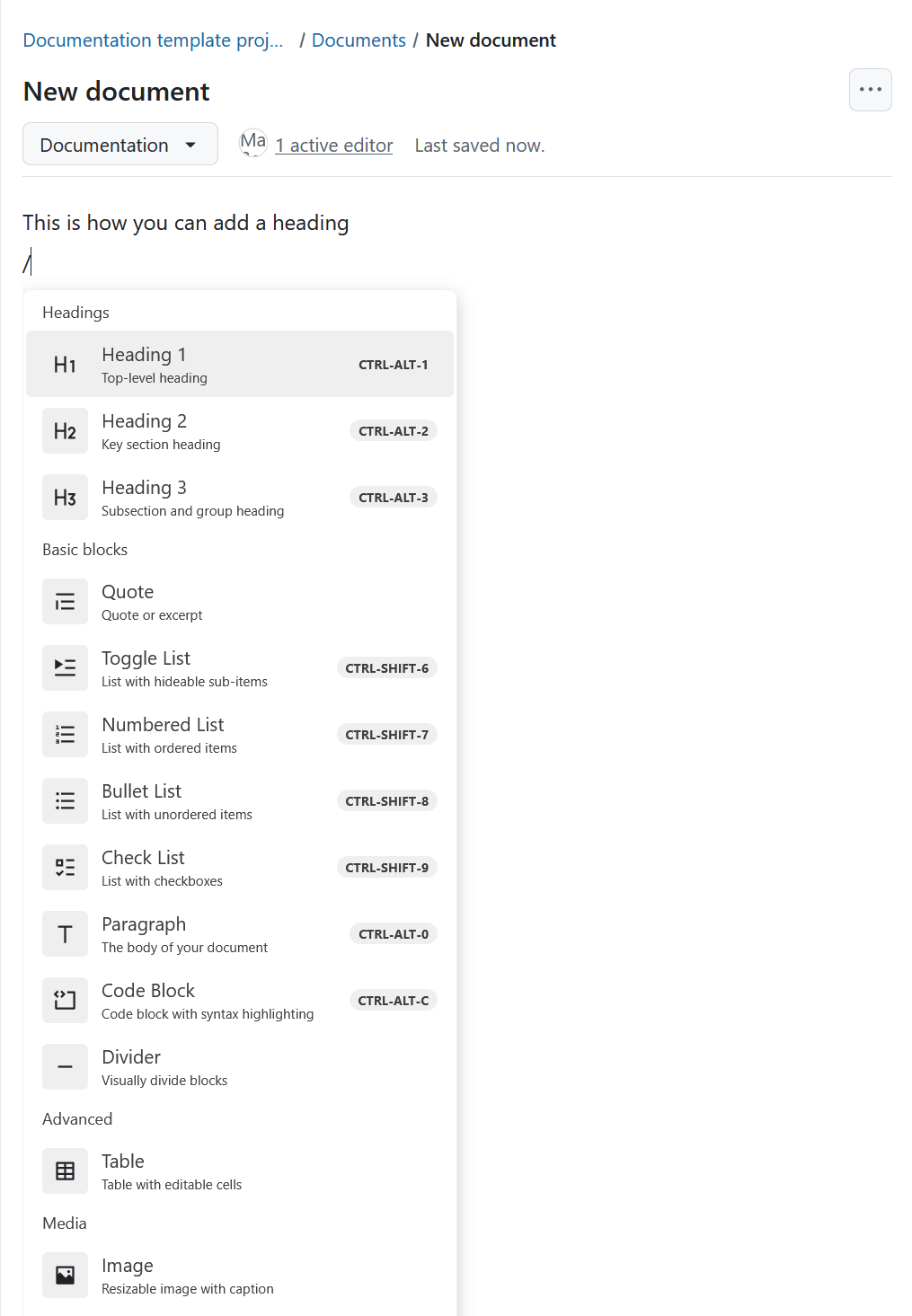
Um das Dokument selbst zu bearbeiten, klicken Sie einfach auf eine beliebige Stelle des Dokuments und Sie können direkt mit der Bearbeitung beginnen. Beginnen Sie mit der Texteingabe oder verwenden Sie /, um Überschriften, Blöcke, Medienelemente, Emojis und Links zu Arbeitspaketen hinzuzufügen.
Gemeinsame Bearbeitung
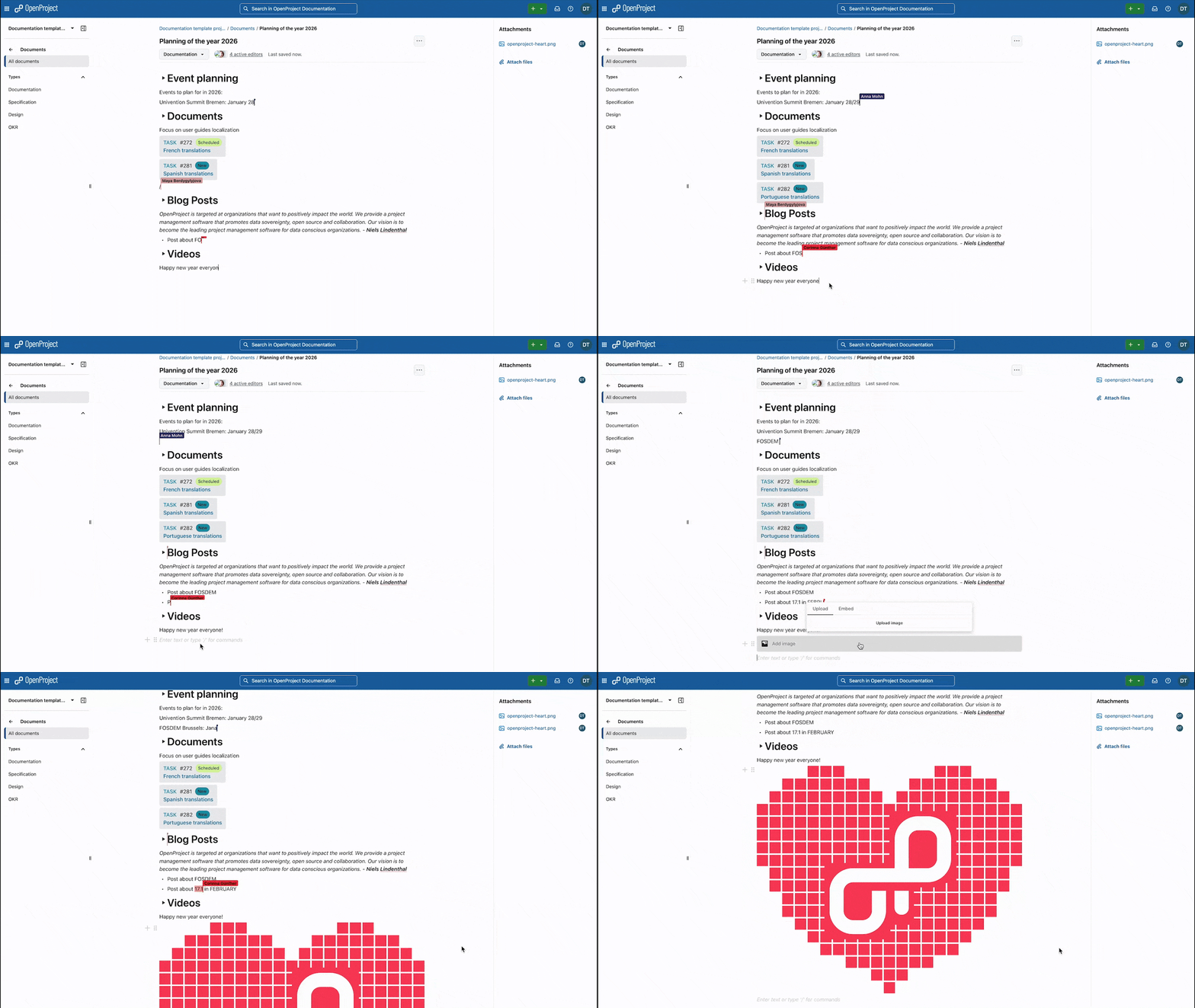
Mehrere Projektmitglieder können ein Dokument gleichzeitig bearbeiten. Wenn dies der Fall ist, sehen Sie in Echtzeit, welche Änderungen von welchem Benutzer oder Benutzerin vorgenommen wurden.
Schauen Sie sich dieses Beispiel zur Veranschaulichung an.
Verknüpfung von Arbeitspaketen mit Dokumenten
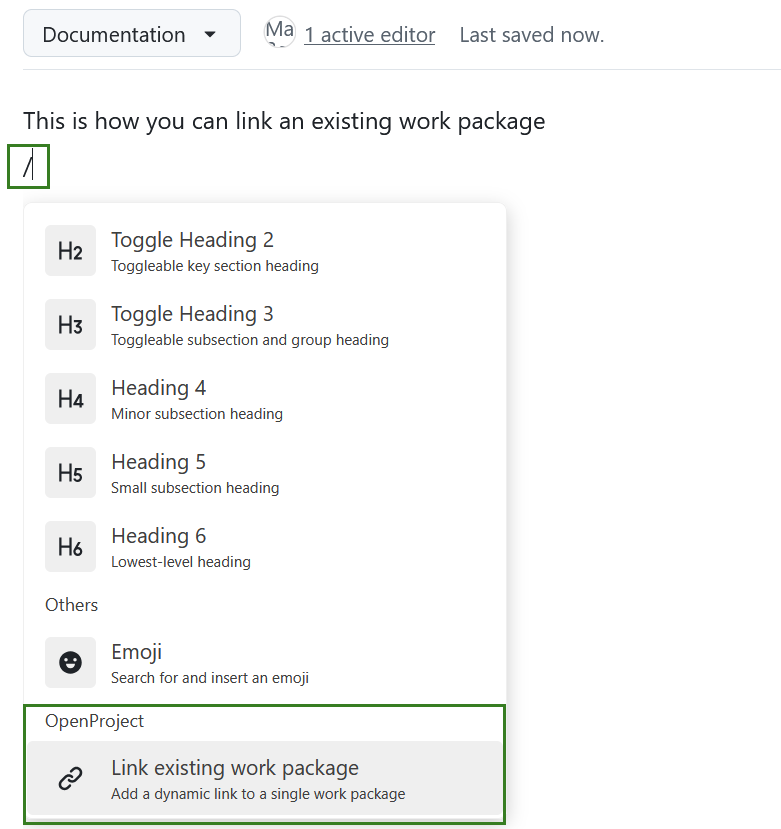
Sie können ein bestehendes Arbeitspaket mit einem Dokument verknüpfen. Beginnen Sie dazu mit der Bearbeitung eines Dokuments, geben Sie / ein, scrollen in der Liste der verfügbaren Optionen nach unten und wählen Sie Verknüpfung mit bestehendem Arbeitspaket.
Ein Projektdokument löschen
Sie können ein Dokument in OpenProject ganz einfach löschen.
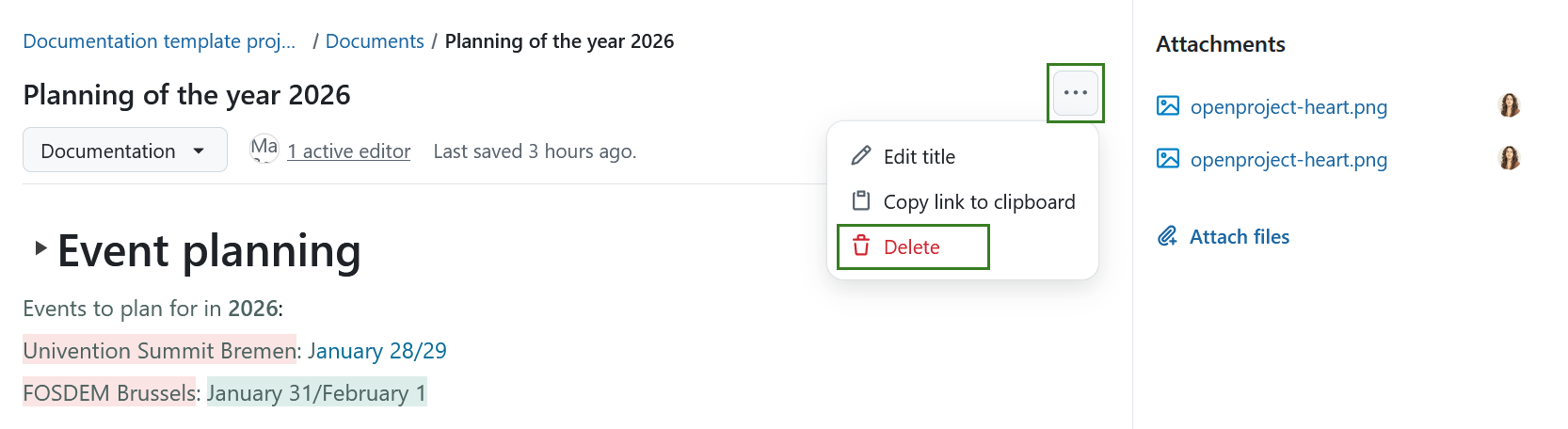
Um ein Dokument zu löschen, klicken Sie auf das Menü Mehr (drei Punkte) und wählen Sie Löschen.
Häufig gestellte Fragen (FAQ)
Warum kann ich Dokumente nicht in Echtzeit bearbeiten?
Die Zusammenarbeit an Dokumenten in Echtzeit ist in OpenProject ab Version 17.0 verfügbar. Ob Sie diese Funktion nutzen können, hängt davon ab, wie Ihre OpenProject-Instanz eingerichtet ist. In Cloud-gehosteten und containerisierten Konfigurationen ist die Echtzeitbearbeitung standardmäßig aktiviert. Für gepackte Installationen (DEB/RPM) ist eine zusätzliche Konfiguration erforderlich. Bitte wenden Sie sich an Ihre:n OpenProject-Administrator:in und/oder lesen Sie im Systemadministrationshandbuch für weitere Details nach.
Gibt es eine Größenbeschränkung für das Hochladen von Dokumenten in die OpenProject Cloud Edition?
In OpenProject gibt es kein Limit für die Anzahl der Dateien, die Sie in OpenProject hochladen möchten. Es gibt nur eine Einschränkung hinsichtlich der maximalen Dateigröße: Eine Datei kann eine Größe von bis zu 256 MB haben.