Ein Arbeitspaket erstellen
| Thema | Inhalt |
|---|---|
| Arbeitspaket erstellen | So erstellen Sie ein neues Arbeitspaket in einem Projekt. |
| Anhänge zu einem Arbeitspaket hinzufügen | So fügen Sie Anhänge zu einem Arbeitspaket hinzu. |
Ein Arbeitspaket erstellen
Es gibt mehrere Möglichkeiten, Arbeitspakete in OpenProject zu erstellen:
- Über die Kopfzeilennavigation von einer beliebigen Stelle innerhalb der Anwendung
- In-line in der Arbeitspaket-Tabelle, um schnell mehrere Arbeitspakete zu erstellen
- In einer geteilten Bildschirmansicht, in der Sie von Anfang an detaillierte Informationen angeben können
Ein Arbeitspaket über Kopfzeilen-Navigation erstellen
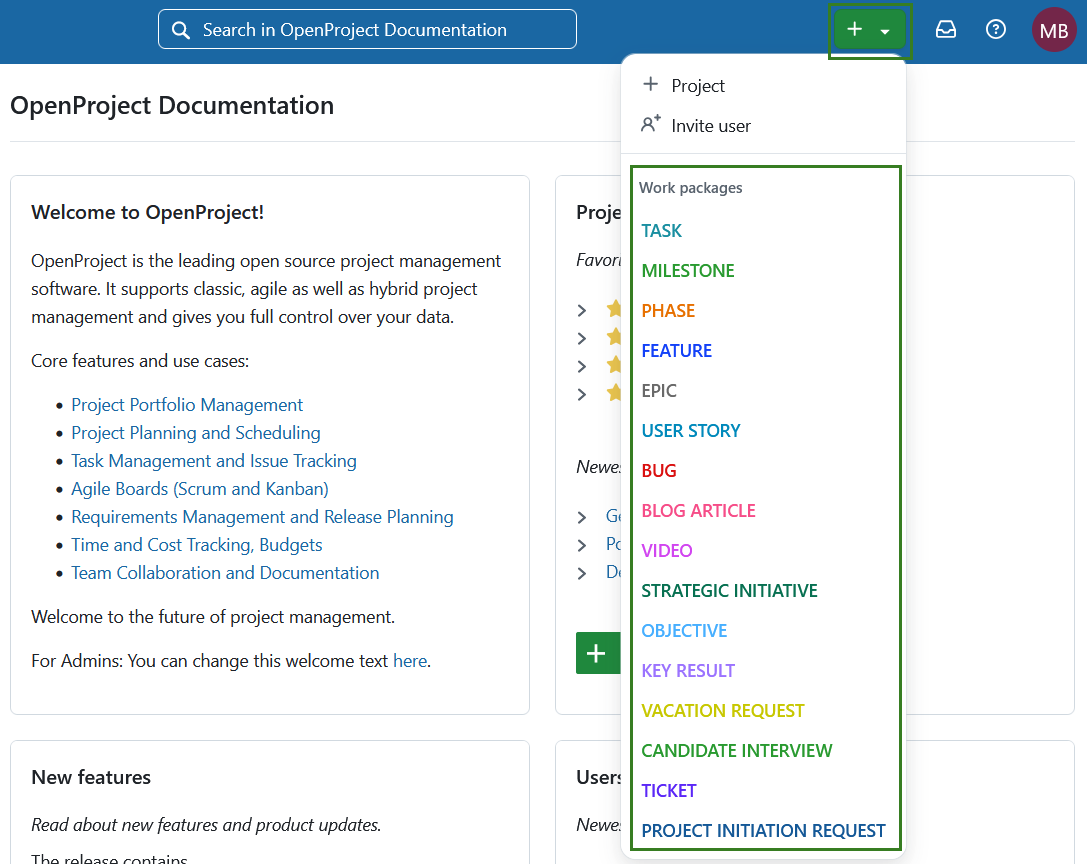
Sie können ein Arbeitspaket von überall in der Anwendung erstellen, indem Sie auf die grüne Schaltfläche + in der Kopfnavigation klicken und direkt einen Arbeitspaket-Typ auswählen.
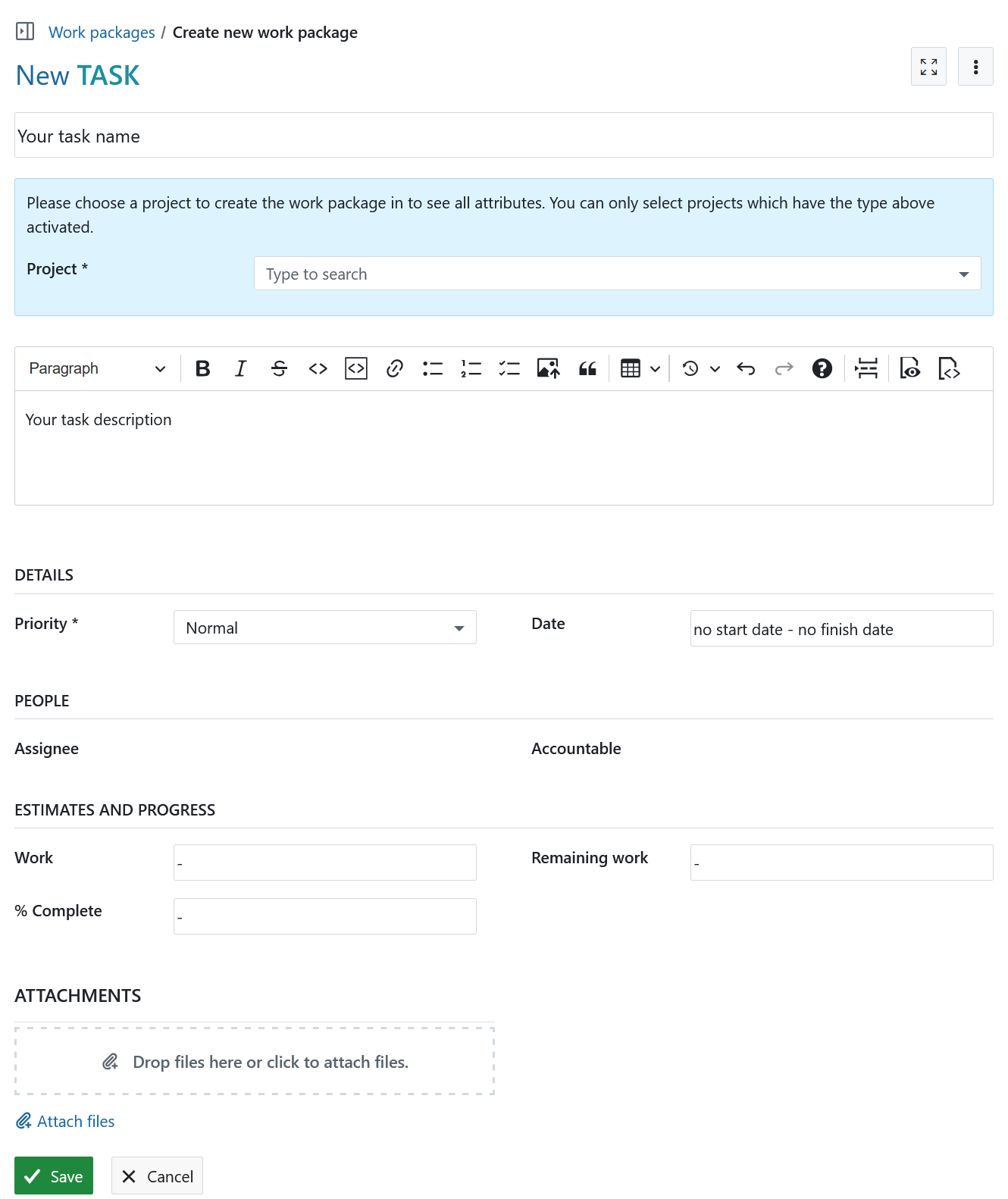
Es öffnet sich ein Formular, in dem Sie das Projekt, den Namen, die Beschreibung, die Priorität, die Termine usw. angeben können. Abhängig von einem Arbeitspakettyp kann das Formular zusätzliche Felder zum Ausfüllen enthalten.
Tipp
Wenn Sie das Projekt noch nicht ausgewählt haben, zeigen Zugewiesen an und Verantwortlich keine auswählbaren Werte an. Sobald Sie ein Projekt ausgewählt haben, sind die Mitglieder des ausgewählten Projekts auswählbar.
Ein Arbeitspaket im Arbeitspaket Modul erstellen
Sie können ein Arbeitspaket auch direkt aus dem Arbeitspaketmodul heraus erstellen (entweder innerhalb eines bestimmten Projekts oder auf der globalen Modulebene).
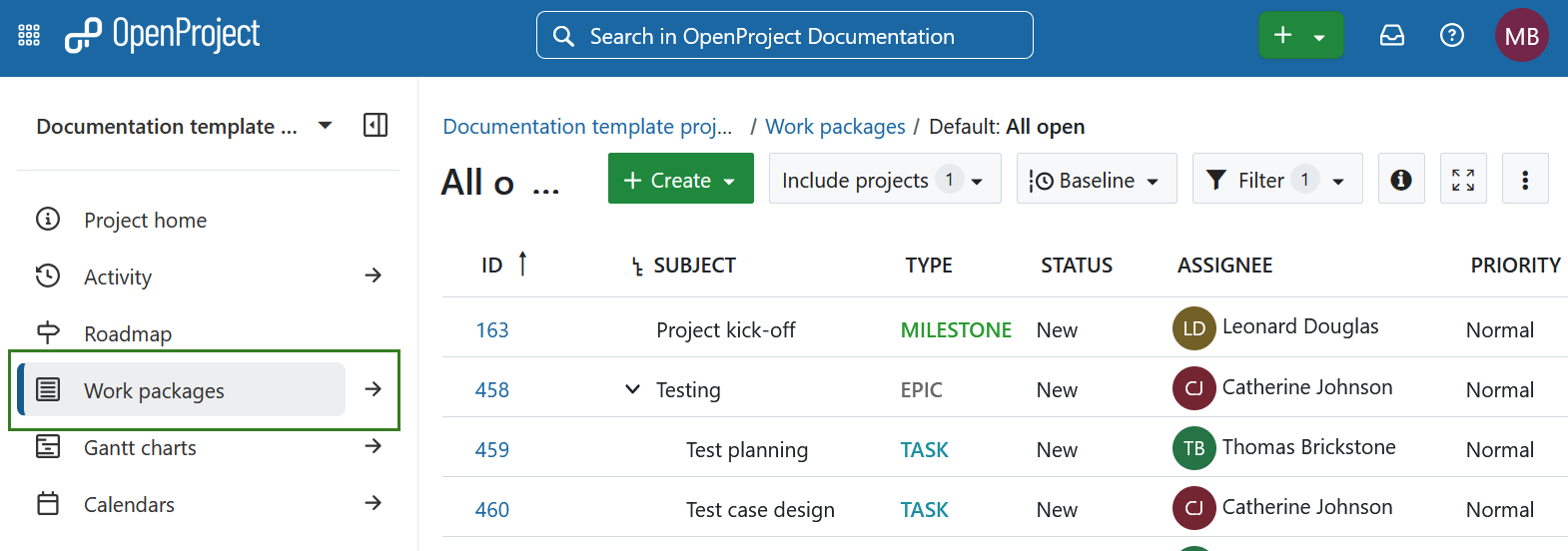
Wählen Sie ein Projekt und navigieren Sie zum Modul Arbeitspaket im Projektmodulmenü auf der linken Seite. Wählen Sie alternativ das globale Modul Arbeitspakete.
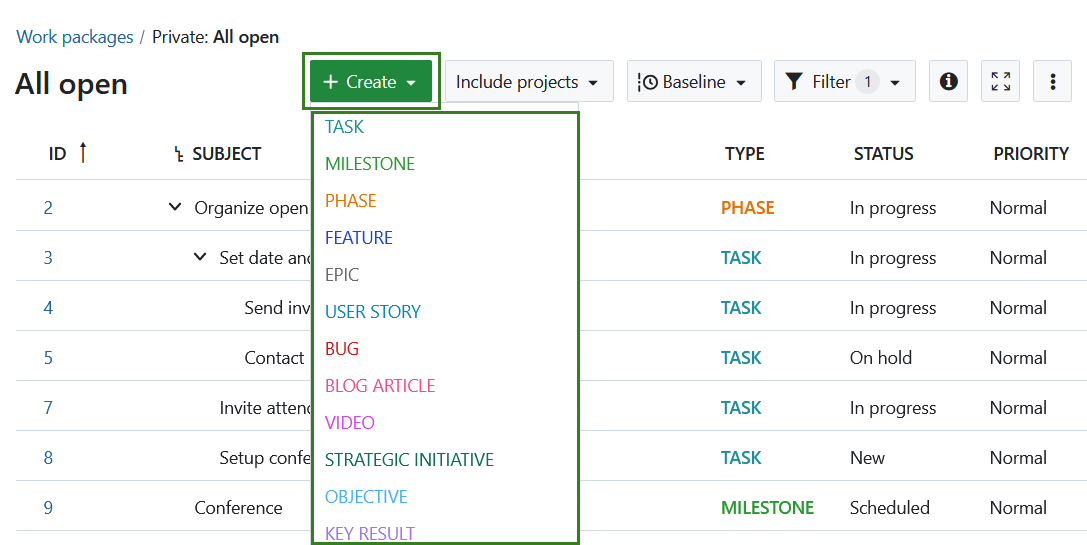
Klicken Sie auf die Schaltfläche + Erstellen oberhalb der Tabelle mit den Arbeitspaketen und wählen Sie die Art des Arbeitspakets, das Sie erstellen möchten.
Ein Arbeitspaket in der Tabellenansicht erstellen
Um neue Arbeitspakete direkt in der Tabellenansicht zu erstellen, klicken Sie auf den blauen Link + Erstelle neues Arbeitspaket (+ Create new Work package) unterhalb der Tabelle.
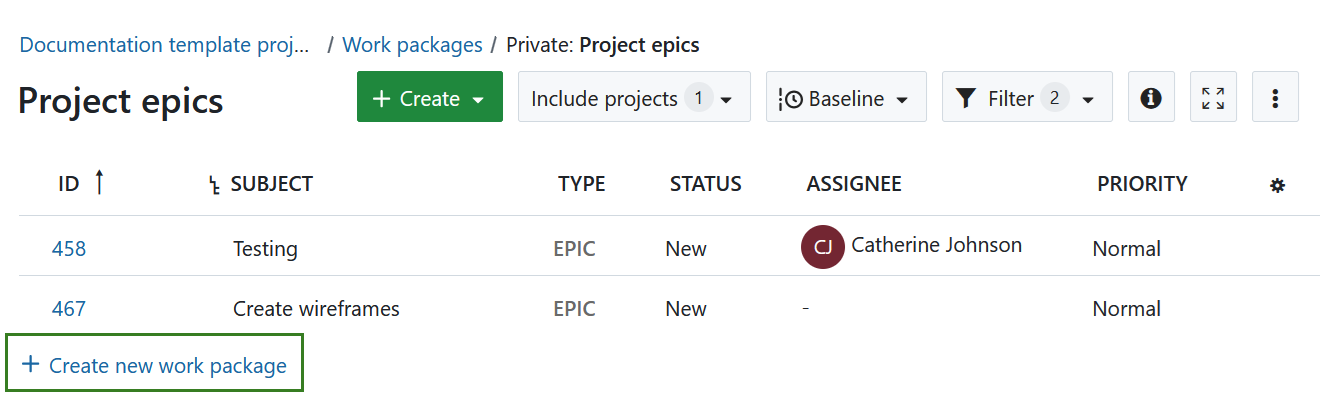
Das neue Arbeitspaket erscheint in einer hervorgehobenen Zeile in der Tabelle. Geben Sie einen Namen für des Arbeitspakets ein, ändern Sie die Attribute wie Typ oder Status direkt in der Tabelle und drücken Sie die Eingabetaste, um die Änderungen zu speichern.
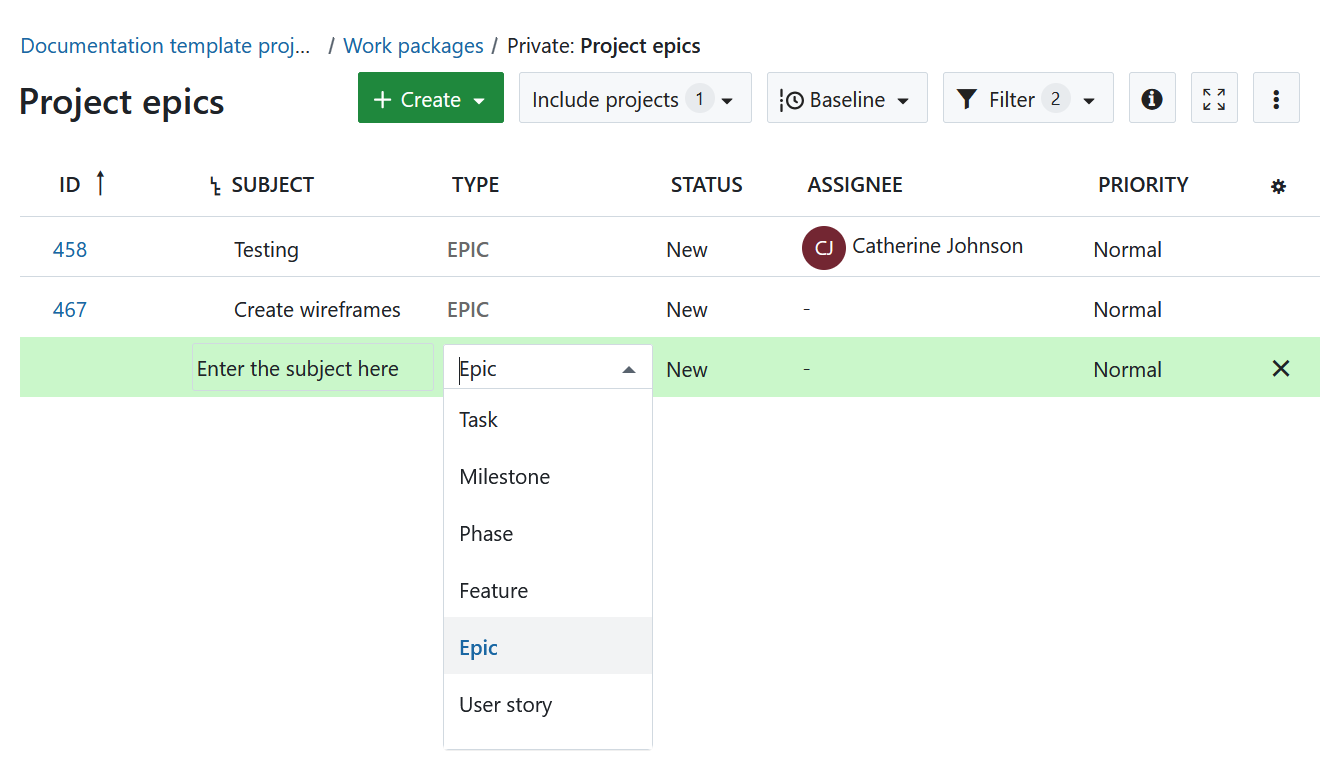
Auf diese Weise können Sie schnell und einfach neue Arbeitspakete in der Tabelle erstellen.
Ein Arbeitspaket in einem Splitscreen erstellen
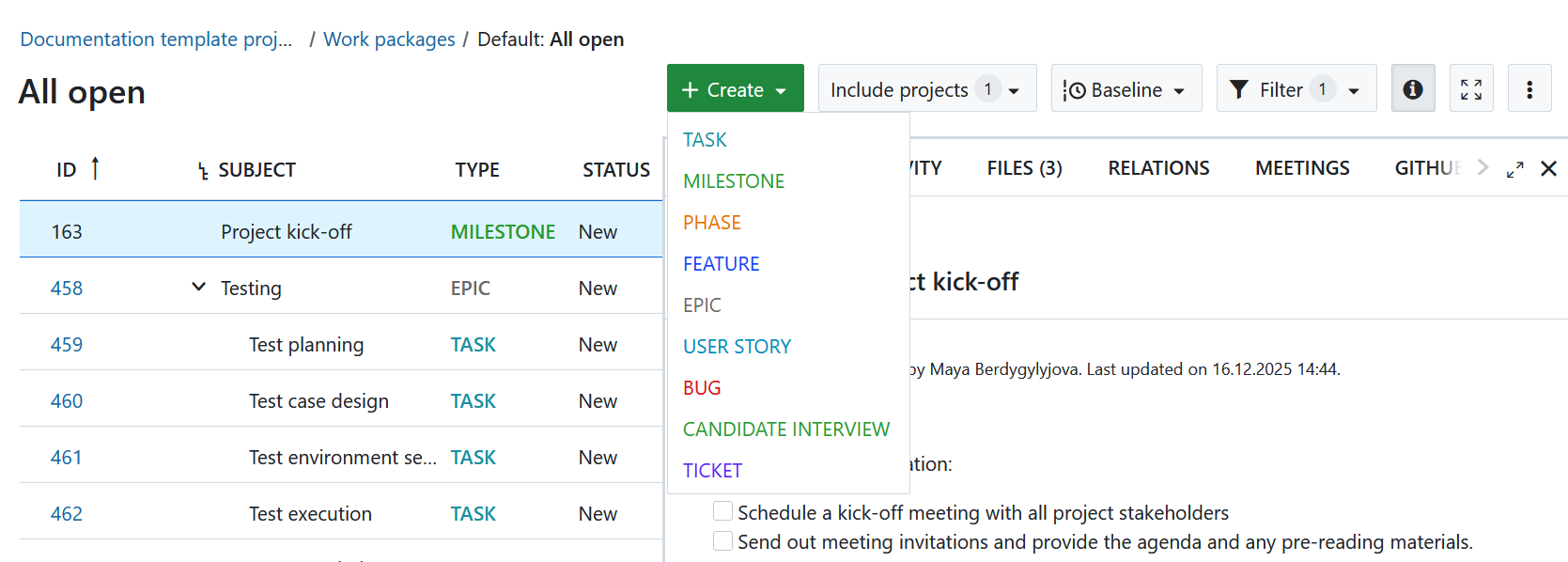
Um von Anfang an detaillierte Informationen für das Arbeitspaket mit anzugeben, können Sie ein Arbeitspaket in der geteilten Bildschirmansicht erstellen. Klicken Sie im Modul Arbeitspakete auf den grünen Button + Erstellent (+ Create) und wählen Sie den Typ für das Arbeitspaket aus, welches Sie anlegen möchten.
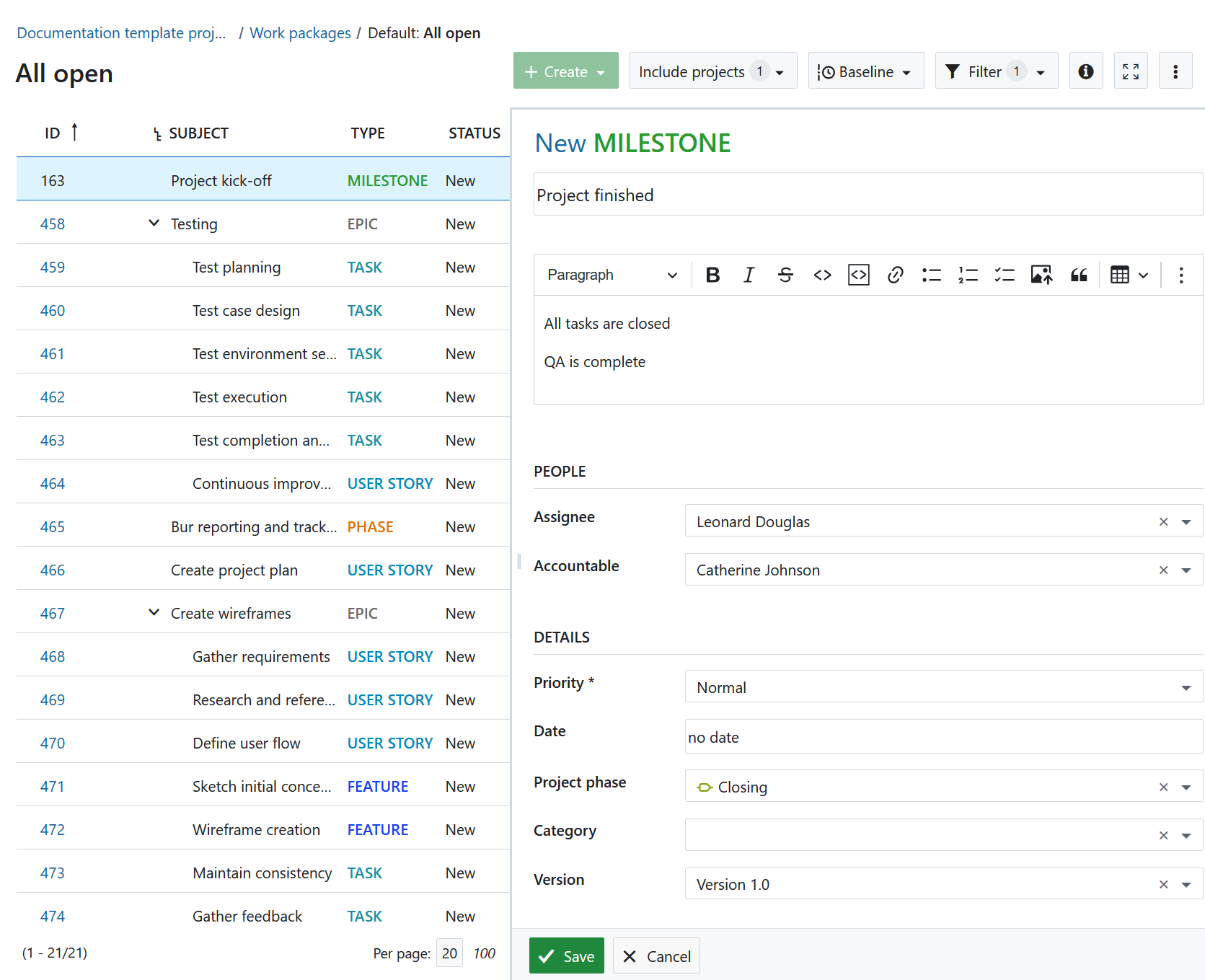
Das neue Arbeitspaket-Formular öffnet sich in einer Splitscreen-Ansicht. Geben Sie alle Informationen ein, z. B. Beschreibung, Zuweisung, Status, Priorität, Enddatum und mehr.
Klicken Sie auf die Schaltfläche Speichern.
Emojis zu Arbeitspaketen hinzufügen
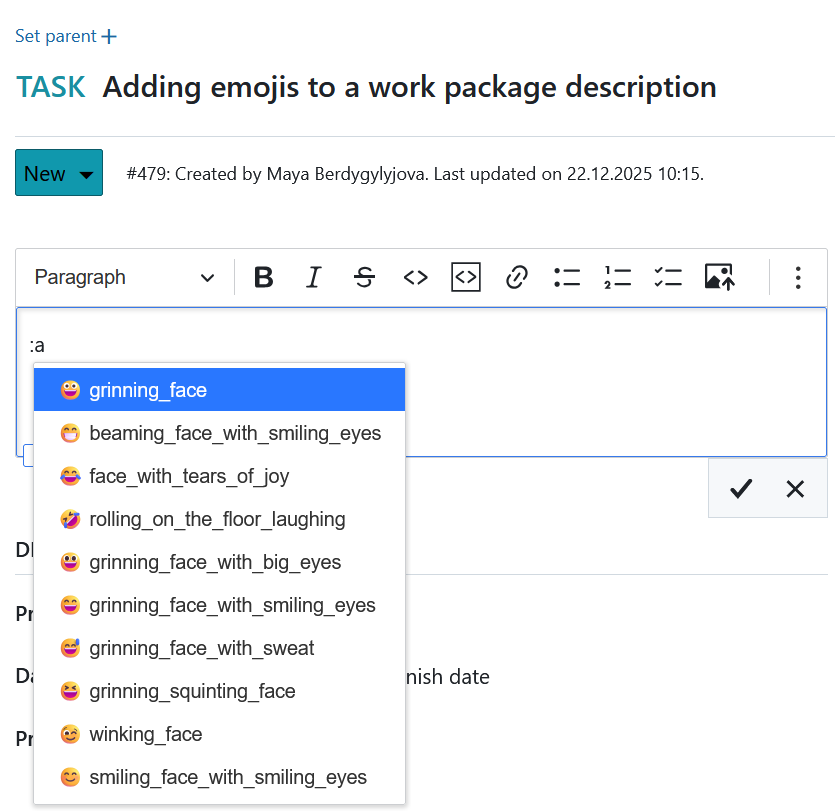
Sie können Emojis in allen Texteditoren hinzufügen, einschließlich der Beschreibung des Arbeitspakets. Geben Sie einen Doppelpunkt und einen Buchstaben, z.B. :a in den Text-Editor ein und Sie erhalten eine Vorschlagsliste von Emojis, die Sie verwenden können.
Um herauszufinden, wie Sie eine Neue Unteraufgabe erstellen, klicken Sie bitte hier.
Anhänge zu einem Arbeitspaket hinzufügen
Sie können Bilder direkt hinzufügen, z.B. durch Kopieren und Einfügen in die Arbeitspaketbeschreibung. Außerdem können Sie die Symbolleiste oberhalb der Beschreibung des Arbeitspakets verwenden und auf das Symbol Bild einfügen klicken:

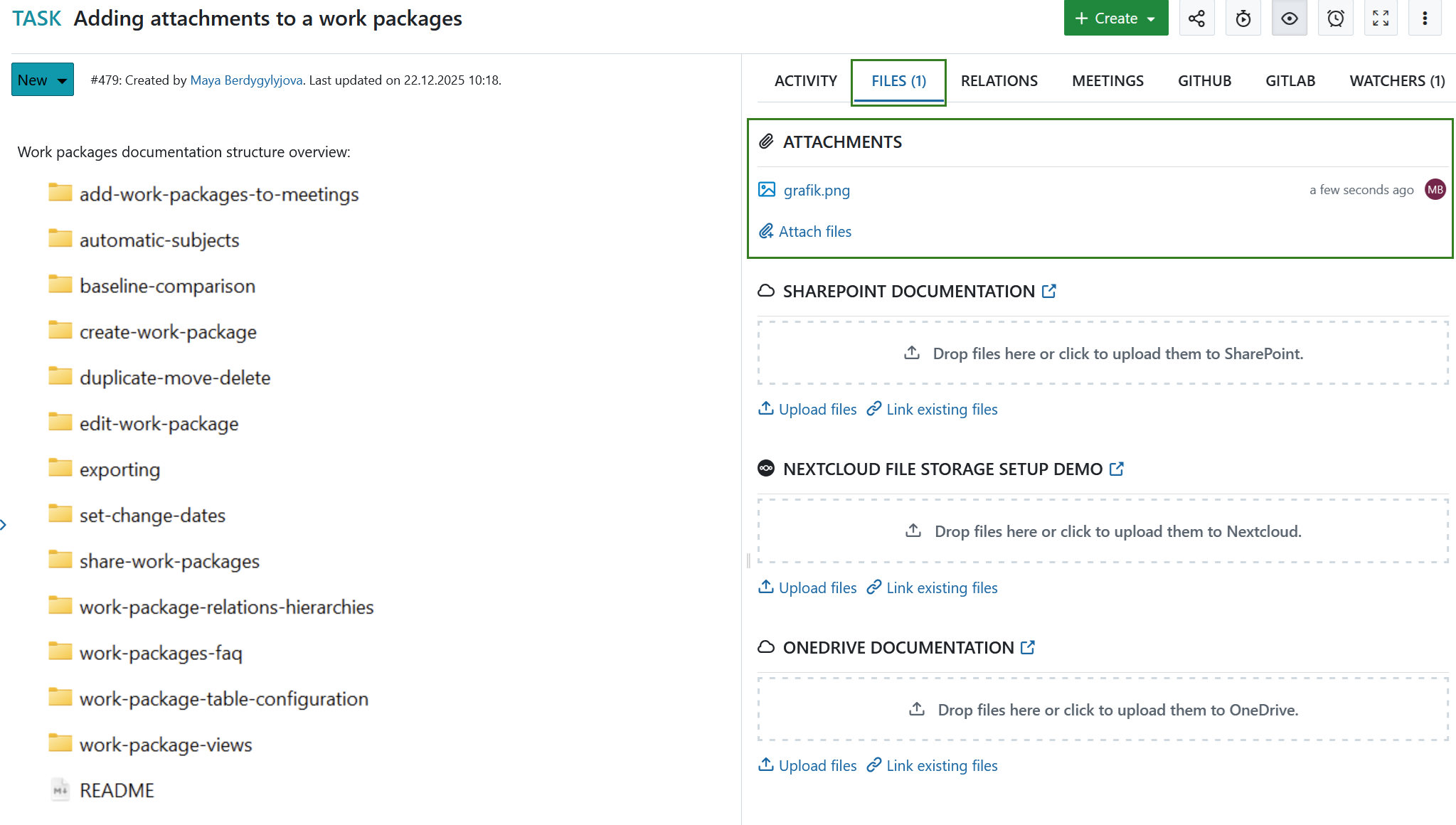
Am unteren Rand des Arbeitspaket-Formulars können Sie Dateien per Drag & Drop hinzufügen oder eine Datei aus einem Ordner auswählen, um sie in das Arbeitspaket hochzuladen.
Tipp
Es ist auch möglich, dass Nutzer:innen, die nicht Mitglieder des Projekts sind, Anhänge zu Arbeitspaketen hinzufügen, wenn sie von einer Person mit Administrationsrechten die Erlaubnis dazu erhalten haben. Dies kann z. B. zur Bestätigung von Fehlerberichten nützlich sein.
Erfahren Sie, wie Sie bestehende Arbeitspakete bearbeiten können.
Hinweis
Sie können auch Nextcloud, OneDrive oder SharePoint Integrationen verwenden, um Dateien in einen Dateispeicher hochzuladen oder bereits vorhandene Dateien oder Ordner mit einem Arbeitspaket unter der Registerkarte Dateien zu verknüpfen.