Créer des lots de travaux
| Sujet | Contenu |
|---|---|
| Créer des lots de travaux | Comment créer un nouveau lot de travaux dans un projet. |
| Ajouter des pièces jointes à un lot de travaux | Comment ajouter des pièces jointes à un lot de travaux. |
Créer des lots de travaux
Il existe plusieurs façons de créer des lots de travaux dans OpenProject :
- Par le biais de l’en-tête de navigation à partir de n’importe quel endroit de l’application.
- En ligne dans le tableau des lots de travaux pour créer rapidement plusieurs lots de travaux.
- Dans un écran partagé qui vous permet de spécifier des informations détaillées dès le début.
Créer un lot de travaux via la navigation par en-tête
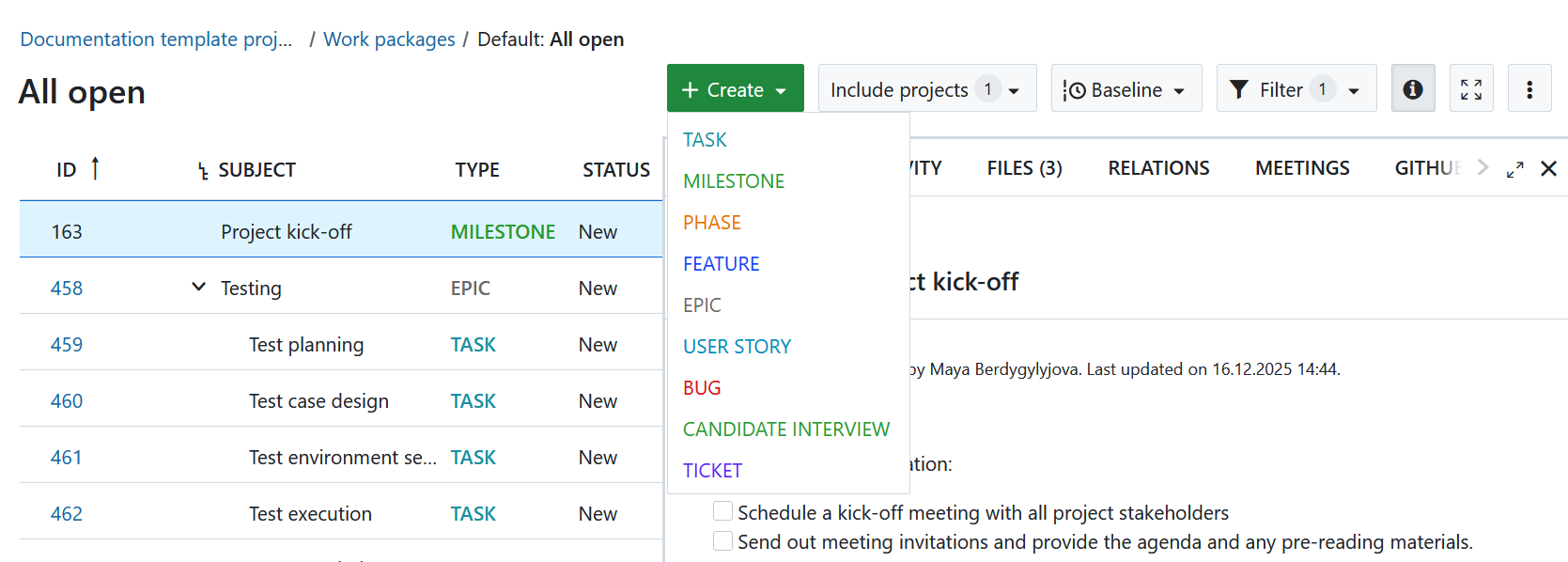
Vous pouvez créer un lot de travaux à partir de n’importe quel endroit de l’application en cliquant sur le bouton vert + dans l’en-tête de navigation et en sélectionnant directement un type de lot de travaux.
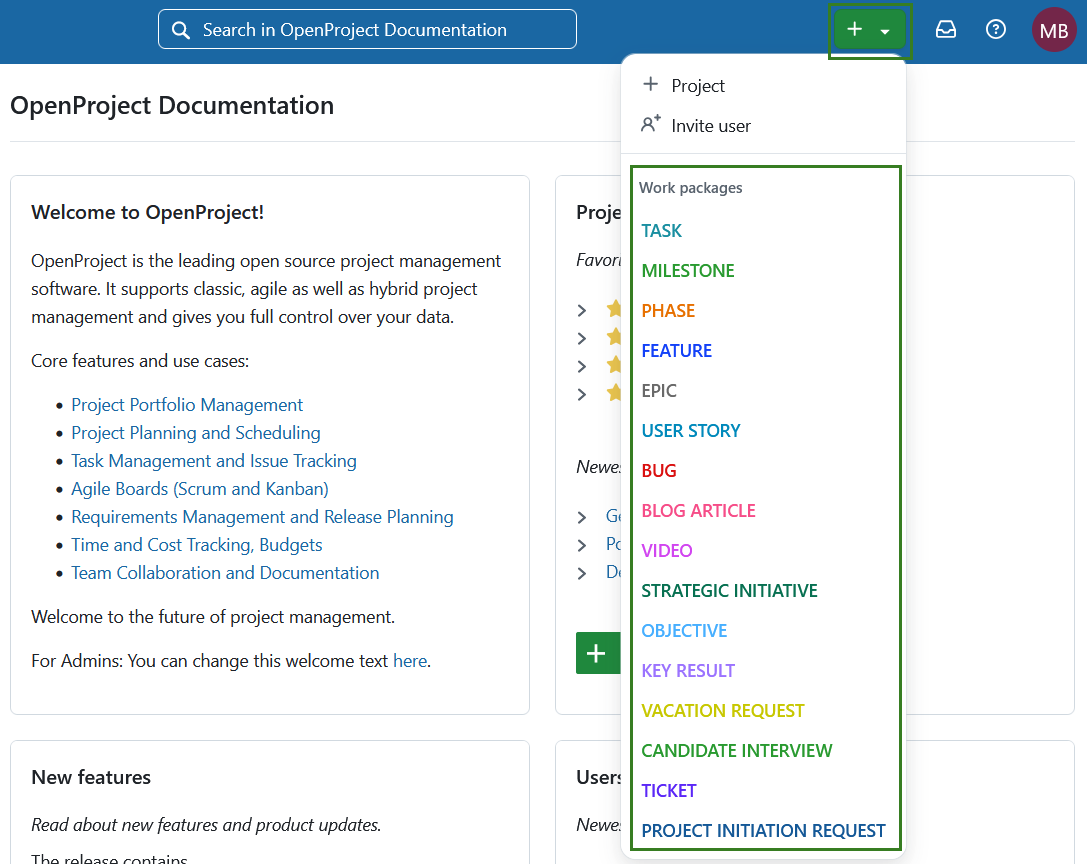
Un formulaire s’ouvre, dans lequel vous pouvez spécifier le projet, le nom, la description, la priorité, les dates, etc. En fonction du type de lot de travaux sélectionné, le formulaire peut comporter des champs supplémentaires à remplir.
Conseil
Si vous n’avez pas encore sélectionné le projet, Personne assignée et Responsable n’afficheront aucune valeur sélectionnable. Une fois que vous avez sélectionné un projet, les membres du projet sélectionné peuvent être sélectionnés.
Formulaire de création d’un nouveau work package dans OpenProject](openproject_user_guide_work_package_create_new_wp_form.png)
Créer un lot de travaux dans le module des lots de travaux
Vous pouvez également créer un lot de travaux directement à partir du module des lots de travaux (soit dans un projet spécifique, soit à partir du niveau du module global).
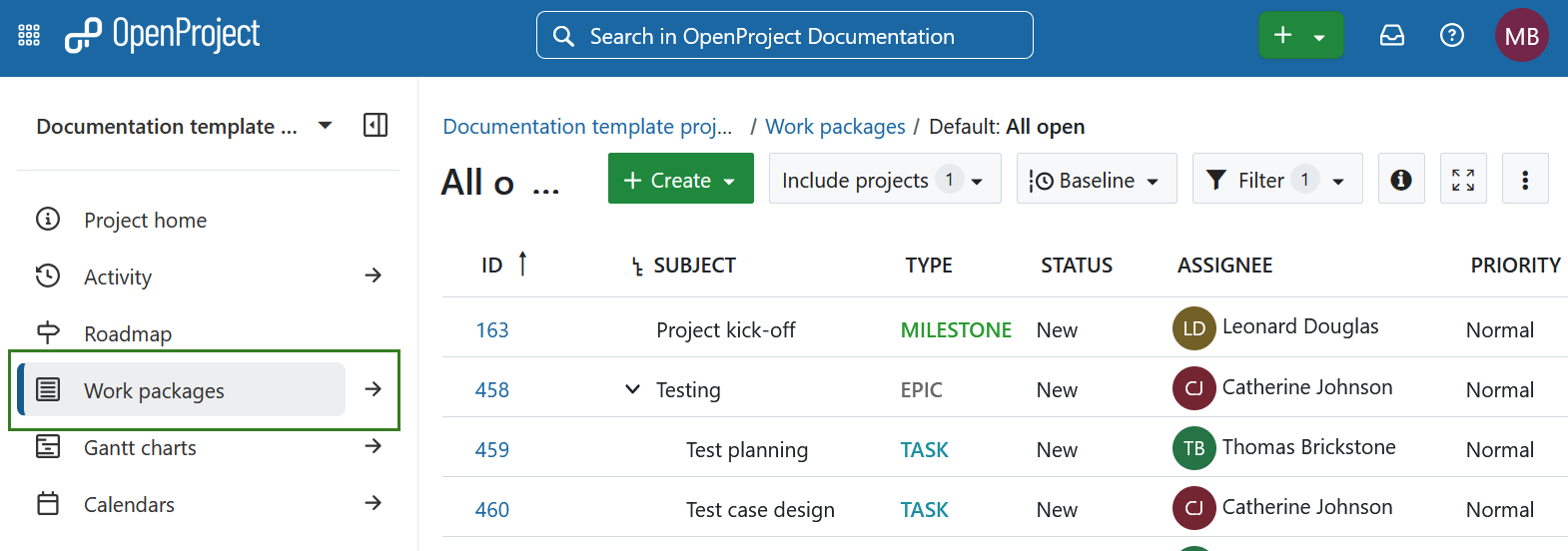
Sélectionnez un projet et accédez au module des lots de travaux dans le menu du module du projet sur la gauche. Vous pouvez également sélectionner le module global des lots de travaux.
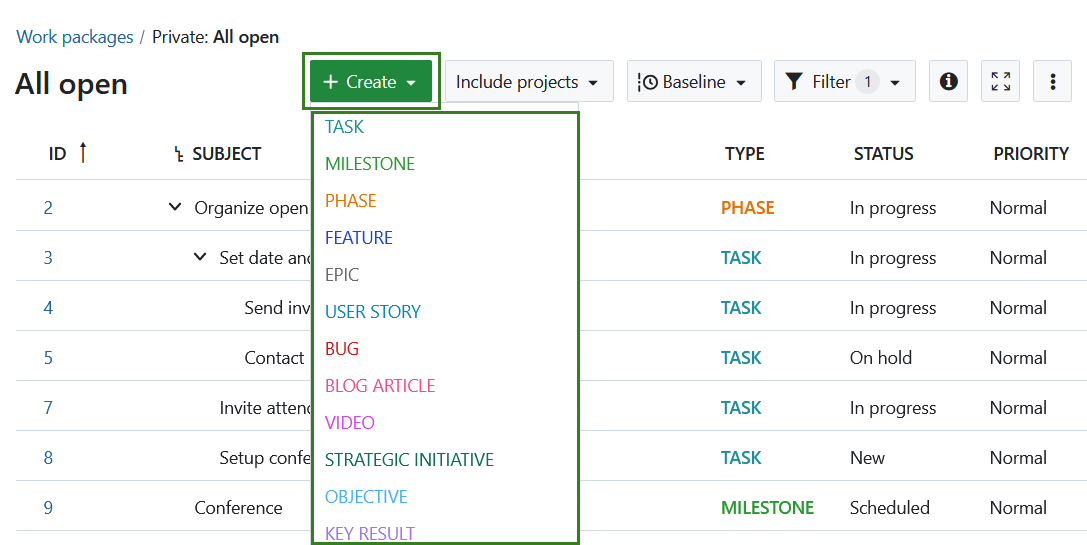
Cliquez sur le bouton + Créer au-dessus du tableau des lots de travaux et sélectionnez le type de lot de travaux que vous souhaitez créer.
Créer un lot de travaux dans la vue tableau
Pour créer de nouveaux lots de travaux directement en ligne dans la vue du tableau, cliquez sur le lien + Créer un nouveau lot de travaux sous le tableau.
Lien en bas du tableau des work packages pour créer un nouveau work package directement dans la vue tableau d’OpenProject](openproject_user_guide_work_package_create_new_link.png)
Le nouveau lot de travaux apparaît dans une ligne en surbrillance dans le tableau. Saisissez le sujet du lot de travaux, changez les attributs, comme Type ou Statut directement dans le tableau et appuyez sur Entrée pour enregistrer les modifications.
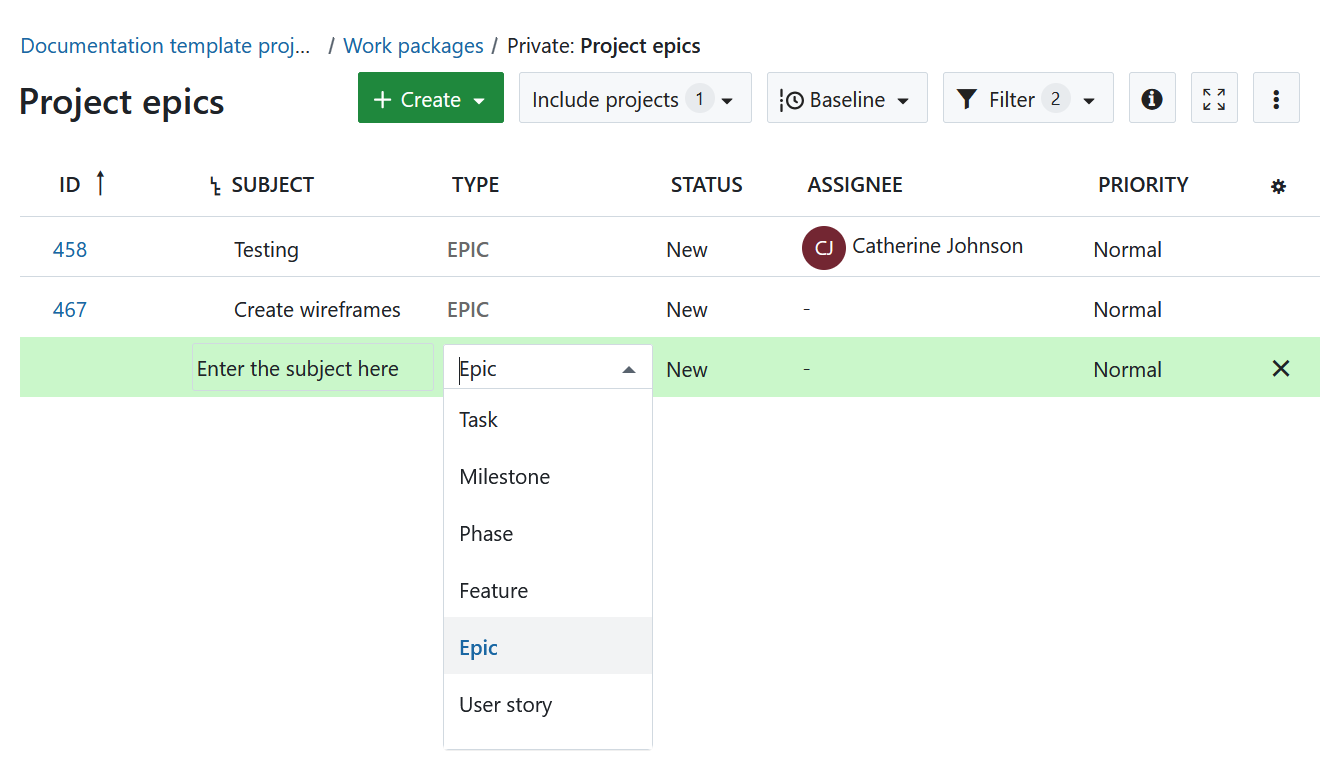
Vous pouvez ainsi créer rapidement et facilement de nouveaux lots de travaux dans le tableau.
Créer un lot de travaux dans la vue d’écran fractionné
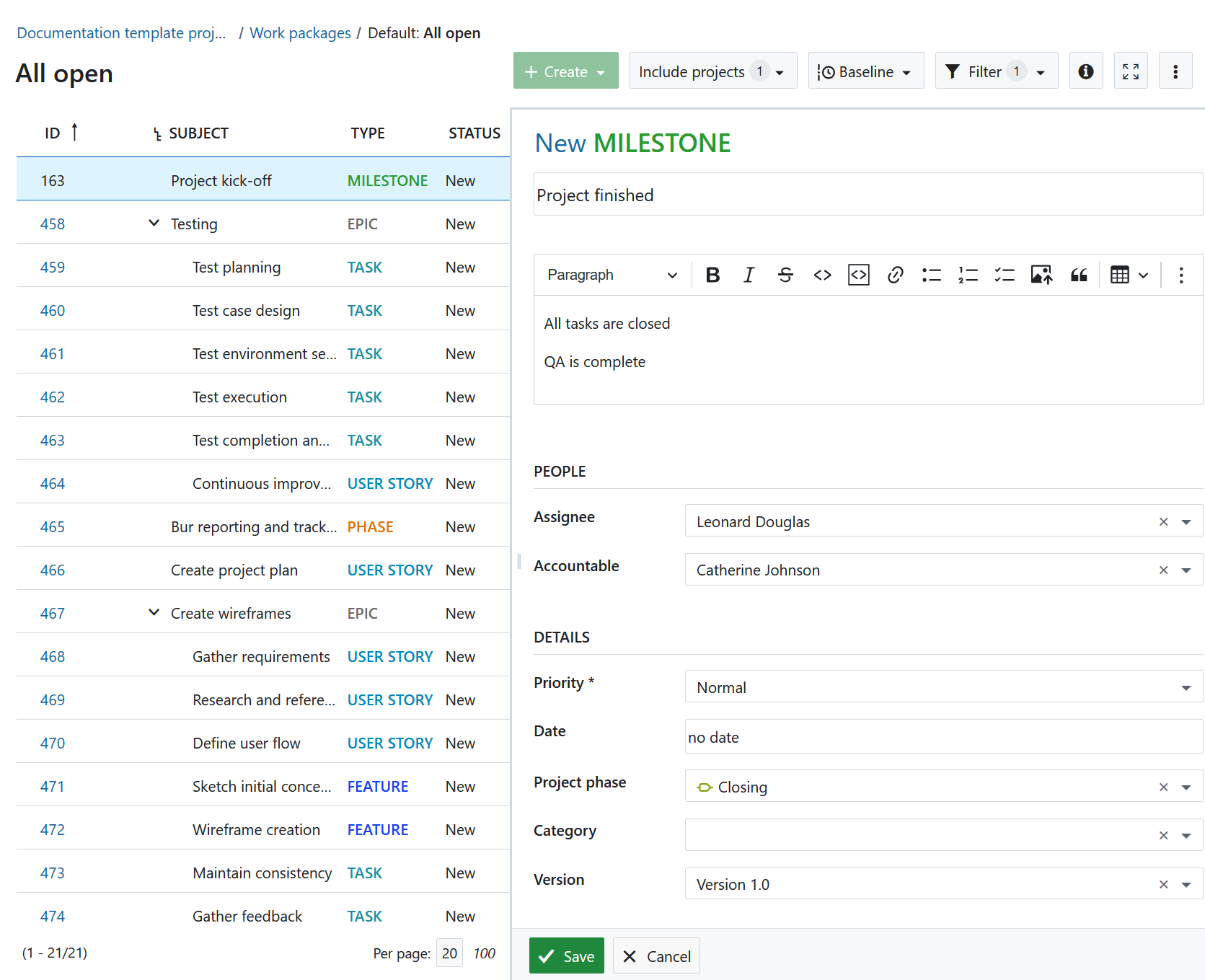
Afin de saisir des informations détaillées dans le lot de travaux dès le départ, vous pouvez créer un lot de travaux dans l’écran partagé. Dans le module Lot de travaux, cliquez sur le bouton vert + Créer et sélectionnez le type de lot de travaux que vous souhaitez créer.
Le nouveau formulaire du lot de travaux s’ouvrira dans la vue d’écran fractionné. Saisissez toutes les informations, telles que la description, le destinataire, le statut, la priorité, la date d’échéance, etc.
Cliquez sur le bouton Enregistrer.
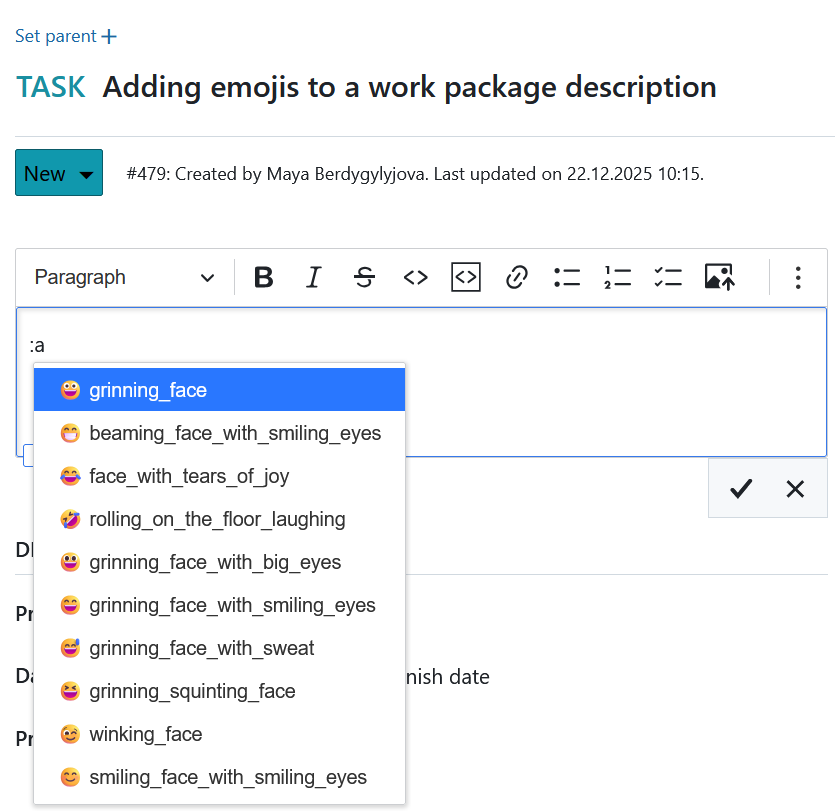
Ajouter des émojis aux lots de travaux
Vous pouvez ajouter des émojis à tous les éditeurs de texte, y compris à la description du lot de travaux. Tapez un deux-points et une lettre, par exemple :a dans l’éditeur de texte et obtenez une liste d’emojis que vous pouvez utiliser.
Pour découvrir comment créer un lot de travaux enfant, cliquez ici.
Ajouter des pièces jointes aux lots de travaux
Vous pouvez directement ajouter des images, par exemple par copier-coller dans la description du lot de travaux. Vous pouvez également utiliser la barre d’outils au-dessus de la description du lot de travaux et cliquer sur l’icône Insérer une image :

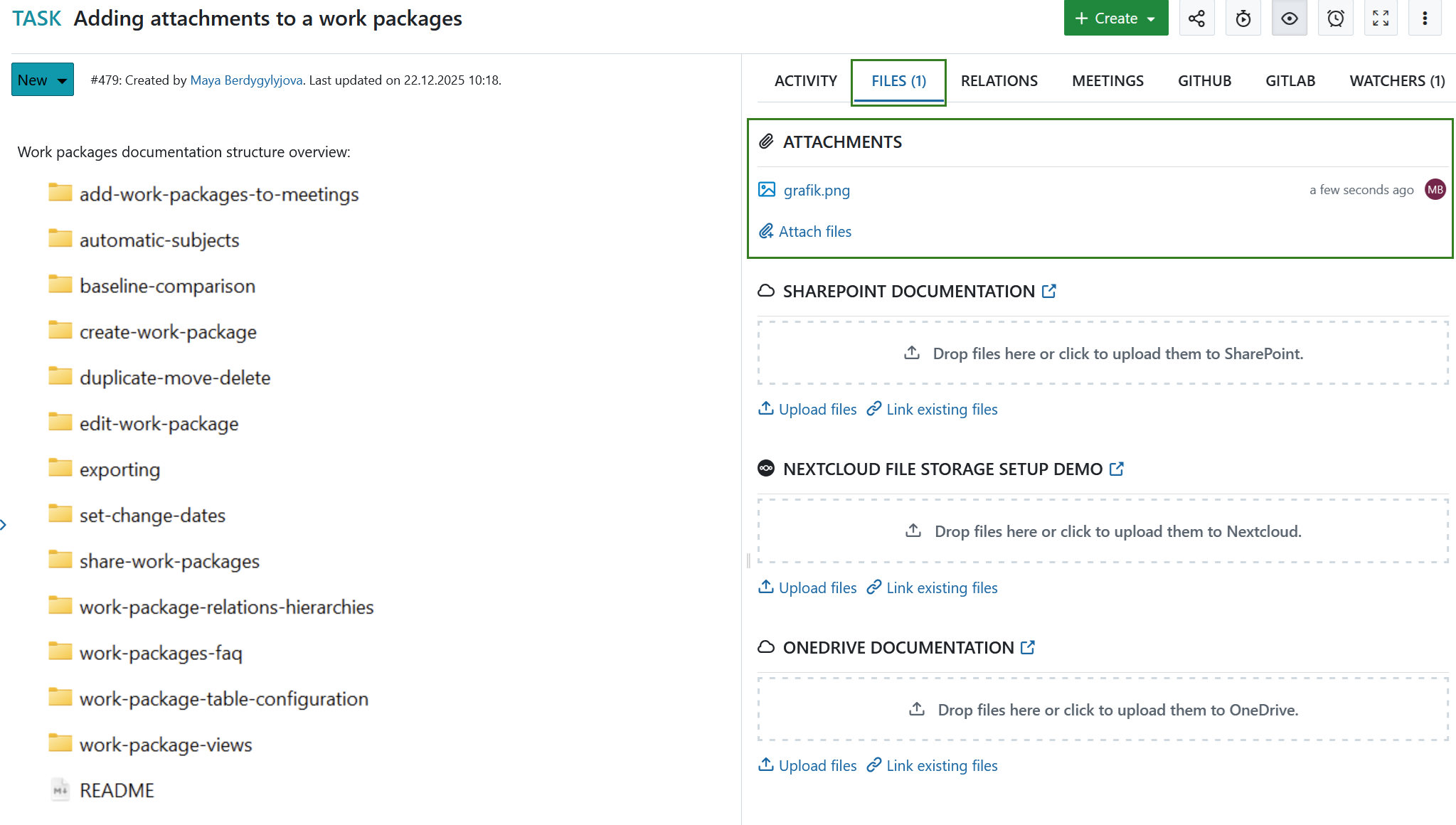
Au bas du formulaire du lot de travaux, vous pouvez ajouter des fichiers par glisser-déposer ou sélectionner le fichier à partir d’un dossier pour le téléverser vers le lot de travaux.
Conseil
Il est également possible pour les utilisateurs qui ne sont pas membres du projet d’ajouter des pièces jointes aux lots de travaux s’ils ont obtenu la permission d’un administrateur. Cela peut être utile, par exemple, pour confirmer des rapports de bug.
Découvrez comment modifier les lots de travaux existants.
Remarque
Vous pouvez également utiliser les intégrations Nextcloud, OneDrive ou SharePoint pour téléverser des fichiers vers un espace de stockage de fichiers ou lier des fichiers ou des dossiers existants à un lot de travaux sous l’onglet Fichiers.