Project home page
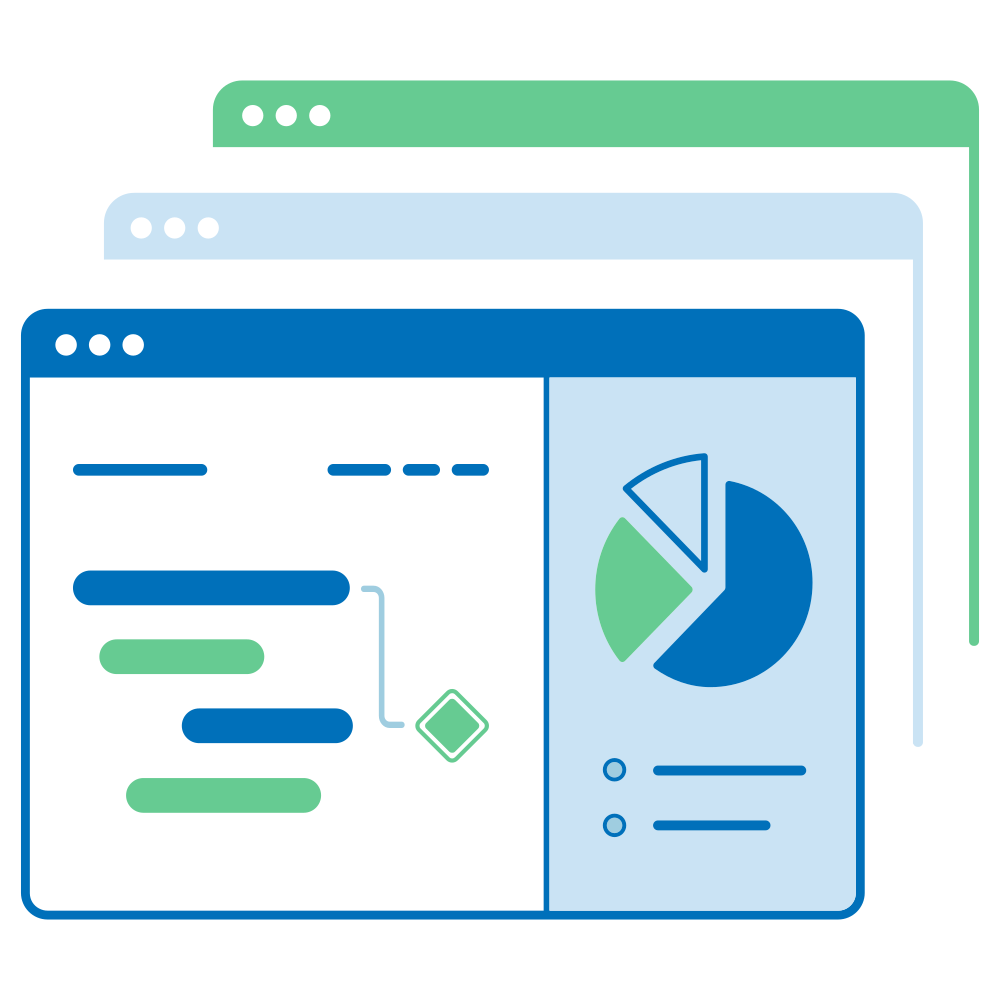
The Project home page page is a dashboard with important information about your respective project(s). Diese Seite zeigt alle relevanten Informationen für Ihr Team, wie Mitglieder, Nachrichten, Projektbeschreibung, Arbeitspaket-Berichte oder den Projektstatus. Information on the project overview is presented using project attributes and widgets.
| Thema | Inhalt |
|---|---|
| What is the project home page? | What can I do on the project home page? |
| Projekt-Lebenszyklus | Was ist der Projekt-Lebenszyklus? |
| Projektattribute | Was sind Projektattribute und wie kann ich sie verwenden? |
| Projekt als Favorit markieren | Wie kann ich ein Projekt als Favorit markieren? |
| Projekt archivieren | How can I archive a project from the project home page? |
| Project widgets | What are widgets, and how can I add them to my project home page? |
What is the project home page?
The project home page is a centralized overview page that displays all essential information for a selected project. Its purpose is to serve as a single source of truth for the entire project team, providing quick access to key data and project progress.
You can access the project overview by navigating to Project home in the project menu on the left.
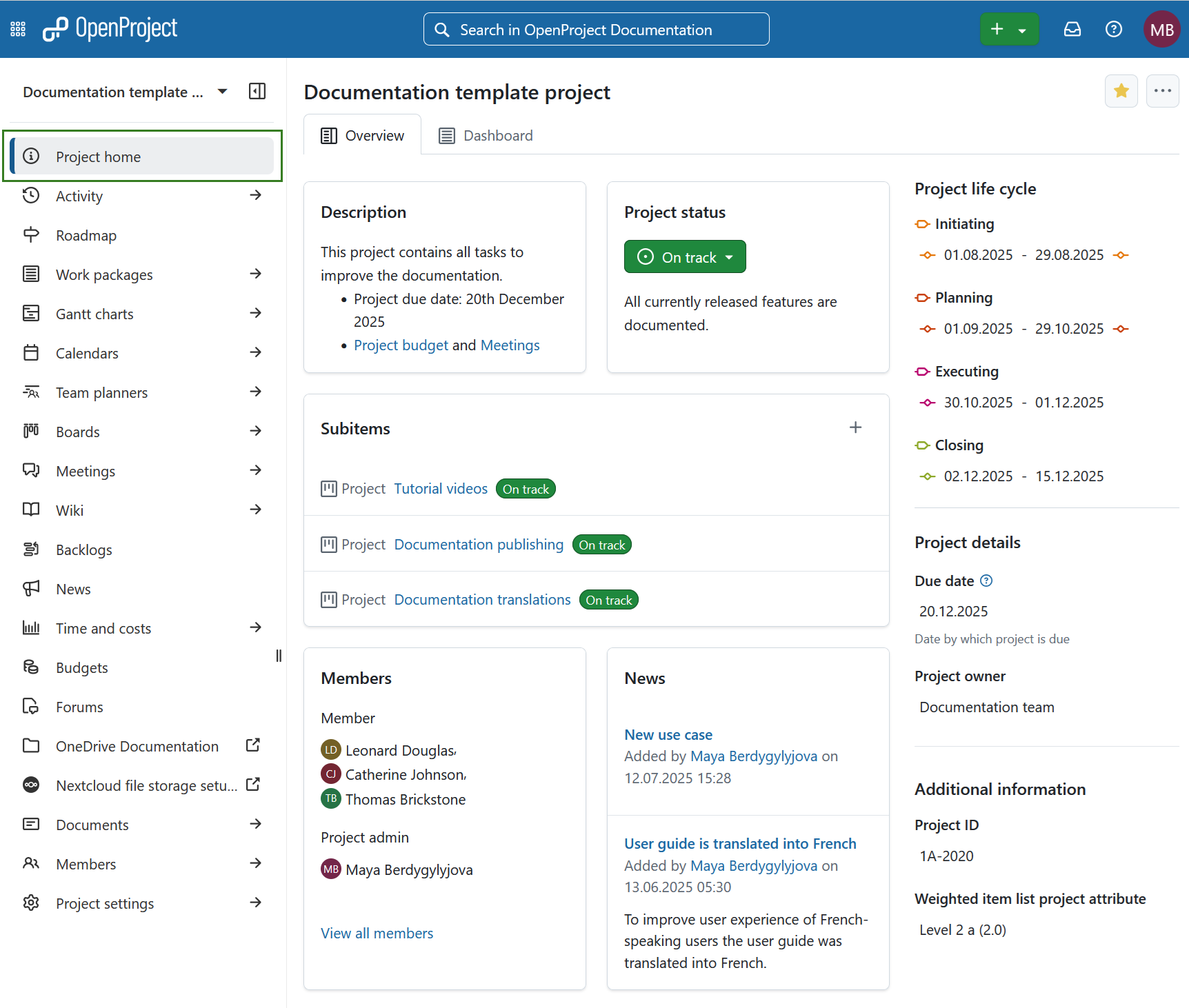
On the project overview page you will see the following sections:
- Overview tab is pre-configured set of project widgets to provide a concise summary of the project’s status.
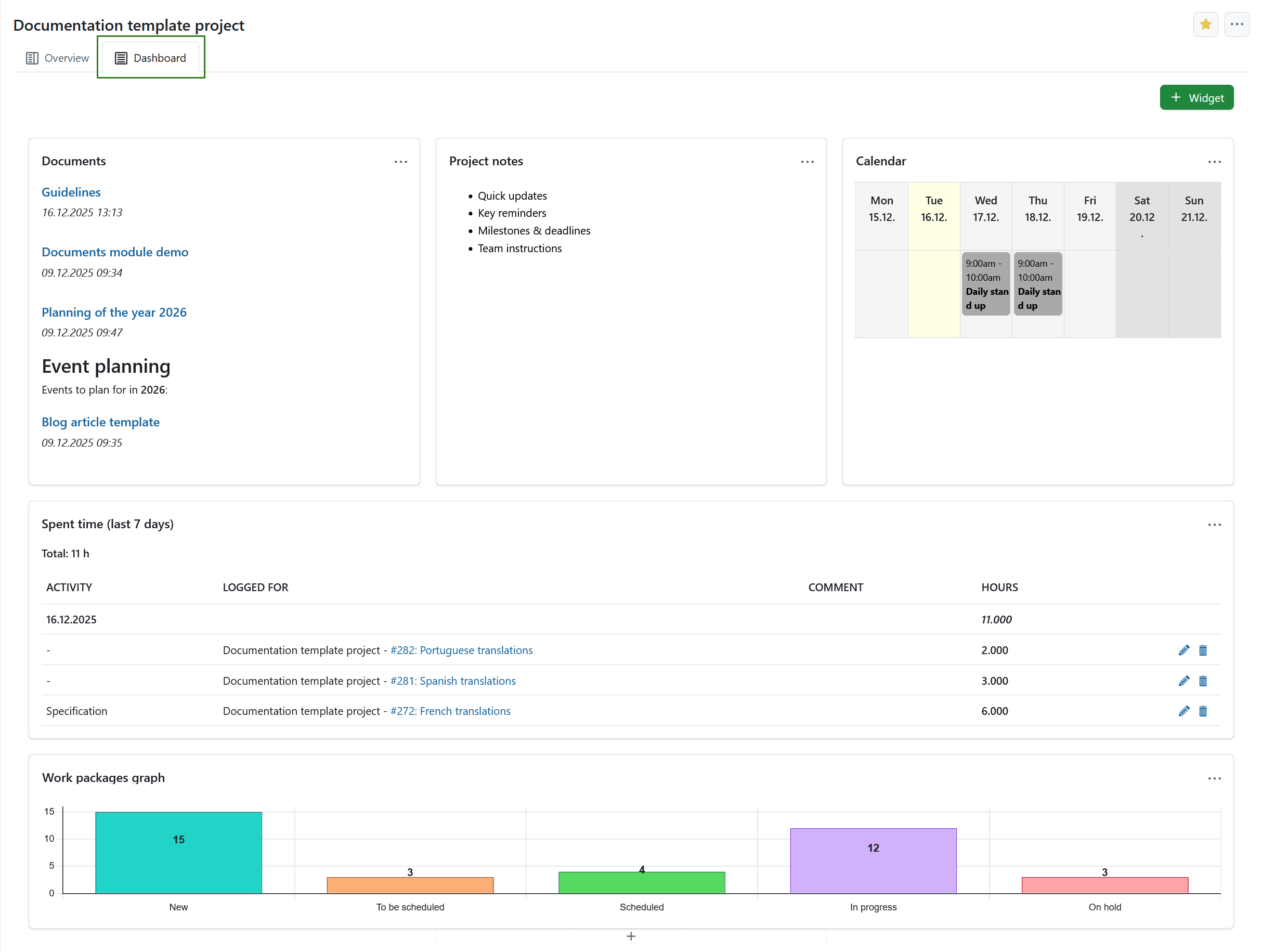
- Dashboard tab provides access to all available widgets and allows full customization of layout and content according to user preferences.
- Projekt-Lebenszyklus
- Projektattribute
Here you can also mark a project as favorite or archive it.
Projektübersicht
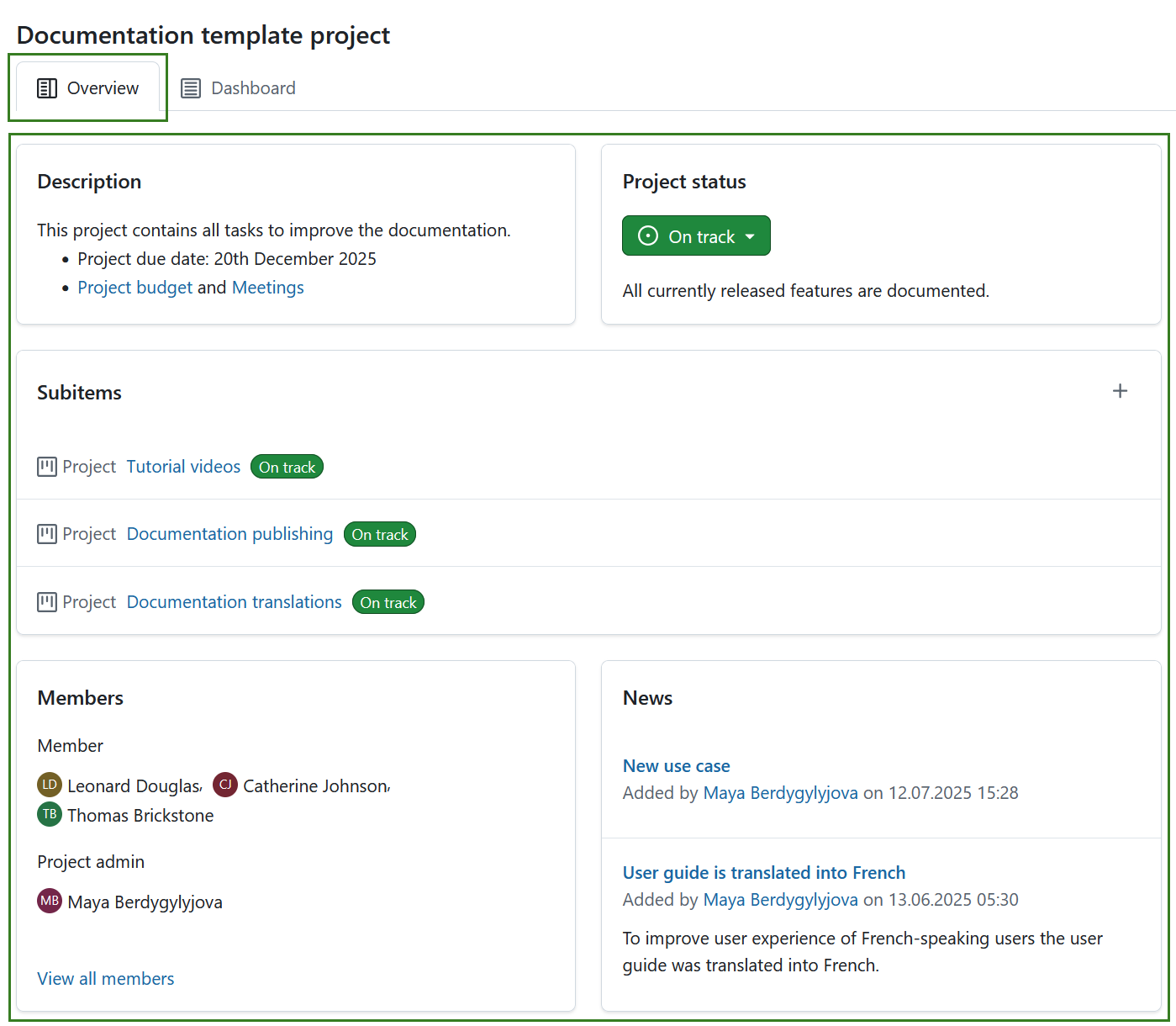
The Overview tab is a pre-configured to provide a concise summary of the project’s status. Its layout is fixed and cannot be modified. It includes the following widgets:
-
Optional: Project attributes.
Tipp
Project attributes are usually displayed under the project life cycle section on the right, but a project attribute section can also be placed centrally under the pre-defined widgets. This placement can be changed under system administration.
Learn more about project widgets.
Project dashboard
The Dashboard tab of the home page provides access to all available widgets and allows full customization of layout and content according to user preferences. Learn more about project widgets.
Tipp
You can add same widgets to the project dashboard, as are also displayed on the project overview part of project home page.
Ein Projekt als Favorit markieren
Sie können das Projekt als Favorit markieren, indem Sie auf das Symbol Favorit (Stern) in der oberen rechten Ecke klicken. The icon color will change to yellow and the project will be marked as favorite both on the project home page and in the projects list. Lesen Sie mehr über Projektlisten.
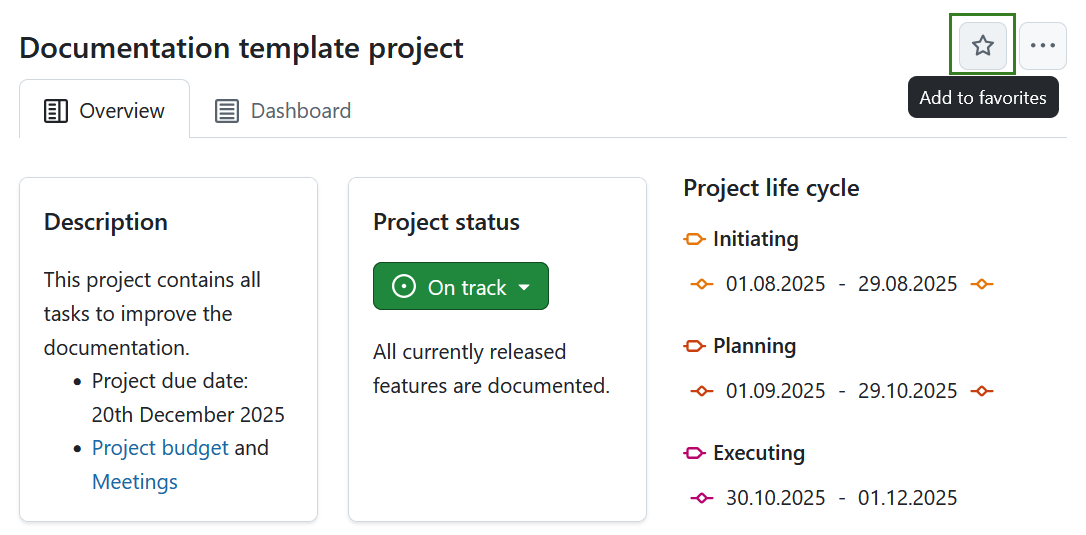
Um ein Projekt aus den Favoriten zu entfernen, klicken Sie erneut auf das Symbol Favorit.
Projekt archivieren
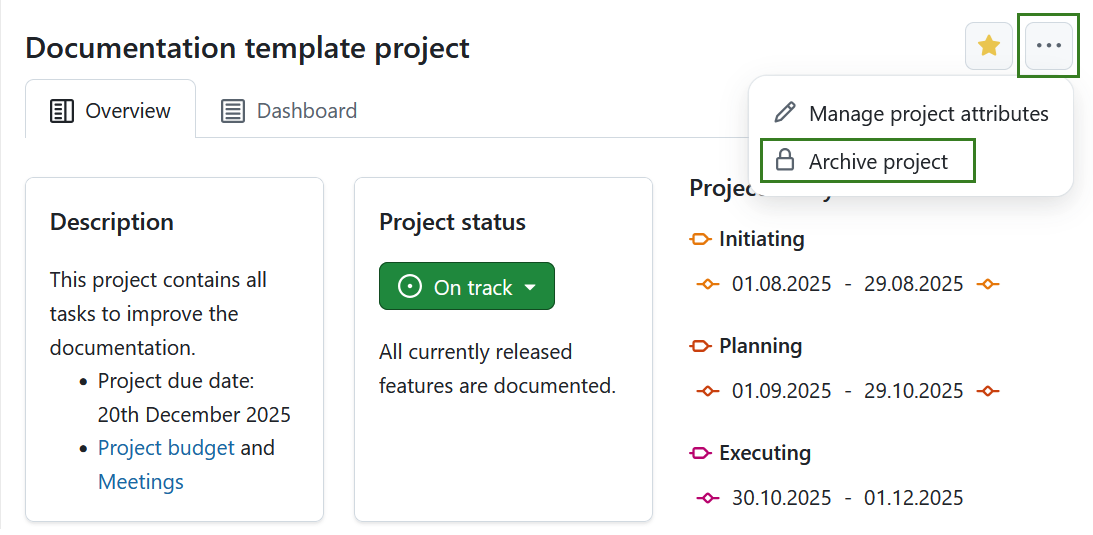
You can archive a project directly from the project home page. Klicken Sie dazu auf das Symbol Mehr (drei Punkte) und wählen Sie Projekt archivieren.
Hinweis
Diese Option ist immer für Personen mit administrativen Rechten auf der Instanz- oder Projektebene verfügbar. Es kann auch für bestimmte Rollen aktiviert werden, indem die Berechtigung zur Projektarchivierung für diese Rolle über die Einstellungen für Rollen und Berechtigungen in den Administrations-Einstellungen aktiviert wird.
Sie können ein Projekt auch unter Projekteinstellungen oder in einer Projektliste archivieren.